How to Make Each File Explorer Window Run Separately in Windows 11

File Explorer is the tool in Windows 11 that helps you see and manage your files and folders. Sometimes, if one File Explorer window freezes or crashes, it can cause all other File Explorer windows to stop working too. But there’s a simple setting you can turn on to make each File Explorer window run independently. This helps keep things stable and lets you keep working even if one window has a problem.
Why Use Separate Processes for File Explorer?
- Better Stability: If one window crashes, others keep working.
- Easy to Fix: You can close just the problem window without losing everything.
- Simple to Turn On or Off: You can choose how you want it to work.
How to Turn On Separate Processes Using File Explorer Settings
- Open File Explorer. You can do this by clicking the folder icon on your taskbar or pressing
Windows + Eon your keyboard. - Click the three dots (More) button at the top, then select Options. This opens Folder Options.
- In the Folder Options window, click the View tab.
- Look for the option that says “Launch folder windows in a separate process” and put a checkmark in the box next to it.
- Click OK to save your changes.
How to Turn On Separate Processes Using the Windows Registry (Advanced)
Note: Changing the Windows Registry is for advanced users. Be sure to back up your registry or create a restore point before you start. This requires admin privileges.
- Press
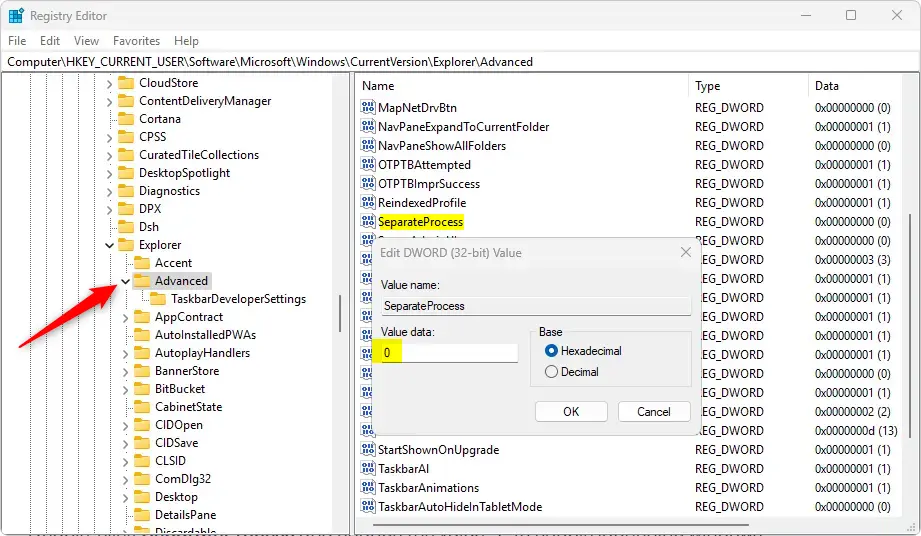
Windows + R, typeregedit, and press Enter to open the Registry Editor. - Navigate to this folder path:
HKEY_CURRENT_USER\Software\Microsoft\Windows\CurrentVersion\Explorer\Advanced - Right-click on the Advanced folder in the left panel, choose New, then DWORD (32-bit) Value.
- Name the new value
SeparateProcess. - Double-click the new SeparateProcess entry, set the value data to
1to turn the feature on, or0to turn it off. - Click OK and close the Registry Editor.
- Restart your computer to apply the changes.
Summary
- Turning on separate processes helps keep File Explorer windows from crashing all at once.
- You can easily enable this in File Explorer’s Folder Options or by editing the Registry.
- Always back up your system before changing the Registry.
- This setting makes your file browsing more stable and responsive.
- You might need to restart your PC for the setting to work.
By following these simple steps, you can make your Windows 11 File Explorer more reliable. If one window hangs, it won’t stop the others from working!
Frequently Asked Questions
Why Use Separate Processes for File Explorer?
Was this guide helpful?

About the Author
Richard
Tech Writer, IT Professional
Richard, a writer for Geek Rewind, is a tech enthusiast who loves breaking down complex IT topics into simple, easy-to-understand ideas. With years of hands-on experience in system administration and enterprise IT operations, he’s developed a knack for offering practical tips and solutions. Richard aims to make technology more accessible and actionable. He's deeply committed to the Geek Rewind community, always ready to answer questions and engage in discussions.



No comments yet — be the first to share your thoughts!