How to Install the Tor Browser on Ubuntu 24.04


Tor Browser for Ubuntu 24.04 is a free application that keeps your web browsing private. It sends your traffic through three servers (relays) around the world, which hides your real location and makes it much harder for websites to track your activity.
Downloading the official tarball from the Tor Project website gives you the newest build straight from the source. This tutorial covers three ways to install it : APT, Flatpak and the manual tarball. You need a working internet connection and about 5 minutes. Pick one method and stick with it, because the uninstall step at the end depends on how you installed.
Install Tor Browser on Ubuntu 24.04 by opening a terminal with Ctrl+Alt+T and running sudo apt update && sudo apt upgrade, then sudo apt install torbrowser-launcher. APT sets up the browser and its dependencies, and you confirm with Y. This version may lag the newest release, so use Flatpak or the manual tarball for the latest build.
Install the Tor Browser via APT Command
The quickest way to install Tor Browser on Ubuntu is with the APT package manager in a terminal. APT downloads and sets up the browser files for you and handles dependencies. Update your system packages first, because stale package lists are a common cause of errors during installation. Open a terminal with Ctrl+Alt+T if you don’t have one open.
Update Ubuntu 24.04 first so the installation doesn’t clash with older packages or an out-of-date package list.
Run the following command to update Ubuntu 24.04. The command runs with administrator rights, so Ubuntu asks for your password. Nothing appears on screen while you type it, not even dots. That is normal, so type it and press Enter.
sudo apt update && sudo apt upgrade
Once the update finishes and you are back at the prompt, install Tor Browser with this command. APT shows how much disk space it will use and may ask you to confirm. Type Y and press Enter to continue.
Ubuntu's official repositories often wait before including newer versions from the Tor Project, to ensure stability. If you need the newest release, use the Flatpak or manual method below instead.
Install the Tor Browser via Flatpak
Flatpak is a good choice if you prefer a sandboxed application package. Flatpak keeps the browser isolated from the rest of your system files, which adds a layer of security. To use this method, you first install the Flatpak tool and connect the Flathub app store to your computer. Flatpak is not installed by default on Ubuntu 24.04, so these steps are needed even on a fresh system.
The process has three parts: install Flatpak, add the Flathub repository, then run the installation command. Start with Flatpak itself by running the command below.
sudo apt install flatpak
Once Flatpak is installed, run the command below to enable Flatpak by adding the Flathub repository. Flathub is where the Tor Browser package is hosted. If the command reports that the remote already exists, you can move on. After adding Flathub for the first time, a log out and back in (or a restart) may be needed before Flatpak apps appear in your applications menu. The terminal commands work without it.
sudo flatpak remote-add --if-not-exists flathub https://flathub.org/repo/flathub.flatpakrepo
Finally, install the Tor Browser using the command below. Flatpak lists what it will download and asks you to confirm. Press Y and Enter to accept. The download can be fairly large the first time, because Flatpak may also pull in runtime files that apps share.
flatpak install flathub com.github.micahflee.torbrowser-launcher
Download and install the Tor browser manually
You can also install Tor Browser manually by downloading the official compressed archive straight from the Tor Project website. This gets you the newest version without relying on package managers. You download the archive, extract it, and launch the browser from the extracted folder. As an extra check, the download page also offers a signature file, and you can use it to verify the archive wasn't corrupted or tampered with.
wget https://www.torproject.org/dist/torbrowser/13.5.1/tor-browser-linux64-13.5.1_ALL.tar.xz
Always check the download page for the most current version number before you start.
To download it, run the command below. Remember to swap in the version number you find on the download page, or the command will fetch an old release or fail with a "not found" error.
wget https://www.torproject.org/dist/torbrowser/13.5.1/tor-browser-linux64-13.5.1_ALL.tar.xz
Once the download finishes, run the command below to extract the downloaded file. Run it from the folder where you saved the archive. The extraction creates a new folder, usually named tor-browser, next to the archive.
Move the extracted files to `/usr/local/share/` to make the browser accessible to all users on your system. Writing to that location needs administrator rights, so the move command must be run with sudo. If you only use the browser yourself, you can skip the move and run it from your home folder.
After moving the folder, go into the extracted Tor Browser folder and register the desktop application using the command `xdg-desktop-icon --install "$PWD/tor-browser-linux-x86_64-12.0.1.desktop"`. This creates an icon for Tor Browser on your system, making it convenient to launch. The file name in that command contains a version number, so change it to match the .desktop file you actually have in the folder. Run the command as your normal user, not as root. Tor Browser is built to run as a regular user and will refuse to start as root.
After installation, there are three ways to launch Tor Browser on Ubuntu 24.04. The first launch may take a little longer than later ones.
- If you used APT, type 'tor-browser' in the terminal to launch it.
- If you installed the Tor Browser with Flatpak, use the command 'flatpak run com.github.micahflee.torbrowser-launcher'.
- You can also find the Tor Browser in your applications menu.
tor-browser
If you installed it via Flatpak, then run the command below from the terminal.
flatpak run com.github.micahflee.torbrowser-launcher
To launch it from the desktop, click the Show Apps button in the dock (or press the Super key), then search for Tor Browser. Click its icon to start it. If a Flatpak install doesn't show up in the list, log out and back in, then search again.
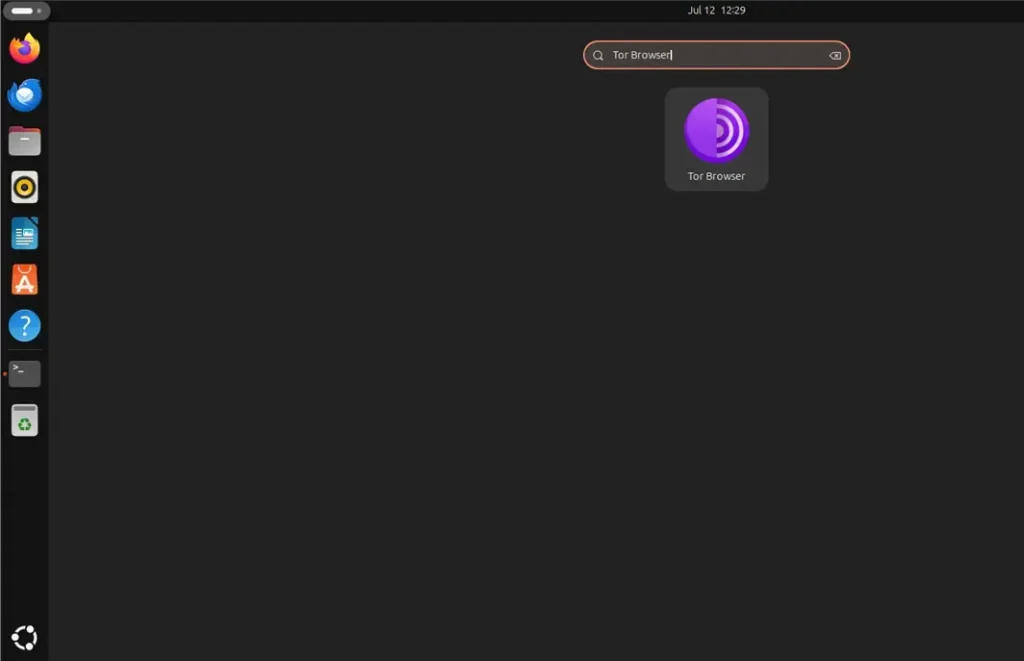
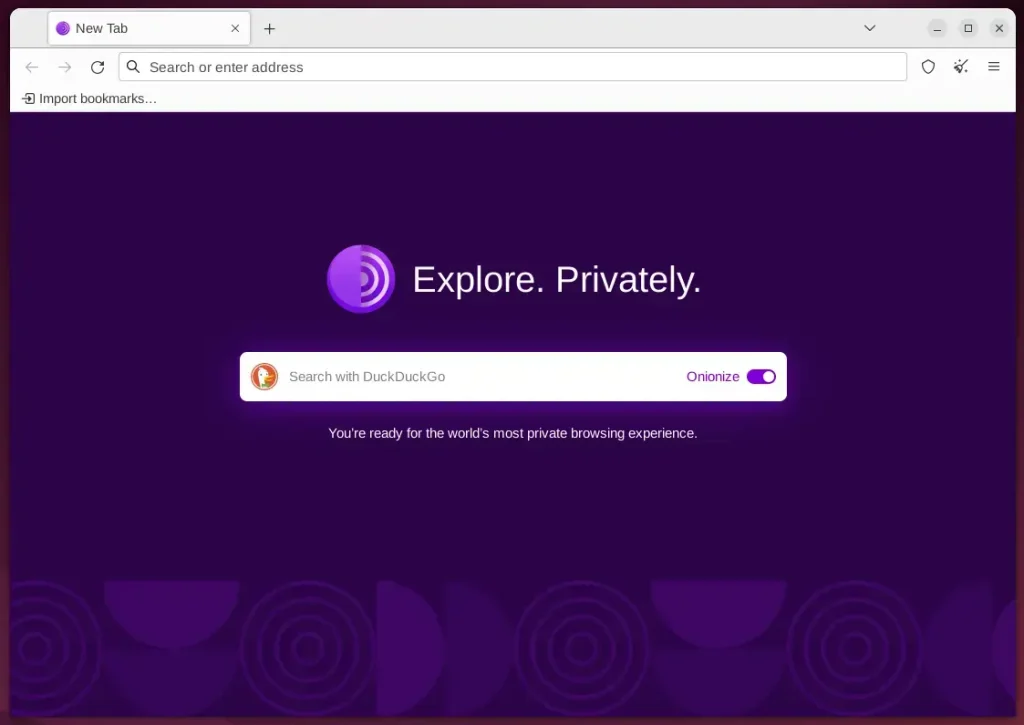
Tor Browser should be ready to use. On first launch you normally see a connection window. Click Connect and wait a few seconds while the browser joins the Tor network. If your network blocks Tor, use the Configure Connection button to set up a bridge. Once connected, the browser window opens and you can browse as usual.
Uninstall Tor Browser
The command depends on how you first set it up. Removing the application clears out all program files and user data from your computer, so save any downloads or notes you want to keep first. Use the exact command that matches your original installation method (APT, Flatpak or the manual tarball). A command for the wrong method won't find anything to remove.
sudo apt remove tor torbrowser-launcher
flatpak remove --delete-data com.github.micahflee.torbrowser-launcher
That should do it! Tor Browser is now installed, or removed, depending on which section you followed.
Conclusion:
- The Tor Browser is a valuable tool for anonymous communication and browsing, providing a secure way to browse the internet without revealing identity or location.
- Users can install the Tor Browser on Ubuntu 24.04 using the APT command, Flatpak package manager with Flathub, or manually download the archive package from the official download page.
- Launching the Tor Browser is straightforward; users can easily uninstall it if it's no longer needed.
Was this guide helpful?
0% of readers found this helpful (1 votes)

About the Author
Richard
Tech Writer, IT Professional
Richard is a writer at Geek Rewind who turns complex IT tasks into clear, step-by-step guides. He draws on years of hands-on experience in system administration and enterprise IT operations, focusing on Windows, Linux and WordPress: the problems people actually run into, and the fixes that work. His server and WordPress guides come from systems he runs himself. Richard builds and maintains the platform behind Geek Rewind, from its Ubuntu servers and Nginx configuration to its custom WordPress plugins. Many new tutorials start with readers' questions, and he's always glad to answer them in the comments.

No comments yet — be the first to share your thoughts!