Install Sails.js on Ubuntu: A Step-by-Step Guide


Sails.js is a free framework for Node.js (a tool that runs JavaScript code outside a web browser) that helps you build custom web apps and real-time chat features on Ubuntu 22.04 or 24.04 without writing tons of basic setup code.
The framework uses an automated model-view-controller (a pattern that separates your app data, user interface, and control logic) setup to speed up backend development. Installing it takes just a few terminal commands once you have Node.js set up on your machine.
Install NVM, then use it to install Node.js LTS. Install Sails globally with `npm -g install sails`. Create a new app with `sails new my-app`, navigate to it, and run `sails lift` to start it.
Install NVM
Node Version Manager (NVM) lets you manage different versions of Node.js easily. Run this command to install the latest stable NVM version:
curl -sL https://raw.githubusercontent.com/nvm-sh/nvm/v0.40.1/install.sh -o install_nvm.sh | bash install_nvm.sh
Next, update your bash profile:
source ~/.bashrc
Install Node.js
Now, use NVM to install the current Active LTS version of Node.js:
nvm install --lts
Install Sails.js
npm -g install sails
Check the installation by running:
sails --version
Create Sails app
To create a new Sails app on Ubuntu, open your terminal and run the command sails new geek-app. When the setup prompts you to choose a template, select Web App to build the standard project structure. Finally, move into your project folder and start the development server by running sails lift so you can test that everything works correctly.
sails new geek-app
Select "Web App" when prompted. Navigate into your folder, install dependencies, and start the app:
cd geek-app
npm install
sails lift
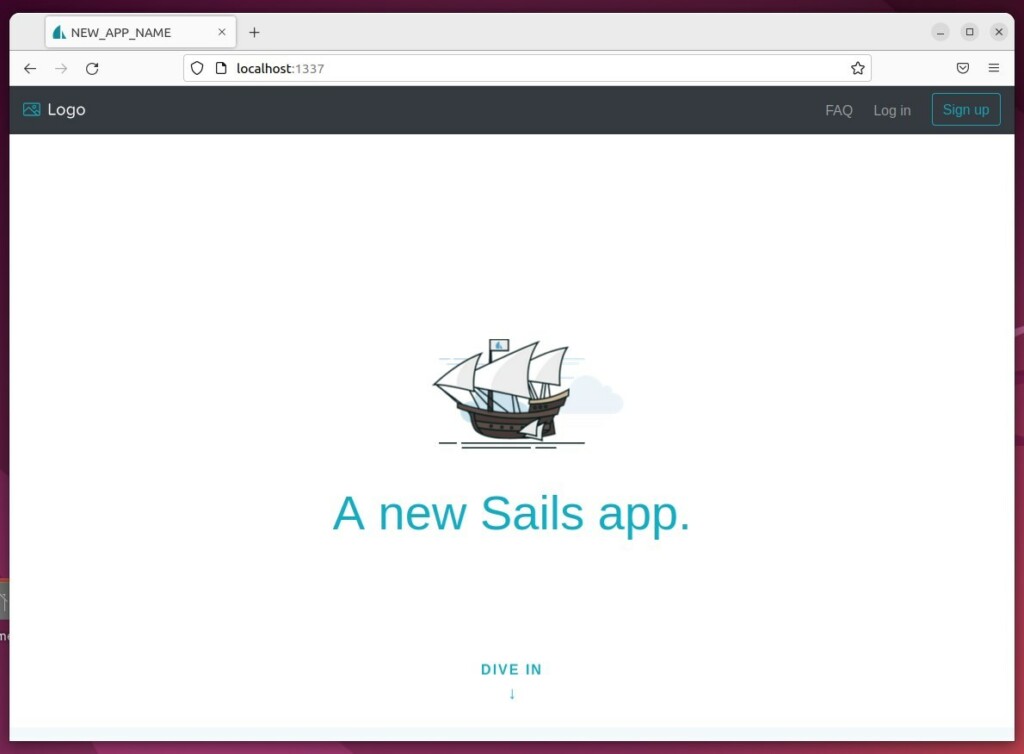
Check the official Sails.js documentation for current database adapter compatibility and potential Docker deployment alternatives. Open your browser to http://localhost:1337 to see your app.
Create Sails systemd service
To create a Sails systemd service on Ubuntu so your app starts automatically after a reboot, open a new service file using the command sudo nano /etc/systemd/system/geek-app.service. This configuration file tells the operating system how to run your application in the background without requiring you to start it manually each time the server restarts.
sudo nano /etc/systemd/system/geek-app.service
Paste the following into the file. Replace $USER with your actual system username:
[Unit]
Description=Sails.js App
After=network.target

[Service]
Type=simple
User=$USER
WorkingDirectory=/home/$USER/geek-app
ExecStart=/bin/bash -c "source /home/$USER/.nvm/nvm.sh && npm start"
Restart=on-failure

[Install]
WantedBy=multi-user.target
Reload the system and start your service:
sudo systemctl daemon-reload
sudo systemctl enable geek-app --now
You can now manage your app with sudo systemctl stop geek-app or sudo systemctl start geek-app.
Using reverse proxy
Using a reverse proxy like Nginx in front of your Sails app on Ubuntu helps manage incoming web traffic safely and efficiently. Setting up this configuration allows Nginx to handle public requests directly, pass them securely to your Node.js application, and easily add SSL certificates through Let's Encrypt for public websites.
How to set up a reverse proxy with Nginx
How to set up a reverse proxy with Apache
You may also secure your site with Let's Encrypt:
Conclusion
You have successfully installed Sails.js and configured it to run as a background service on Ubuntu. Your environment is now ready for professional web development.
[Unit] [Service] [Install] [22377] [22377] [22377] [22377] [22377] [22377] [22377] [22377] [22377]
Was this guide helpful?

About the Author
Richard
Tech Writer, IT Professional
Richard, a writer for Geek Rewind, is a tech enthusiast who loves breaking down complex IT topics into simple, easy-to-understand ideas. With years of hands-on experience in system administration and enterprise IT operations, he’s developed a knack for offering practical tips and solutions. Richard aims to make technology more accessible and actionable. He's deeply committed to the Geek Rewind community, always ready to answer questions and engage in discussions.



No comments yet — be the first to share your thoughts!