Install Sails.js on Ubuntu: A Step-by-Step Guide


Sails.js is a free framework for Node.js (a tool that runs JavaScript code outside a web browser) that helps you build custom web apps and real-time chat features on Ubuntu 22.04 or 24.04 without writing tons of basic setup code.
The framework uses an automated model-view-controller (a pattern that separates your app data, user interface, and control logic) setup to speed up backend development. Installing it takes just a few terminal commands once you have Node.js set up on your machine.
You need an Ubuntu 22.04 or 24.04 system, a regular user account (not root) and an internet connection. The service and Nginx parts later in the guide also need sudo rights. The overview is short: install NVM, use it to install Node.js, install Sails, create an app, then optionally run it as a service behind Nginx.
Install Sails.js on Ubuntu 22.04 or 24.04 by first installing Node.js through NVM (Node Version Manager), then running npm -g install sails in your terminal. Run sails –version to confirm the install prints a version number. Then create an app with sails new geek-app, move into the folder, and start it with sails lift at http://localhost:1337.
Install NVM
Node Version Manager (NVM) lets you manage different versions of Node.js easily. It installs Node.js in your home folder, so you don’t need sudo for Node.js or for global npm packages later. It also lets you switch Node.js versions when a project needs a different one. Open a terminal and run this command to install the latest stable NVM version. The command needs curl, so install it first with apt if the terminal says it is missing:
curl -sL https://raw.githubusercontent.com/nvm-sh/nvm/v0.40.1/install.sh -o install_nvm.sh && bash install_nvm.sh
Next, update your bash profile. The installer adds its lines to the profile, but your current terminal session has not read them yet. Run the command below to load them, or close the terminal and open a new one. Either way works:
source ~/.bashrc
Install Node.js
Now, use NVM to install the current Active LTS version of Node.js. LTS (long-term support) releases get fixes for longer and are the safest choice for a server. The download takes a minute or two. When it finishes, NVM sets the new version as your default for this session. If the nvm command is not found, the bash profile from the previous section has not been loaded yet. Open a new terminal and try again.
nvm install --lts
Install Sails.js
Global means the sails command works from any folder. Because Node.js lives in your home folder through NVM, you should not need sudo here. If a command fails with a permissions error, check that you installed Node.js through NVM and not through apt.
npm -g install sails
Check the installation by running the command below. If Sails installed correctly, the terminal prints a version number. If it says the command is not found, open a new terminal so the NVM paths load, then run it again.
sails --version
Create Sails app
To create a new Sails app on Ubuntu, open your terminal and run the command sails new geek-app. When the setup prompts you to choose a template, select Web App to build the standard project structure. Finally, move into your project folder and start the development server by running sails lift so you can test that everything works correctly.
The steps are:
- Run the command sails new geek-app from the folder where you keep your projects. Sails creates a folder named geek-app.
- Choose Web App when the template prompt appears. Sails then builds the standard project structure and installs the files it needs.
- Move into the new folder, then run sails lift. The terminal shows a startup banner and the app keeps running in that window.
sails new geek-app
Select "Web App" when prompted. Navigate into your folder, install dependencies, and start the app. Installing the dependencies pulls in the packages the project needs, so it can take a little while on a slow connection:
cd geek-app
npm install
sails lift
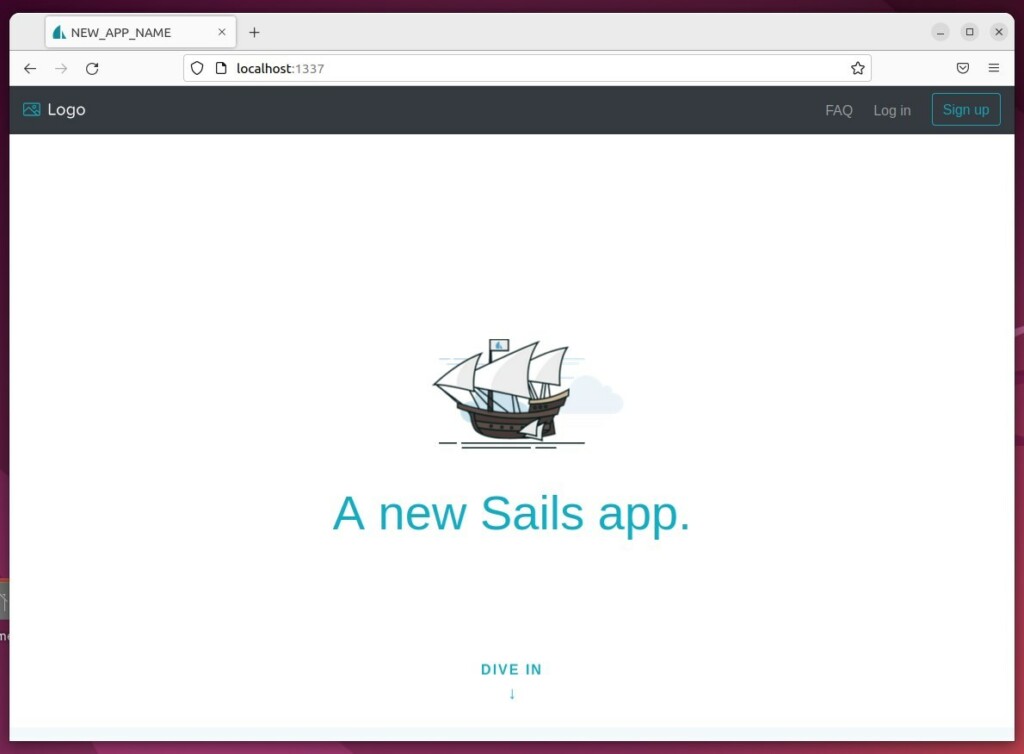
Check the official Sails.js documentation for current database adapter compatibility and potential Docker deployment alternatives. Open your browser to http://localhost:1337 to see your app. You should see the default Sails welcome page. If you opened the browser on a different computer, use the server's IP address instead of localhost, and make sure the firewall allows the port. To stop the development server, press Ctrl+C in the terminal where it is running.
Create Sails systemd service
To create a Sails systemd service on Ubuntu so your app starts automatically after a reboot, open a new service file using the command sudo nano /etc/systemd/system/geek-app.service. This configuration file tells the operating system how to run your application in the background without requiring you to start it manually each time the server restarts.
Running sails lift in a terminal stops as soon as you close that window or log out. A service avoids that and lets systemd restart the app if it crashes. You need sudo rights for this part, because the file lives in a system folder.
sudo nano /etc/systemd/system/geek-app.service
Replace $USER with your actual system username. The file should show your own account name, the one you used to install Node.js through NVM, because the app has to run as the user that owns those files. Systemd does not read your bash profile, so the paths in the file must be full paths. Check the Node.js path in the file against the version NVM installed for you. When you are done, save the file in nano with Ctrl+O, press Enter, then exit with Ctrl+X.
[Unit]
Description=Sails.js App
After=network.target

[Service]
Type=simple
User=$USER
WorkingDirectory=/home/$USER/geek-app
ExecStart=/bin/bash -c "source /home/$USER/.nvm/nvm.sh && npm start"
Restart=on-failure

[Install]
WantedBy=multi-user.target
Reload the system and start your service. The first command makes systemd read the new file. The second starts the service and, depending on the options in the file, sets it to start at boot. Run both in the order below:
sudo systemctl daemon-reload
sudo systemctl enable geek-app --now
You can now manage your app with sudo systemctl stop geek-app or sudo systemctl start geek-app. Use the first to check that the service is running and read recent log lines if something went wrong. After you change the service file, run the reload command again before you restart. To undo the setup, stop and disable the service, delete the file and reload systemd.
Using reverse proxy
Using a reverse proxy like Nginx in front of your Sails app on Ubuntu helps manage incoming web traffic safely and efficiently. Setting up this configuration allows Nginx to handle public requests directly, pass them securely to your Node.js application, and easily add SSL certificates through Let's Encrypt for public websites.
With this setup, visitors reach Nginx on the standard web ports, and Nginx forwards the requests to Sails on its own port on the same server. You can then keep the Sails port closed to the outside. For Nginx itself, see these guides:
How to set up a reverse proxy with Nginx
How to set up a reverse proxy with Apache
You may also secure your site with Let's Encrypt. This needs a real domain name that points at your server. Without one, the certificate request will fail:
Conclusion
You have successfully installed Sails.js and configured it to run as a background service on Ubuntu. Your environment is now ready for professional web development.
[Unit] [Service] [Install] [22377] [22377] [22377] [22377] [22377] [22377] [22377] [22377] [22377]Have a question about this guide?
Answered by AI from this guide. Good questions may be added to this page — please don't include personal details.
Did this guide fix your problem?

About the Author
Richard
Tech Writer, IT Professional
Richard is a writer at Geek Rewind who turns complex IT tasks into clear, step-by-step guides. He draws on years of hands-on experience in system administration and enterprise IT operations, focusing on Windows, Linux and WordPress: the problems people actually run into, and the fixes that work. His server and WordPress guides come from systems he runs himself. Richard builds and maintains the platform behind Geek Rewind, from its Ubuntu servers and Nginx configuration to its custom WordPress plugins. Many new tutorials start with readers' questions, and he's always glad to answer them in the comments.
No comments yet — be the first to share your thoughts!