How to Install Bitwarden on Ubuntu Linux


Bitwarden is a free password manager that keeps all your credentials safe and encrypted in one place.
Introduction
It lets you manage online accounts seamlessly across all your devices. Running a self-hosted password manager keeps private data under personal control on dedicated hardware rather than relying on a third-party cloud service.
Why use a self-hosted password manager? Private data stays under personal control on local hardware instead of depending on a third-party cloud provider.
Once the setup finishes, a private, secure password vault will be accessible from any device.
Bitwarden vs. Vaultwarden
Choosing between the official Bitwarden and the unofficial Vaultwarden is necessary when building a private server.
- Official Bitwarden: An enterprise-grade version that offers robust features but demands heavier system resources.
- Vaultwarden: A lightweight alternative written in Rust that runs efficiently on modest home hardware.
- Official Bitwarden: This is the enterprise-grade version. It is very powerful but requires more system resources to run.
- Vaultwarden: This is an unofficial, lightweight version written in Rust. It is highly recommended for home-lab users because it uses very little memory and CPU power.
Install Bitwarden on Ubuntu Linux
Installing Bitwarden on Ubuntu Linux works best using Docker (a platform that runs applications inside isolated containers), which simplifies setup. Creating a dedicated user account first ensures proper security isolation by granting only the required Docker permissions.
This follows a security practice called the principle of least privilege. Granting user accounts only the minimum necessary permissions keeps systems secure against potential threats.
sudo useradd -G docker -s /bin/bash -m -d /opt/bitwarden bitwarden
sudo passwd bitwarden
sudo chown -R bitwarden: /opt/bitwarden
Next, grab your installation key from: Bitwarden installation key
Switching to the new user account allows downloading the official installation script:
su - bitwarden
curl -Lso bitwarden.sh https://go.btwrdn.co/bw-sh
chmod +x bitwarden.sh
Execute the installation script to proceed:
./bitwarden.sh install
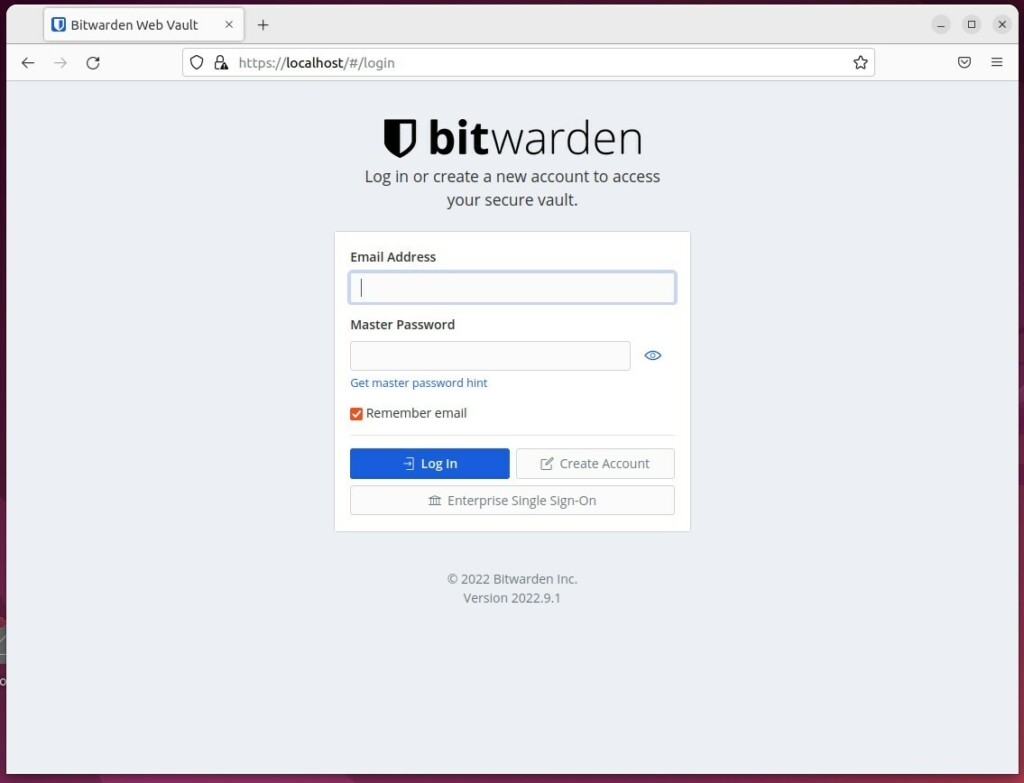
During the setup, the script requests a domain name and database configuration. Securing the deployment requires a valid SSL/TLS certificate (an encryption protocol that secures web traffic). Obtaining a certificate works through Let's Encrypt with Certbot or by routing traffic behind a reverse proxy like Nginx Proxy Manager.
Running the Service
After the installation finishes, start the services using the Docker Compose V2 plugin command:
docker compose up -d
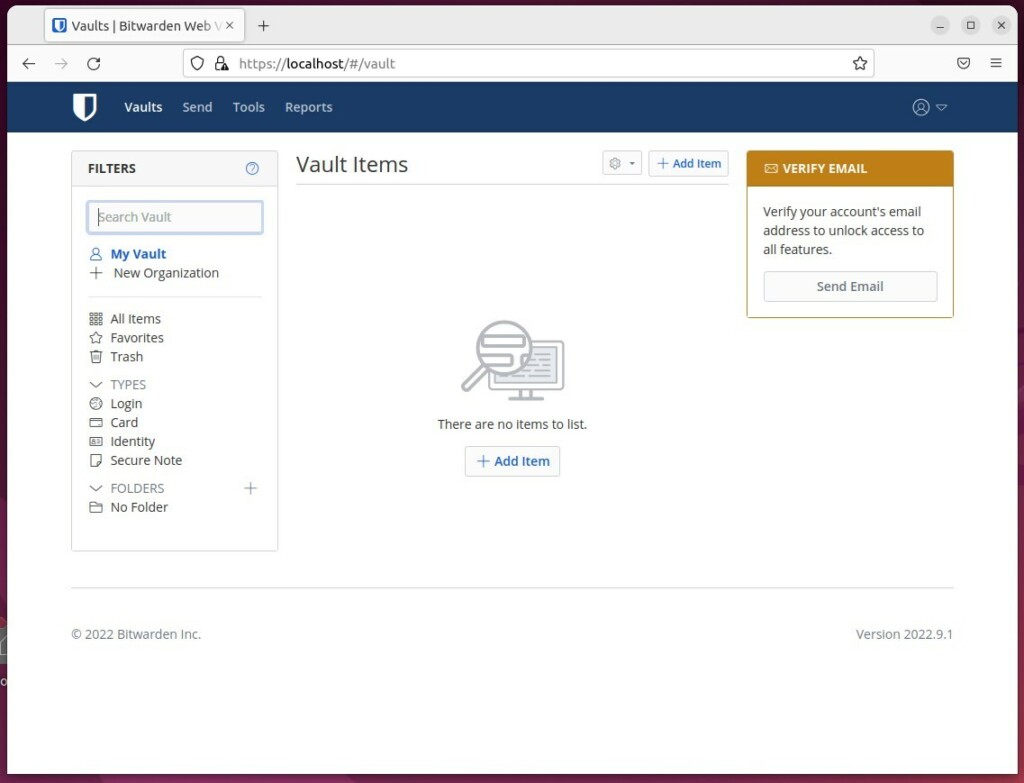
The containers will initialize, making the vault accessible through a web browser. Creating an administrator account completes the setup and lets credential storage begin.
Conclusion
Hosting a personal password manager grants complete authority over login credentials. Selecting either official Bitwarden or lightweight Vaultwarden establishes a major milestone in digital privacy.
Was this guide helpful?
0% of readers found this helpful (1 votes)

About the Author
Richard
Tech Writer, IT Professional
Richard, a writer for Geek Rewind, is a tech enthusiast who loves breaking down complex IT topics into simple, easy-to-understand ideas. With years of hands-on experience in system administration and enterprise IT operations, he’s developed a knack for offering practical tips and solutions. Richard aims to make technology more accessible and actionable. He's deeply committed to the Geek Rewind community, always ready to answer questions and engage in discussions.



No comments yet — be the first to share your thoughts!