How to Install Rocket.Chat Server on Ubuntu Linux

Rocket.Chat server on Ubuntu Linux creates a private chat platform that keeps all your messages and files on your own hardware instead of an outside cloud. It functions just like Slack to give your team real-time messaging, file sharing, and video calls.
This setup process works on Ubuntu 16.04 and 18.04 LTS releases. You only need a basic virtual server running one of those two versions to get started.
Install MongoDB by adding its repository, then updating and installing the package. Configure MongoDB for replication and restart the service. Install Node.js and npm using apt.
Install MongoDB
MongoDB installation on Ubuntu for Rocket.Chat requires adding the official MongoDB repository and security key to your system sources. You can then install the database package using your terminal to get the exact version needed for your chat server setup.
To get the latest version of MongoDB, you must add its repository to Ubuntu. To do that, run the commands below to add the official repository key.
sudo apt-key adv --keyserver hkp://keyserver.ubuntu.com:80 --recv 9DA31620334BD75D9DCB49F368818C72E52529D4
After adding the repository key to Ubuntu, run the commands below to add the MongoDB repository to your system…
echo "deb [ arch=amd64 ] https://repo.mongodb.org/apt/ubuntu bionic/mongodb-org/4.0 multiverse" | sudo tee /etc/apt/sources.list.d/mongodb-org-4.0.list
Now that the repository and key have been added to Ubuntu run the commands below to install the package.
sudo apt update
sudo apt install -y mongodb-org
After installing MongoDB, the commands below can be used to stop, start, and enable MongoDB to automatically startup when the system boots up.
sudo systemctl stop mongod.service
sudo systemctl start mongod.service
sudo systemctl enable mongod.service
By default, MongoDB listens on port 27017. After installation, the local server should be able to communicate with MongoDB. To verify whether MongoDB is running and active, run the commands below:
sudo systemctl status mongod
You should see something like the lines below:
richard@ubuntu1604:~$ sudo systemctl status mongod
● mongod.service - High-performance, schema-free document-oriented database
   Loaded: loaded (/lib/systemd/system/mongod.service; enabled; vendor preset: enabled)
   Active: active (running) since Sat 2018-01-27 08:53:42 CST; 13min ago
     Docs: https://docs.mongodb.org/manual
 Main PID: 2383 (mongod)
    Tasks: 23
   Memory: 60.7M
      CPU: 2.613s
   CGroup: /system.slice/mongod.service
           └─2383 /usr/bin/mongod --config /etc/mongod.conf

Jan 27 08:53:42 ubuntu1604 systemd[1]: Started High-performance, schema-free document-oriented database.
Jan 27 09:05:49 ubuntu1604 systemd[1]: Started High-performance, schema-free document-oriented database.
Configure MongoDB
MongoDB replica set configuration is required for Rocket.Chat to store and sync messages properly. You must edit the main database configuration file to enable the replica set option and restart the database service to apply the changes.
Add this section into /etc/mongod to configure the replica set.conf:
sudo nano /etc/mongod.conf
Then copy and paste the lines at the end of the file and save.
replication:
 replSetName: "rs01"
You can accomplish the same settings above by running the command below:
echo -e "replication:n replSetName: "rs01"" | sudo tee -a /etc/mongod.conf
After running the commands above, run this to restart the MongoDB service:
sudo systemctl restart mongod
Next, start the MongoDB shell
mongo
Then, the commands below to initiate the replica set
rs.initiate()
The output of the command should look like this:
{
	"operationTime" : Timestamp(1562351876, 1),
	"ok" : 0,
	"errmsg" : "already initialized",
	"code" : 23,
	"codeName" : "AlreadyInitialized",
	"$clusterTime" : {
		"clusterTime" : Timestamp(1562351876, 1),
		"signature" : {
			"hash" : BinData(0,"AAAAAAAAAAAAAAAAAAAAAAAAAAA="),
			"keyId" : NumberLong(0)
		}
	}
}
Exit, and you're done with MongoDB.
Install Node.js
Node.js installation on Ubuntu provides the JavaScript runtime environment that powers the Rocket.Chat server. You need to install the specific version recommended by Rocket.Chat along with build tools to ensure the application runs smoothly.
sudo apt install nodejs npm build-essential curl software-properties-common graphicsmagick
After that, run the commands to get the recommended node and n packages.
sudo npm install -g inherits n && sudo n 8.11.4
After installing, both Node.js and NPM modules should be installed and ready to use….
Install Rocket.Chat Server
Rocket.Chat server installation on Ubuntu involves creating a dedicated system user, downloading the application archive, and extracting the files to your server. Setting up a separate user account keeps your chat environment secure and isolated from the rest of the system.
Chat. You probably don't want to run it as root.
sudo useradd -m -U -r -d /opt/rocketchat rocketchat
Switch over to the rocket user:
sudo su - rocketchat
The following commands assume you are operating as a user rocket chat.
The latest Rocket.Chat server package downloads to the `rocketchat` user's home directory on Ubuntu Linux. Downloading this package is a necessary step for installing the Rocket.Chat server software, a communication platform used by over 12 million people.
curl -L https://releases.rocket.chat/latest/download -o rocket.chat.tgz
Once it is downloaded, extract the Rocket.Chat archive and run npm install:
tar zxvf rocket.chat.tgz
mv bundle Rocket.Chat
cd /opt/rocketchat/Rocket.Chat/programs/server
npm install
After that, run the lines below:
export ROOT_URL=http://example.com:3000
export MONGO_URL=mongodb://localhost:27017/rocketchat
export MONGO_OPLOG_URL=mongodb://localhost:27017/local?replSet=rs01
export PORT=3000
Then, change into the Rocketchat home directory.
cd /opt/rocketchat/Rocket.Chat/
Run the commands below.
node main.js
If everything runs as expected. You should see the status of the server running.
➔ System ➔ startup
➔ +---------------------------------------------+
➔ |                SERVER RUNNING               |
➔ +---------------------------------------------+
➔ |                                             |
➔ |  Rocket.Chat Version: 1.2.1                 |
➔ |       NodeJS Version: 8.11.4 - x64          |
➔ |      MongoDB Version: 4.0.10                |
➔ |       MongoDB Engine: wiredTiger            |
➔ |             Platform: linux                 |
➔ |         Process Port: 3000                  |
➔ |             Site URL: http://0.0.0.0:3000/  |
➔ |     ReplicaSet OpLog: Enabled               |
➔ |          Commit Hash: 7475d7628a            |
➔ |        Commit Branch: HEAD                  |
➔ |                                             |
➔ +---------------------------------------------+
Exit from the rocketchat user process. by typing exit (maybe twice). This should bring you to your account profile.
After that, run the commands below to create Rocket.Chat service.
sudo nano /etc/systemd/system/rocketchat.service
Then copy and paste the lines below into the file and save.
[Unit]
Description=Rocket.Chat server
After=network.target nss-lookup.target mongod.target

[Service]
StandardOutput=syslog
StandardError=syslog
SyslogIdentifier=rocketchat
User=rocketchat
Environment=MONGO_URL=mongodb://localhost:27017/rocketchat MONGO_OPLOG_URL=mongodb://localhost:27017/local?replSet=rs01 ROOT_URL=http://example.com PORT=3000
ExecStart=/usr/local/bin/node /opt/rocketchat/Rocket.Chat/main.js

[Install]
WantedBy=multi-user.target
Save the file and exit.
Next, enable the rocketchat services we just created above.
sudo systemctl daemon-reload
sudo systemctl enable rocketchat
sudo systemctl start rocketchat
Check the status of Rocket.Chat by running the commands below:
sudo systemctl status rocketchat
You should see similar lines below:
● rocketchat.service - Rocket.Chat server
   Loaded: loaded (/etc/systemd/system/rocketchat.service; enabled; vendor preset: enabled)
   Active: active (running) since Fri 2019-07-05 13:09:07 CDT; 21s ago
 Main PID: 4077 (node)
    Tasks: 10 (limit: 4915)
   CGroup: /system.slice/rocketchat.service
           └─4077 /usr/local/bin/node /opt/rocketchat/Rocket.Chat/main.js

Jul 05 13:09:26 ubuntu1804 rocketchat[4077]: ➔ |      MongoDB Version: 4.0.10                |
Jul 05 13:09:26 ubuntu1804 rocketchat[4077]: ➔ |       MongoDB Engine: wiredTiger            |
Jul 05 13:09:26 ubuntu1804 rocketchat[4077]: ➔ |             Platform: linux                 |
Jul 05 13:09:26 ubuntu1804 rocketchat[4077]: ➔ |         Process Port: 3000
Jul 05 13:09:26 ubuntu1804 rocketchat[4077]: ➔ +---------------------------------------------+
Now everything is installed and configured.
Open your browser and browse to the server name followed by port 3000
http://example.com:3000
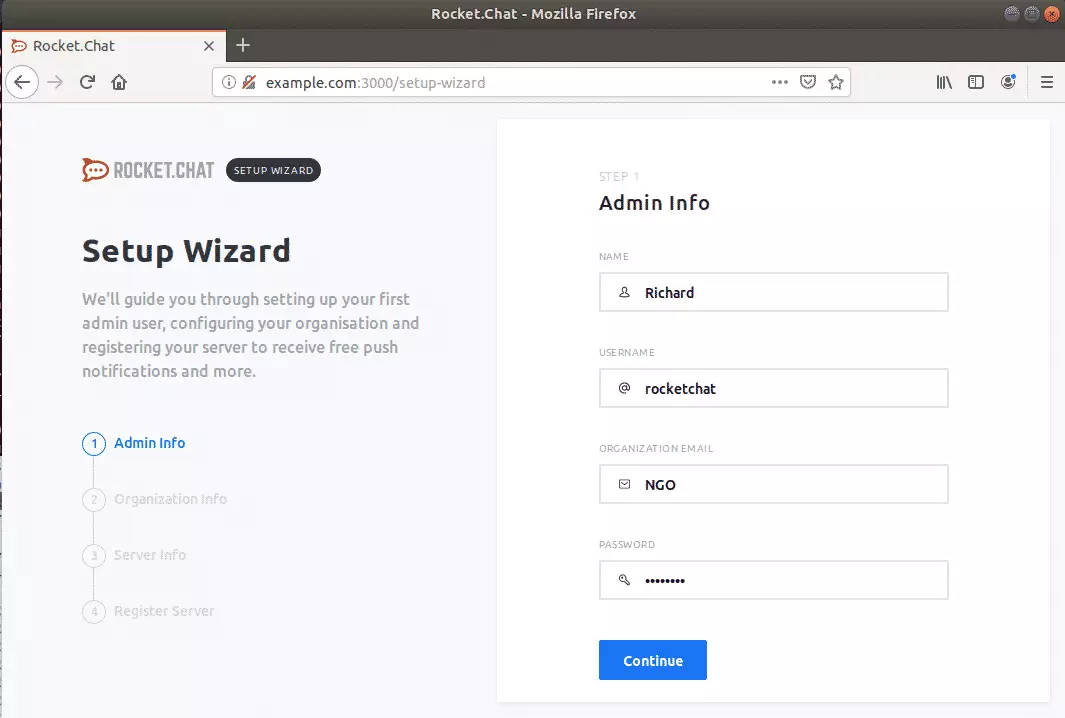
The installation wizard will guide you through setting up your first administrative user, configuring your organization, registering your server to receive free push notifications, and more.
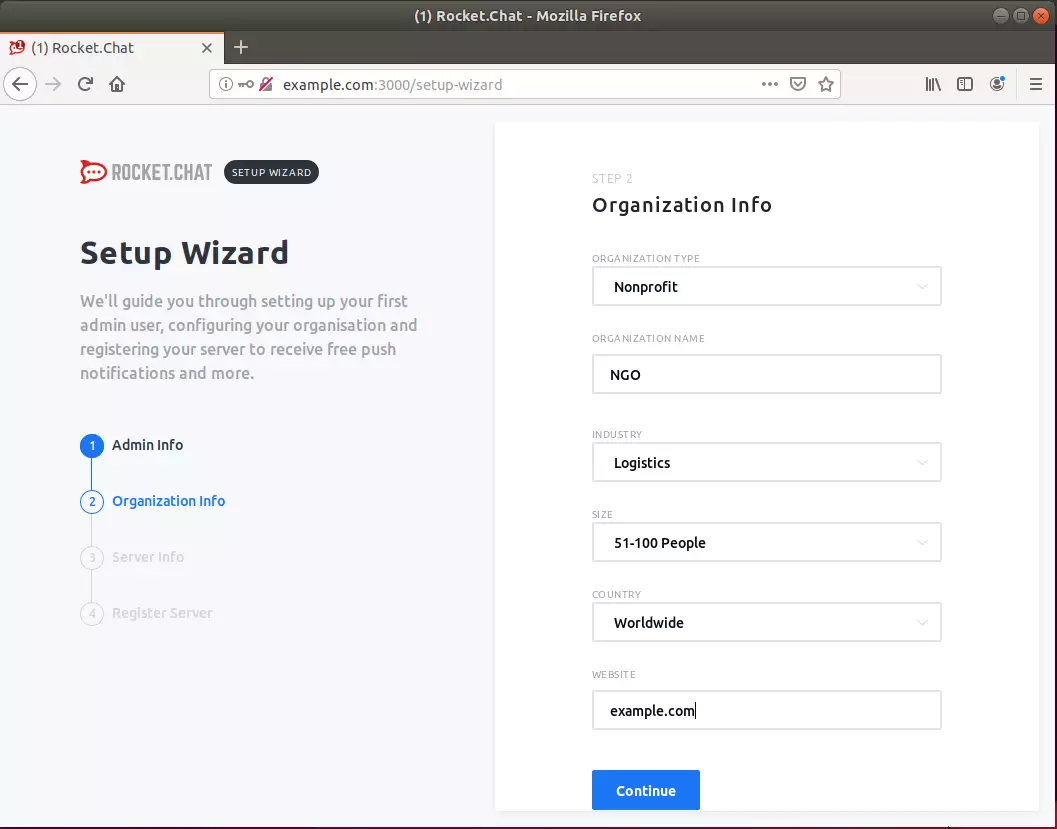
Next, type in your organization info and continue
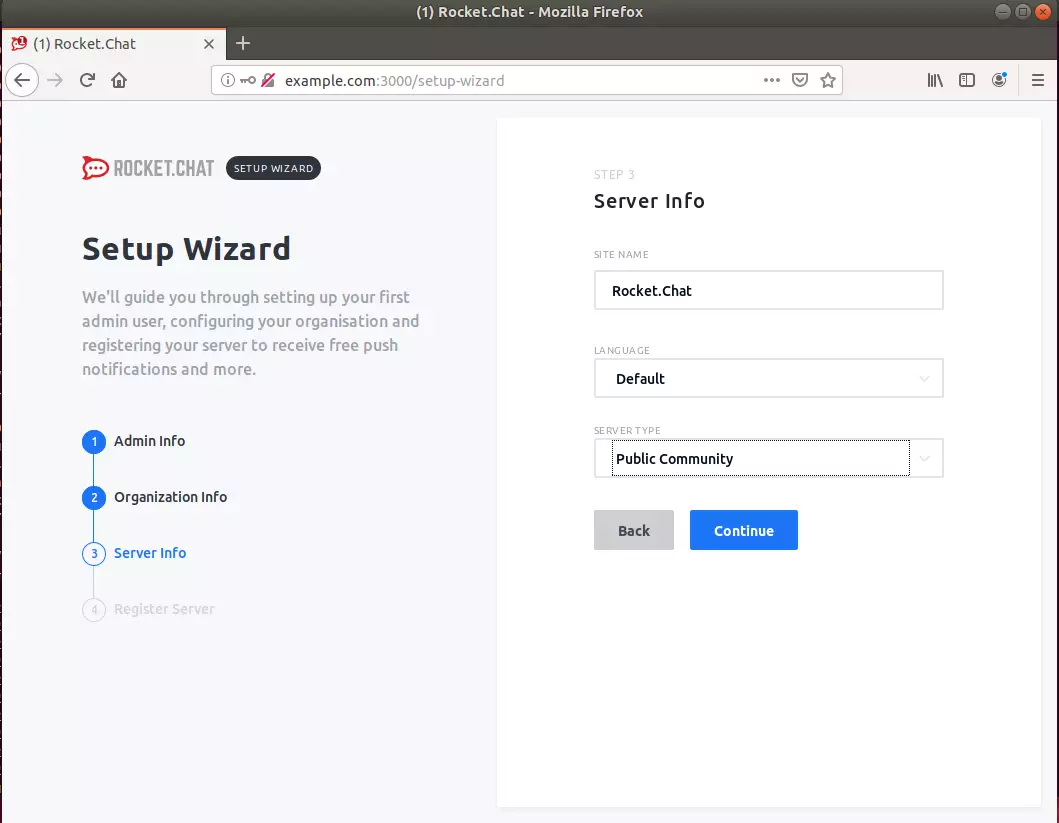
After that, provide your server info
Then, Register your server.
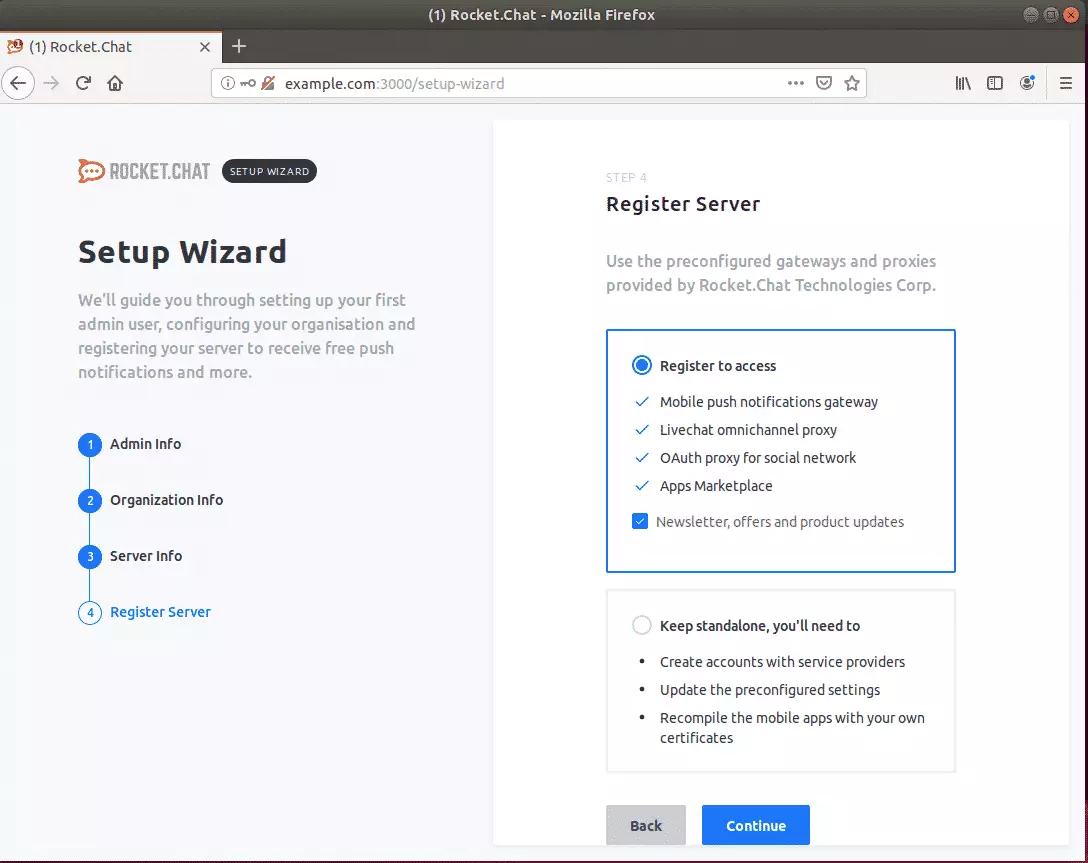
Next,
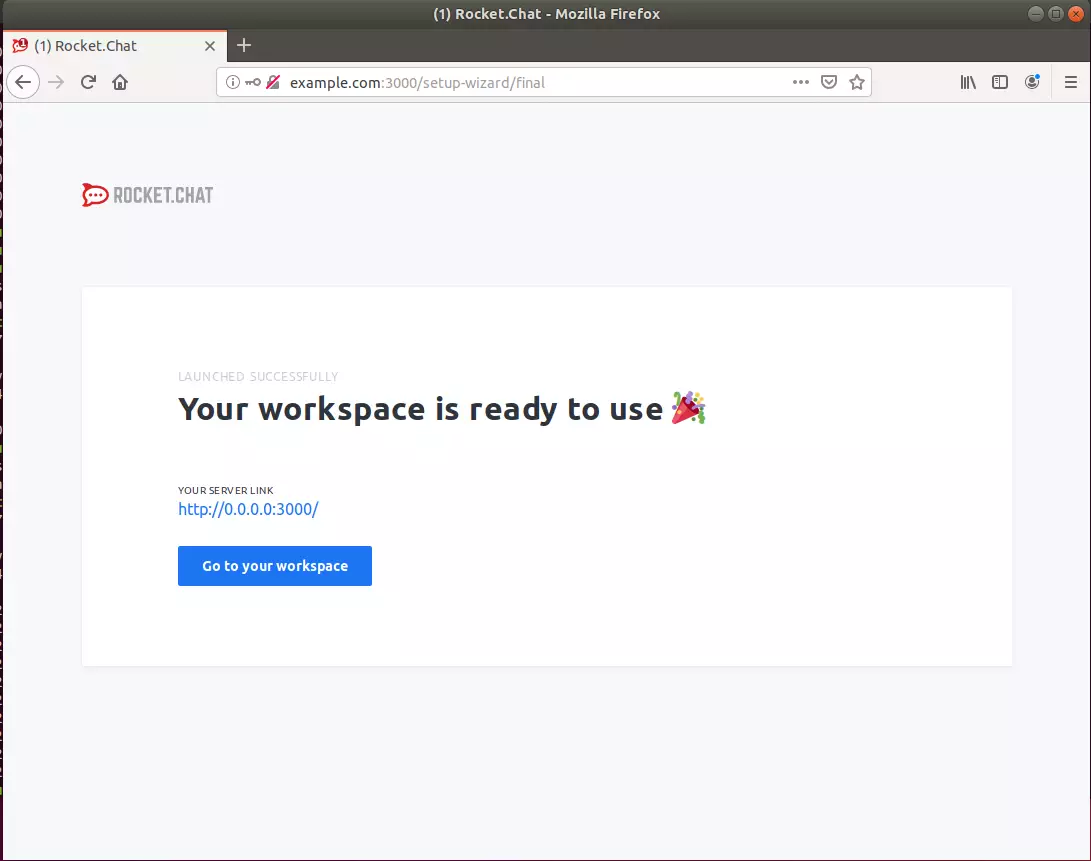
That's it!
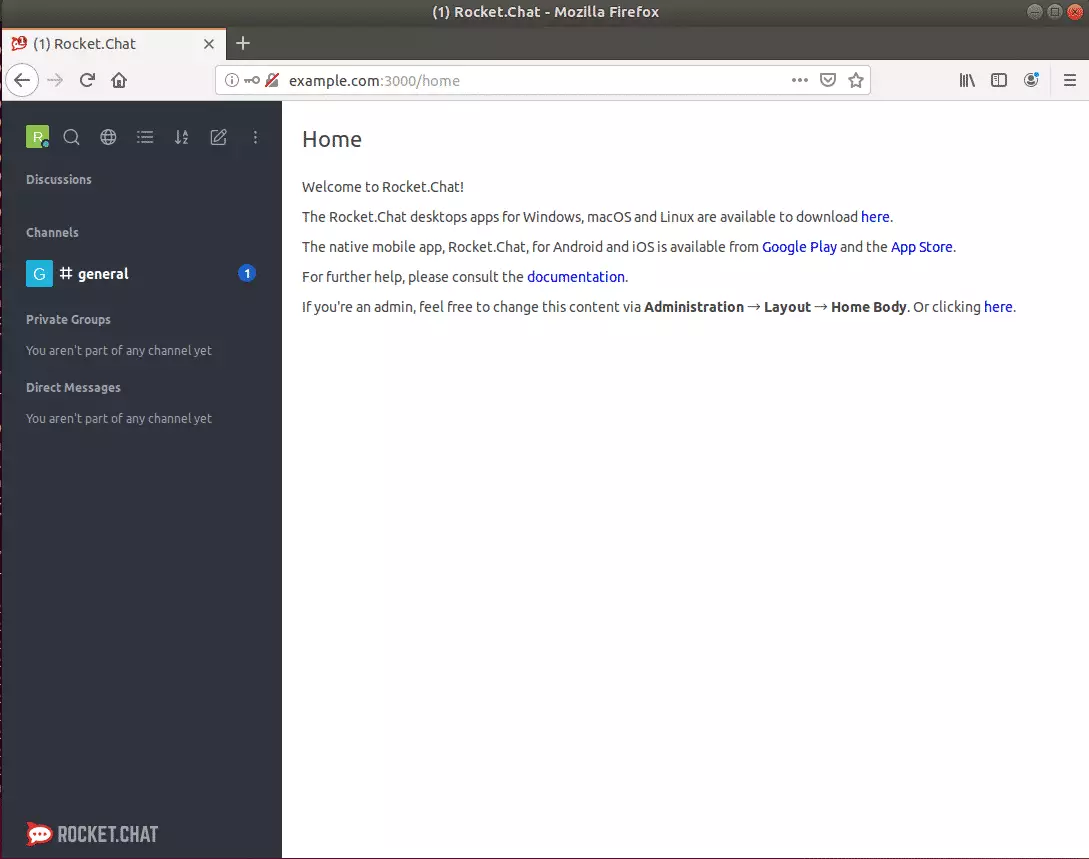
Congratulations! You have successfully installed and configured Rocket. Chat server on Ubuntu 16.04 | 18.04 LTS
You may also like the post below:
Was this guide helpful?

About the Author
Richard
Tech Writer, IT Professional
Richard, a writer for Geek Rewind, is a tech enthusiast who loves breaking down complex IT topics into simple, easy-to-understand ideas. With years of hands-on experience in system administration and enterprise IT operations, he’s developed a knack for offering practical tips and solutions. Richard aims to make technology more accessible and actionable. He's deeply committed to the Geek Rewind community, always ready to answer questions and engage in discussions.



No comments yet — be the first to share your thoughts!