How to Install PostgreSQL on Ubuntu Linux


PostgreSQL is a free, open-source database system that stores and manages large amounts of data safely. Installing version 16 from the official PostgreSQL project repository gives you newer features and security updates than the standard Ubuntu software lists usually carry.
Ubuntu uses the apt package manager, the tool that downloads and installs software, to handle setup. When you add the official PostgreSQL repository (the online storage location apt pulls packages from), apt installs the current release from the PostgreSQL developers instead of the older version built into Ubuntu.
You need a terminal on Ubuntu and a user account that can run commands with sudo. The steps below are written for a current Ubuntu LTS release, either Desktop or Server.
Install PostgreSQL on Ubuntu by adding its official repository with `wget` and `sh` commands, then update and install packages using `sudo apt update` and `sudo apt-get install postgresql postgresql-contrib`.
How to add PostgreSQL repository on Ubuntu Linux
To add the official PostgreSQL repository, you download its signing key and create a new source list file. The key lets apt verify that packages really come from the PostgreSQL project. The source list file tells apt where to find them. Together they give you the newest software updates, bug fixes and features directly from the developers, rather than the older versions in the default Ubuntu package directories.
Run the commands below in your terminal to add the repository key and the repository file to Ubuntu.
- Open a terminal window.
- Run the commands in the block below one at a time, in order. Enter your password if sudo asks for it.
- Check each command for errors before you run the next one. A key or source file that failed to save will cause problems in the install step.
The repository file is built for your Ubuntu release, so it only works on the release you ran it on. If you upgrade Ubuntu to a new release later, check that the repository still matches it.
wget --quiet -O - https://www.postgresql.org/media/keys/ACCC4CF8.asc | sudo gpg --dearmor -o /usr/share/keyrings/postgresql.gpg
sudo sh -c 'echo "deb [signed-by=/usr/share/keyrings/postgresql.gpg] http://apt.postgresql.org/pub/repos/apt $(lsb_release -cs)-pgdg main" > /etc/apt/sources.list.d/pgdg.list'
How to install PostgreSQL on Ubuntu Linux
To install PostgreSQL on Ubuntu, you first update the local package list so apt knows about the new repository. Then you run the standard apt install command to fetch the database server and the contrib package. This sets up the core database service, so you can start creating and managing relational databases from the command line right away.
The original version of this guide installed PostgreSQL 11, and the commands below install the release named in them. Version 11 is no longer supported by the PostgreSQL project, so if you see 11 in a package name, change it to the release you want, such as 16 as mentioned at the start of this guide. To install PostgreSQL, run the commands below.
- Run the first command in the block to refresh the package list. You should see apt read from the new PostgreSQL repository in the output.
- Run the install command. Press Y if apt asks you to confirm the download.
- Wait for the install to finish. Ubuntu creates the database cluster and starts the service on its own. No restart is needed.
sudo apt update
sudo apt-get install postgresql postgresql-contrib
The commands above also install the PostgreSQL contrib package. It provides several additional modules and extensions for the database system. You don’t have to use them, but it is easier to have them installed now than to add them later.
After installing PostgreSQL, the commands below let you stop, start and enable the service. Stop and start control the service for the current session. Enable makes the service start automatically every time the server boots. On Ubuntu the service is normally enabled and running right after install, so you only need these commands if you stopped it or want to confirm the setting.
- Run the stop command if you need to shut the database down, for example before maintenance.
- Run the start command to bring it back up.
- Run the enable command so PostgreSQL starts on boot.
To undo the boot setting, run the matching disable command for the service.
sudo systemctl stop postgresql.service
sudo systemctl start postgresql.service
sudo systemctl enable postgresql.service
To confirm that PostgreSQL is installed and running, run the commands below.
- Run the first command to check the service status.
- Read the output. It should say the service is active.
- Press Q to return to the prompt if the output stays open on screen.
sudo systemctl status postgresql.service
When you run the commands above, the output should look similar to the example below. If the service shows as inactive or failed, start it with the start command from the previous step and look at the log lines in the output for the reason.
● postgresql.service - PostgreSQL RDBMS
   Loaded: loaded (/lib/systemd/system/postgresql.service; enabled; vendor prese
   Active: active (exited) since Wed 2018-10-31 11:58:09 CDT; 12s ago
 Main PID: 7930 (code=exited, status=0/SUCCESS)
    Tasks: 0 (limit: 4663)
   CGroup: /system.slice/postgresql.service

Oct 31 11:58:09 ubuntu1804 systemd[1]: Starting PostgreSQL RDBMS.
Oct 31 11:58:09 ubuntu1804 systemd[1]: Started PostgreSQL RDBMS.
How to access the PostgreSQL shell
To use the PostgreSQL shell on Ubuntu, you switch to the default database user account and then start the interactive command-line interface. The installer creates a dedicated system user named postgres, and that user owns the database server. You have to change your active user to postgres before you can run database commands and manage your tables.
To use the PostgreSQL interactive shell and manage the database, you need to switch users and log in to the shell as the postgres user.
- Run the switch-user command in the block below. Your prompt changes to show the postgres user.
- Stay in that session for the next step.
sudo su - postgres
Then use the psql command to start the interactive shell. You use this shell to create and manage PostgreSQL databases. The prompt changes to show that you are now talking to the database server, not the Linux shell.
psql
Set password for DB administrator (Postgres)
To set a password for the main database administrator in PostgreSQL, open the interactive shell and run an administrative SQL command. Setting a password on the default postgres account helps prevent unauthorized access. It also means the server is protected before you build web apps or connect other services to it. The pgAdmin4 step later in this guide also asks for this password.
To create or change the PostgreSQL database administrator password, log in as the postgres user and start the psql shell with the commands below.
- Switch to the postgres user with the first command.
- Start the shell with the second command. You should now see the database prompt.
sudo -u postgres psql
In the psql shell, run one of the commands below to change the database admin password. Either command works.
- Run one of the two commands in the block below.
- If you use the interactive version, type the new password when prompted and type it again to confirm. Nothing shows on screen as you type, which is normal.
- If you use the version that has the password in the command itself, pick a strong password. The command can be saved in the psql history file.
Use a long, unique password. You can run the same command again later to change it.
\password
OR
\password postgres
After that, quit the psql shell and then exit the postgres user session.
- Run the quit command from the block below to leave psql.
- Run the exit command to leave the postgres user and return to your own account.
\q
exit
How to install pgAdmin4 web portal
To install the pgAdmin4 web portal on Ubuntu, you run a terminal command that downloads the graphical management tool along with the web server components it needs. This gives you a browser-based dashboard where you can view tables, run queries and manage database users, so you don’t have to use the command line for everything.
- Run the install command in the block below.
- Confirm the download if apt asks you to. The package pulls in several dependencies, so it can take a few minutes.
sudo apt-get install pgadmin4 pgadmin4-apache2
You will be prompted to enter the PostgreSQL user password during the installation. Use the password you set for the postgres user in the previous section.
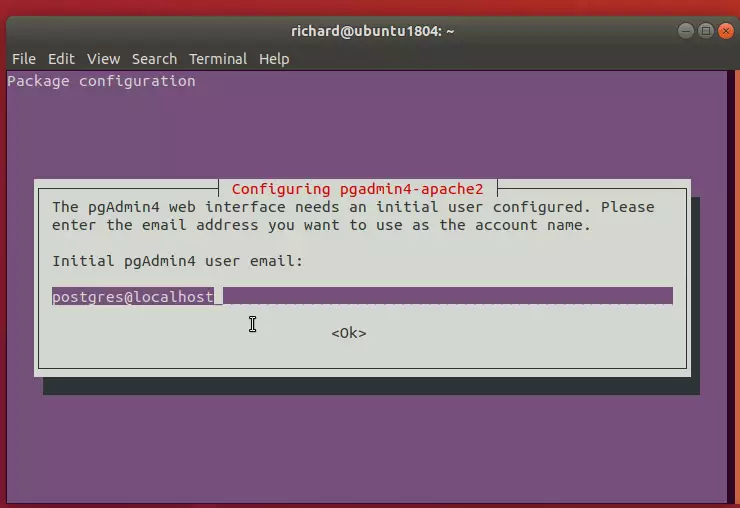
Next, create a password for the pgAdmin4 web service. This is the login for the pgAdmin4 web interface itself, and it is separate from the PostgreSQL postgres password. You may be asked for an email address as well, which becomes the login name. Write both down in a safe place.
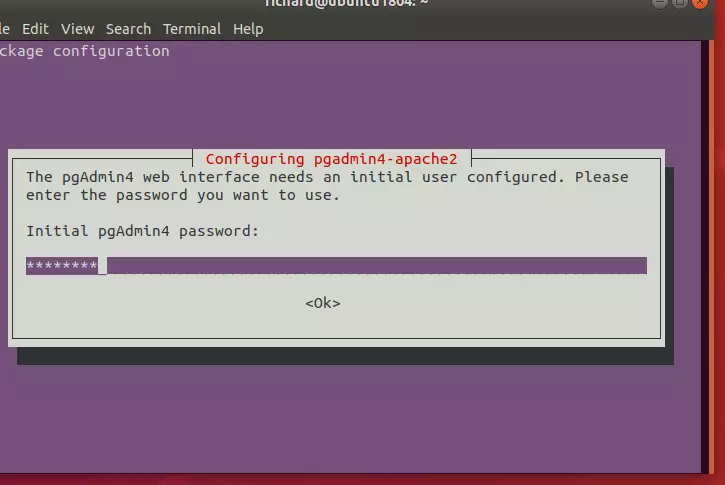
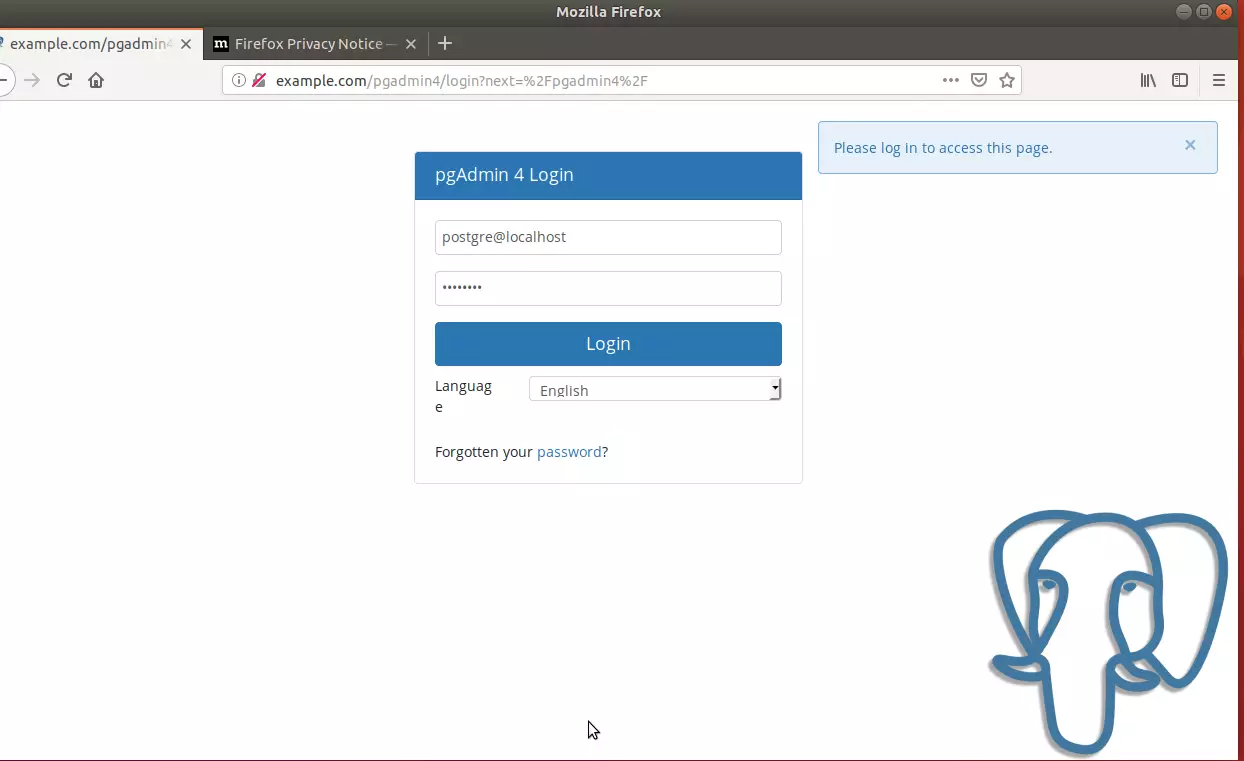
After the install finishes, open your web browser and go to the server hostname or IP address followed by the pgAdmin4 path, shown below. If you are working on the Ubuntu machine itself, you can use localhost as the hostname.
http://example.com/pgadmin4
On the login page, enter the web interface’s initial user account, as shown in the image above. If the page does not load, check that the web server installed with pgAdmin4 is running, and that no firewall is blocking web traffic to the server.
Log in and add a new PostgreSQL server so pgAdmin4 can manage your database.
- Sign in with the email address and password you created during the install.
- Click Add New Server on the dashboard.
- Enter a name for the server on the General tab.
- Open the Connection tab and enter the host name or address, the user name postgres and the postgres password from earlier.
- Click Save. The server should now appear in the tree on the left.
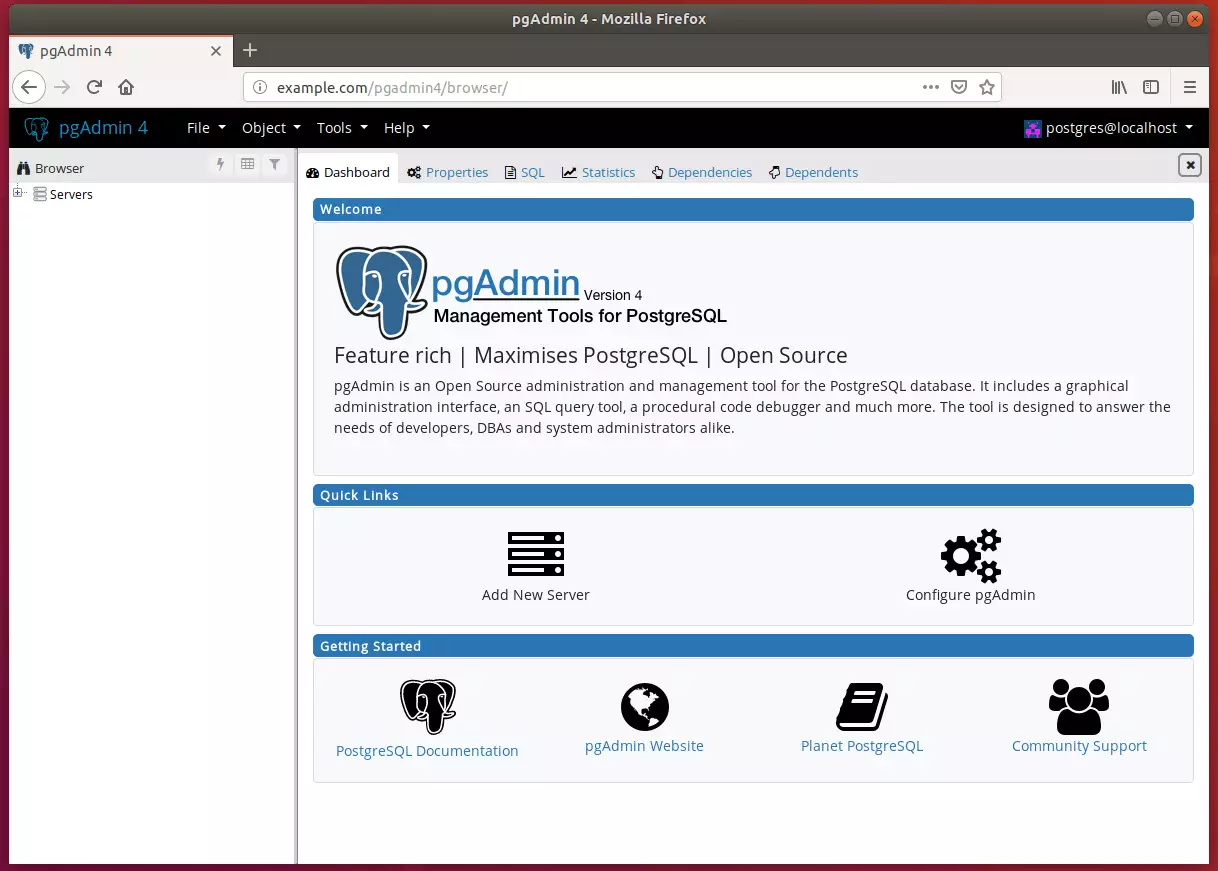
Now you can begin setting up your environment. Expand the server in the left pane to see its databases and roles, then create databases and users as you need them.
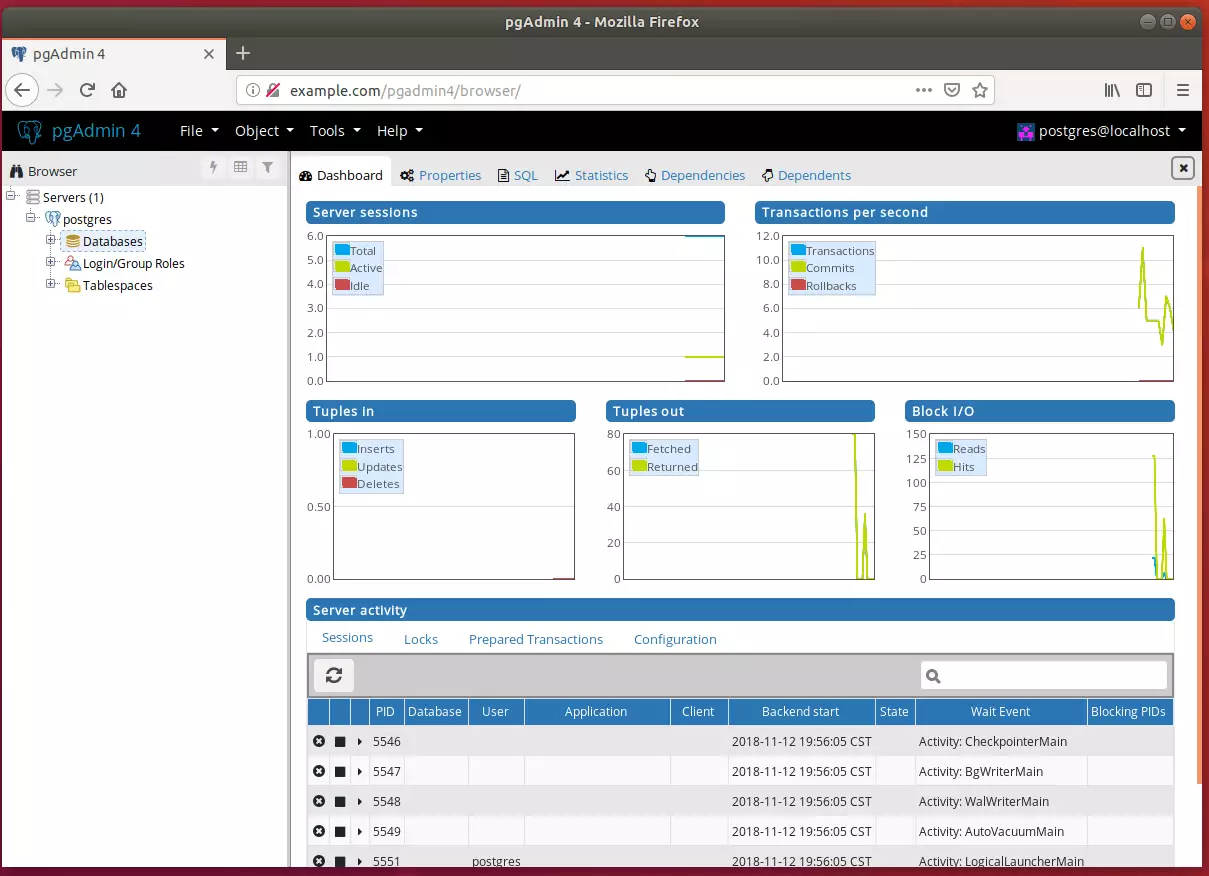
That’s it! You should now restrict access to local IP addresses only. The pgAdmin4 web page is served by a web server, so anyone who can reach the machine can see the login page. You can limit it with the Ubuntu firewall (ufw) or your network firewall, and allow only the addresses that need it.
Conclusion:
- PostgreSQL is a powerful and flexible object-relational database management system that offers advanced features for developers and database administrators.
- By following the outlined steps, users can successfully install PostgreSQL and the pgAdmin4 management tool on Ubuntu, making database management accessible through a web interface.
- The installation process includes adding the PostgreSQL repository, installing the latest packages, and configuring access for the PostgreSQL shell and pgAdmin4.
- Setting a password for the Postgres user is crucial for security, allowing for controlled access to the database.
- With pgAdmin4, users gain a comprehensive platform to create, manage, and monitor PostgreSQL instances efficiently.
- Remember to consider network security by restricting access to only local IP addresses, ensuring your database environment remains secure.
Have a question about this guide?
Answered by AI from this guide. Good questions may be added to this page — please don't include personal details.
Did this guide fix your problem?

About the Author
Richard
Tech Writer, IT Professional
Richard is a writer at Geek Rewind who turns complex IT tasks into clear, step-by-step guides. He draws on years of hands-on experience in system administration and enterprise IT operations, focusing on Windows, Linux and WordPress: the problems people actually run into, and the fixes that work. His server and WordPress guides come from systems he runs himself. Richard builds and maintains the platform behind Geek Rewind, from its Ubuntu servers and Nginx configuration to its custom WordPress plugins. Many new tutorials start with readers' questions, and he's always glad to answer them in the comments.
No comments yet — be the first to share your thoughts!