Install Nexus Repository Manager on Ubuntu


Nexus Repository Manager on Ubuntu is a self-hosted server tool that stores and manages software packages and application files in one central place. It acts as a single source of truth for your project dependencies, so you can share code and tools across different servers and computers.
Installing version 3.x of Nexus gives you a web-based hub that you open right in your browser. You use it to host your own private components and to download files from public sources through a proxy. The setup has six parts: install Java, download Nexus, create a service user, configure it, create a system service, and sign in. You need an Ubuntu server, a user with sudo rights, and an internet connection. Plan for at least a few GB of free disk space and a few GB of RAM, because Nexus is a Java application and uses memory heavily.
Install Java 21, download Nexus, and move its files to /opt. Create a ‘nexus’ user, configure Nexus to run as this user in /opt/nexus/bin/nexus.rc, and create a systemd service file at /etc/systemd/system/nexus.service. Start the service with `sudo systemctl start nexus`.
Install Java
Nexus is a Java application, so it will not start without a Java runtime. This guide uses OpenJDK 21. The steps are to refresh the package list and then install the Java Development Kit with the standard Ubuntu package tools.
Run these commands to update your system and install OpenJDK 21:
sudo apt update
sudo apt install openjdk-21-jdk
When the install finishes, make sure Java is available and reports version 21. If the package is not found, run the update command again and check that your Ubuntu release is still supported and that the universe repository is enabled. If you have more than one Java version installed, the system may pick a different one by default. You can find more details on managing Java versions at How to install and use OpenJDK on Ubuntu Linux.
Install Nexus Repository Manager
Installing Nexus means downloading the archive from the official source, extracting it, and moving the folder to the /opt directory. /opt is the standard place on Ubuntu for software that does not come from the package manager, and keeping Nexus there makes it easy to find and manage later.
Run these commands to download and extract the files:
cd /tmp
wget https://download.sonatype.com/nexus/3/nexus-3.77.0-02-unix.tar.gz
tar xzf nexus-3.77.0-02-unix.tar.gz
sudo mv nexus-3.77.0-02 /opt/nexus
sudo mv sonatype-work /opt/
Next, create a dedicated user account to run Nexus safely. This account will not be used to log in to the system. Running a network service under its own limited account means a problem in Nexus cannot give an attacker full control of the server.
sudo useradd -m -d /opt/nexus -U -r -s /bin/bash nexus
sudo chown -R nexus:nexus /opt/nexus /opt/sonatype-work
The new user must own the Nexus application and data folders. If it does not, the service fails to start with permission errors. Check that the ownership change in the commands above ran without errors before you continue.
Configure Nexus to run on Ubuntu
By default Nexus is set up to start as root. Change its settings so it runs under the dedicated user account instead. This keeps the server more secure, and it lets the service start correctly under that account.
Edit the configuration file to set the user:
sudo nano /opt/nexus/bin/nexus.rc
In the file, find the commented-out line for the run-as user. Remove the leading # to uncomment it, then set it to: run_as_user="nexus". Save the file and close the editor.
For custom settings like memory limits, use the nexus.vmoptions file or the dedicated configuration directory instead of changing the default files. Your changes then survive upgrades and are easier to review later. Changes to memory settings only take effect after Nexus is restarted.
Now create a system service file so Ubuntu can start, stop and restart Nexus for you, and start it automatically at boot:
sudo nano /etc/systemd/system/nexus.service
Paste these lines into the file, then save it:
[Unit]
Description=nexus service
After=network.target

[Service]
Type=forking
LimitNOFILE=65536
ExecStart=/opt/nexus/bin/nexus start
ExecStop=/opt/nexus/bin/nexus stop
User=nexus
Restart=on-abort

[Install]
WantedBy=multi-user.target
Start the service with these commands:
sudo systemctl daemon-reload
sudo systemctl start nexus.service
sudo systemctl enable nexus.service
Nexus takes a few minutes to start the first time, so do not worry if the page does not load right away. If it still fails to load after that, check the service status and its log for errors. The usual causes are a wrong file owner, a missing Java install, or too little memory.
To access the web interface, open your browser and go to http://your-server-ip:8081. Nexus listens on port 8081 by default. If you cannot reach it from another computer and the Ubuntu firewall (UFW) is on, allow that port first.
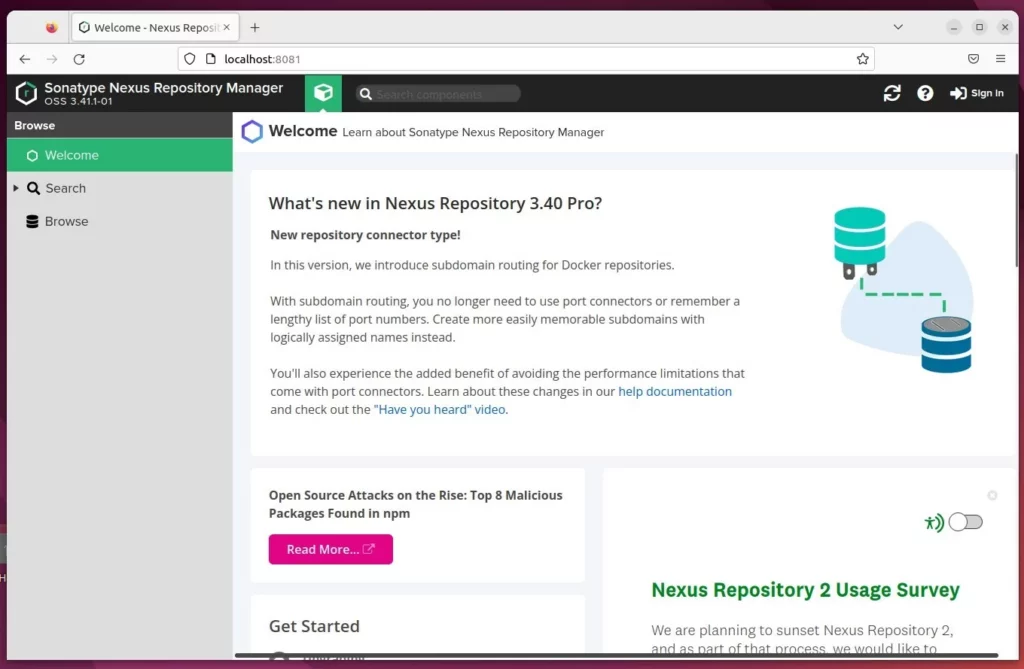
The Nexus Repository Manager initial admin password is required for your first login. The username is admin. You can retrieve the password by running the command `sudo cat /opt/sonatype/nexus/etc/nexus-default.properties | grep -oP 'password\K.*'`. This command will display the password directly in your terminal.
If the command prints nothing, use the sign-in screen. Nexus 3 shows the exact location of the generated admin password file on the server. Read that file with sudo and copy the value.
sudo cat /opt/sonatype-work/nexus3/admin.password
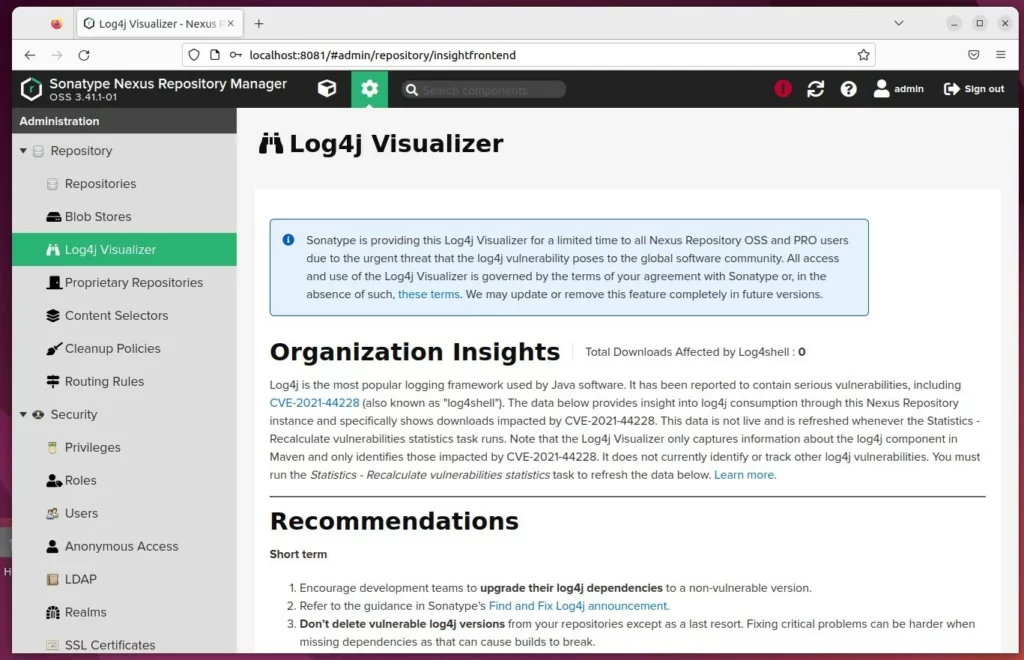
Click Sign in at the top right of the Nexus page and enter the admin username and the password you just found. The setup wizard then starts. Enter this password in the browser when asked. You will be prompted to create a new, secure password. Choose a strong one and store it in a password manager. The wizard also asks whether to allow anonymous access. Leave it off unless you want anyone who can reach the server to download components without signing in.
Run Nexus behind a proxy
Running Nexus Repository Manager behind a web server like Nginx or Apache on Ubuntu improves security and performance. The web server can handle HTTPS with a certificate and serve Nexus on the standard ports 80 and 443, so users do not need to type port 8081. Once the proxy works, you can block direct outside access to port 8081.
How to set up a reverse proxy with Nginx
How to set up a reverse proxy with Apache
For more official documentation, visit https://help.sonatype.com/docs.
[Unit] [Service] [Install]Have a question about this guide?
Answered by AI from this guide. Good questions may be added to this page — please don't include personal details.
Did this guide fix your problem?

About the Author
Richard
Tech Writer, IT Professional
Richard is a writer at Geek Rewind who turns complex IT tasks into clear, step-by-step guides. He draws on years of hands-on experience in system administration and enterprise IT operations, focusing on Windows, Linux and WordPress: the problems people actually run into, and the fixes that work. His server and WordPress guides come from systems he runs himself. Richard builds and maintains the platform behind Geek Rewind, from its Ubuntu servers and Nginx configuration to its custom WordPress plugins. Many new tutorials start with readers' questions, and he's always glad to answer them in the comments.
No comments yet — be the first to share your thoughts!