How to Install Oracle Java JDK on Windows 11

You install Oracle Java JDK on Windows 11 to prepare your system for Java programming and application development.
The Java Development Kit (JDK) is the foundational software package required for writing, compiling, and executing Java code.
This guide specifically focuses on installing Oracle JDK 21, the latest LTS version, on your Windows 11 PC. Once installed, you’ll gain the necessary tools to build and manage your Java projects directly from the command line.
Download the JDK installer from Oracle’s website and run it. Follow the on-screen prompts, accepting default settings. After installation, edit system environment variables to set JAVA_HOME and add the JDK’s bin directory to the Path.
Prerequisites
Before you begin, ensure you have the following:
- Administrative Rights: You must have an administrator account on your Windows 11 PC to install software and modify system environment variables.
- Storage Space: Ensure you have at least 500MB of free disk space.
- Internet Connection: Required to download the JDK installer.
Oracle JDK vs. OpenJDK: Which Should You Choose?
When you install Java JDK on Windows 11, you’ll find two main choices: Oracle JDK and OpenJDK.
Downloading and Installing Java
Installing Java JDK on Windows 11 starts with downloading the correct installer file from Oracle’s official website.
Once the download finishes, open your Downloads folder and double-click the installer. Note: This step requires administrator privileges. Follow the on-screen prompts.
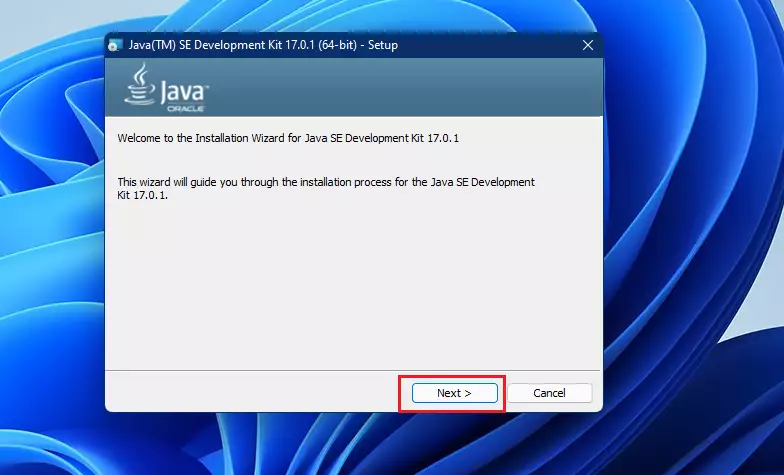
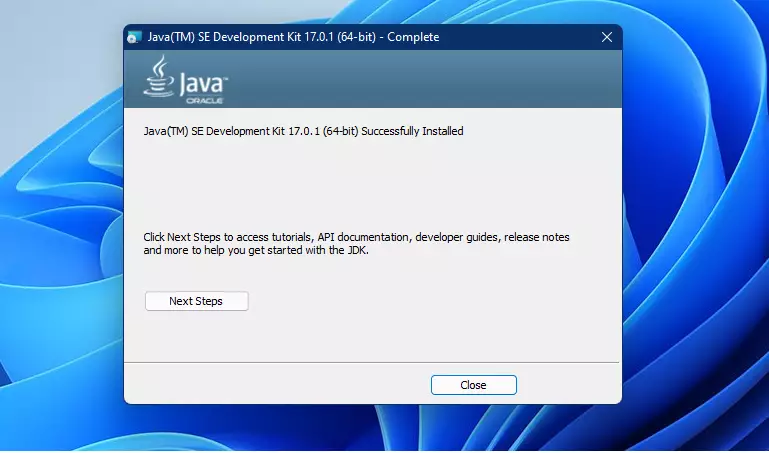
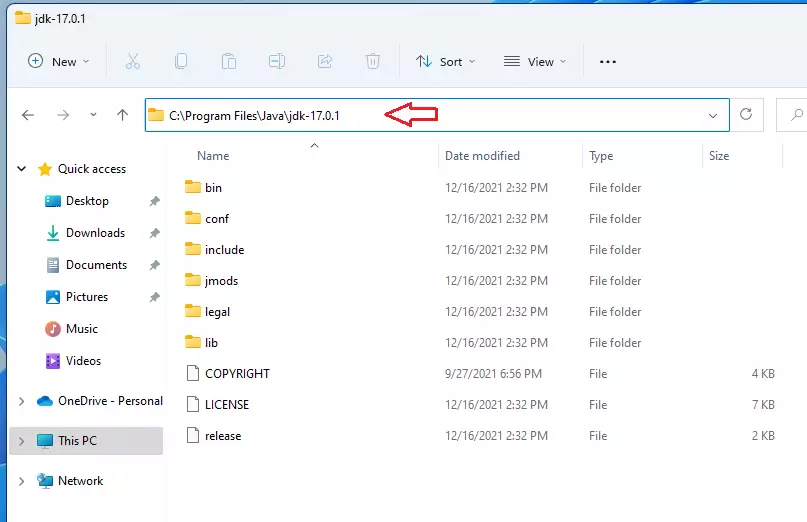
Keep the default settings. Java will install to C:\Program Files\Java\jdk-version-number. Click ‘Close’ when the installation finishes.
Configuring Environment Variables
To make sure Java works correctly on your Windows 11 system, you’ll need to set up a couple of environment variables, starting with JAVA_HOME.
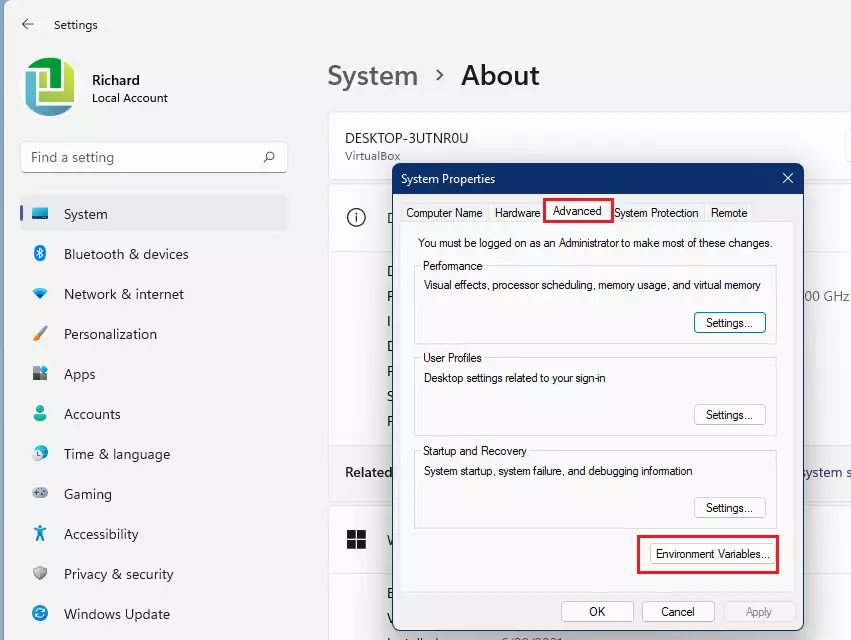
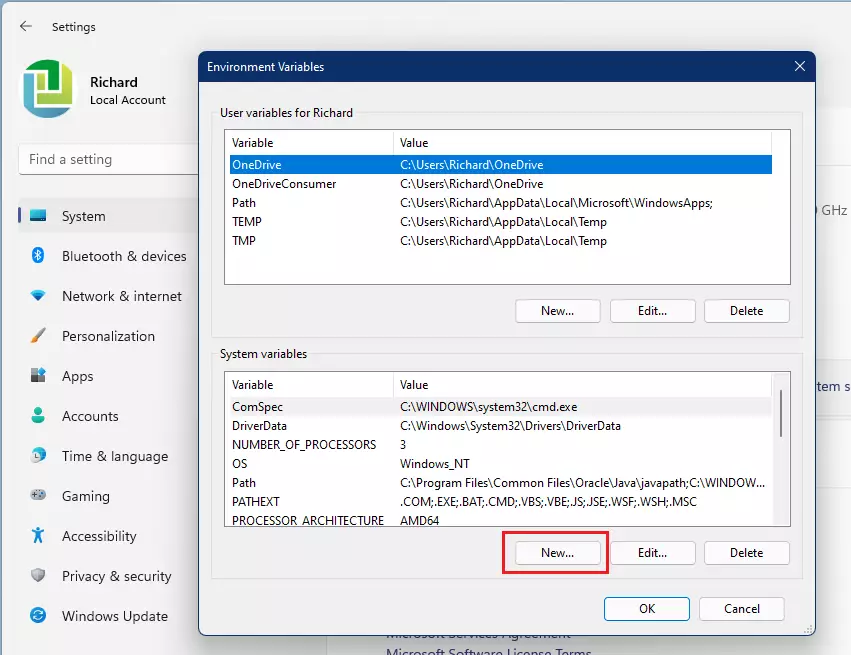
Click “Environment Variables” at the bottom. Under “System variables,” click “New.”
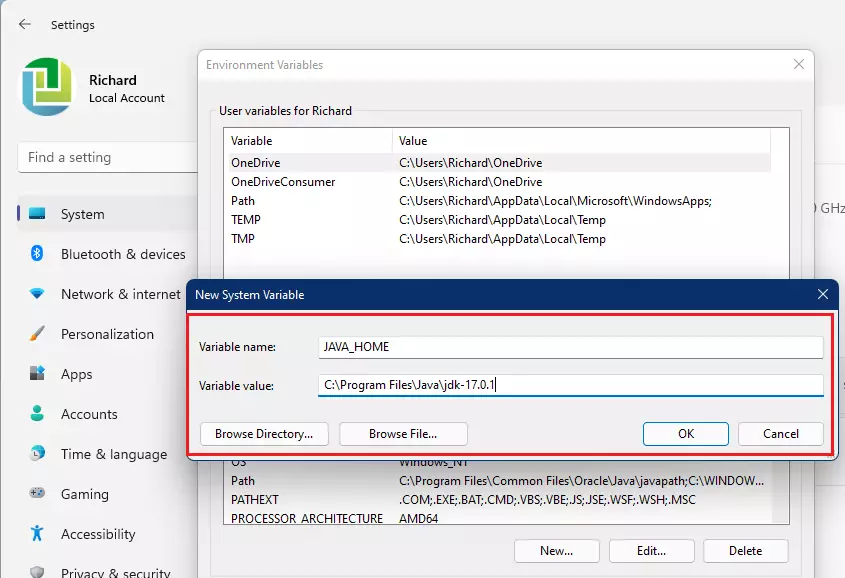
Enter ‘JAVA_HOME’ as the variable name and your installation path (e.g., ‘📁C:\Program Files\Java\jdk-17’) as the value.
Next, find the “Path” variable in the list and click “Edit.” Click “New” and add the following line:
%JAVA_HOME%\bin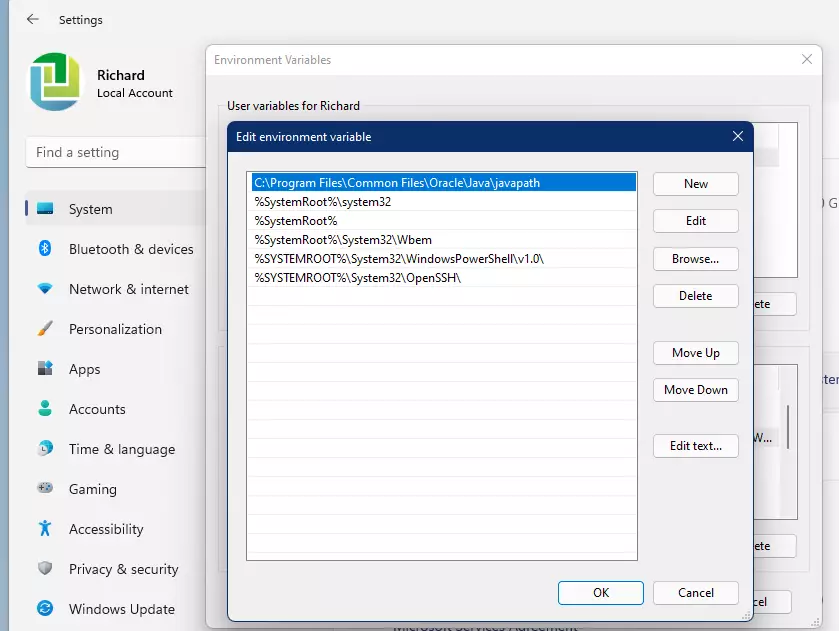
Verifying the Installation
Open Command Prompt or PowerShell and type these commands:
java -version
javac -version
Troubleshooting Installation
If you’ve installed Java on Windows 11 and the ‘java -version’ command isn’t working, common issues include incorrect paths or not restarting your command window.
- Path Typos: Ensure your
JAVA_HOMEpath matches your actual installation folder exactly. - Restart Terminal: Always close and reopen your Command Prompt after changing environment variables so the system can refresh the settings.
- Permissions: Ensure you ran the installer as an administrator.
Summary
To install Java JDK on Windows 11, you’ll download the installer, run it as an administrator, and set up your JAVA_HOME and Path environment variables.
Is the Oracle JDK free for commercial use?
No, Oracle JDK is generally not free for commercial use under the current Oracle No-Fee Terms and Conditions. For business environments, it is often safer to use the Microsoft Build of OpenJDK or other free distributions to avoid licensing fees and compliance issues.
What is the difference between JRE and JDK?
The JRE (Java Runtime Environment) only allows you to run Java programs. The JDK (Java Development Kit) includes the JRE plus all the tools needed to develop, compile, and debug Java code. If you want to write your own programs, you must install the JDK.
Do I need to uninstall old versions of Java before installing a new JDK?
It is not strictly required, but it is highly recommended. Having multiple versions of Java can cause conflicts with your PATH variables. Uninstalling older versions through the Windows Settings menu ensures that your new installation is the primary version used by your system.
How do I check which version of Java is currently installed on 🪟 Windows 11?
Open the Command Prompt by typing “cmd” in the search bar. Type java -version and press Enter. The terminal will display the installed version number. If you see an error, Java is either not installed or your PATH variable is not configured correctly.
Was this guide helpful?

About the Author
Richard
Tech Writer, IT Professional
Richard, a writer for Geek Rewind, is a tech enthusiast who loves breaking down complex IT topics into simple, easy-to-understand ideas. With years of hands-on experience in system administration and enterprise IT operations, he’s developed a knack for offering practical tips and solutions. Richard aims to make technology more accessible and actionable. He's deeply committed to the Geek Rewind community, always ready to answer questions and engage in discussions.



No comments yet — be the first to share your thoughts!