How to Install Android Studio on Ubuntu 24.04


Android Studio on Ubuntu 24.04 is Google’s official app building program that combines a code editor and phone simulator in one workspace. You need at least 8GB of RAM and 8GB of free disk space to run the program without slowdowns.
Snap packages handle the installation process by managing background updates automatically. You can set up the software quickly through either the Ubuntu Software Center or your terminal.
You can install Android Studio on Ubuntu 24.04 using the Snap package manager. Open a terminal and run ‘sudo snap install android-studio –classic’. Afterwards, search for Android Studio in your applications menu or run ‘sudo snap run android-studio’ from the terminal.
Install Android Studio using the App Center
Ubuntu’s App Center provides a graphical path for software setup.
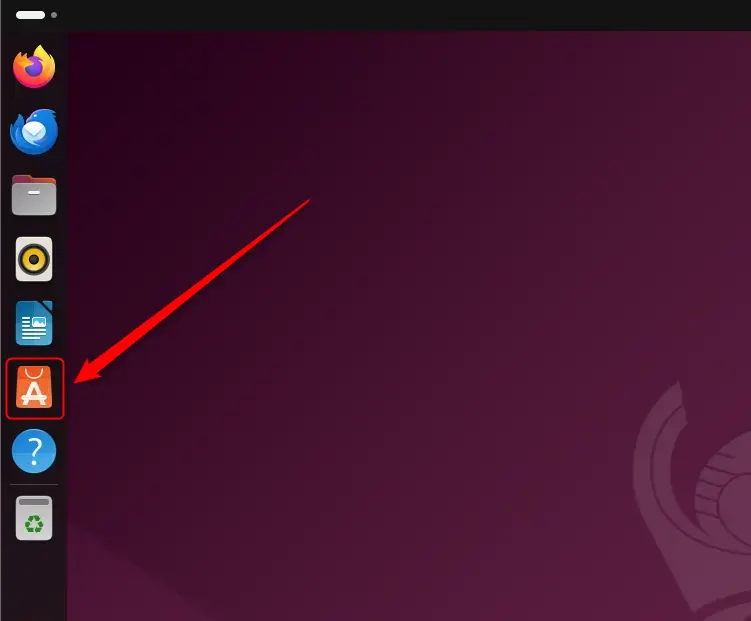
Applications appear in the desktop launcher once installation completes.
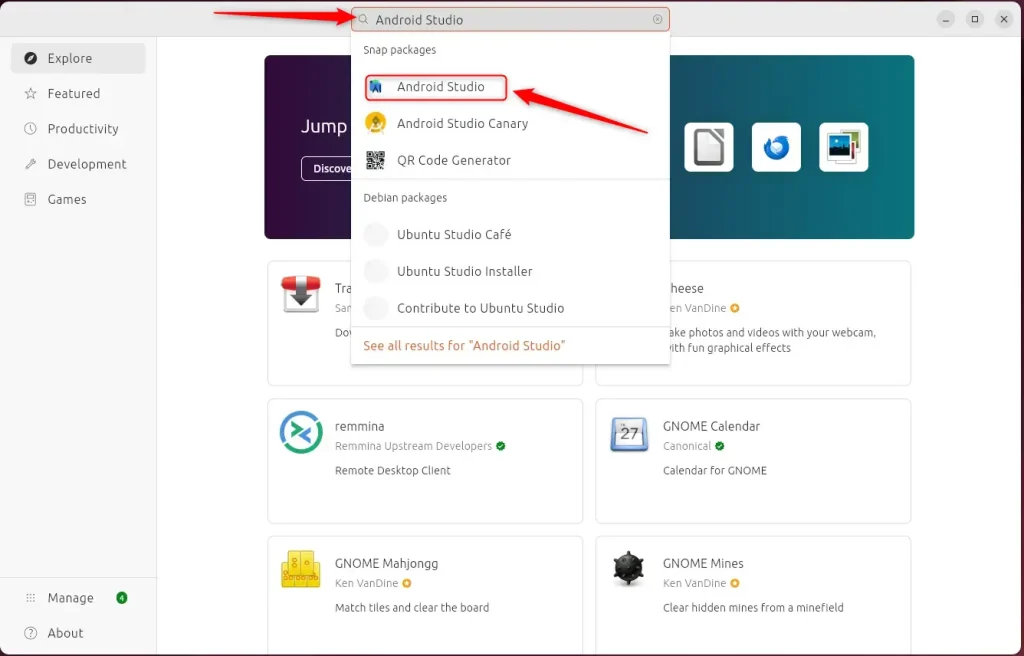
Install the app
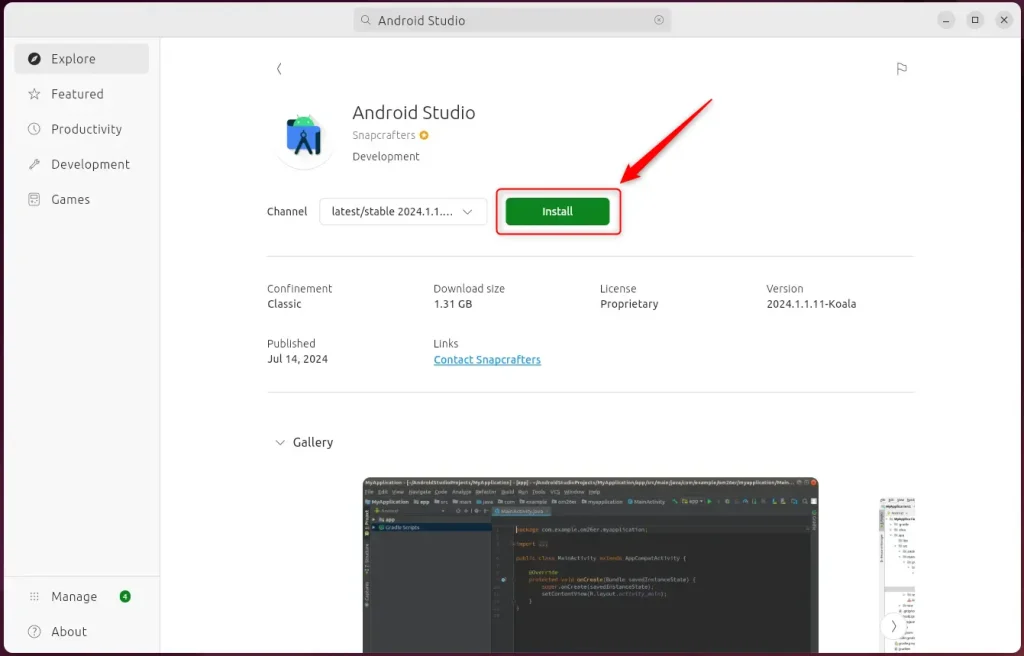
Application shortcuts reside in the left sidebar for quick access.
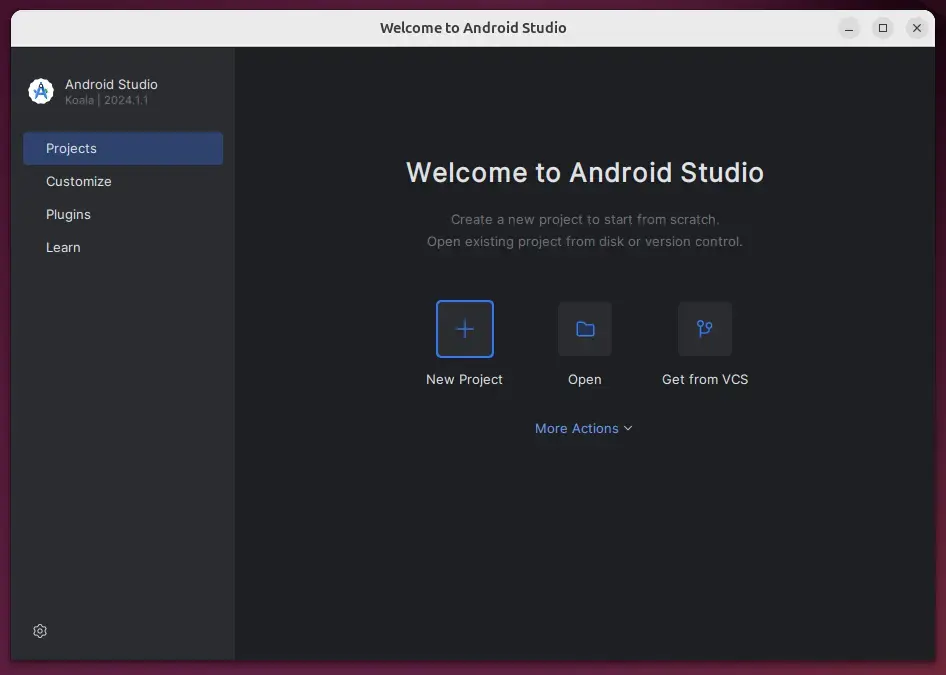
Install Android Studio using PPA repository
You can install Android Studio on Ubuntu 24.04 using a PPA repository to get automatic updates through your system updater. First, open your terminal and install the Java development kit (the software package required to run developer tools) by typing sudo apt install default-jdk. Then, add the official PPA source and run the package manager command to download and set up the app on your computer.
Software dependencies must resolve successfully before launching the IDE (Integrated Development Environment).
Terminal execution starts with the default runtime package.
sudo update
sudo apt install default-jdk
Repository additions require specific commands to fetch the software sources.
sudo add-apt-repository ppa:maarten-fonville/android-studio
Package index refreshes ensure local caches match remote repositories.
sudo apt update
sudo apt install android-studio
Desktop launchers appear in the left sidebar once setup finishes.
Removal commands clean up unwanted packages.
Snap packages encapsulate applications with all necessary dependencies included. Checking for the package manager happens via terminal using `snap version`.
Package management systems bundle runtime dependencies within isolated containers. Verification commands confirm whether the background service runs properly.
sudo apt install snapd
IDE installation proceeds through the package manager.
sudo snap install android-studio --classic
Dock shortcuts launch the newly installed workspace.
Command-line invocation offers an alternative startup method.
sudo snap run android-studio
Removal operations clean the system state.
Flatpak containers isolate applications from the host operating system. Package installations require terminal commands like `sudo apt update` followed by `sudo apt install flatpak`.
Distribution frameworks outside native repositories require explicit setup.
Sandbox runtimes establish the foundation for containerized applications.
System updates prepare the package database for new additions.
sudo apt update && sudo apt upgrade
sudo apt install flatpak
Remote sources expand available software catalogs.
sudo flatpak remote-add --if-not-exists flathub https://flathub.org/repo/flathub.flatpakrepo
Container deployment finalizes the software setup.
flatpak install flathub com.google.AndroidStudio
Graphical software centers or terminal commands handle application startup.
flatpak run com.google.AndroidStudio
Uninstallation commands purge container files from storage.
flatpak uninstall com.google.AndroidStudio
Configuration finishes here.
Conclusion
Multiple installation paths exist for setting up the environment. Choose between the App Center, PPA repositories, Snap packages, or Flatpak containers.
- Multiple Installation Methods: You can choose various methods to install Android Studio, including App Center, PPA repository, Snap package manager, and Flatpak.
- Java Requirement: Ensure that Java is installed prior to using PPA or Snap, as it is essential for running Android Studio.
- Ease of Use: Each installation method offers a straightforward approach, making it accessible for developers of all levels.
- Uninstallation: Uninstalling Android Studio is simple, with commands available for each installation method.
- Enhanced Development Tools: Android Studio provides powerful tools for coding, debugging, and testing, streamlining the app development process.
Proper workspace configuration lays the groundwork for building robust mobile applications.
Was this guide helpful?

About the Author
Richard
Tech Writer, IT Professional
Richard is a writer at Geek Rewind who turns complex IT tasks into clear, step-by-step guides. He draws on years of hands-on experience in system administration and enterprise IT operations, focusing on Windows, Linux and WordPress: the problems people actually run into, and the fixes that work. His server and WordPress guides come from systems he runs himself. Richard builds and maintains the platform behind Geek Rewind, from its Ubuntu servers and Nginx configuration to its custom WordPress plugins. Many new tutorials start with readers' questions, and he's always glad to answer them in the comments.




No comments yet — be the first to share your thoughts!