How to Use Android Nearby Share on Windows 11

Google has rebranded Android Nearby Share to Quick Share. This tool allows for seamless wireless file transfer between your Android device and your Windows 11 PC. While it functions similarly to the old version, it now offers better integration with the broader Android ecosystem.
Why use Quick Share?
Sending files via email or cloud storage can be slow and requires an internet connection. Quick Share creates a direct, high-speed link between your devices using Bluetooth and Wi-Fi Direct. This lets you move photos, videos, and documents instantly without cables.
What happens when done?
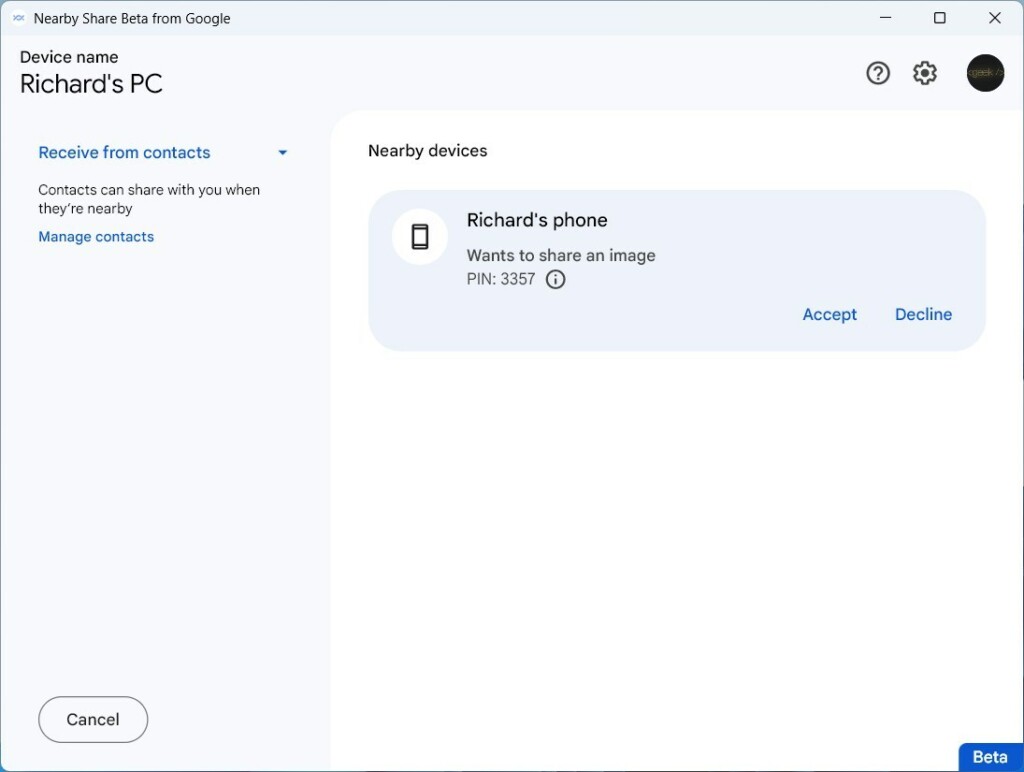
Once you finish these steps, your computer will appear as a destination whenever you choose to share a file on your Android phone. You will be able to drag and drop files between devices with ease.
System Requirements
Before you begin, ensure your system meets these requirements:
- Operating System: 64-bit version of Windows 10 or Windows 11.
- Hardware: Bluetooth and Wi-Fi must be enabled.
- Architecture: Currently, Quick Share is optimized for x86-64 processors. ARM-based Windows 11 devices may have limited or no support at this time.
- Account: A Google account is required for synchronization.
Setting up Quick Share on Windows 11
You do not need to install anything on your Android phone as it is built into the system. You only need to set up your PC.
Note: You may need administrator privileges to install new software on your computer. Ensure you have access to the C:\Program Files directory if prompted.
- Download the official app: Download Google Quick Share for Windows.
- Run the installer. If you are asked for permission to make changes to your system, confirm that you want to proceed.
- Once installed, the app will ask you to sign in to your Google account.
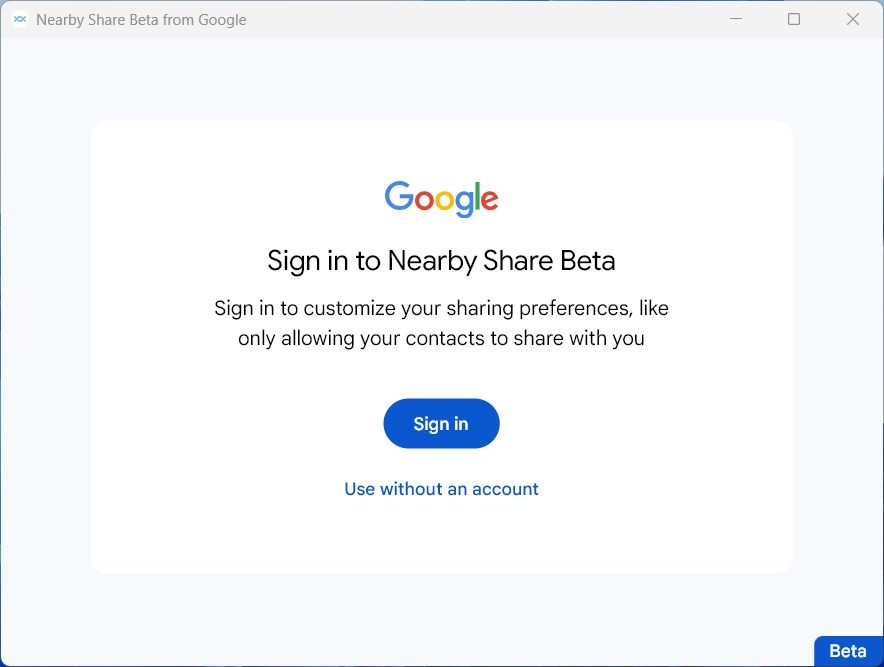
After signing in, you can choose who is allowed to send files to your computer. If you sign in with the same Google account on your phone and your PC, your files will transfer automatically without needing extra approval.
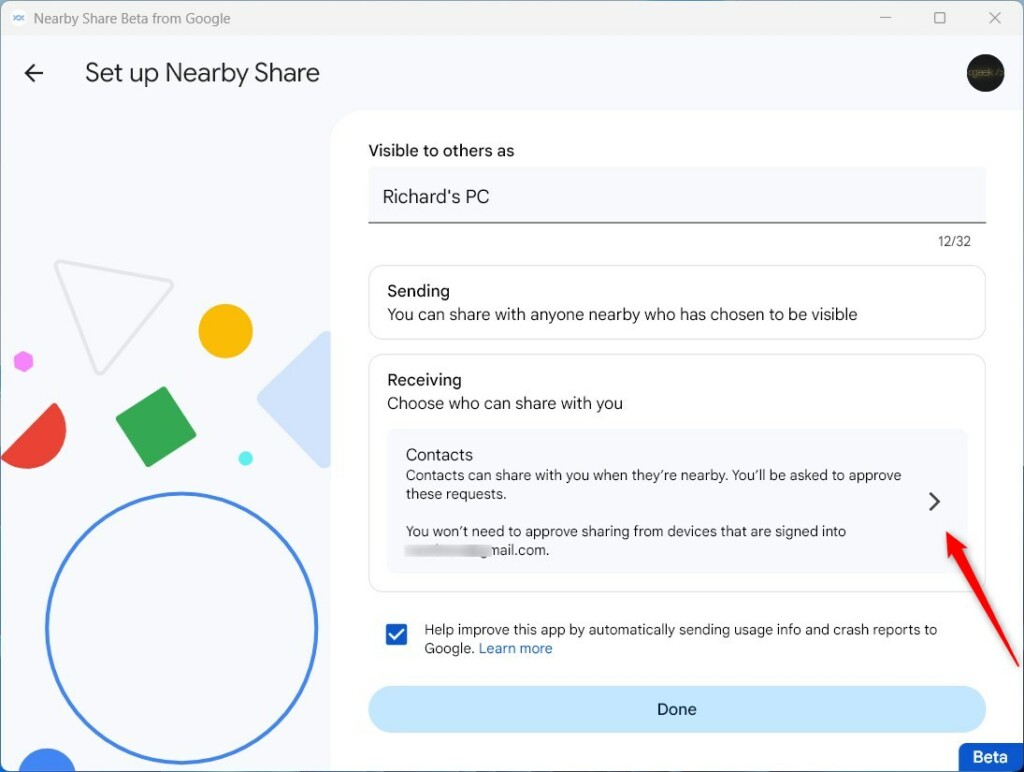
Managing Privacy and Settings
You can control who sees your device in the Quick Share app settings. You can choose between “Everyone,” “Contacts Only,” or “Your Devices.” If you select “Your Devices,” only phones signed into your specific Google account can send files to your PC.
Troubleshooting Quick Share
If your devices cannot find each other, check the following:
- Ensure both devices are on the same Wi-Fi network for faster transfers.
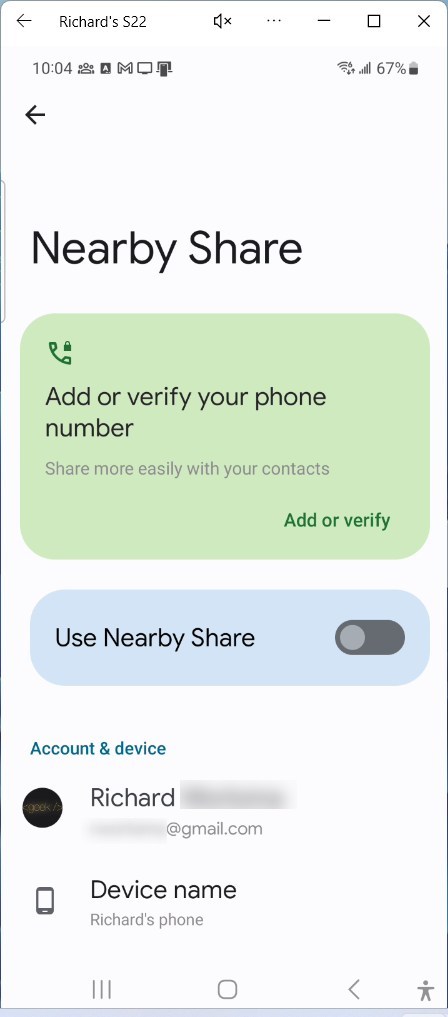
- Check that Bluetooth is toggled ON in both Windows Settings and your Android Quick Settings.
- Verify that your PC is not in “Airplane Mode.”
- Check for firewall blocks in C:\Windows\System32\drivers\etc\hosts if you experience connection issues.
Summary
Quick Share is the modern way to move files between Android and Windows. By installing the official app and signing in with your Google account, you create a secure, wireless connection. Whether you are moving photos or documents, this cross-platform sharing tool simplifies your workflow. Remember to keep your Bluetooth and Wi-Fi enabled for the best experience.
Is Quick Share compatible with ARM-based Windows 11 devices?
Currently, the official Google Quick Share app for Windows is designed primarily for x86-64 architecture. While some users may find workarounds, it is not officially supported on ARM-based Windows 11 devices. Always check the official Google support page for the latest compatibility updates regarding processor architecture.
Do both devices need to be on the same Wi-Fi network?
While Quick Share uses Bluetooth for discovery, it uses Wi-Fi Direct for the actual file transfer. Being on the same Wi-Fi network often improves discovery speed and stability, but it is not strictly required as the app creates a peer-to-peer wireless connection between the two devices automatically.
Was this guide helpful?

About the Author
Richard
Tech Writer, IT Professional
Richard, a writer for Geek Rewind, is a tech enthusiast who loves breaking down complex IT topics into simple, easy-to-understand ideas. With years of hands-on experience in system administration and enterprise IT operations, he’s developed a knack for offering practical tips and solutions. Richard aims to make technology more accessible and actionable. He's deeply committed to the Geek Rewind community, always ready to answer questions and engage in discussions.


[…] Android Nearby Share feature allows users with Android devices to securely send and receive photos, documents, and more with nearby Windows PCs. […]
[…] Android Nearby Share feature allows users with Android devices to securely send and receive photos, documents, and more with nearby Windows PCs. […]
[…] guide explains how to change where your computer saves files sent from your phone using the Android Nearby Share Android Nearby Share feature. This tool lets you send photos and documents between your phone and […]