How to Find Your Computer Name in Windows 11

Your computer name in Windows 11 is a unique identifier for your PC on a network, also known as a hostname.
This name helps Windows 11 distinguish your machine, making it easier for you to connect to shared resources or manage remote access. Think of it like a nickname for your computer.
Knowing this specific identifier, such as “DESKTOP-XYZ789,” is crucial for tasks like setting up network printers or troubleshooting connectivity issues. It allows for seamless communication between your devices.
You can find your computer name in Windows 11 by pressing Windows key + Pause/Break to open the About page in Settings, or by typing “hostname” in the Command Prompt. The device name is listed at the top of the About page.
Method 1The Fastest Way (Keyboard Shortcut)
The quickest way to find your system properties is using a keyboard shortcut.
- Press Windows key + Pause/Break on your keyboard.
- This instantly opens the About page in Windows 11 settings.
- Look for Device name at the top of the window.
Method 2Using the Settings Menu
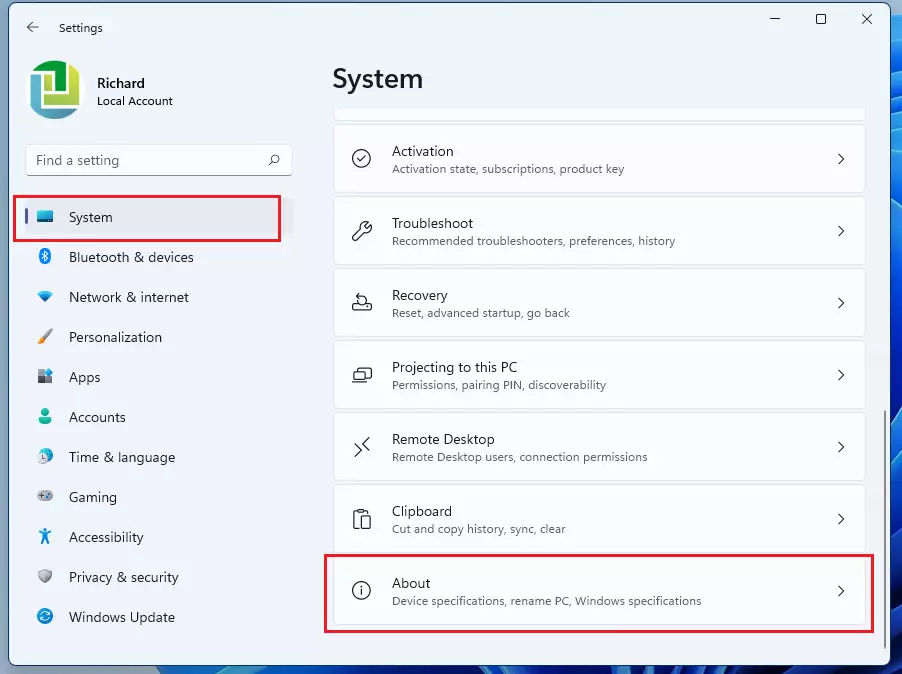
You can find your computer name in Windows 11 using the Settings menu by opening it with the Windows key + I, then clicking System, and finally selecting About.
- Press Windows key + I to open Settings.
- Click System on the left sidebar.
- Scroll down and click About.
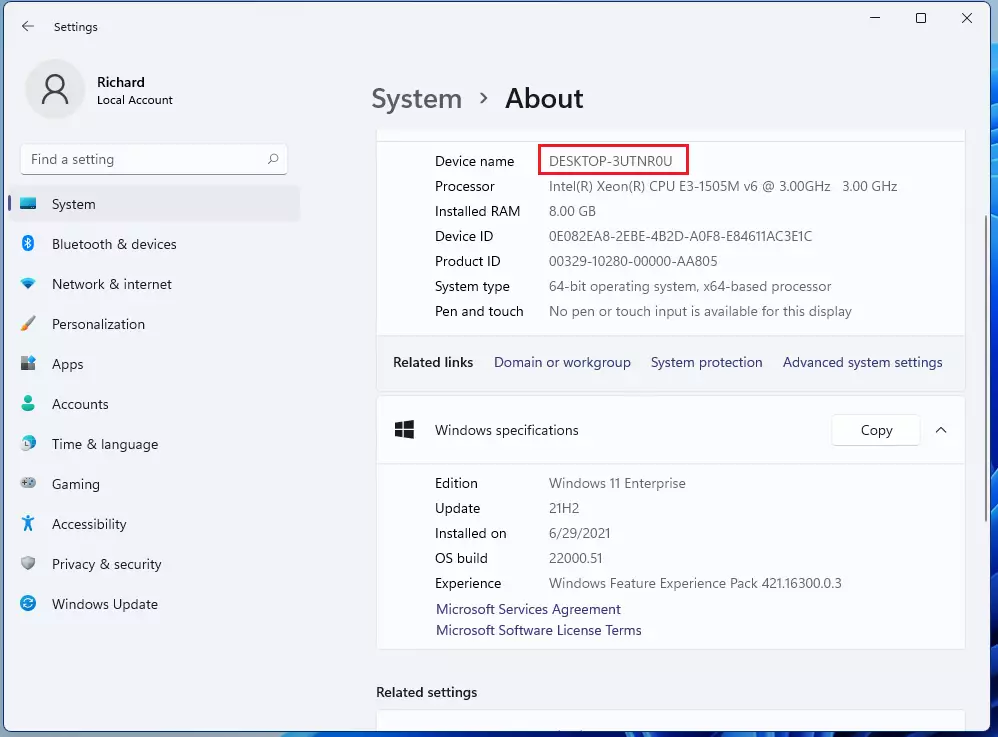
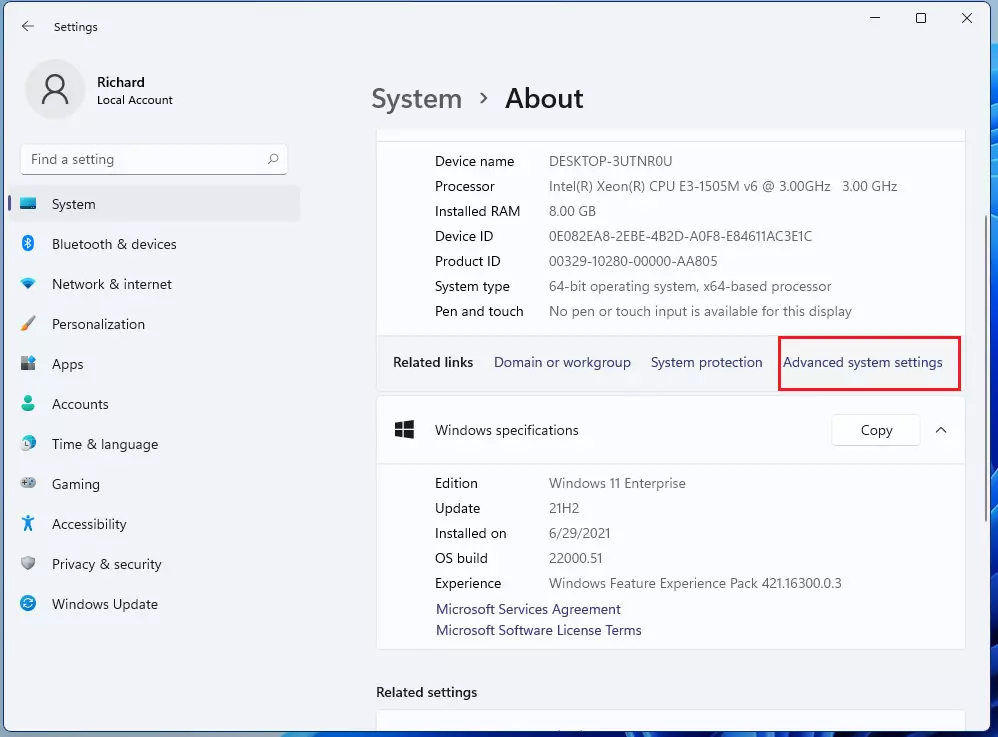
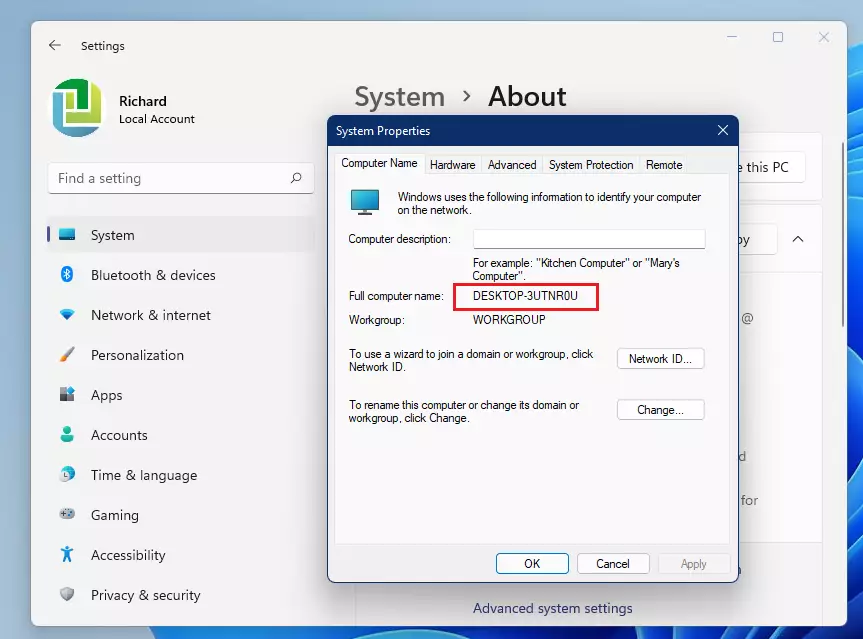
Your device name is displayed clearly at the top. You can find even more details, like your domain or workgroup status, by clicking Advanced system settings.
Method 3Using the Command Prompt
If you like using text commands, you can use the ‘hostname’ command.
- Click the Search icon on your taskbar.
- Type cmd and press Enter.
- In the black window, type
hostnameand press Enter.
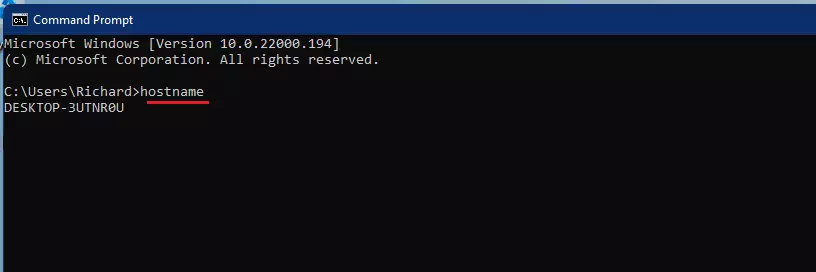
Your computer name will appear immediately below the command.
Related Articles
Summary
Finding your computer name in Windows 11 is important for network tasks and fixing problems, and you can do it a few different ways.
Just a heads-up: you don’t need admin privileges to view your computer name, but you do need them to change it.
Is the computer name the same as the user account name?
No. Your computer name identifies the physical hardware on a network, while your user account name identifies the specific person logged into the machine. You can have many different user accounts on one computer, but the computer name remains the same for everyone using that specific device.
Can I change my computer name in 🪟 Windows 11?
Yes, you can change it at any time. Go to Settings > System > About and click the Rename this PC button. Note that this action requires admin privileges. Avoid using special characters like \ / : * ? ” < > | to ensure your network connections remain stable and error-free.
Why does my computer name show up as a random string of characters?
If your PC name looks like a random string (e.g., DESKTOP-A1B2C3D), it is because Windows automatically generates a unique identifier during the initial setup. This prevents naming conflicts on networks. You can rename it to something more recognizable by following the steps in our guide.
Was this guide helpful?

About the Author
Richard
Tech Writer, IT Professional
Richard, a writer for Geek Rewind, is a tech enthusiast who loves breaking down complex IT topics into simple, easy-to-understand ideas. With years of hands-on experience in system administration and enterprise IT operations, he’s developed a knack for offering practical tips and solutions. Richard aims to make technology more accessible and actionable. He's deeply committed to the Geek Rewind community, always ready to answer questions and engage in discussions.



No comments yet — be the first to share your thoughts!