
This guide shows you how to hide the Windows Terminal icon in the notification area. The notification area is the small area near the clock on your screen. When you minimize Windows Terminal, you can make its icon disappear from your taskbar and hide it away. This keeps your taskbar clean and organized.
What is Windows Terminal?
Windows Terminal is a modern app. You can use command line tools like Command Prompt, PowerShell, or even Linux commands if you have Windows Subsystem for Linux (WSL) installed.
You can customize many things in Windows Terminal. You can change the language, size, startup behavior, and more. One useful feature is hiding the Terminal icon in the notification area when you minimize it. This feature is off by default. But you can turn it on easily.
Why Hide Windows Terminal in the Notification Area?
- Keep your taskbar clean: When you minimize Terminal, its icon moves to the notification area instead of staying on the taskbar.
- Keep Terminal running quietly: You can keep Terminal open in the background. It won’t take up space on the taskbar.
- Access Terminal when needed: You can still open Terminal from the notification area whenever you want to use it again.
If you prefer to see Terminal all the time on the taskbar, you can leave this feature off.
How to Hide Terminal in the Notification Area When Minimized
Follow these simple steps:
- Open Windows Terminal. Click the Start menu button (Windows icon) on the bottom-left of your screen. Type Terminal in the search box. Then click Windows Terminal from the results.

- Once Terminal is open, click the down arrow ▼ button near the top. Select Settings. Or press
Ctrl + ,on your keyboard.
- In the Settings window, click on Appearance from the left menu.
- Look for the option labeled “Hide Terminal in the notification area when it is minimized”.
- Turn the switch On to enable hiding. Or turn it Off to disable it.
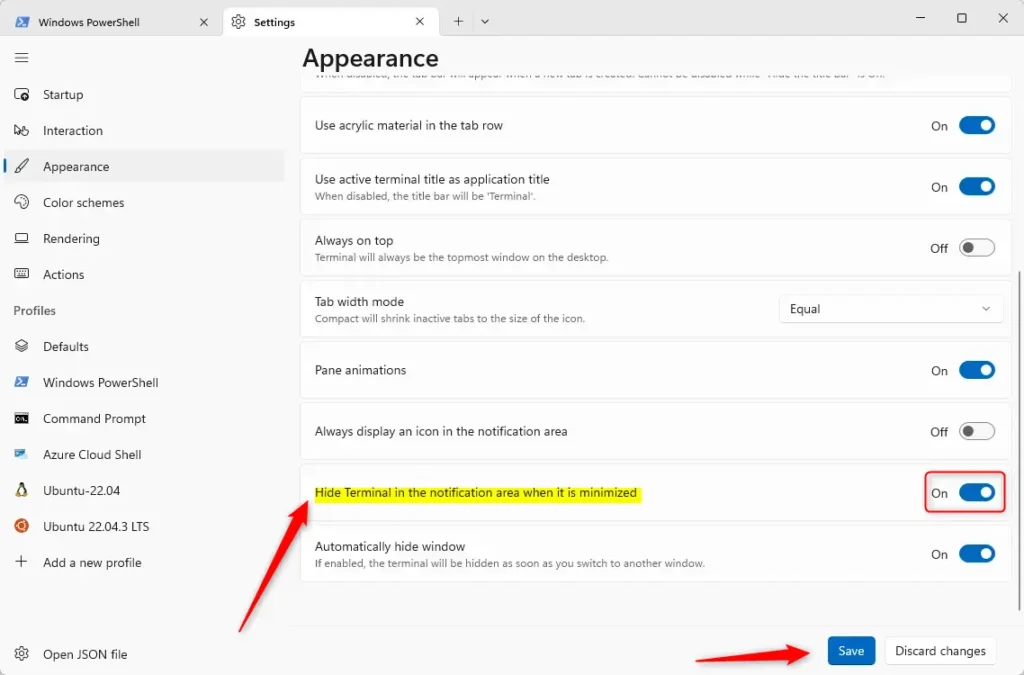
- Click the Save button at the bottom to keep your changes. Then close the Settings window.
That’s it! Now when you minimize Windows Terminal, it will hide in the notification area instead of staying on the taskbar.
Summary
What happens when you turn on “Hide Terminal in the notification area when minimized”? Your taskbar stays clean. Terminal runs quietly in the background.
What happens when you turn it off? Terminal stays visible on the taskbar. This makes it easier to access.
Why do this? You get a cleaner workspace. Terminal still runs in the background when you need it.
You can change this setting anytime. Just go back to Settings whenever you want to switch it on or off.
For more tips about Windows Terminal and how to customize it, check out these helpful guides:
How to Change Windows Terminal Language



Leave a Reply