How to Hide the Time and Date on Your Windows 11 Taskbar

If you want to clean up your Windows 11 taskbar by hiding the clock and date, this guide will show you how to do it in simple steps.
What Is the System Tray Clock?
On Windows 11, the system tray is the area on the bottom-right corner of your screen, where you usually see the clock and date.
By default, Windows always shows the time and date there. But in newer Windows 11 versions, you can choose to hide them if you want.
How to Hide or Show the Time and Date Using Settings
Here’s the easiest way to hide or show the time and date on your taskbar:
- Open the Settings app: Click the Start menu button, then click Settings, or press Windows key + I on your keyboard.
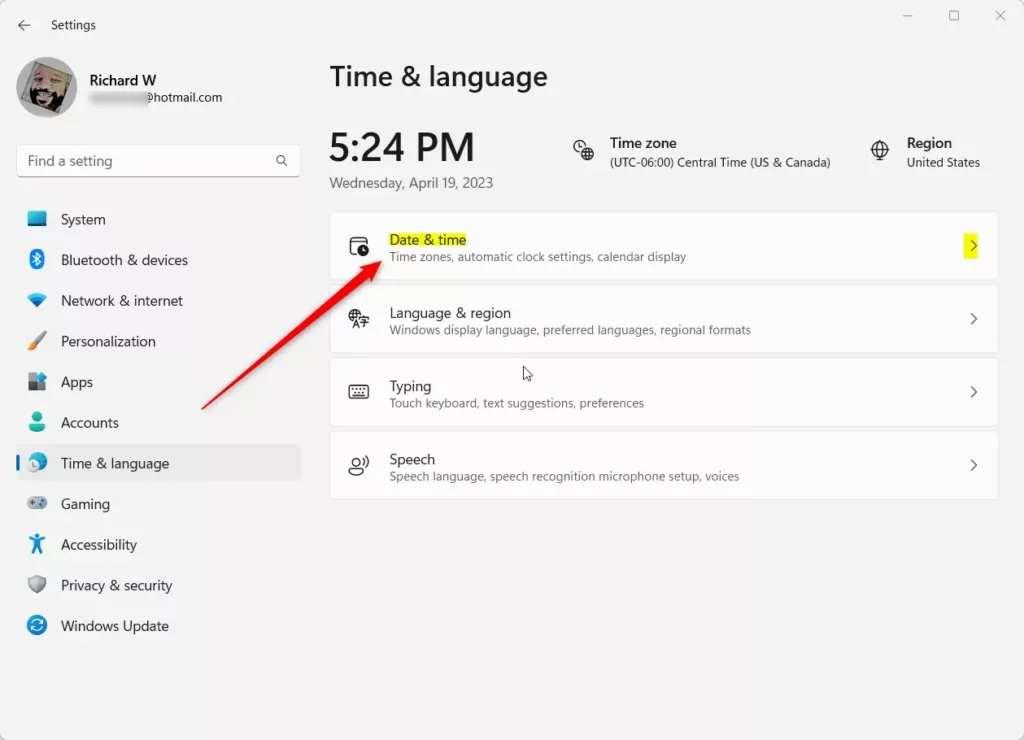
- In Settings, click on Time & Language from the left menu.
- Next, click on Date & Time on the right side.
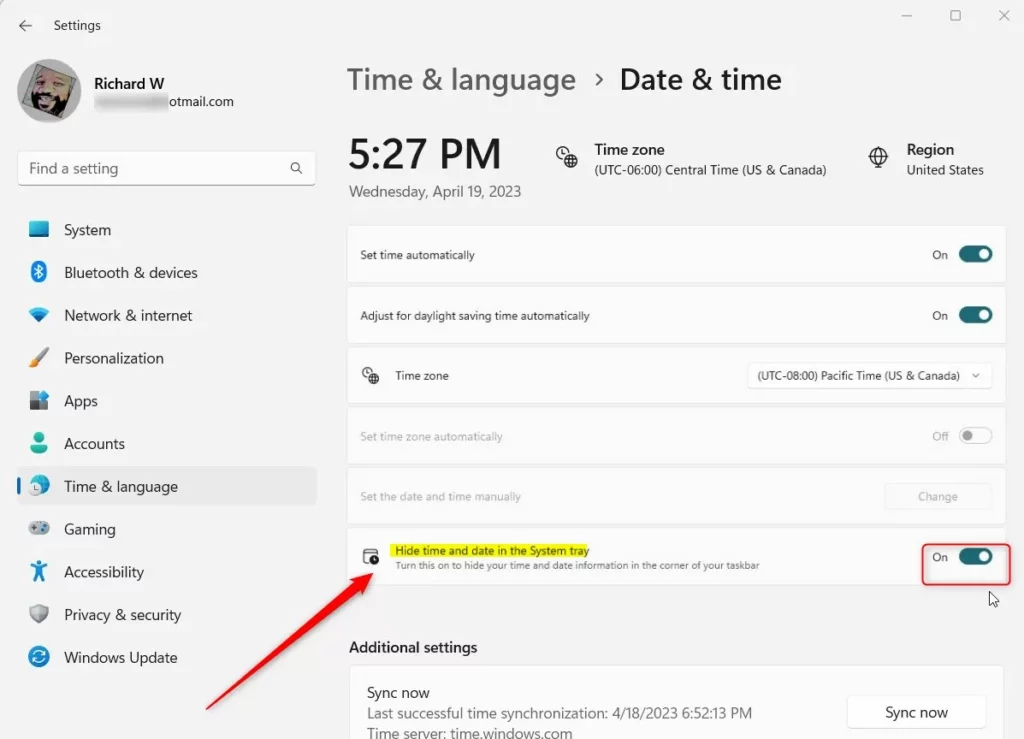
- Look for the option that says Hide time and date in the System tray.
- Toggle the switch On to hide the time and date.
- To show the clock and date again, toggle the switch Off.
When you’re done, just close the Settings window.
How to Hide or Show the Time and Date Using the Registry Editor (Advanced)
If you like, you can also hide or show the time and date by changing a setting inside Windows Registry. This is a more advanced method, so be careful!
Here’s how:
- Press Windows key + R, type
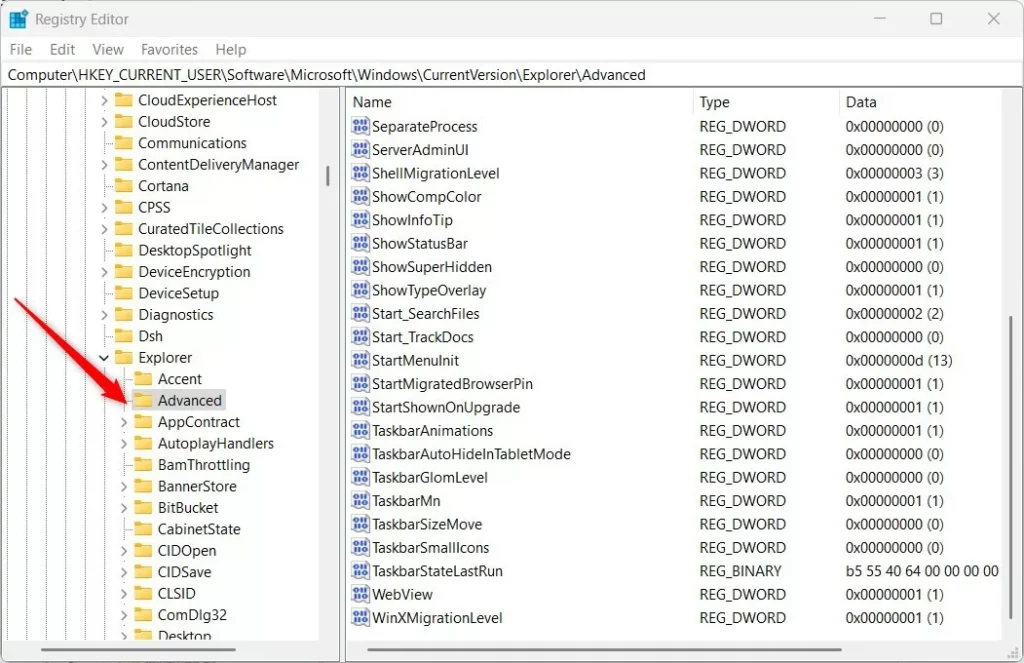
regedit, and press Enter to open the Registry Editor. - Navigate to this folder path:Registry
HKEY_CURRENT_USER\Software\Microsoft\Windows\CurrentVersion\Explorer\Advanced
- If you don’t see the
Advancedfolder, right-click onExplorerand create a new folder namedAdvanced. - In the
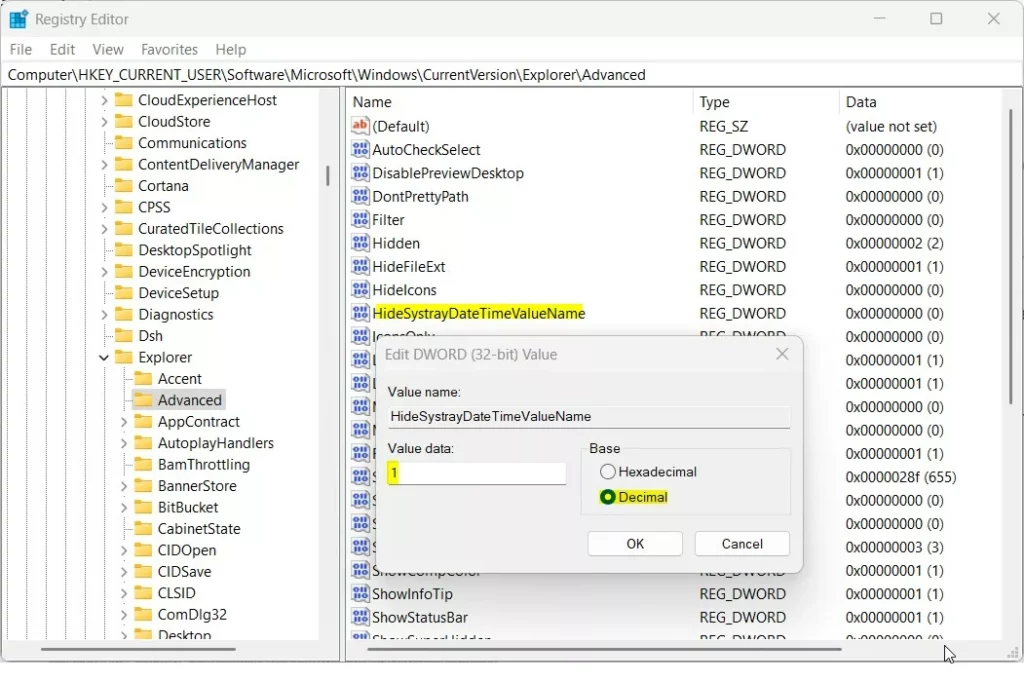
Advancedfolder, right-click on the empty space on the right side, select New > DWORD (32-bit) Value, and name itHideSystrayDateTimeValueName. - Double-click this new item. Set the Base to Decimal.
- To hide the time and date, enter
1in the value data box and click OK. - To show the time and date again, enter
0or delete the value. - Close the Registry Editor and restart your computer to see the change.
Summary
- Using Settings: Easiest way to hide or show the time and date on the system tray.
- Using Registry Editor: Advanced method for users comfortable with Windows Registry.
Try these simple steps to customize how your Windows 11 taskbar looks. Hiding the clock can help keep your screen clean and focused. If you want to bring it back, just follow the same steps!
Note: The option to hide the time and date is available only in newer Windows 11 versions, mainly for users testing early builds. If you don’t see it, your Windows might not support this feature yet.
For more tips on Windows 11, visit Geek Rewind.
Was this guide helpful?

About the Author
Richard
Tech Writer, IT Professional
Richard, a writer for Geek Rewind, is a tech enthusiast who loves breaking down complex IT topics into simple, easy-to-understand ideas. With years of hands-on experience in system administration and enterprise IT operations, he’s developed a knack for offering practical tips and solutions. Richard aims to make technology more accessible and actionable. He's deeply committed to the Geek Rewind community, always ready to answer questions and engage in discussions.



No comments yet — be the first to share your thoughts!