How to Find Your Product Key in Windows 11

A Windows product key is a 25-character code used to activate your operating system. You might need this key if you are reinstalling Windows or moving your license to a new computer. Why do you need it? It proves to Microsoft that you have a genuine, paid-for copy of their software. What happens when you are done? You will have the code saved safely, ensuring your system stays activated and fully functional.
Where to look for your key
Finding your key depends on how you bought Windows:
- New computers: Look for a sticker on the back or side of your PC. It might also be on the box or a certificate included with your purchase.
- Authorized retailers: Check the physical box or the card that came with your purchase.
- Digital copies: Check the confirmation email you received when you bought the software.
- Upgrades: If you upgraded from an older version, you likely have a “digital license” instead of a key, which activates automatically.
Using an app to find your key
If you cannot find your key physically, you can use a simple tool to reveal the one currently stored on your computer. This process requires administrative privileges.
- Click the Microsoft Store icon on your taskbar or open the Start menu.
- Search for “Microsoft Store” and select it to open.
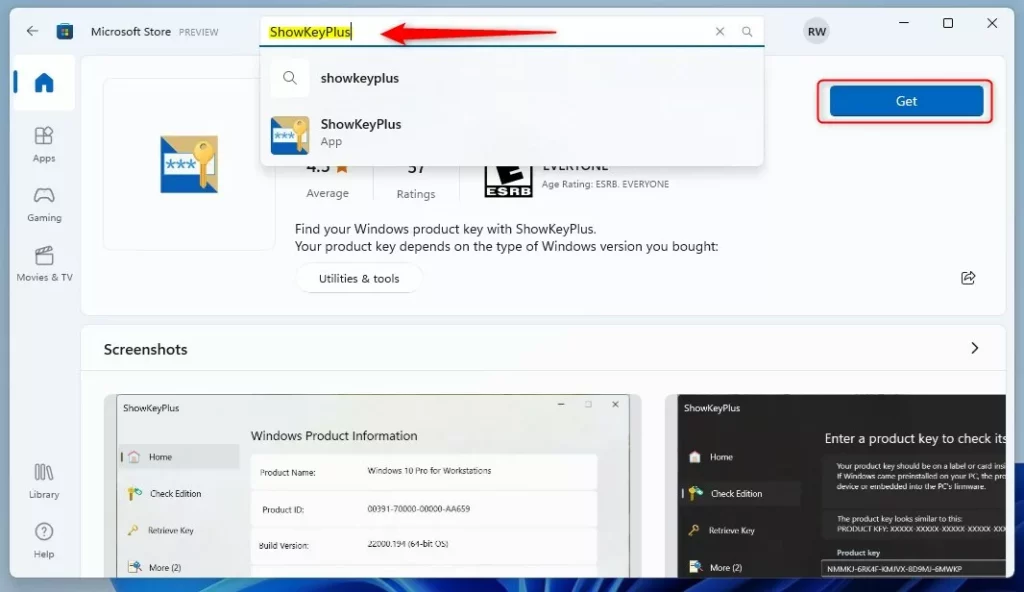
- In the store search box, type “ShowKeyPlus” and press Enter.
- Click the Get button to install the app.
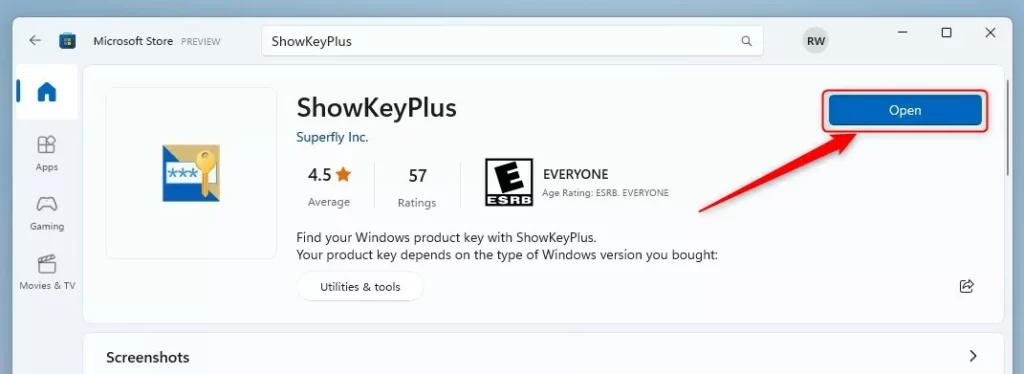
- Once installed, click the Open button.
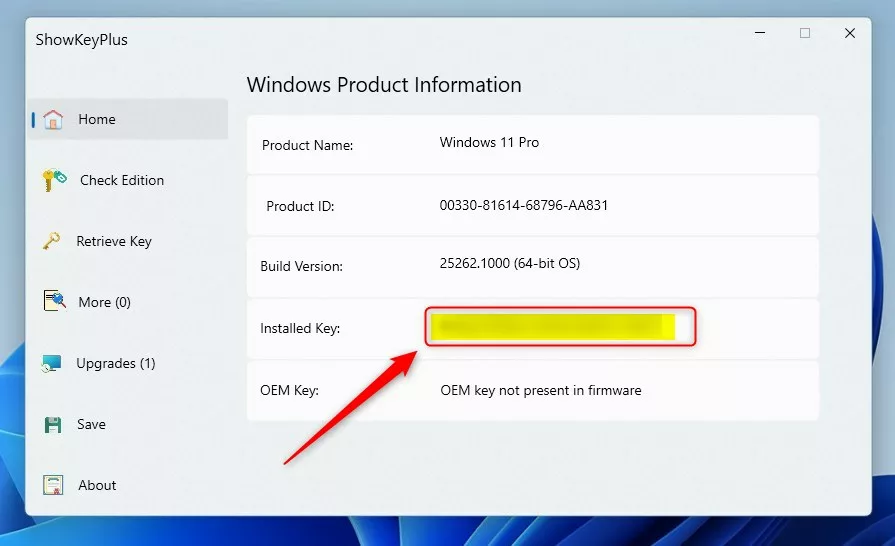
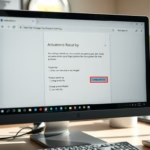
- The app will automatically display your product key on the screen.
That is all it takes to find your information!
For more technical details, check this resource: Microsoft.com
Summary
Your Windows product key is a 25-character code used for activation. If it is not on a sticker on your computer, you can often find it in your purchase email or by using the ShowKeyPlus app from the Microsoft Store. Keeping this code handy helps you manage your Windows license easily.
Was this guide helpful?


[…] previous post showed you how to find your device’s product key. A Windows product key is a 25-character code used to activate Windows. The key is typically […]
[…] Not sure what your product key is? Check out our guide on how to find your Windows 11 product key. […]