How to Find Your Computer Model in Windows 11

Do you need to know what model of computer you have? This guide shows you how to find it in Windows 11. Your computer’s model name is useful when you need to download updates, get drivers, or call tech support.
What Is a Computer Model?
Your computer’s model name is a special code that tells you what type of PC you own. You can usually find this on a sticker on the back or side of your computer. If you can’t find it there, you can look inside Windows instead.
Note: If you built your own PC, you might be able to change the model name. But if you have a brand-name computer like HP, Dell, or Lenovo, the model name usually stays the same.
Why Find Your Computer Model?
- To download the correct drivers for your PC
- To get help from tech support
- Some programs need to know your PC model to work correctly
How to Find Your PC Model in 🪟 Windows 11 Settings
Follow these simple steps:
- Open Settings by clicking the Start menu and then Settings. Or press Windows key + I on your keyboard.
- In Settings, click the Home button on the left side.
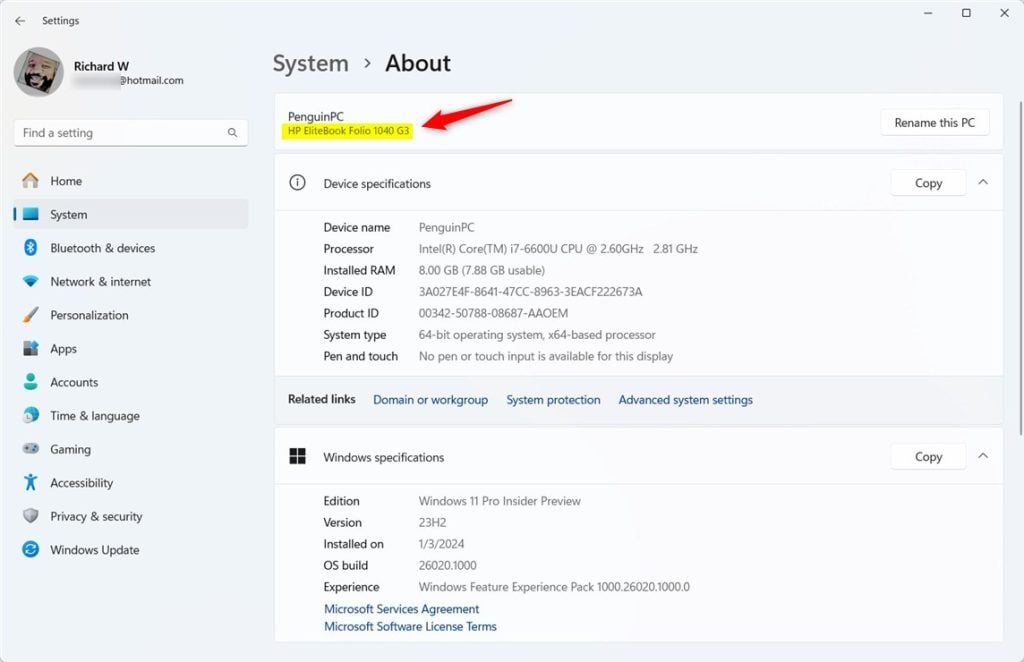
- Look under your computer name. You should see the System Product Name or model name listed there.
Another way:
- Click System on the left side.
- Then click About. Here you will see your PC’s model name and number.
Find Your Model Using Windows System Information
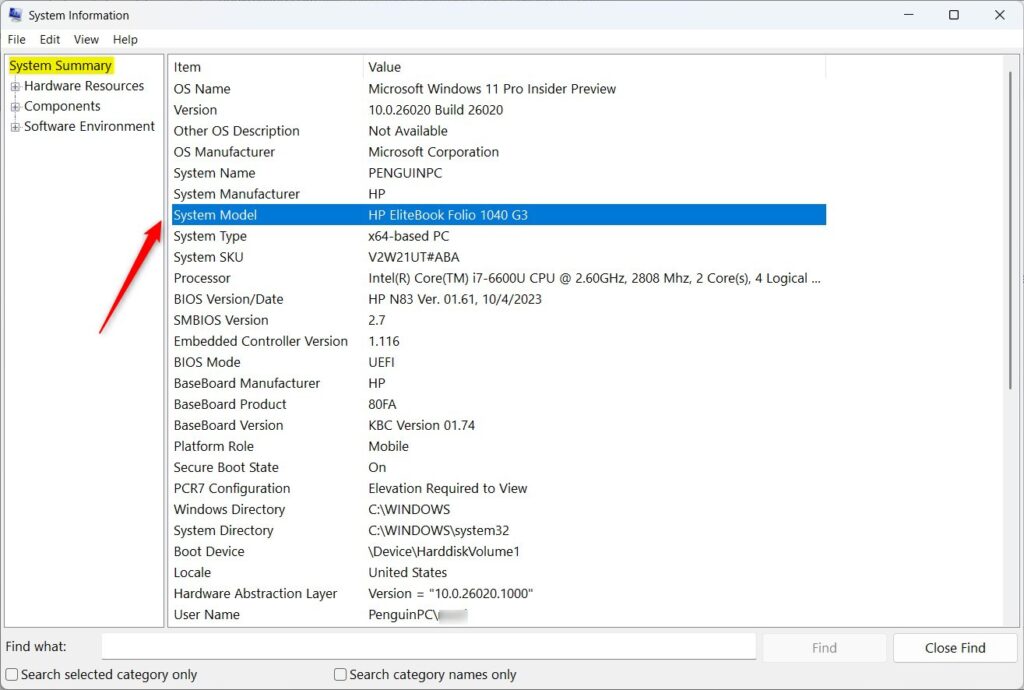
- Press Windows key, type System Information, and open the app. Or type
msinfo32in Start and press Enter. - Click on System Summary on the left.
- Look for System Model on the right. This shows your PC’s model.
Find Your Model Using Command Line (Windows Terminal)
You can also find your model by typing a command:
- Open Windows Terminal and select the PowerShell tab.
- Type this command and press Enter:
Get-CimInstance -ClassName Win32_ComputerSystem | Select-Object ModelIf you prefer Command Prompt in Windows Terminal, type:
powershell "Get-CimInstance -ClassName Win32_ComputerSystem | Select-Object Model"Find Your Model Using the Windows Registry (Advanced)
If you like exploring Windows, you can find the model name in the Registry:
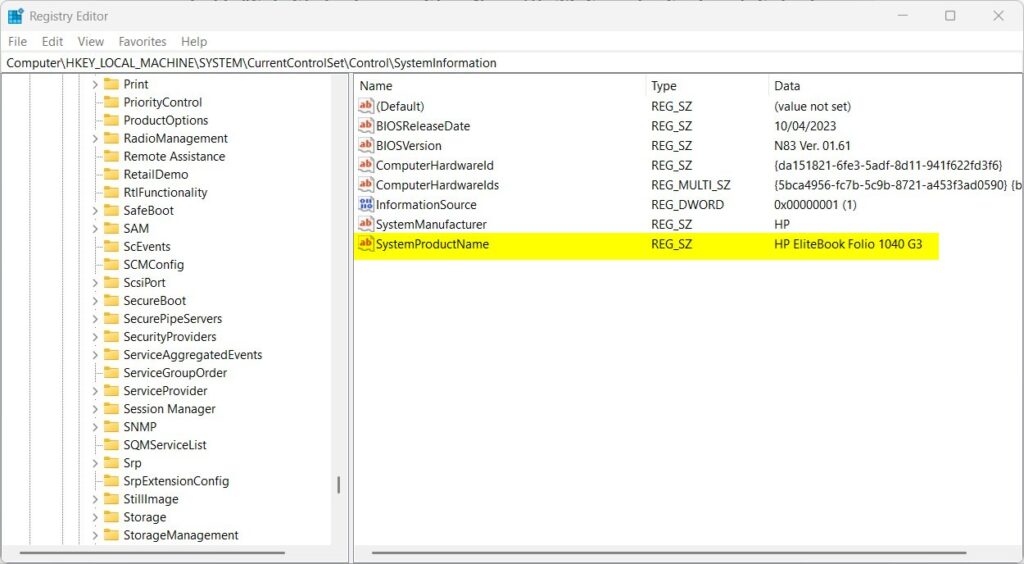
- [ADMIN] Press Windows key + R, type
regeditand press Enter to open the Registry Editor. - Navigate to one of these keys:
Computer\HKEY_LOCAL_MACHINE\SYSTEM\CurrentControlSet\Control\SystemInformationor
Computer\HKEY_LOCAL_MACHINE\HARDWARE\DESCRIPTION\System\BIOSLook for entries named SystemProductName or similar — this shows your PC model.
Summary
- Knowing your PC model helps you get the right updates, drivers, and support.
- You can find your model name in Settings, System Information, Windows Terminal, or the Registry.
- If you built your PC, you might be able to change the model name. Brand-name PCs usually cannot be changed.
- Having this information makes it easier to keep your PC running smoothly.
That’s it! Now you know how to find your Windows 11 computer’s model quickly and easily.
Was this guide helpful?

About the Author
Richard
Tech Writer, IT Professional
Richard, a writer for Geek Rewind, is a tech enthusiast who loves breaking down complex IT topics into simple, easy-to-understand ideas. With years of hands-on experience in system administration and enterprise IT operations, he’s developed a knack for offering practical tips and solutions. Richard aims to make technology more accessible and actionable. He's deeply committed to the Geek Rewind community, always ready to answer questions and engage in discussions.



No comments yet — be the first to share your thoughts!