
Do you want to see other computers or devices on the same network as your Windows 11 PC? This simple guide will show you how.
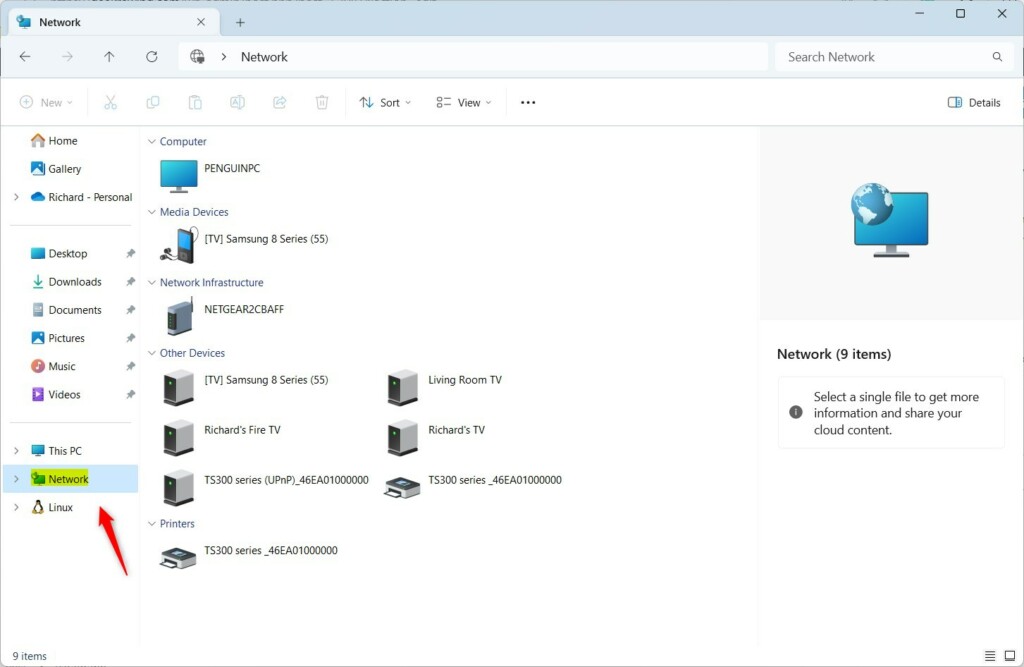
Windows 11 can automatically find other devices on your home or office network. These devices show up in File Explorer → Network.
What is a Network?
A network is a group of devices (like computers, printers, or phones) connected together so they can share things. They can share the internet, files, or printers.
For example, all devices connected to your home Wi-Fi are part of your home network. At work, devices connected to the office network form the office network.
How to See Other Devices on Your Network in Windows 11
To find other computers on your network, follow these easy steps:
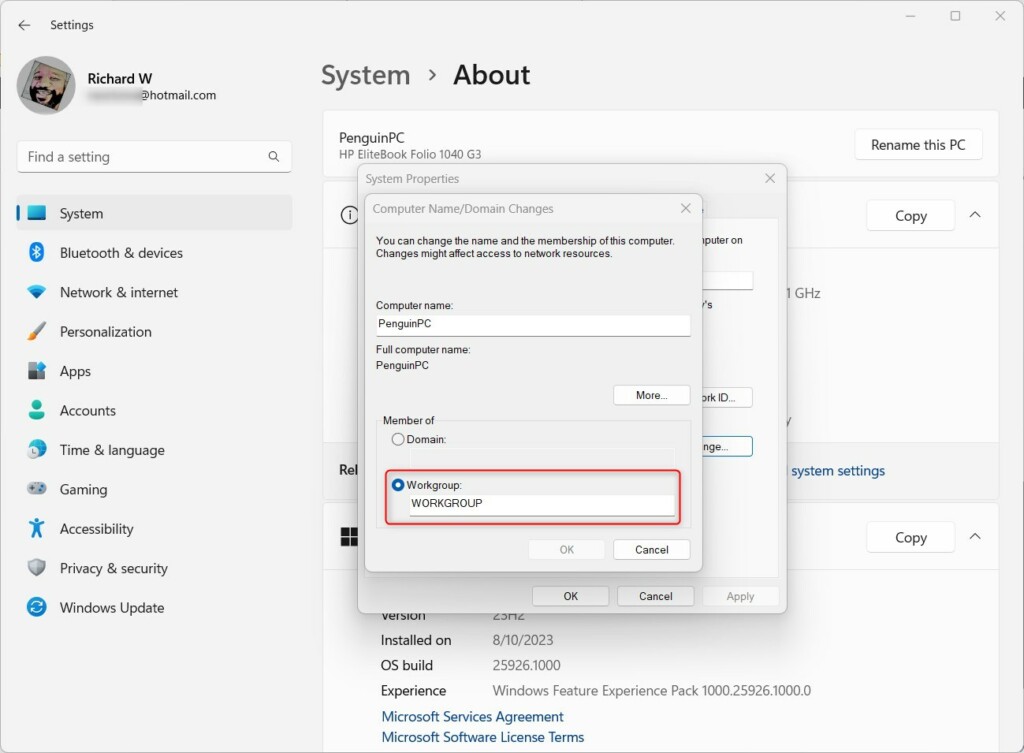
Step 1: Make Sure All Devices Are in the Same Workgroup
Why? A workgroup is like a team name that helps Windows find other devices. All computers on the same network should have the same workgroup name.
What happens when done? Your PC will be able to look for other devices in the same workgroup.
Here’s how to check or change your workgroup:
- Click Start and open Settings.
- Go to System → About.
- Click Advanced system settings on the right.
- In the Computer Name tab, click the Change button.
- Under Workgroup, type the name you want (for example, WORKGROUP).
- Click OK and restart your PC if asked.
Learn more about changing the workgroup:
How to change workgroup in Windows 11
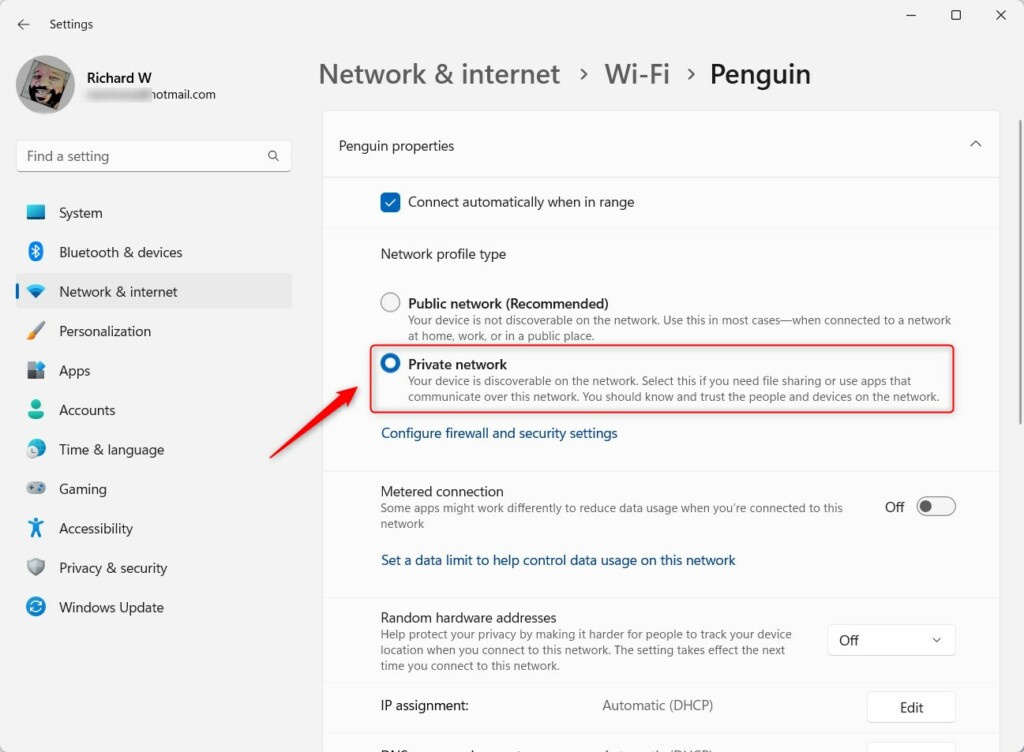
Step 2: Set Your Network to Private
Why? Windows treats networks differently. Public networks (like coffee shop Wi-Fi) have different settings than private ones (your home or office). To find other devices, your network should be set to Private.
What happens when done? Your PC will be able to see and connect to other devices on your network.
Here’s how to change your network to Private:
- Click Start and open Settings.
- Go to Network & internet.
- Click on your network name (like your Wi-Fi network).
- Find Network profile type and select Private.
More details here:
Change network profile in Windows 11
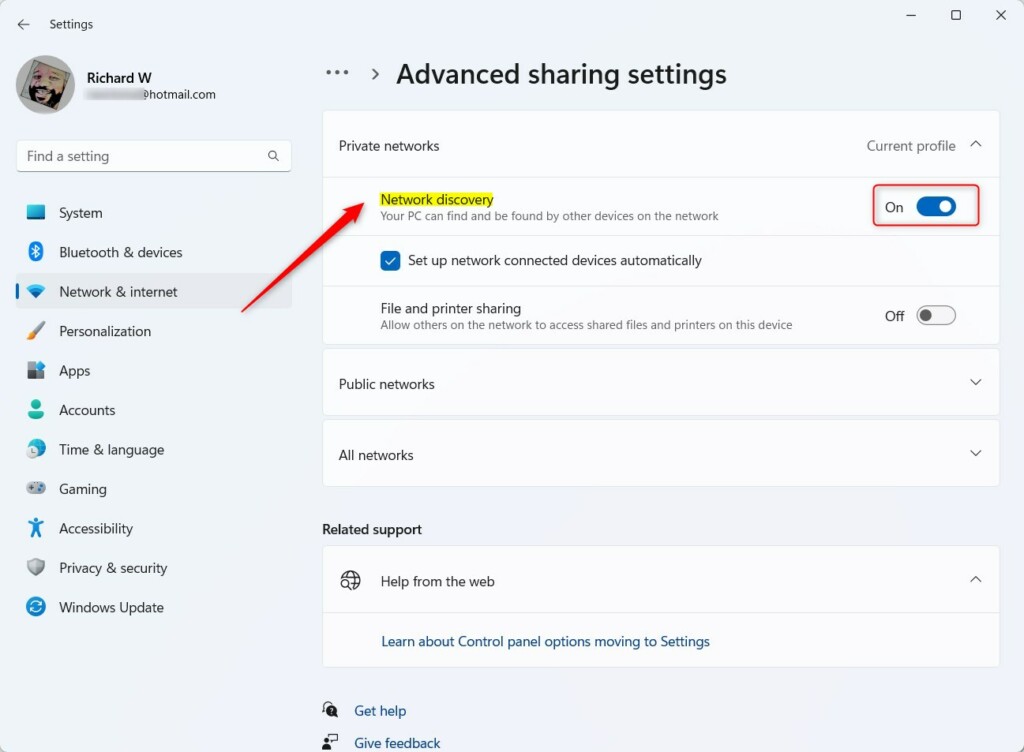
Step 3: Turn On Network Discovery
Why? Network Discovery lets your PC find other devices. It also lets other devices find your PC.
What happens when done? Your computer and other devices will be visible to each other on the network.
To turn it on:
- Open Settings.
- Go to Network & internet → Advanced network settings → Advanced sharing settings.
- Find Network discovery and turn it On.
Learn how to do this here:
Turn Network discovery On or Off in Windows 11
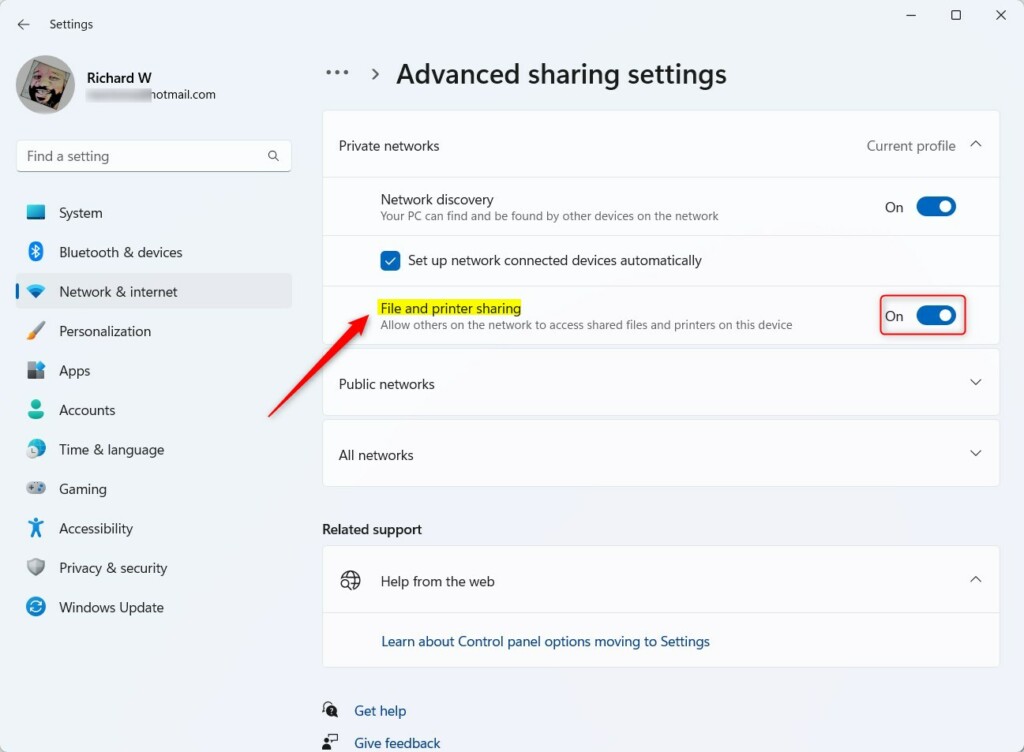
Step 4: Turn On File and Printer Sharing
Why? This setting lets you share files and printers with other devices on your network.
What happens when done? You can share files and printers with other computers on your network.
To turn it on:
- Go to Settings → Network & internet → Advanced network settings → Advanced sharing settings.
- Turn on File and printer sharing.
More info:
How to turn File and printer sharing On or Off in Windows 11
Find Devices in File Explorer
After you finish all these steps, open File Explorer and click Network on the left side. You should see all computers and devices connected to your network.
Summary
- Make sure all devices are in the same workgroup.
- Set your network to Private so devices can be found.
- Turn on Network Discovery so devices can see each other.
- Turn on File and Printer Sharing to share files and printers.
- Look in File Explorer under Network to find other devices.
Following these simple steps will help you easily find and connect to other computers and devices on your Windows 11 network.
Leave a Reply