How to Export Search History in Outlook on Windows 11

The new Outlook for Windows offers a modern way to manage your email. It works with Microsoft 365, Outlook.com, and Gmail. Many users want to know how to export search history in Outlook to keep a record of their activity.
Why export your search history?
Outlook saves your search queries to help you find items faster later. Exporting this data creates a CSV file. You can open this file in Excel to see your search trends. It is a great way to back up your data before you clear it.
What happens when you are done?
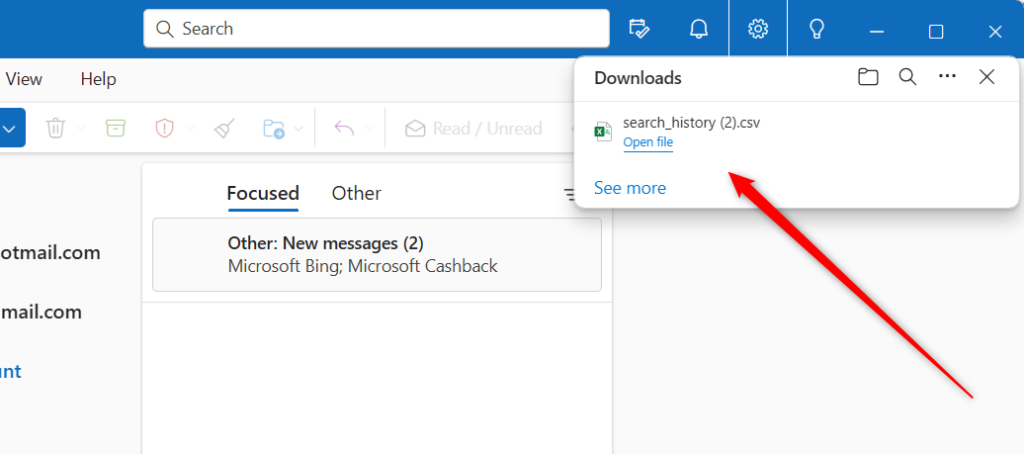
After you click export, a file named search_history.csv is saved to your computer. You can find it in your C:\Users\GenericUser\Downloads folder. You now have a permanent copy of your search logs outside of the app.
How to export your search history
Follow these steps to save your data. Note: This does not require admin privileges.
- Open the Outlook app on your computer.

- Click the Settings (gear icon) in the top right.

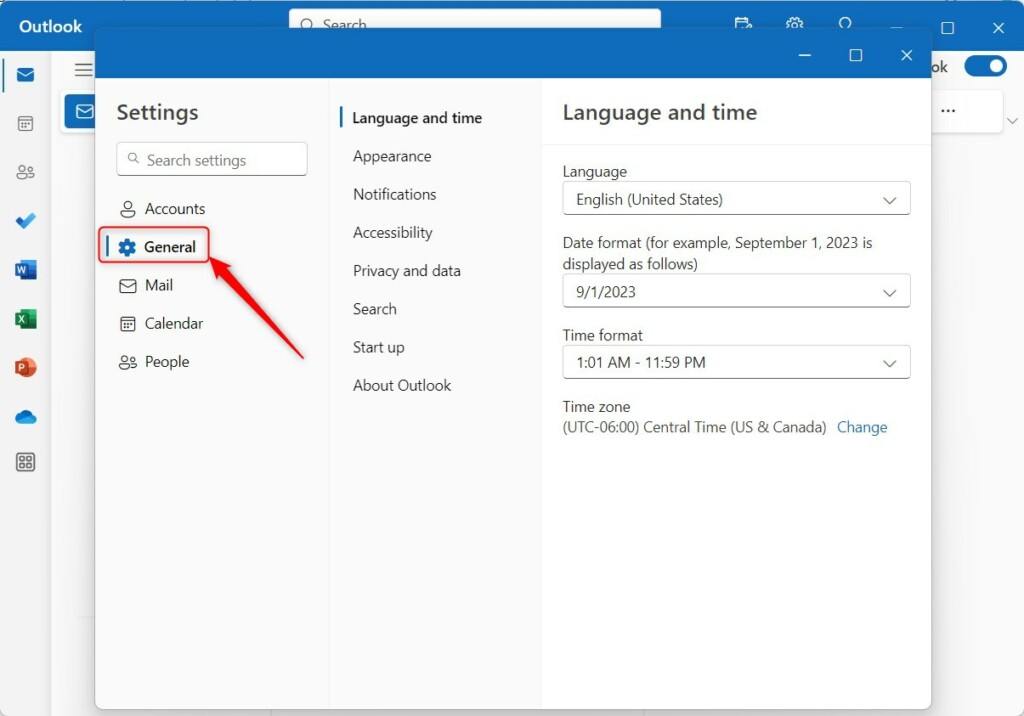
- Select General from the left menu.
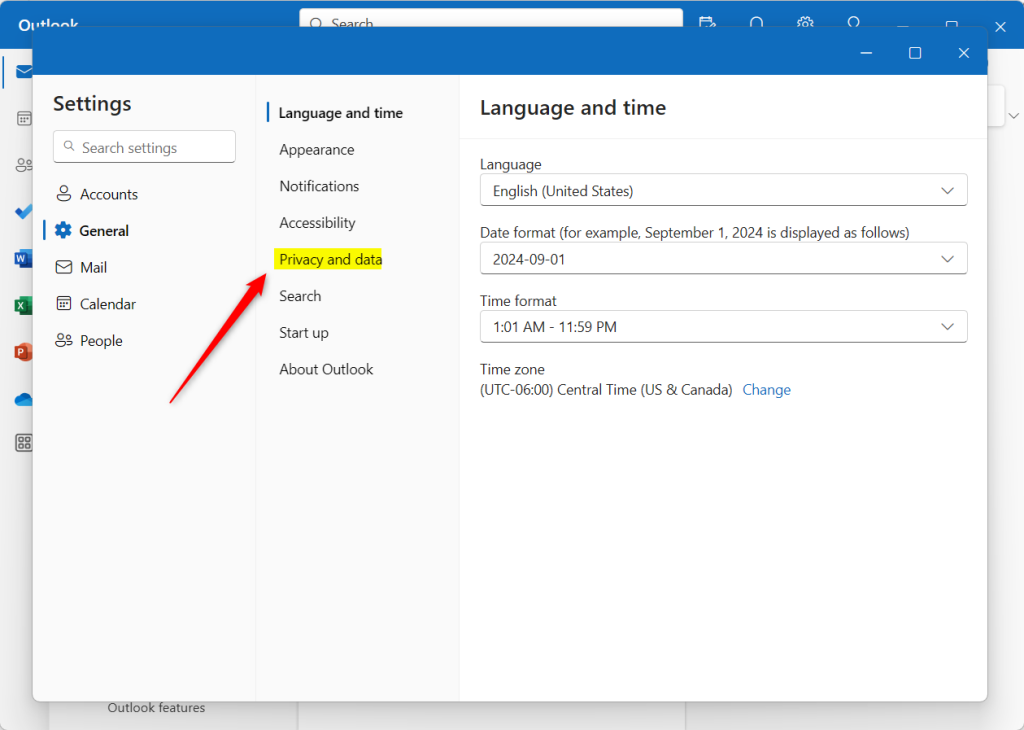
- Click Privacy and data.
- Find the Search history section.
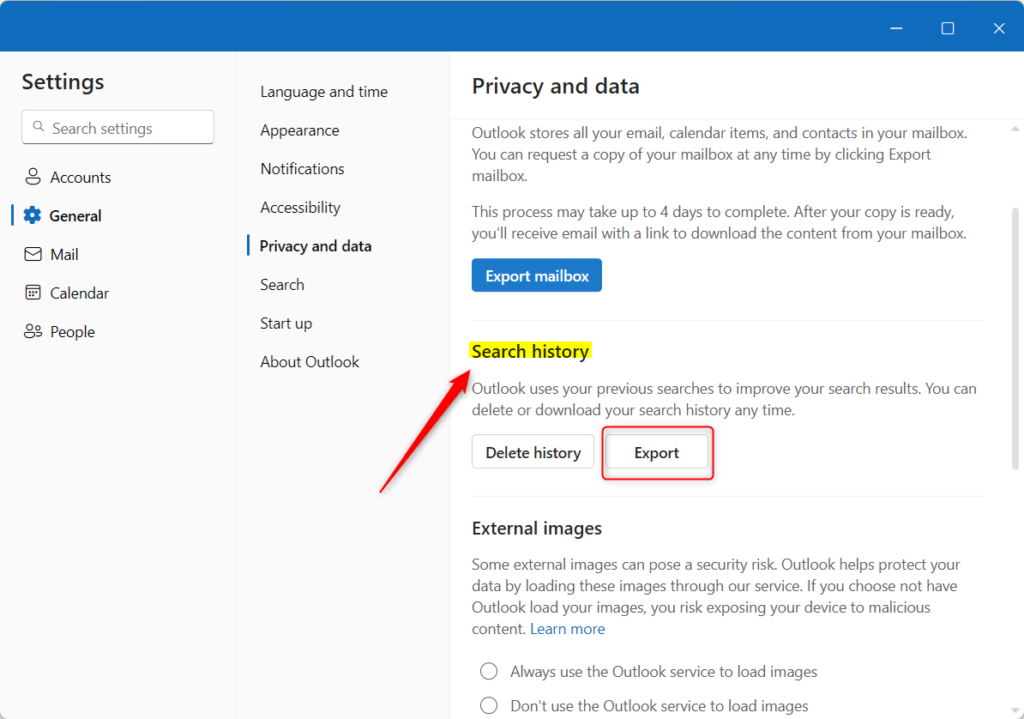
- Click Export to download your file.
Troubleshooting: Why is my export file empty?
If your exported file shows no data, it is usually because your search history is empty. Outlook only logs searches performed while you are signed in. If you use the app in offline mode or have privacy settings that block logging, no data will be captured. Ensure your search indexing is working correctly by checking your Windows search settings.
Platform Distinction: Desktop vs. Web
It is important to note that the classic Outlook Desktop application does not natively support exporting search history. This feature is specific to the new Outlook for Windows and Outlook on the web. If you are using the older version, you cannot export these logs directly.
How to clear your search history
If you want to remove your data, go to Settings > General > Privacy and data. Look for the Search history section and click Clear. This removes all stored queries from your account. This action cannot be undone.
Summary
Exporting your search history in Outlook is a simple way to manage your data privacy. By using the Privacy and data settings, you can download your logs as a CSV file. Always remember that this feature is specific to the new Outlook and web versions. For more information on how Microsoft handles your data, visit the official Microsoft Privacy documentation.
Can I export search history from the classic Outlook Desktop app?
No, the classic Outlook Desktop application does not provide a native feature to export search history. This functionality is currently limited to the new Outlook for Windows and the web-based version. Users on the classic client must rely on manual methods or third-party tools to manage search logs.
Is search history synced across devices in Outlook?
Yes, if you are signed into your Microsoft account, your search history is typically synced across devices where you use the new Outlook or webmail. This ensures a consistent experience, but it also means that clearing your history in one location will remove it from all synced devices.
Was this guide helpful?

About the Author
Richard
Tech Writer, IT Professional
Richard, a writer for Geek Rewind, is a tech enthusiast who loves breaking down complex IT topics into simple, easy-to-understand ideas. With years of hands-on experience in system administration and enterprise IT operations, he’s developed a knack for offering practical tips and solutions. Richard aims to make technology more accessible and actionable. He's deeply committed to the Geek Rewind community, always ready to answer questions and engage in discussions.




[…] format, public a calendar, show week numbers in Outlook calendar, deleting your search history, export your search history, add or remove events from emails to your Calendar, switch to dark mode, and […]
[…] a calendar, show week numbers in Outlook calendar, deleting your search history, export your search history, add or remove events from emails to your Calendar, switch to dark mode, link preview, and […]
[…] a calendar, show week numbers in Outlook calendar, deleting your search history, export your search history, add or remove events from emails to your calendar, and […]
[…] a calendar, show week numbers in Outlook calendar, deleting your search history, export your search history, and […]