How to Backup and Restore Device Drivers on Windows 11

You can backup and restore device drivers on Windows 11 to protect yourself from hardware failures and simplify upgrades.
Device drivers are essential software programs that enable your Windows 11 operating system to communicate with your PC’s hardware, such as your graphics card or Wi-Fi adapter.
Safeguarding your current drivers ensures you have the necessary files if they become corrupted or when you transfer your system to a new computer.
This method is especially helpful for older peripherals where finding current driver downloads can be difficult.
For example, Windows 11 allows you to export drivers directly through the built-in Device Manager utility.
You can back up Windows 11 drivers using Command Prompt with `pnputil /export-driver * 📁C:\Drivers\Export`. Restore them by opening Command Prompt as administrator and running `pnputil /add-driver 📁C:\Drivers\Export\*.inf /subdirs /install`.
What happens when you are done?
After backing up your drivers, you’ll have a folder with all the necessary driver files. You can save this folder to a USB drive, making it easy to reinstall hardware drivers later without needing an internet connection.
How to export (backup) your drivers using Pnputil
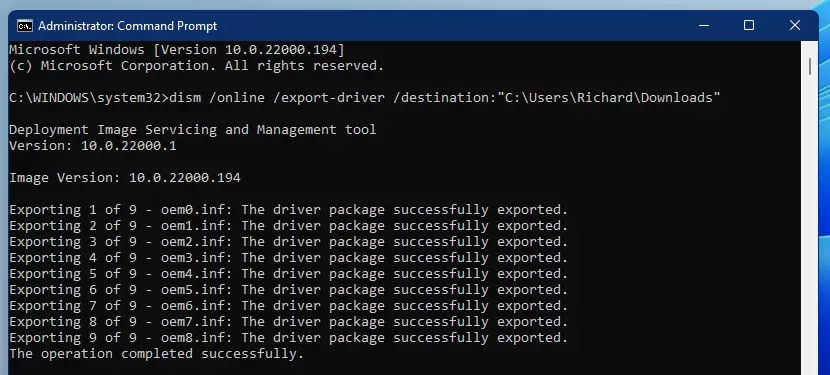
Backing up your device drivers on Windows 11 is simple with the Pnputil command. This tool lets you copy all your current driver files to a folder, so you can easily put them back later if needed.
- Click the Start menu and type Command Prompt.
- Right-click it and choose Run as administrator.
3. With the Command Prompt window open, type this command to save your drivers:
pnputil /export-driver * C:\Drivers\Export
Make sure to replace C:\Drivers\Export with the location where you want your files to go. If you are moving to a new PC, save this to a flash drive.
Exporting drivers with PowerShell
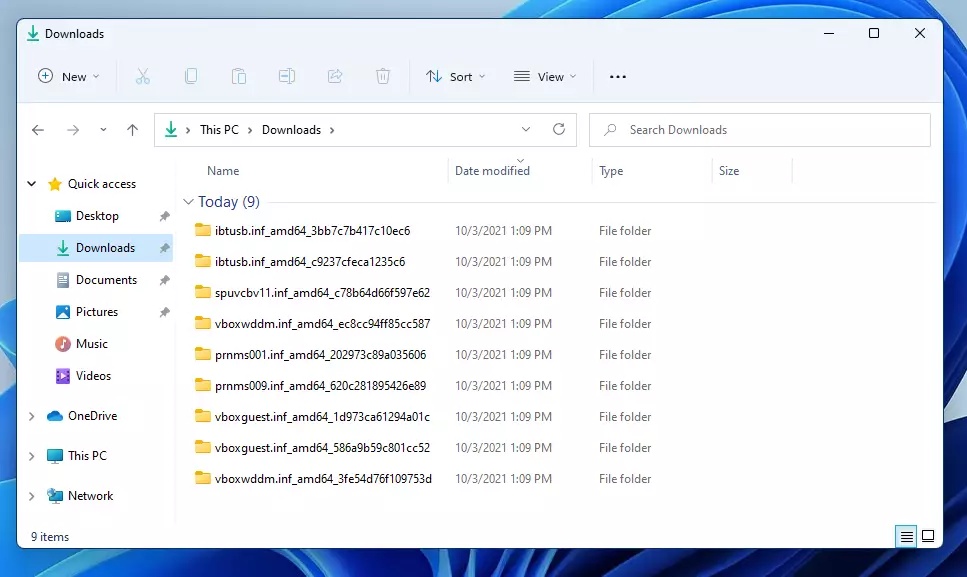
If you prefer using PowerShell, run it as an administrator and use the Export-WindowsDriver cmdlet. This command lets you pull drivers from your current system.
Export-WindowsDriver -Online -Destination C:\Drivers\Export
How to restore drivers
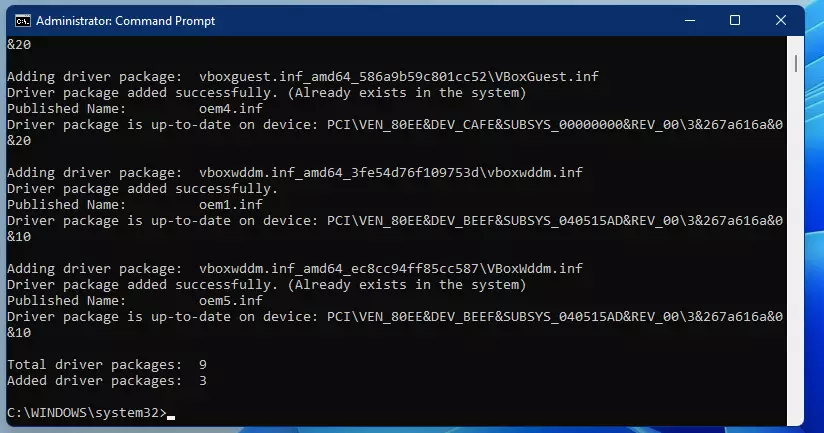
Restoring your device drivers on Windows 11 is straightforward after you’ve backed them up. You can use the Command Prompt to install all drivers from your backup folder at once, getting your hardware working again quickly.
pnputil /add-driver C:\Drivers\Export\*.inf /subdirs /install
If you only want to install one specific driver instead of all of them, you can use the Windows Device Manager. Learn how to do that here: How to install device drivers on Windows 11
Third-party tools for driver management
If you find command-line tools difficult, you can use third-party software like Driver Store Explorer (RAPR). This tool offers a visual way to view, back up, and remove drivers from the Windows Driver Store. This makes managing many drivers much simpler for everyday users.
Summary
Backing up your drivers on Windows 11 is a smart move for preparing for a new PC or fixing hardware issues. You can copy all your driver files to a safe place using simple commands and restore them just as easily when needed.
Does 🪟 Windows 11 have a built-in driver backup tool?
Yes, Windows 11 includes built-in tools like Pnputil and PowerShell cmdlets. These allow you to export drivers directly from the Driver Store to a folder of your choice. While there is no “one-click” button in the Settings menu, these command-line tools are reliable and require no extra software.
Is it necessary to back up drivers before a Windows update?
It is not strictly necessary, but it is a good safety measure. If a Windows update causes a driver conflict or hardware failure, having a backup allows you to quickly roll back or reinstall the specific version of the driver that you know works correctly with your hardware.
How do I restore drivers if Windows won’t boot?
If Windows will not boot, you can use the Command Prompt from the Advanced Startup Options menu. By accessing the recovery environment, you can use the Pnputil command to point to your backup folder on an external drive and attempt to inject the necessary drivers into the system.
Are driver backups compatible between different hardware?
No, driver backups are hardware-specific. Drivers are designed for specific chipsets and components. If you restore a driver backup from one computer to a machine with different hardware, the drivers will likely fail to install or cause system instability. Always ensure the drivers match your specific hardware configuration.
Was this guide helpful?

About the Author
Richard
Tech Writer, IT Professional
Richard, a writer for Geek Rewind, is a tech enthusiast who loves breaking down complex IT topics into simple, easy-to-understand ideas. With years of hands-on experience in system administration and enterprise IT operations, he’s developed a knack for offering practical tips and solutions. Richard aims to make technology more accessible and actionable. He's deeply committed to the Geek Rewind community, always ready to answer questions and engage in discussions.

No comments yet — be the first to share your thoughts!