How to Exclude Apps from Recall Snapshots in Windows 11


This article explains how to exclude an app from Recall snapshots in Windows 11.
What is Recall?
Recall & Snapshots is an AI feature in Windows 11 that works like a photographic memory for your computer. It saves snapshots of your screen automatically. You can then use Recall to search through these snapshots and find things you’ve seen on your PC.
Why use it? Recall helps you quickly find information you’ve already looked at without having to remember exactly where you saw it.
How Snapshots Work
The snapshots are copies of what’s currently on your screen. They’re stored safely on your computer. Windows sets a maximum storage size for these snapshots, which you can change anytime. Once that limit is reached, the oldest snapshots are deleted automatically.
You can manually delete Recall snapshots from a specific timeframe or delete all snapshots snapshots on your Windows device if you need more storage space.
Control What Gets Saved
You’re in control of Recall and snapshots. You can choose which apps and websites you want to exclude from being saved as snapshots.
Why exclude apps? You might want to keep certain apps private, like banking apps or password managers.
How to Exclude an App from Recall Snapshots
Here’s how to filter out apps from Recall in Windows 11.
- Open the Windows Settings app.
- Click the Start menu and select Settings
- Or press Windows key + I to launch the Settings app
- When the Settings app opens, click Privacy & security on the left side.
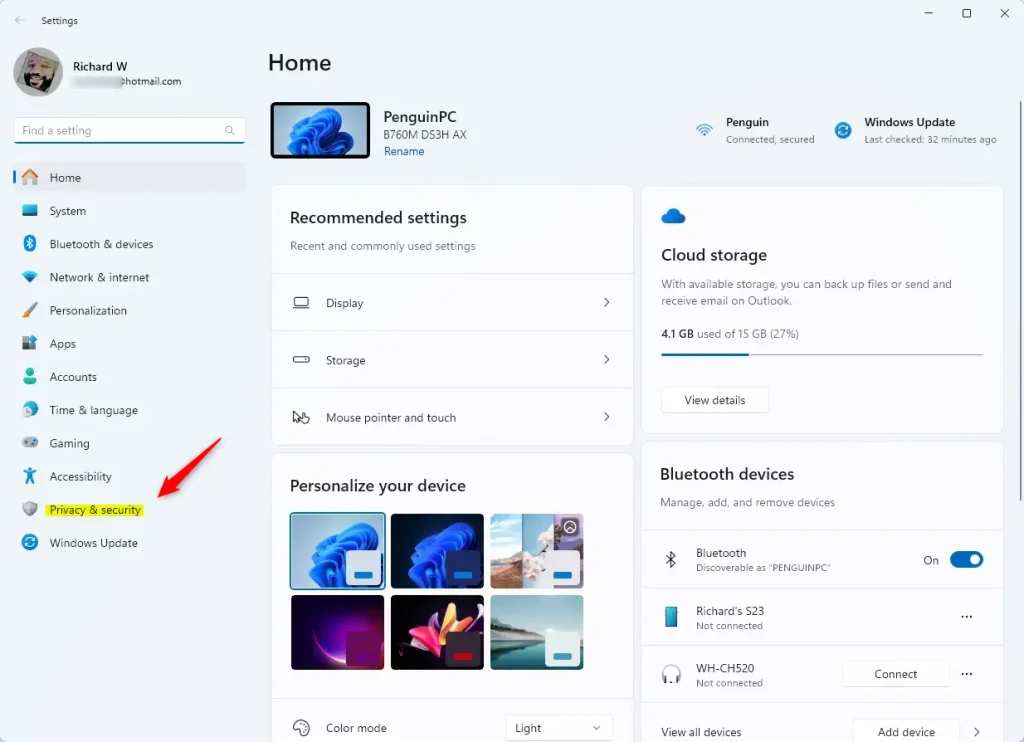
- On the right, click the Recall & snapshots page to open its settings and turn on the “Save snapshots” feature.
- Click the Add app button under the “Filter lists” section.
- Select the app you want to exclude from Recall snapshots from the app list.
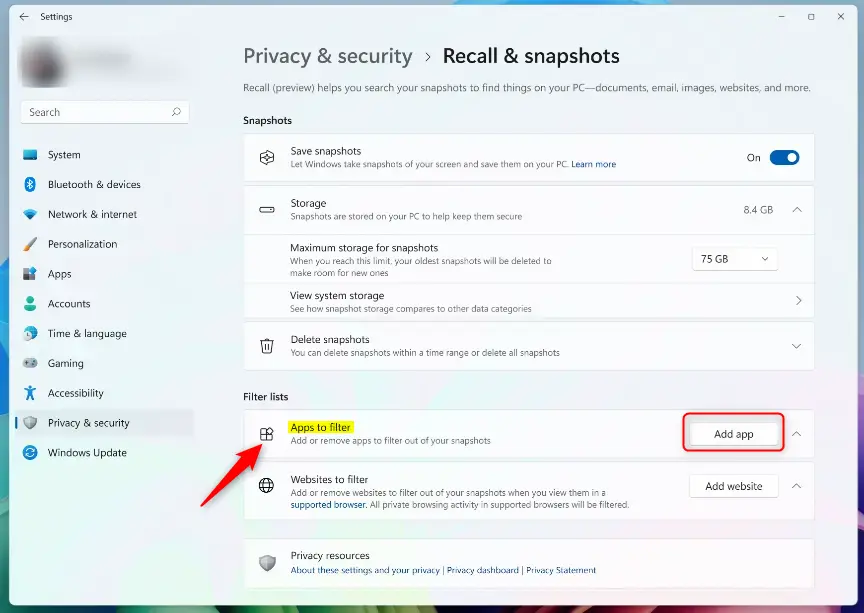
- What happens next? That app will no longer be saved in your Recall snapshots.
Summary
Windows 11 Recall and Snapshots give you control over what gets saved on your computer. You can exclude specific apps from being captured in snapshots. This helps you keep sensitive information private while still using the Recall feature for other apps and websites. To exclude an app, open Settings, go to Privacy & security, select Recall, and add the app to the filter list.
Frequently Asked Questions
How do I exclude an app from Recall snapshots in Windows 11?
What is the Recall & Snapshots feature in Windows 11?
Can I manually delete Recall snapshots in Windows 11?
What happens when the maximum storage for snapshots is reached?
Is it possible to exclude websites from Recall snapshots?
References
Was this guide helpful?


[…] which apps or websites you want to exclude from being saved (apps) and […]