How to Enable Secure DNS in Google Chrome

You enable Secure DNS in Google Chrome by adjusting the privacy and security settings within the browser.
Secure DNS, also called DNS-over-HTTPS (DoH), encrypts your requests to translate website names into IP addresses. This stops your ISP or anyone on your network from easily seeing the sites you visit.
This is a vital privacy step that stops your online activity from being logged. For instance, Google Chrome began supporting DoH in its version 78 update, released in late 2019.
Encrypting these DNS lookups significantly boosts your browsing privacy and security against unwanted monitoring.
Open Chrome settings, navigate to Privacy and security, then Security. Under Advanced, find “Use secure DNS” and toggle it on. You can then choose a provider from the list or enter a custom one.
Enable/Disable DNS Over HTTPS in Chrome
You can easily turn on or off secure DNS in Google Chrome’s settings to help keep your internet activity more private, making it simple to protect your online privacy.
- Open the Google Chrome browser.
- Click the three vertical dots in the top right corner.
- Select Settings.
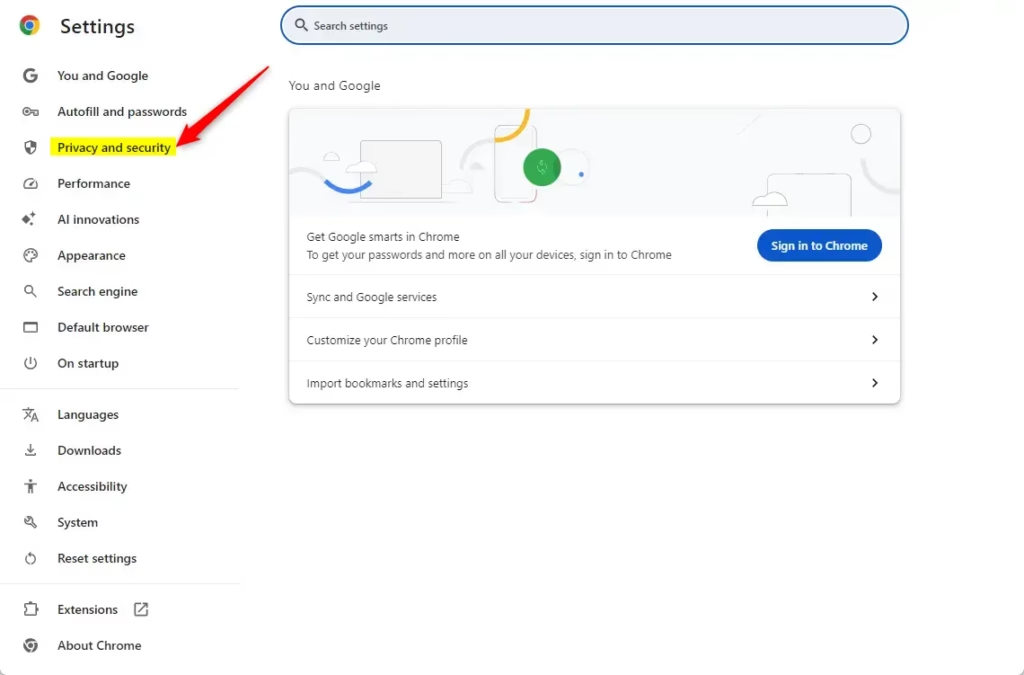
- Click Privacy and security on the left sidebar.
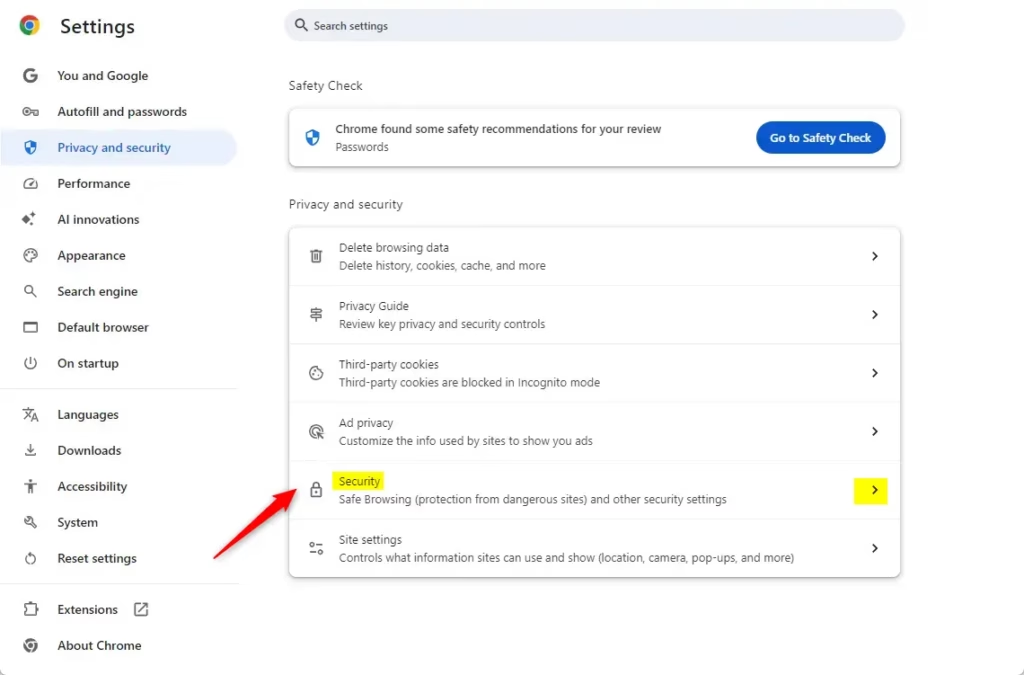
- Click the Security tile.
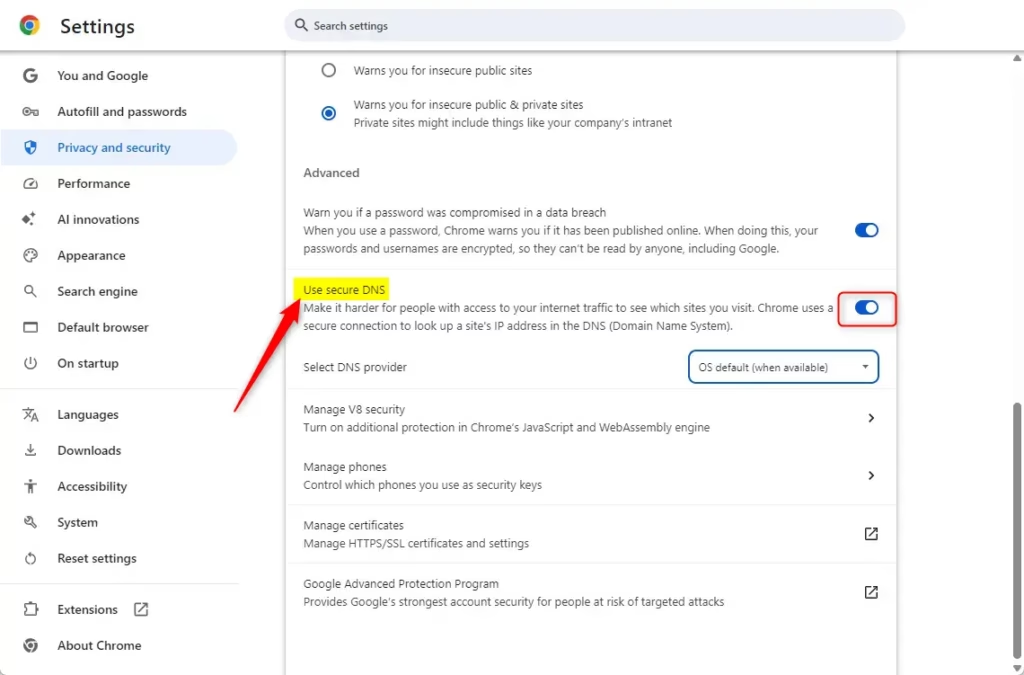
- Find Use secure DNS under the Advanced section.
- Toggle the switch to On or Off.
- To choose a specific provider, click Choose another provider. You can pick from a list or type in a custom address.
Enable / Disable Secure DNS in Chrome using Group Policy
If you manage many computers, using the Group Policy Editor is a secure way to turn secure DNS on or off for Chrome across all of them.
- Press ⊞ Win+R, type gpedit.msc, and press Enter to open the Local Group Policy Editor.
- Navigate to: Computer Configuration > Administrative Templates > Google > Google Chrome.
- Find the policy named Configure the DNS-over-HTTPS mode.
- Double-click it and select Enabled.
- In the Options box, choose off, automatic, or secure from the dropdown menu.
- Click Apply and OK.
Enable / Disable Secure DNS in Chrome using the Registry
If you can’t use Group Policy, you can change secure DNS settings for Chrome by editing the Windows Registry, but this is for advanced users and requires caution.
Remember to back up your registry your registry before making changes, or create a System Restore point as a precaution.
Go to this path:
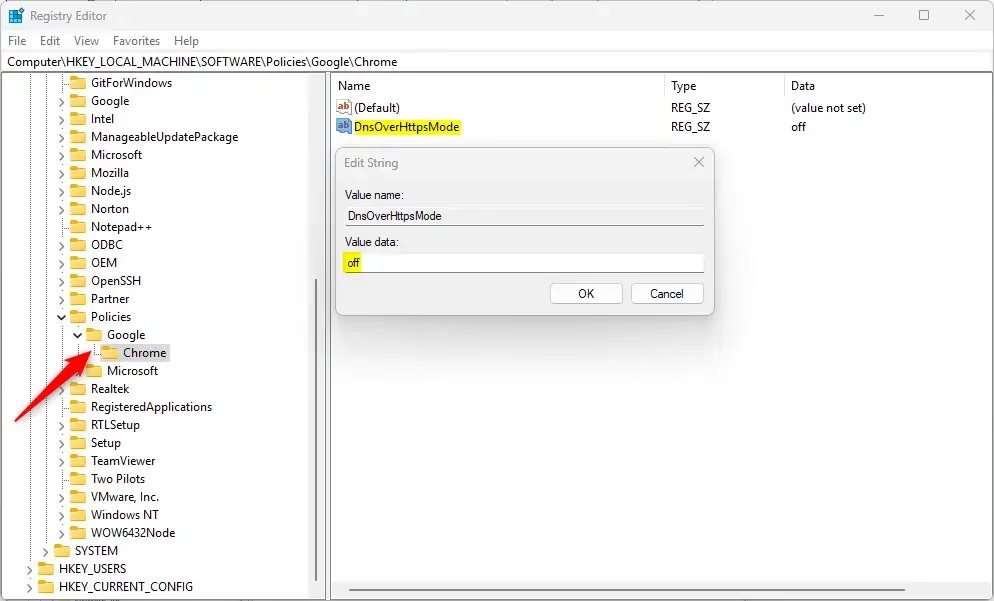
Computer\🗝️HKEY_LOCAL_MACHINE\SOFTWARE\Policies\Google\Chrome
If the folders do not exist, right-click the parent folder, select New > Key, and name them Google and Chrome.
- Right-click in the right pane.
- Select New > String Value.
- Name it DnsOverHttpsMode.
- Double-click it and set the value to:
- off: Disables secure DNS.
- automatic: Uses secure DNS if available.
- secure: Always uses secure DNS.
You may need to restart your computer for these changes to work. This post helps you manage a DnsOverHttpsTemplates for your network.
Reference: Chrome Enterprise Policy
Conclusion
Managing secure DNS settings in Chrome makes keeping your internet activity private much easier, and knowing how to switch between options or reset them is important.
- Options: Choose “automatic” for the best balance or “secure” for maximum privacy.
- Restoring: Delete the registry entry or set the policy to “Not Configured” to go back to default settings.
- Conflicts: Be aware that local registry edits may be overridden by domain-level group policies set by your IT administrator. If your settings are grayed out, a company policy is likely in charge.
- Reboot: Always restart Chrome or your computer if settings do not take effect immediately.
How to fix enable secure DNS in Chrome?
So all you have to do is open up Google Chrome. And select the three dotted menu icon up at the top right. And then you want to go down and select where it says settings. On the left side select
Was this guide helpful?

About the Author
Richard
Tech Writer, IT Professional
Richard, a writer for Geek Rewind, is a tech enthusiast who loves breaking down complex IT topics into simple, easy-to-understand ideas. With years of hands-on experience in system administration and enterprise IT operations, he’s developed a knack for offering practical tips and solutions. Richard aims to make technology more accessible and actionable. He's deeply committed to the Geek Rewind community, always ready to answer questions and engage in discussions.




[…] article explains how to select the URI template (DNS provider) for the desired DNS-over-HTTPS resolver in Google […]