
This guide will help you turn on or off Retail Demo Mode in Windows 11. This mode is mainly used by stores to show off Windows features on display PCs.
Retail Demo Mode lets stores set up Windows with special apps, settings, and content so customers can try the PC before buying. It creates a consistent and easy-to-use demo experience.
You might have seen store display PCs with generic usernames like “User01” and default settings. Those PCs usually have Retail Demo Mode turned on.
Important: If you’re using your own computer at home or work, you usually don’t need to enable this mode.
How to Turn On or Off Retail Demo Mode in Windows 11
Follow these simple steps to enable or disable Retail Demo Mode:
- Open the Settings app. You can do this by:
- Clicking the Start menu and selecting Settings.
- Or pressing Windows key + I on your keyboard.
Learn more about accessing Settings here: Open Settings in Windows 11.
- In Settings, click System on the left side panel.
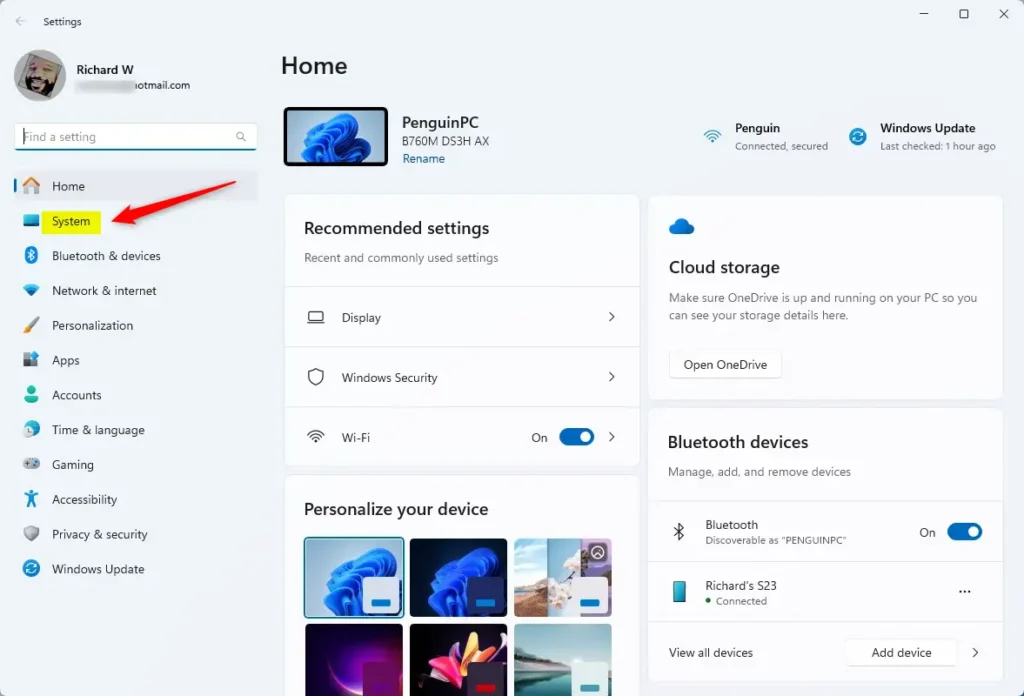
- On the right side, find and click Activation.
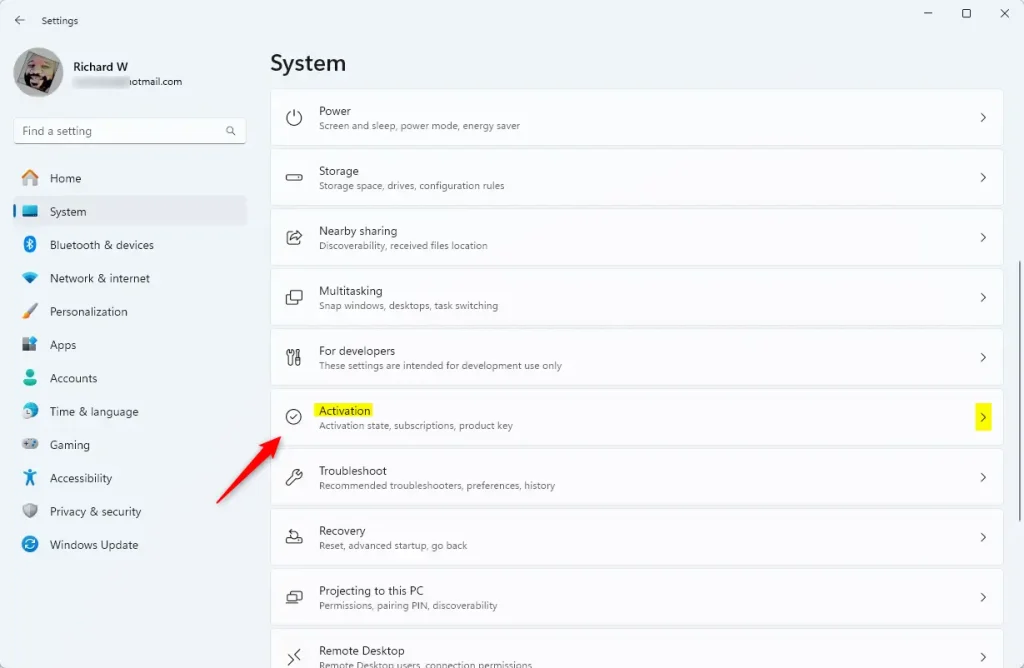
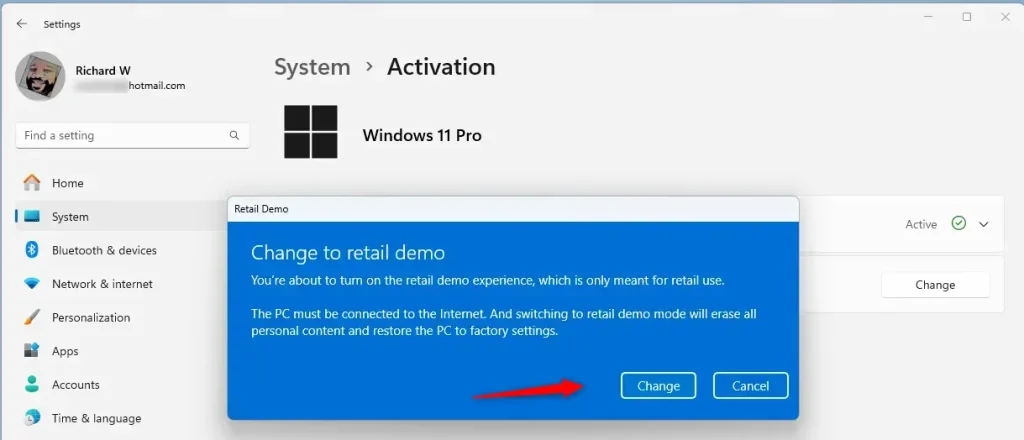
- In the Activation page, click the Windows edition name (like “Windows 11 Pro”) five times quickly.
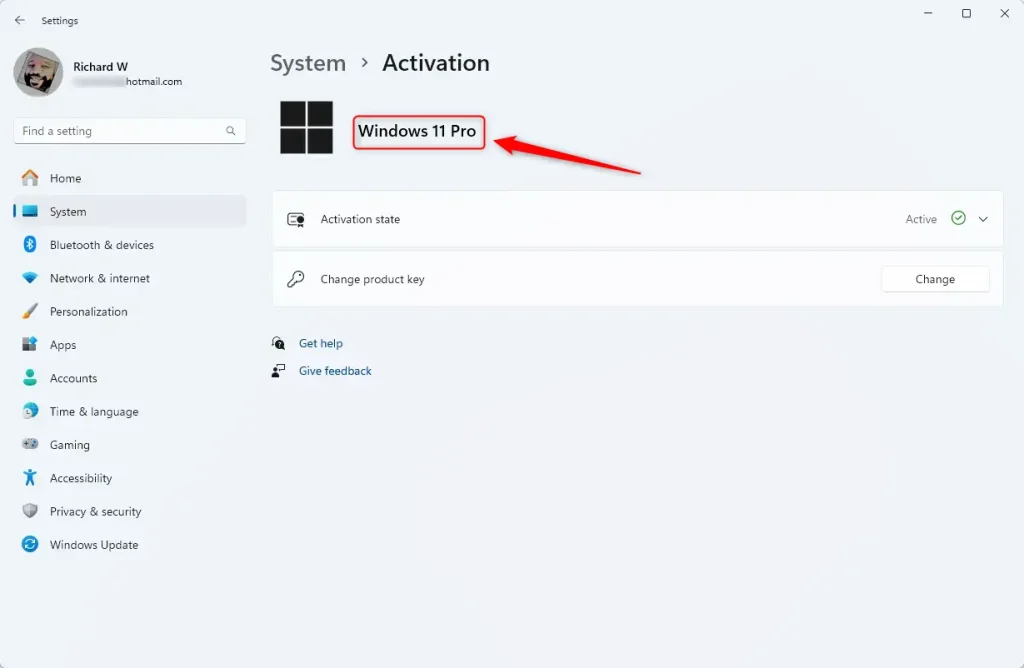
- A prompt will appear. Click Change to continue.
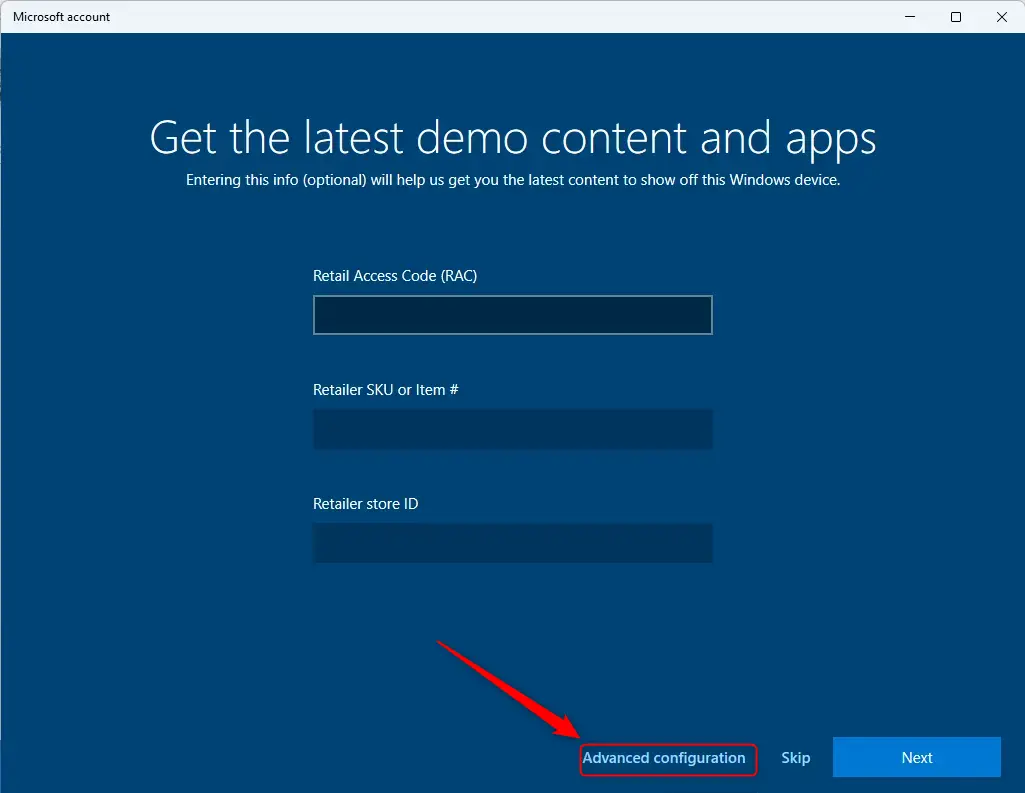
- [Admin privileges required] Click the Advanced configuration link to see more options.
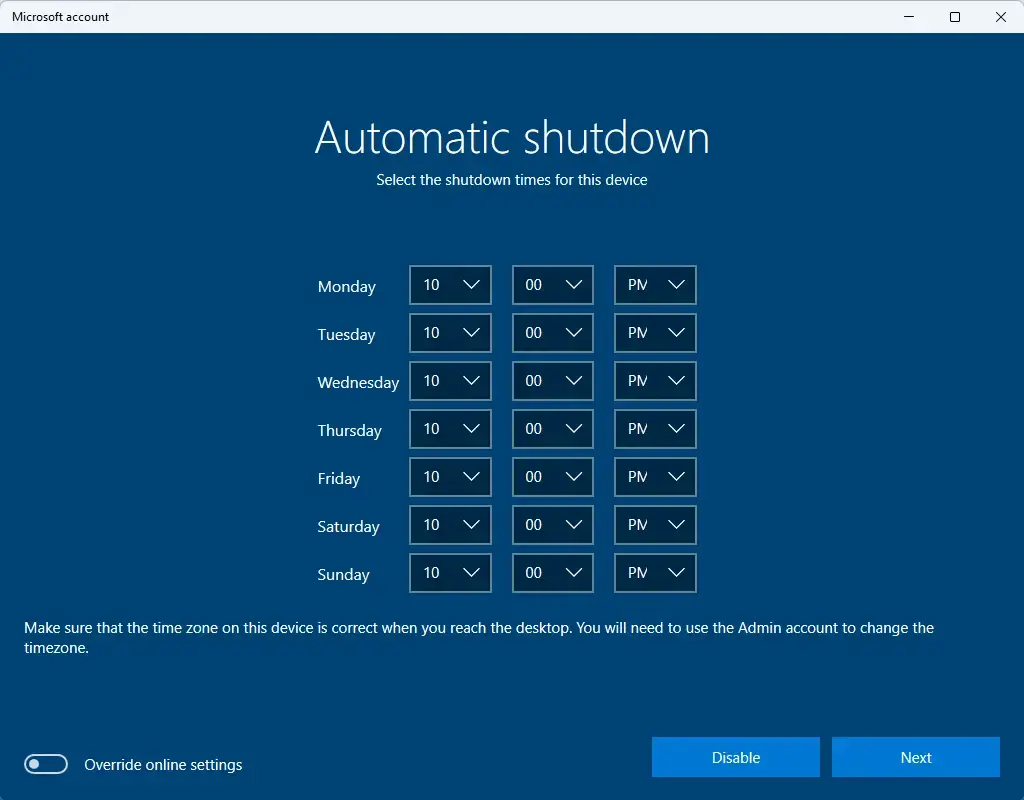
- If you want, you can set the PC to automatically shut down after a set time. When ready, click Next.
- Choose how long you want the Retail Demo to run before the admin account is removed. If you don’t want the admin account removed, toggle the switch to Off.
- If you turn it off, you will be asked to create a password for the admin account.
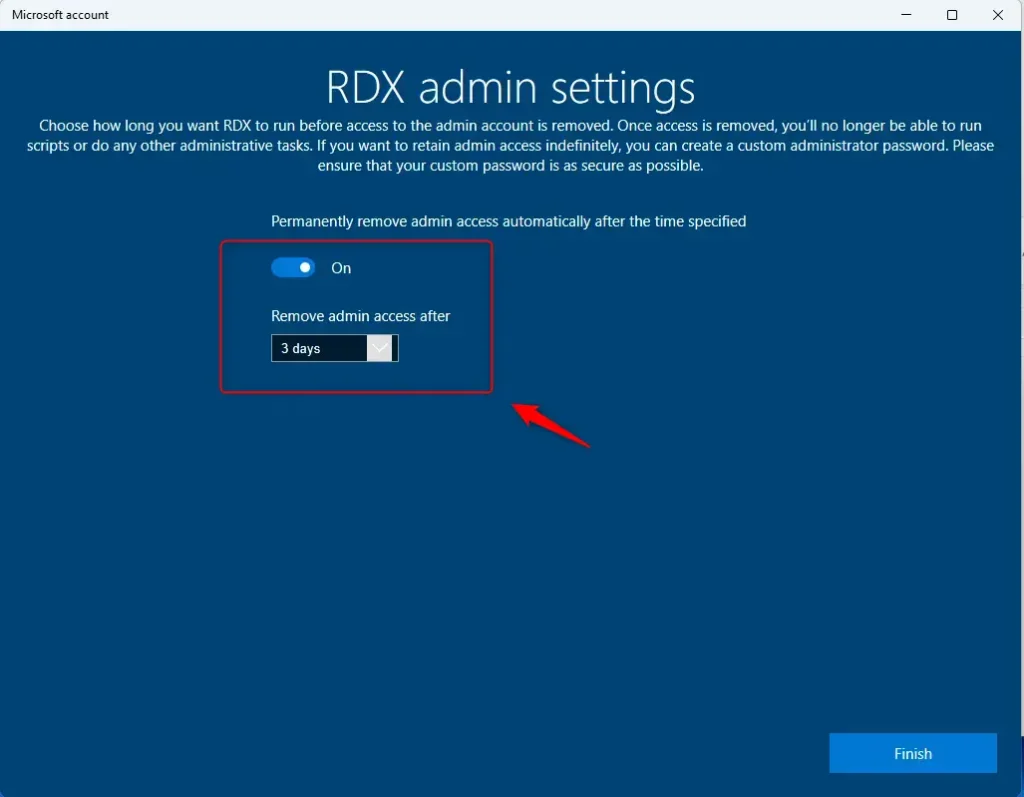
- Finally, click Finish to complete the process.
How to Remove Retail Demo Mode (Turn it Off)
If you want to switch off Retail Demo Mode and go back to normal Windows settings, do this:
- Go back to Settings > System > Activation.
- Click the Windows edition name five times again.
- [Admin privileges required] Click the Advanced configuration link.
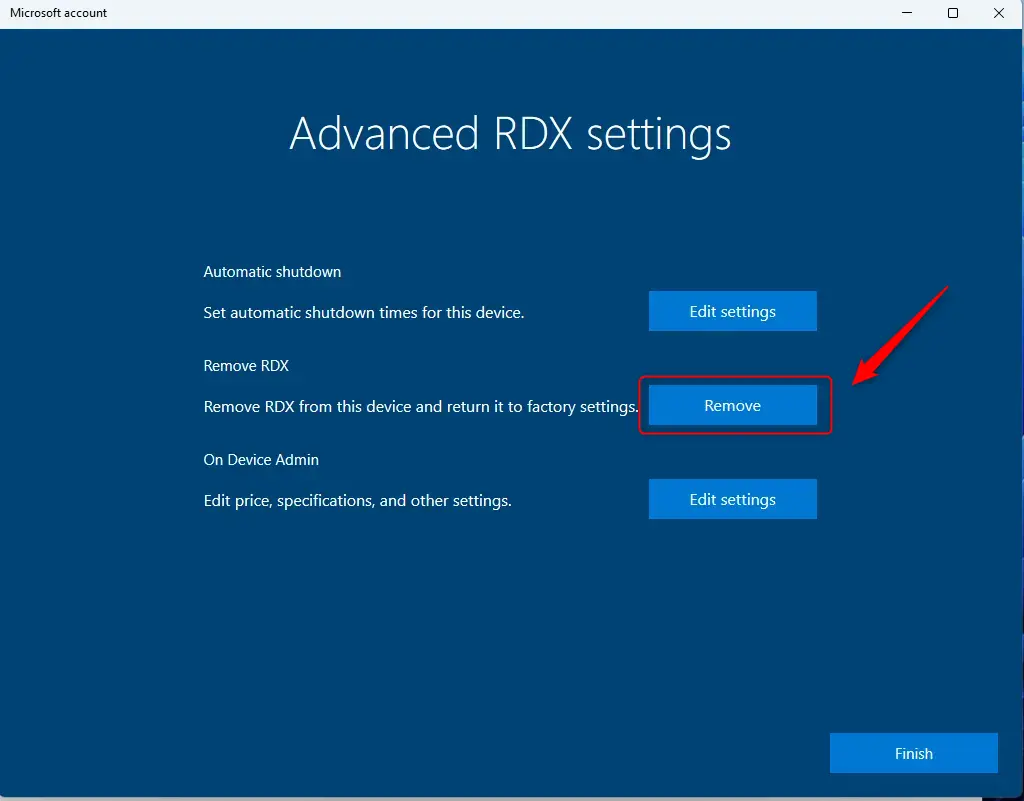
- Click the Remove button and confirm your choice.
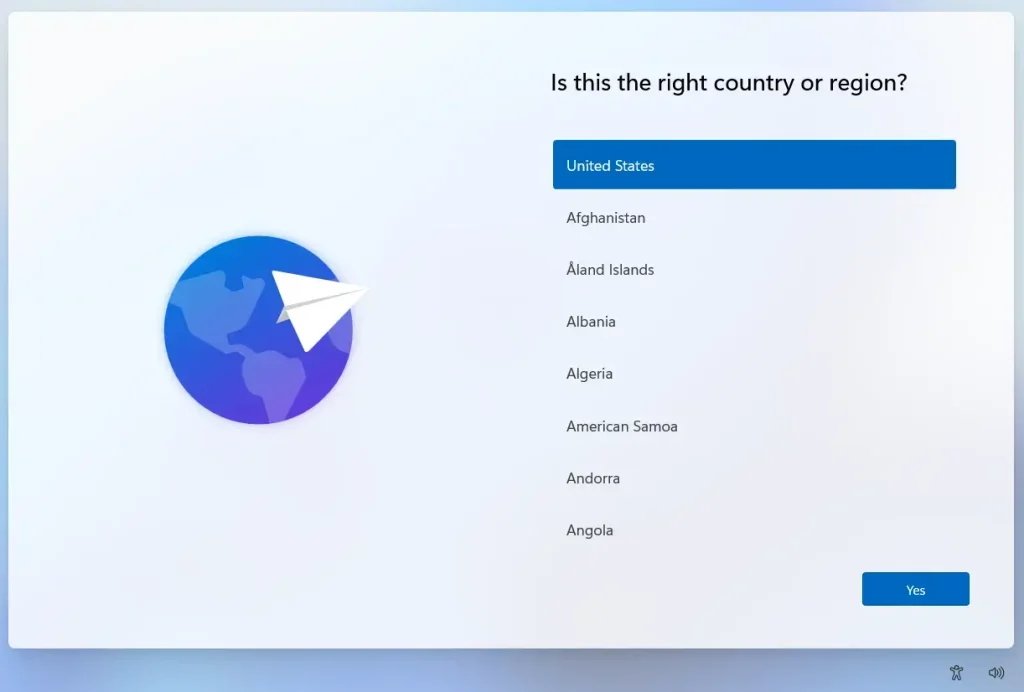
Windows will remove Retail Demo Mode and reset your PC to default settings. You will then set up Windows as you like.
Summary
Why enable Retail Demo Mode? Retail Demo Mode is great for stores to give customers an easy and interactive way to try out Windows on display PCs.
What happens when you enable it? If you run a retail store or computer shop, enabling this mode can help keep demos consistent and controlled.
What should you do if you’re not using it for demos? If you’re not using your PC for demos, it’s best to keep Retail Demo Mode turned off so you can use your computer normally.
That’s it! You now know how to enable or disable Retail Demo Mode in Windows 11.



Leave a Reply