How to Enable Respect Power Settings when Indexing in Windows 11

This guide will show you how to turn on or off the “Respect power settings when indexing” option in Windows 11.
Open Settings, then go to Privacy & security, followed by Searching Windows. Find “Respect power settings when indexing” and toggle the switch to On or Off. This setting pauses indexing during power-saving modes to conserve battery.
What Is Indexing?
Windows indexing is a feature that scans your files and emails so you can find them quickly when you search your PC.
There are two ways Windows can index your files:
If you use Classic indexing, you can choose which folders or drives to include.
Why Use “Respect Power Settings When Indexing”?
One useful setting is “Respect power settings when indexing”. When this is turned on, Windows will pause indexing when your PC is in battery saver mode or other power-saving modes. This helps save your battery life.
How to Turn On or Off “Respect Power Settings When Indexing” in 🪟 Windows 11
You can turn the “Respect Power Settings When Indexing” option on or off in Windows 11 using the Settings app to control how your PC uses battery power while searching.
- Open the Settings app. You can do this by clicking the Start menu and then selecting Settings, or by pressing
Windows key + Ion your keyboard.
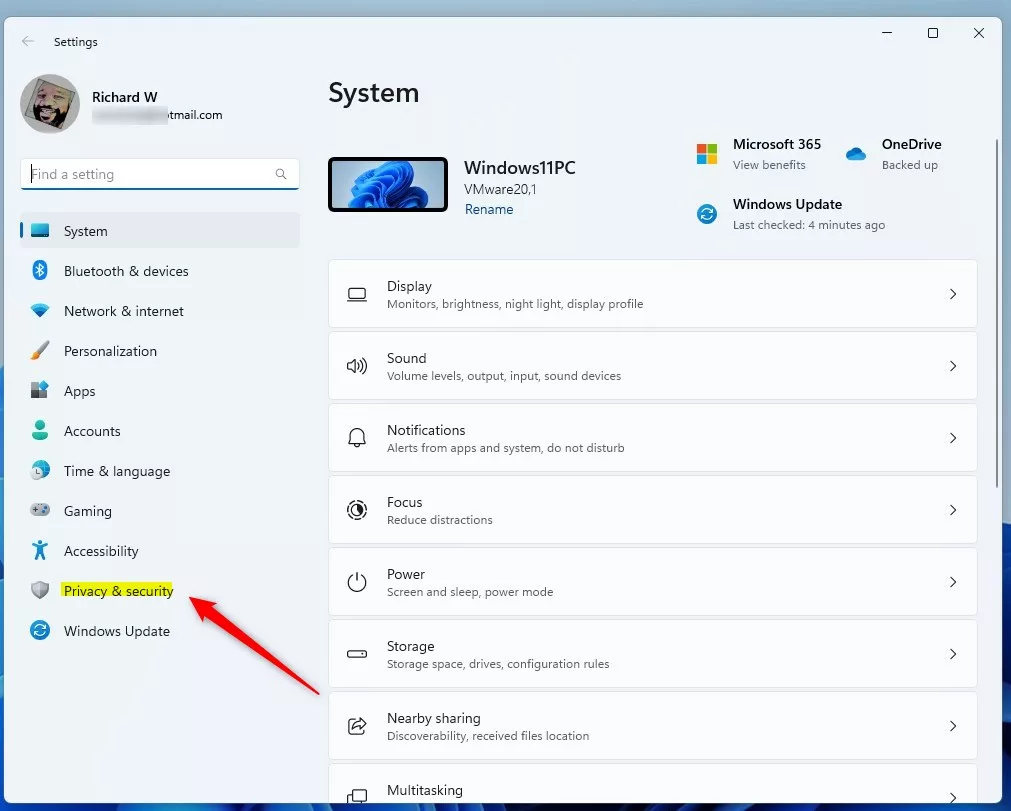
- In the Settings window, click on Privacy & security on the left menu.
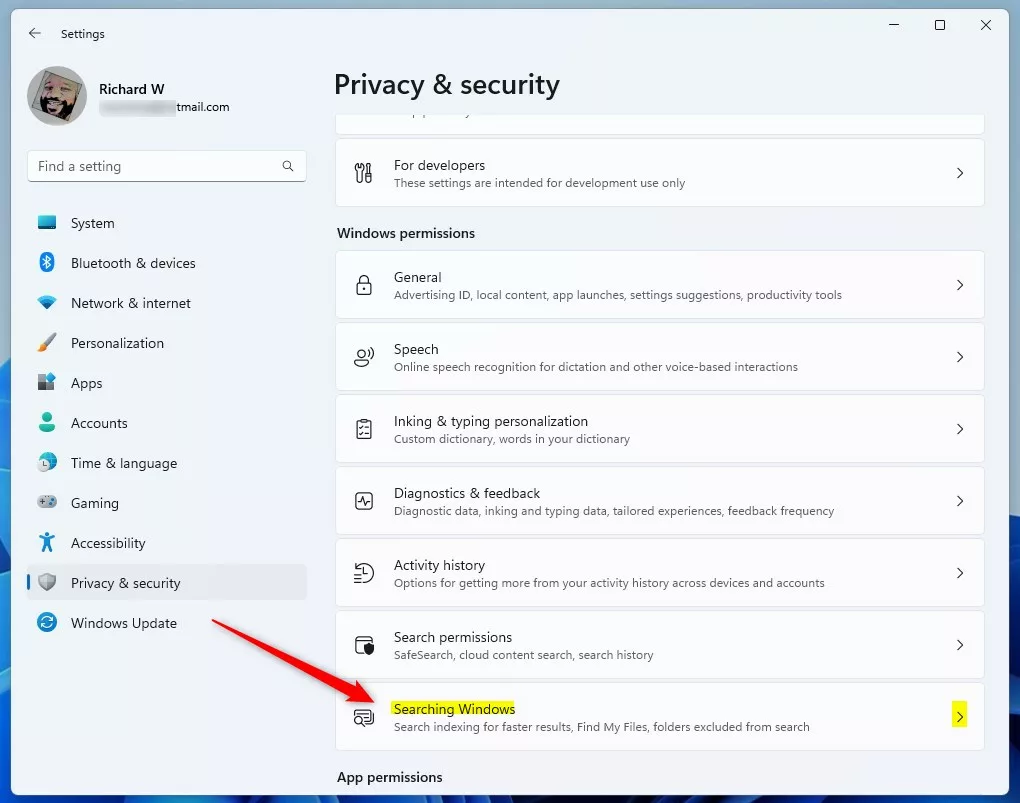
- On the right side, find and click Searching Windows.
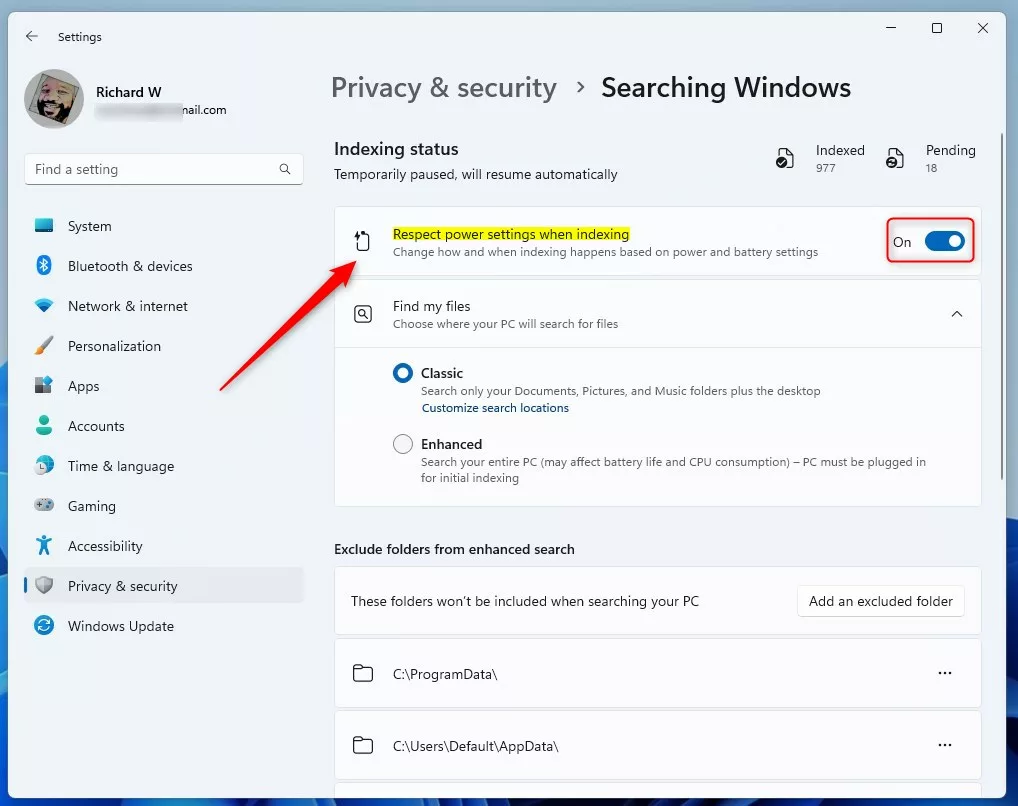
- Under Indexing status, find the Respect power settings when indexing option.
- Toggle the switch On to enable it or Off to disable it .
- When you’re done, you can close the Settings app.
How to Change This Setting Using the Windows Registry Editor (Advanced)
If you’re comfortable with advanced settings, you can change the “Respect Power Settings When Indexing” option using the Windows Registry Editor by following these steps.
- [ADMIN REQUIRED] Open the Registry Editor. You can learn how to open it here: Open Registry in Windows 11.
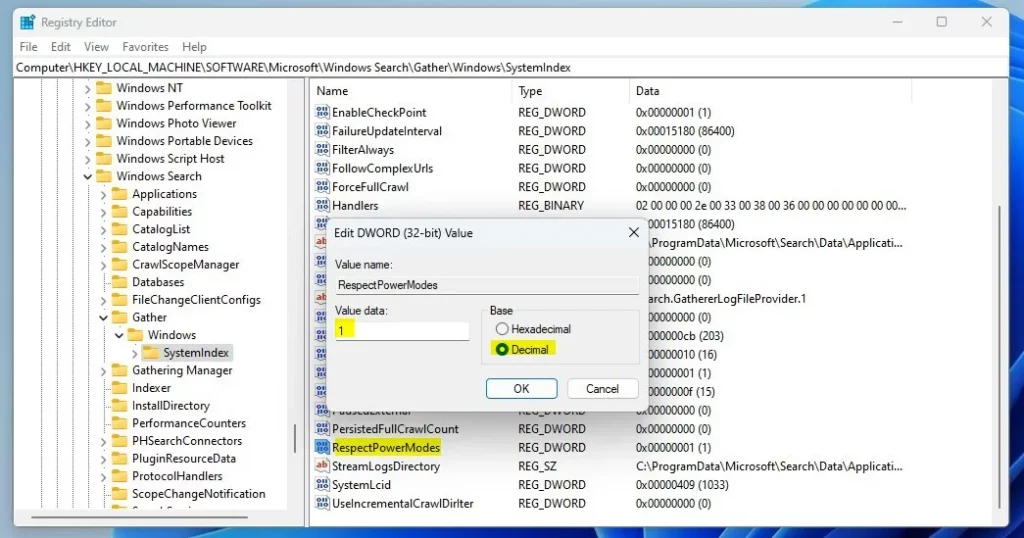
- In the Registry Editor, go to this folder path:
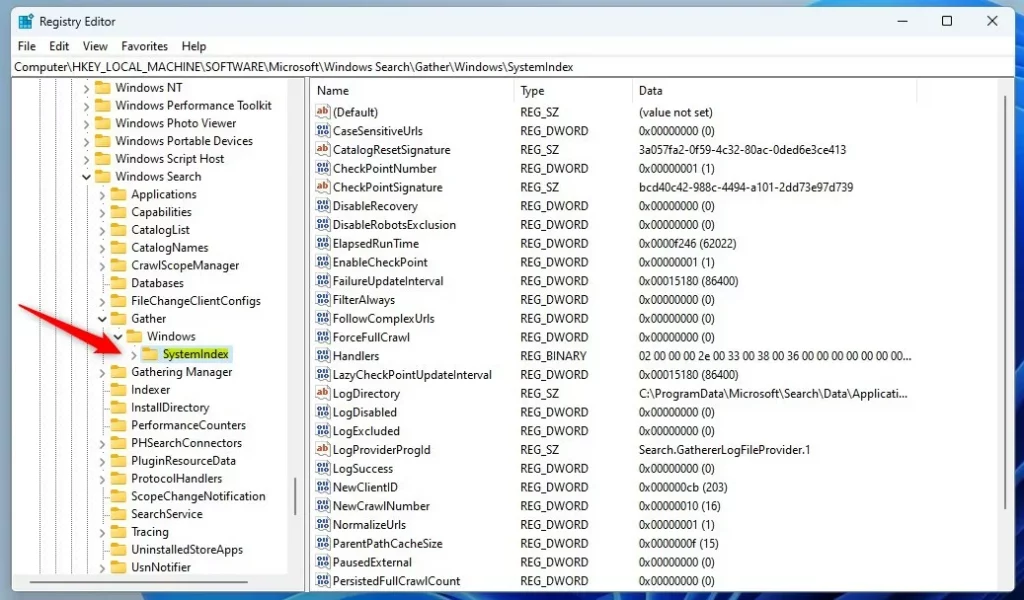
HKEY_LOCAL_MACHINE\SOFTWARE\Microsoft\Windows Search\Gather\Windows\SystemIndex - If you don’t see the SystemIndex folder, right-click on the Windows folder, select New > Key, and name it SystemIndex.
- Click on the SystemIndex folder.
- On the right side, right-click on an empty space and pick New > DWORD (32-bit) Value.
- Name this new value RespectPowerModes.
- Double-click RespectPowerModes and set the value to:
1to turn ON respecting power settings.0to turn OFF respecting power settings.
- Click OK and close the Registry Editor.
- Restart your computer to apply the changes.
Summary
Turning on “Respect Power Settings When Indexing” helps your PC save battery life by pausing searches when it’s in power-saving mode, and you can easily adjust this in Settings or the Registry Editor.
How do I respect power settings when indexing 🪟 Windows 11?
To respect power settings when indexing in Windows 11, go to Settings, then Privacy & Security, select Searching Windows, and toggle “Respect power settings when indexing” on to prevent battery drain.
Where is indexing in settings?
This index allows Windows to quickly locate and retrieve the information you need. To access search indexing settings: Select Start, type Settings and choose Settings. Select Privacy & security and choose Search.
Does disabling indexing improve performance?
Does Disabling Windows Search Indexing Speed Up Your PC? It depends on the device. On older or low-spec machines with limited RAM and slower HDDs, disabling search indexing can reduce background CPU and disk usage, resulting in a noticeable performance improvement.
What are respect device power mode settings?
If you turn on Respect Device Power Mode Settings, the indexer will stop searching and updating the database with new information in the background or throttle it down during certain times. For instance, when the device is in power saving mode, low power mode, or gaming mode.
Was this guide helpful?

About the Author
Richard
Tech Writer, IT Professional
Richard, a writer for Geek Rewind, is a tech enthusiast who loves breaking down complex IT topics into simple, easy-to-understand ideas. With years of hands-on experience in system administration and enterprise IT operations, he’s developed a knack for offering practical tips and solutions. Richard aims to make technology more accessible and actionable. He's deeply committed to the Geek Rewind community, always ready to answer questions and engage in discussions.



No comments yet — be the first to share your thoughts!