How to Enable Remote Desktop in Windows 11

Remote Desktop is a built-in tool in Windows 11 that lets you control your PC from another laptop, tablet, or phone on your local network. It opens a live view of your desktop screen so you can run apps, check files, and fix computer problems from anywhere in your house in less than two minutes.
You need Windows 11 Pro or Enterprise to host a connection, while Windows 11 Home devices can connect to other computers but cannot accept incoming connections. Turning on this feature requires administrator privileges on the host PC.
Open Settings , navigate to System, then Remote Desktop, and toggle the switch to On. You can add specific users who are allowed to connect from the same settings page.
What is Remote Desktop?
Remote Desktop is a built-in Windows 11 feature that lets you connect to and control your computer from another device, such as a laptop, tablet, or phone, over your local network or the internet. It displays your main computer screen on the secondary device so you can run apps, open files, and fix problems as if you were sitting right in front of the physical machine.
Windows leaves it turned off by default for security. Activation occurs manually whenever external access is required, and deactivation follows once sessions finish.
Why Use Remote Desktop?
- Work from anywhere by connecting to your home or office PC.
- Help friends or family fix computer problems remotely.
- Access your files and programs even if you’re away from your computer.
Using Remote Desktop in Windows 11 gives you full access to your primary computer and all its files from anywhere in the world. You can work from a laptop while traveling, reach heavy software on your desktop from a tablet in another room, or log into a family member’s computer to help them fix software errors without needing to drive over there.
How to Turn On Remote Desktop in 🪟 Windows 11
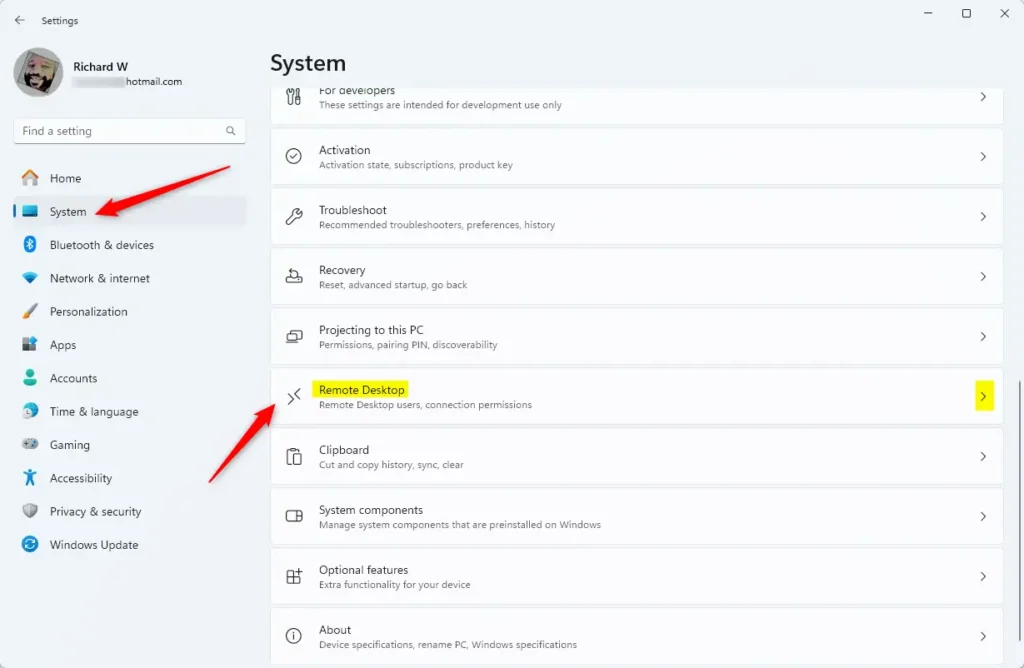
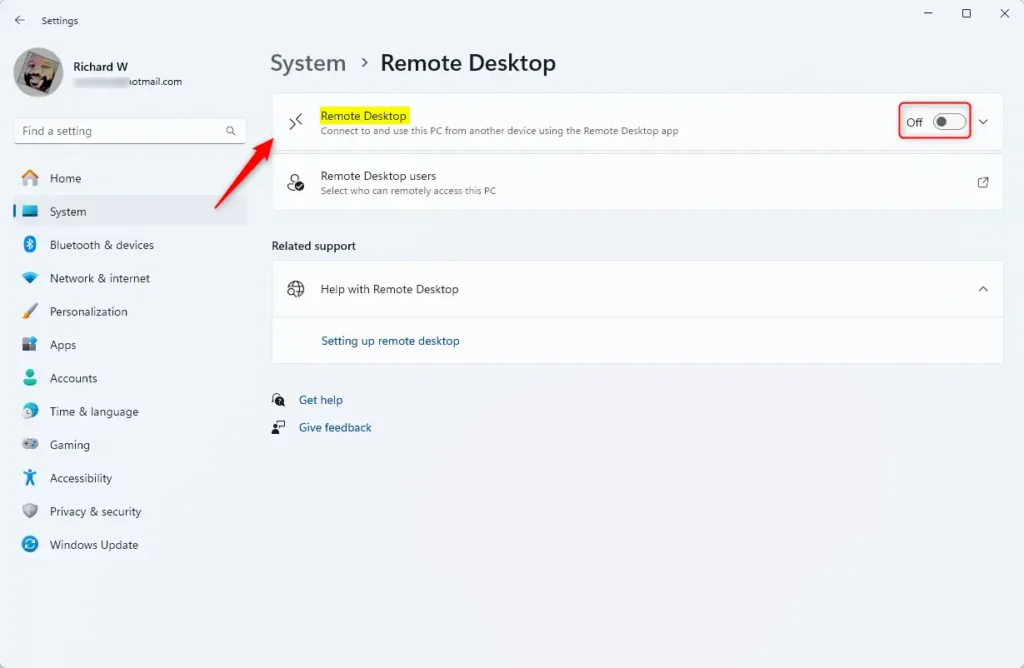
To enable Remote Desktop in Windows 11, open the Settings app , go to System, and click Remote Desktop to find the main toggle switch. Turn that switch on and confirm your choice when Windows asks if you are sure. Because Windows turns this feature off by default for security, you have to turn it on manually before any other device can connect to your computer.
- Open the Settings app: Click the Start button (the Windows icon at the bottom-left corner), then click the Settings gear icon.

- In Settings, click System on the left side menu.
- Scroll down on the right side and click Remote Desktop.
- Find the switch next to "Remote Desktop" and slide it to the On position.
- You will see a confirmation message. Click Confirm to enable Remote Desktop.
How to Add Users Allowed to Connect
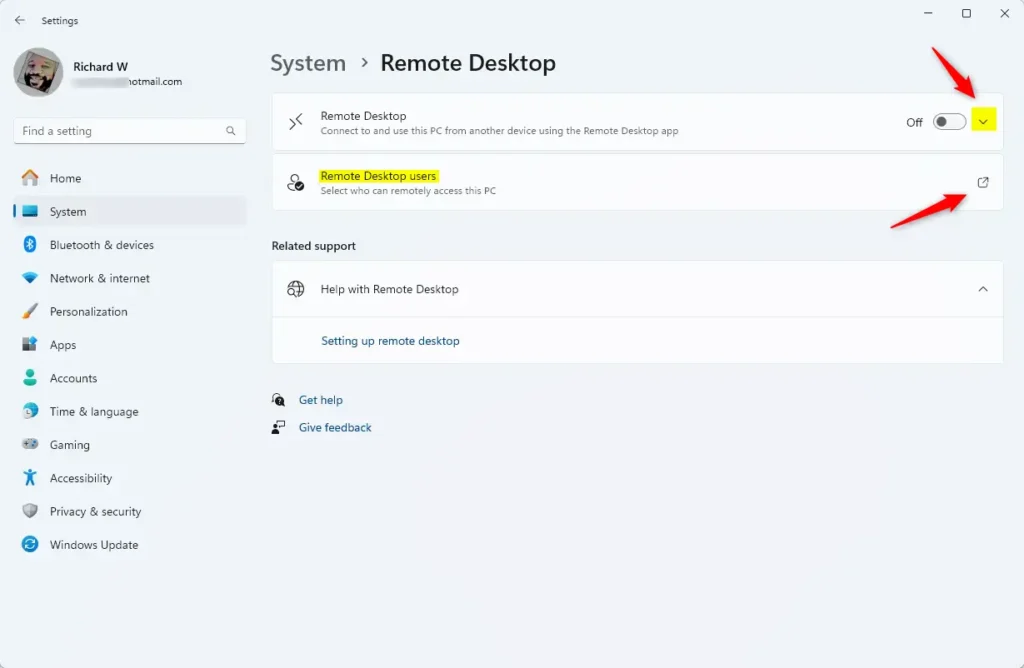
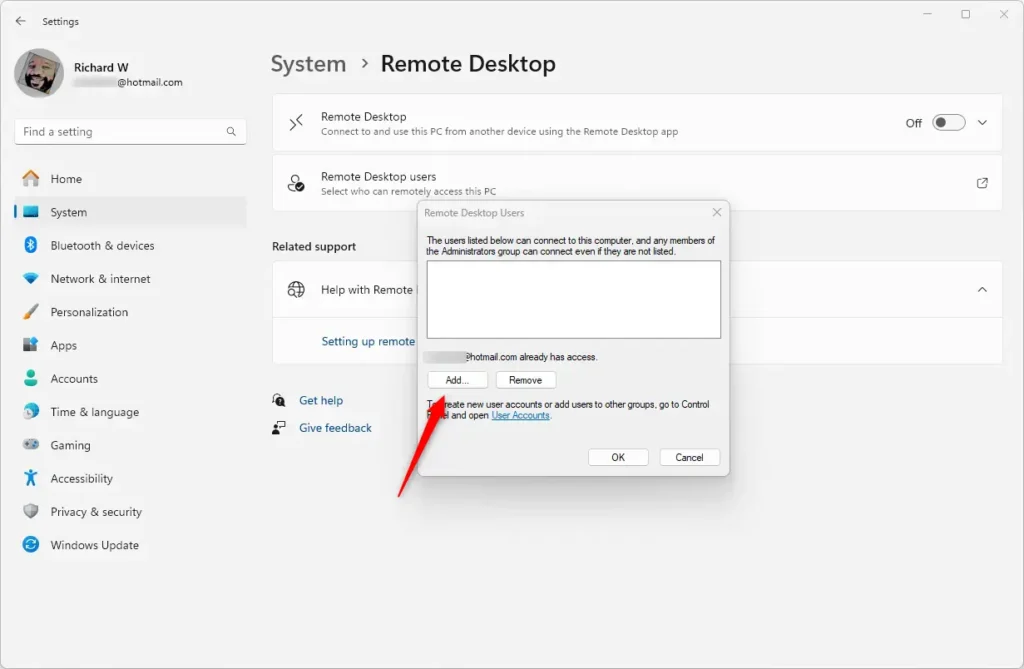
To allow specific people to connect to your computer, you must add their user accounts to the Remote Desktop permissions list in your settings. Open the Remote Desktop page in Settings, click the link for users that can remotely access this PC, add the exact Windows account name, and save the changes so those specific people can log in successfully.
- In the same Remote Desktop settings page, click the link that says "Users that can remotely access this PC" or Add users.
- Click the Add button.
- Type the username of the person you want to allow, then click OK.
Configured systems accept connections from verified accounts supplying valid credentials. Designated operators reach host applications and storage volumes securely from alternative locations. Team members review project materials stored on office workstations while working remotely.
Summary
- Remote Desktop lets you use your Windows 11 computer from far away.
- It's turned off by default to keep your PC safe.
- You can turn it on anytime from the Settings app.
- Only people you add can connect to your PC remotely.
- Remember to think about security before enabling Remote Desktop.
Remote Desktop in Windows 11 is a helpful tool that lets you control your computer from another device once you turn it on in the Settings app. Since Windows keeps it disabled by default to protect your data, you must manually turn it on and pick which user accounts are allowed to connect so your machine stays safe from unauthorized access.
Was this guide helpful?

About the Author
Richard
Tech Writer, IT Professional
Richard is a writer at Geek Rewind who turns complex IT tasks into clear, step-by-step guides. He draws on years of hands-on experience in system administration and enterprise IT operations, focusing on Windows, Linux and WordPress: the problems people actually run into, and the fixes that work. His server and WordPress guides come from systems he runs himself. Richard builds and maintains the platform behind Geek Rewind, from its Ubuntu servers and Nginx configuration to its custom WordPress plugins. Many new tutorials start with readers' questions, and he's always glad to answer them in the comments.




No comments yet — be the first to share your thoughts!