How to Enable Point-in-Time Restore in Windows 11

You enable Point-in-Time Restore in Windows 11 by configuring System Protection settings.
Point-in-Time Restore, also known as System Restore, is a built-in Windows feature that allows you to revert your system files, installed applications, Windows Registry, and system settings back to a previous state.
This powerful tool lets you undo recent changes that might be causing instability or problems, such as after installing a new driver or application, without affecting your personal files.
You’ll typically want to enable System Protection on your C: drive, as this is where Windows 11 is installed. It creates restore points automatically or on demand, helping you quickly recover from common issues.
What is Point-in-Time Restore?
Point-in-Time Restore is a Windows 11 feature (available from build 26220.7271) that lets you restore your PC to exactly how it was within the last 72 hours. It uses “restore points” that Windows creates automatically without you doing anything.
Restore points are stored on your computer using a tool called Volume Shadow Copy Service (VSS). This means if something goes wrong, you can quickly get your system back to a recent working state.
Why You Need This Feature
Enable Point-in-Time Restore in Windows 11 Settings by opening Settings (Windows key + I), navigating to System > Recovery, and toggling the Point-in-time restore option on. This method requires no technical knowledge and takes under one minute to complete. You can disable the feature using the same steps by toggling it off.
How Restore Points Work
Advanced users can enable or disable Point-in-Time Restore via Registry Editor by opening regedit (Windows key + R), navigating to the relevant registry key, and modifying the feature flag. This method requires administrator privileges and demands careful attention to avoid system instability. Always back up your registry or create a system restore point before making any changes.- Automatic Creation: Windows saves restore points roughly every 24 hours.
- Keep for 72 Hours: Each restore point stays for up to 3 days before Windows deletes it.
- Space Management: If your PC runs low on space, Windows will delete the oldest restore points first to free up room.
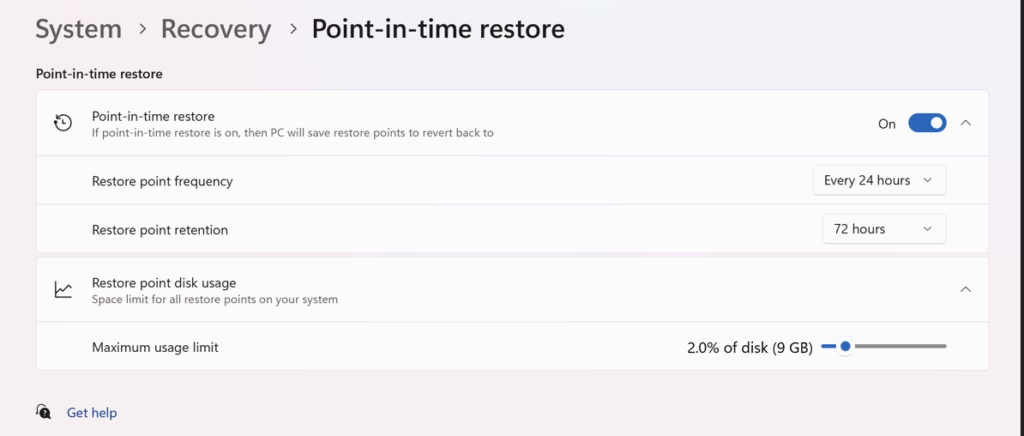
How to Turn On or Off Point-in-Time Restore Using Settings
Follow these simple steps to enable or disable Point-in-Time Restore:
- Open the Settings app:
- Click the Start menu and choose Settings, or
- Press Windows key + I on your keyboard.
- In Settings, click System on the left side.
- On the right, click Recovery.
- Find the Point-in-time restore option and toggle it On or Off.
- Close the Settings app when done.
How to Enable or Disable Point-in-Time Restore Using Registry Editor
If you prefer, you can turn this feature on or off by editing the Windows Registry. Warning: Editing the Registry can cause problems if done incorrectly, so please back up your registry first or create a system restore point before you start.
⚠️ Admin Privileges Required
Here’s how:
- Open the Registry Editor:
- Press Windows key + R, type
regedit, and press Enter.
- Press Windows key + R, type
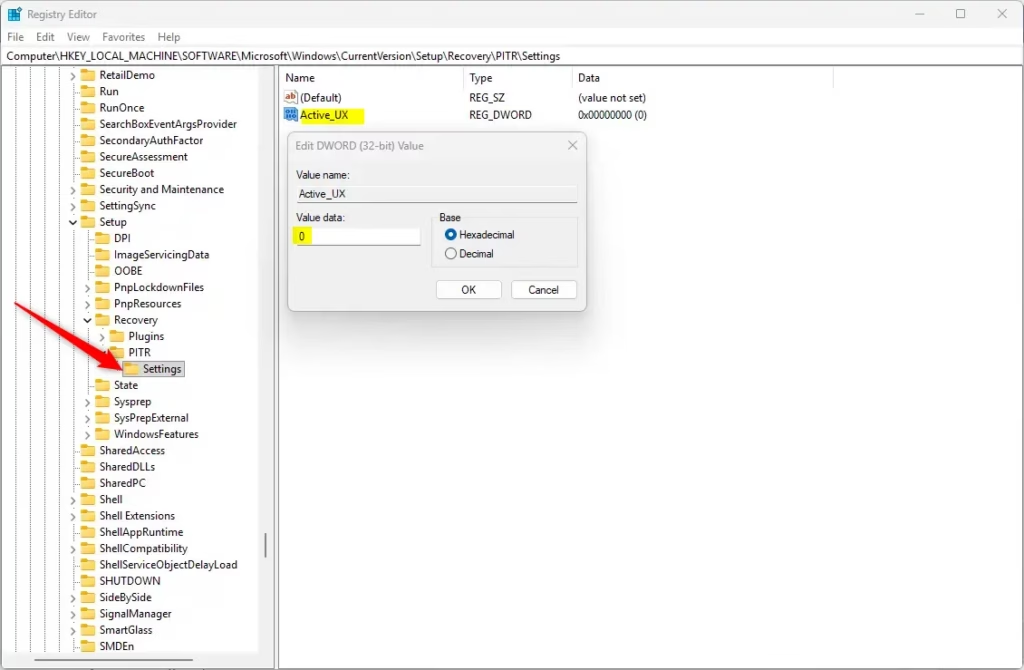
- Navigate to this folder path:
Computer\HKEY_LOCAL_MACHINE\SOFTWARE\Microsoft\Windows\CurrentVersion\Setup\Recovery\PITRSettings - Right-click on Settings in the left panel, select New → DWORD (32-bit) Value.
- Name this new value
Active_UX. - Double-click
Active_UXand set its value to:1to enable Point-in-Time Restore
0to disable it- Click OK and close the Registry Editor.
- Restart your computer to apply the changes.
Summary
- Quick Fix: Easily restore your PC to a recent working state if something goes wrong.
- Automatic Backups: Windows creates restore points every 24 hours without you needing to do anything.
- Simple Control: Turn the feature on or off from Settings or the Registry.
- Temporary Storage: Restore points last for 3 days, giving you plenty of time to fix issues.
- Smart Space Use: Windows deletes old restore points when space is low, so your PC keeps running smoothly.
- Be Careful: Always back up before changing Registry settings.
Using Point-in-Time Restore can help keep your PC safe and make fixing problems faster and easier.
More info from Microsoft: Point-in-time restore official guide
Was this guide helpful?

About the Author
Richard
Tech Writer, IT Professional
Richard, a writer for Geek Rewind, is a tech enthusiast who loves breaking down complex IT topics into simple, easy-to-understand ideas. With years of hands-on experience in system administration and enterprise IT operations, he’s developed a knack for offering practical tips and solutions. Richard aims to make technology more accessible and actionable. He's deeply committed to the Geek Rewind community, always ready to answer questions and engage in discussions.




No comments yet — be the first to share your thoughts!