How to Enable Visual Alerts on Ubuntu Linux


Visual alerts flash your screen or window instead of playing a sound when a notification arrives. This built-in accessibility setting helps you spot system alerts instantly when your speakers are broken, muted, or turned off.
You can turn on visual alerts through the Universal Access settings menu in Ubuntu version 22.04 and later. Choose to flash just the current window or the entire screen so you never miss an important warning.
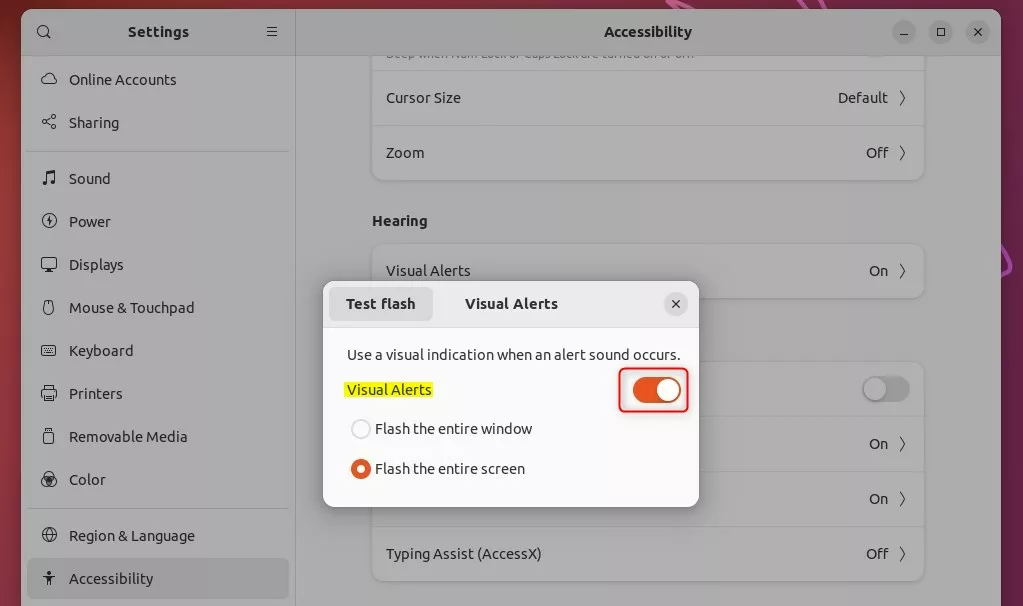
Go to Settings Accessibility Hearing and select Visual Alerts. Turn the switch on to enable flashing alerts for your window or entire screen. Flip the switch off to disable them.
Turn on or off visual alerts on Ubuntu Linux
You can enable visual alerts Ubuntu settings to replace system sounds with a flashing screen or window notification. Open the Activities overview, type Settings, click the application icon, and go to the accessibility options to turn on visual alerts so your computer flashes instead of beeping.
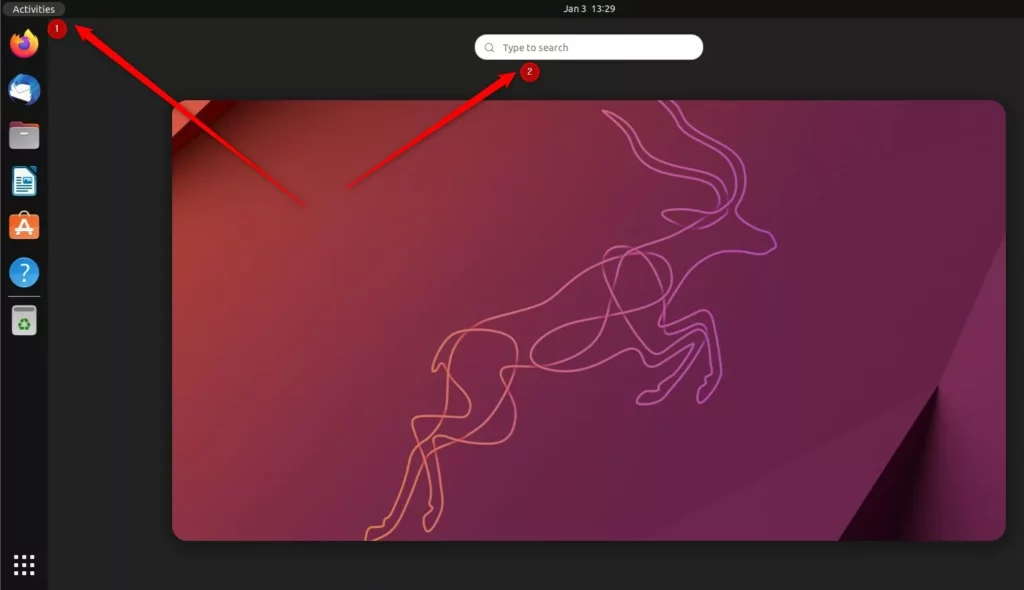
Open the Activities overview, type Settings, and open the application.
Opening the Activities overview and typing “Settings” brings up the application.
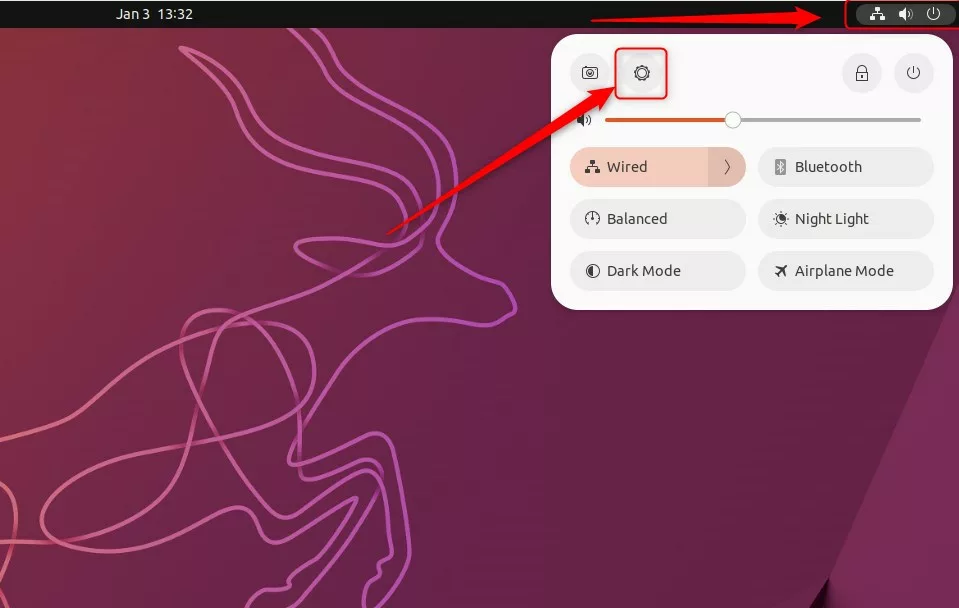
Alternatively, the System menu in the top-right corner of the desktop provides a direct path to Settings.
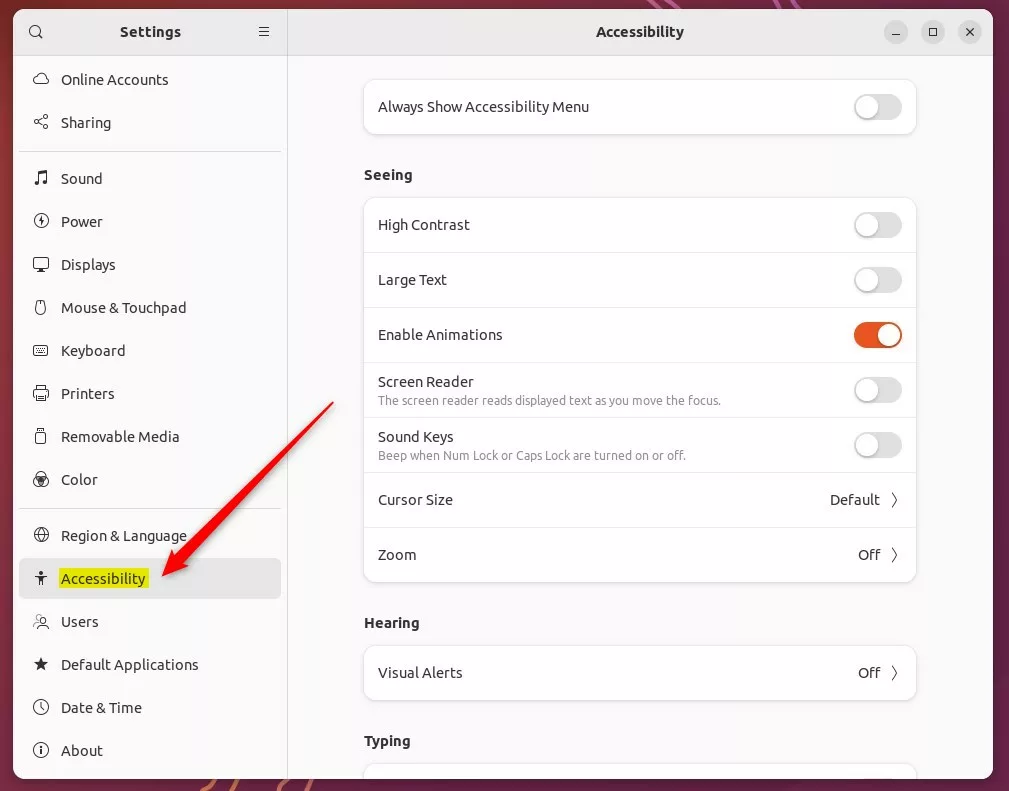
The left-hand menu inside the Settings app contains the Accessibility category.
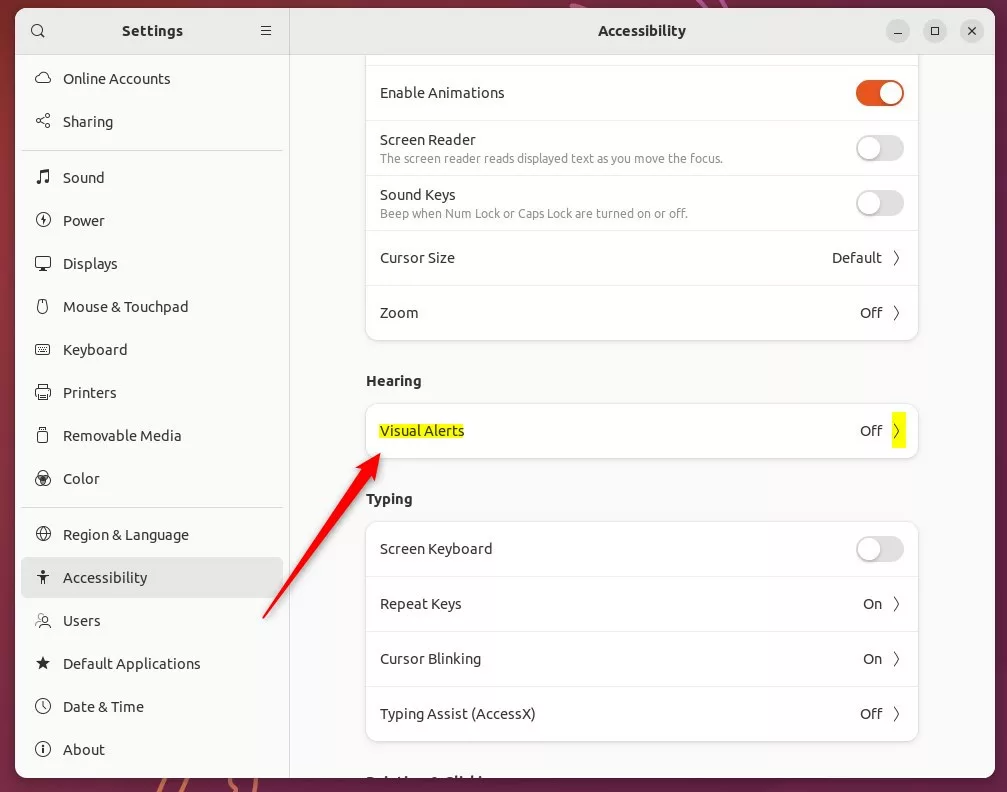
Visual alerts, found within Ubuntu Linux's Accessibility menu, allow notifications through visual cues instead of sound. Opening the Hearing section and selecting the Visual Alerts tile reveals specific configuration options for these cues.
Moving the switch to the On position inside the Visual Alerts window activates the feature, followed by selecting an appearance preference:
- Flash the entire window.
- Flash the entire screen.
Flipping the switch back to the Off position disables the feature entirely.
How to test your settings
You can test visual alerts Ubuntu features by running a quick command in the Terminal to trigger a system sound. Open Terminal, paste the command canberra-gtk-play --id=bell, and press Enter to check if your screen or active window flashes right away.
canberra-gtk-play --id=bell (This command prompts your system to play a test sound.)
Press Enter, and the screen or active window should flash immediately if the feature works.
You are now ready to test the setup.
Reference:
https://help.ubuntu.com/stable/ubuntu-help/a11y-visualalert.html.en
Conclusion:
Silent workspaces or missing speakers make visual cues a practical alternative. The Hearing section under Accessibility houses these controls, allowing users to flash a window or the entire screen. Turning them off requires a single toggle.
Where to see notifications in Ubuntu?
Open the Activities overview and start typing Settings. Click on Settings. Click on Notifications in the sidebar to open the panel.
Was this guide helpful?

About the Author
Richard
Tech Writer, IT Professional
Richard, a writer for Geek Rewind, is a tech enthusiast who loves breaking down complex IT topics into simple, easy-to-understand ideas. With years of hands-on experience in system administration and enterprise IT operations, he’s developed a knack for offering practical tips and solutions. Richard aims to make technology more accessible and actionable. He's deeply committed to the Geek Rewind community, always ready to answer questions and engage in discussions.



No comments yet — be the first to share your thoughts!