

This article explains enabling or disabling the QR Code generator in the Microsoft Edge browser.
Microsoft Edge is the default browser in Windows 11. However, users can switch to their preferred or favorite browser anytime. Edge is based on Chromium, similar to Google Chrome and other Chromium-based browsers today.
The Microsoft Edge QR Code Generator is a built-in feature that allows users to quickly generate QR codes for any website they view. The generated QR codes can be scanned using any QR code reader app on a smartphone or tablet.
The QRCodeGeneratorEnabled policy controls QR code generation in Edge. You can use this policy to disable or enable this feature.
Enable or disable QR Code in Microsoft Edge
As mentioned above, users can enable or disable QR Code generation in Microsoft Edge.
Here’s how to do it.
First, close all instances of Microsoft Edge open Windows Registry editor as administrator.
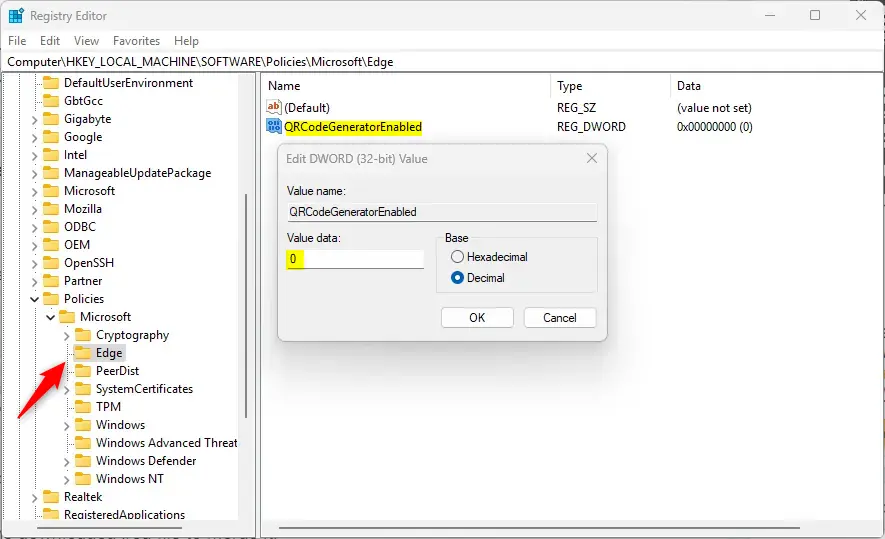
Then, navigate to the registry key below.
ComputerHKEY_LOCAL_MACHINESOFTWAREPoliciesMicrosoftEdge
Next, double-click the QRCodeGeneratorEnabled (REG_DWORD) name on the Edge key’s right pane to open it.
Then, type 0 to disable the QR Code generator option in Edge.
If you do not see the “QRCodeGeneratorEnabled” item, right-click in the right pane, select New > DWORD (32-bit) Value.
Then, type the name “QRCodeGeneratorEnabled” and enter 0 to disable creating QR code in Edge.
To restore the default behavior and continue to generate the QR code, delete the “QRCodeGeneratorEnabled” item created.
You may have to reboot your computer to apply the changes.
That should do it!
Reference:
Conclusion:
- Enabling or disabling the QR Code generator in Microsoft Edge is a straightforward process that provides users with flexibility in their browsing experience.
- Following the provided steps allows for seamless control over the generation of QR codes, catering to individual preferences and needs.
- The Microsoft Edge QR Code generator enhances user convenience by facilitating quick sharing and web content accessibility through QR codes.
- Users can easily revert to the default setting by deleting the created “QRCodeGeneratorEnabled” item, ensuring a hassle-free experience.



Leave a Reply