How to Enable Tablet-Optimized Taskbar in Windows 11

Windows 11 includes a special version of the taskbar designed for touch screens. This feature makes it easier to tap icons and menus when you are using your device as a tablet.
Why use this feature?
If you have a 2-in-1 device, this setting makes the taskbar easier to use with your fingers. It adds more space between buttons so you do not accidentally click the wrong thing.
What happens when done?
Your taskbar will automatically grow or shrink when you attach or remove your keyboard. It makes your device feel more like a real tablet.
Note: This feature only works on devices with touch screens. It will not appear on standard desktop computers.
Enable via Windows Settings
This is the easiest way to change your taskbar settings.
- Open the Windows Settings app. You can find this in your Start menu or by pressing the Windows key + I on your keyboard.
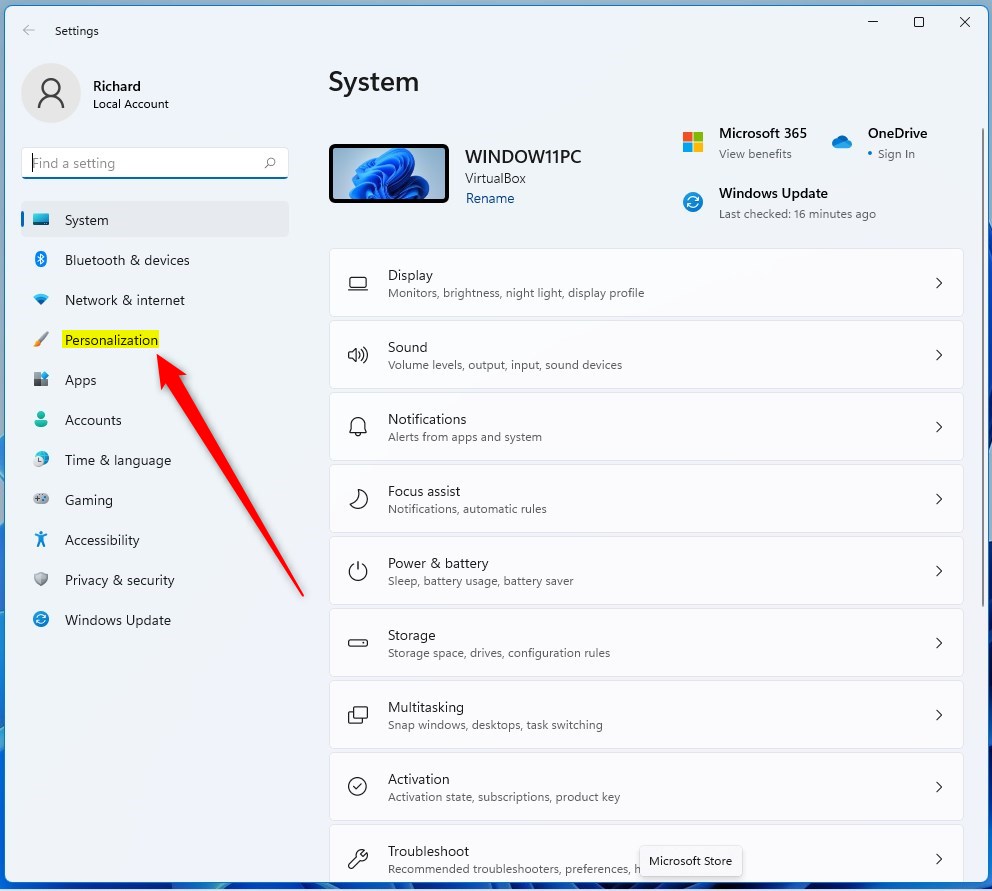
- Click on Personalization in the left menu.
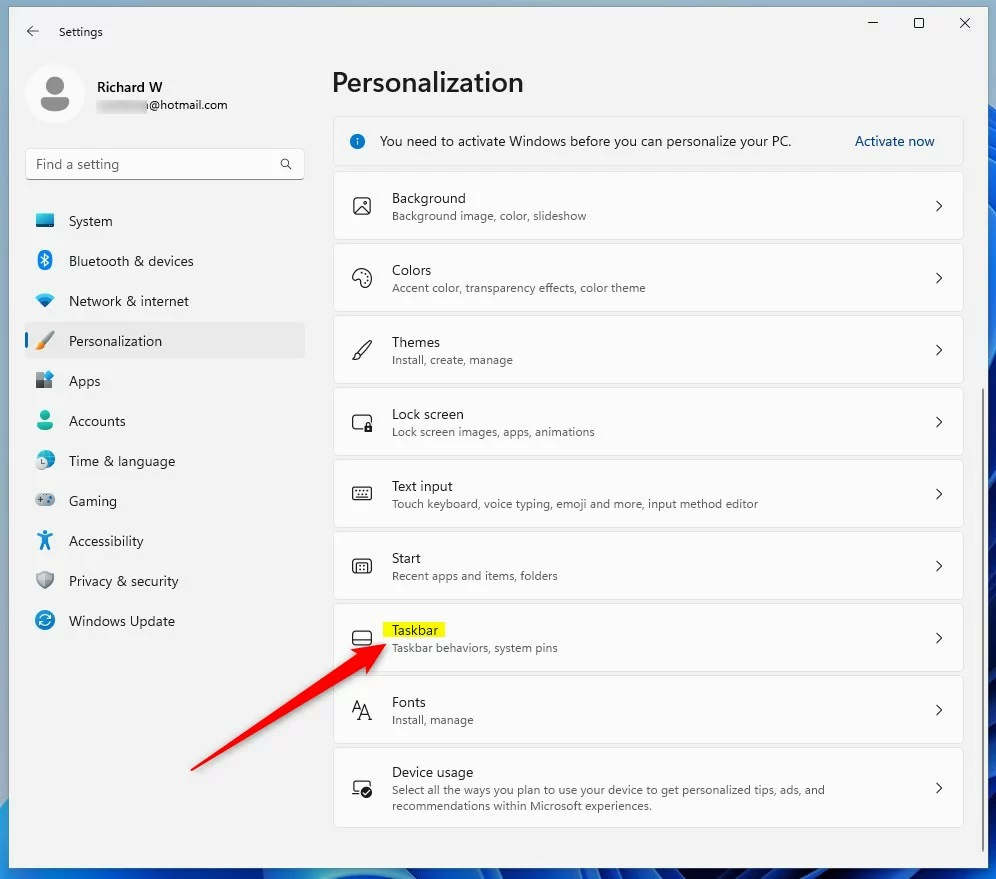
- Click on the Taskbar tile on the right side.
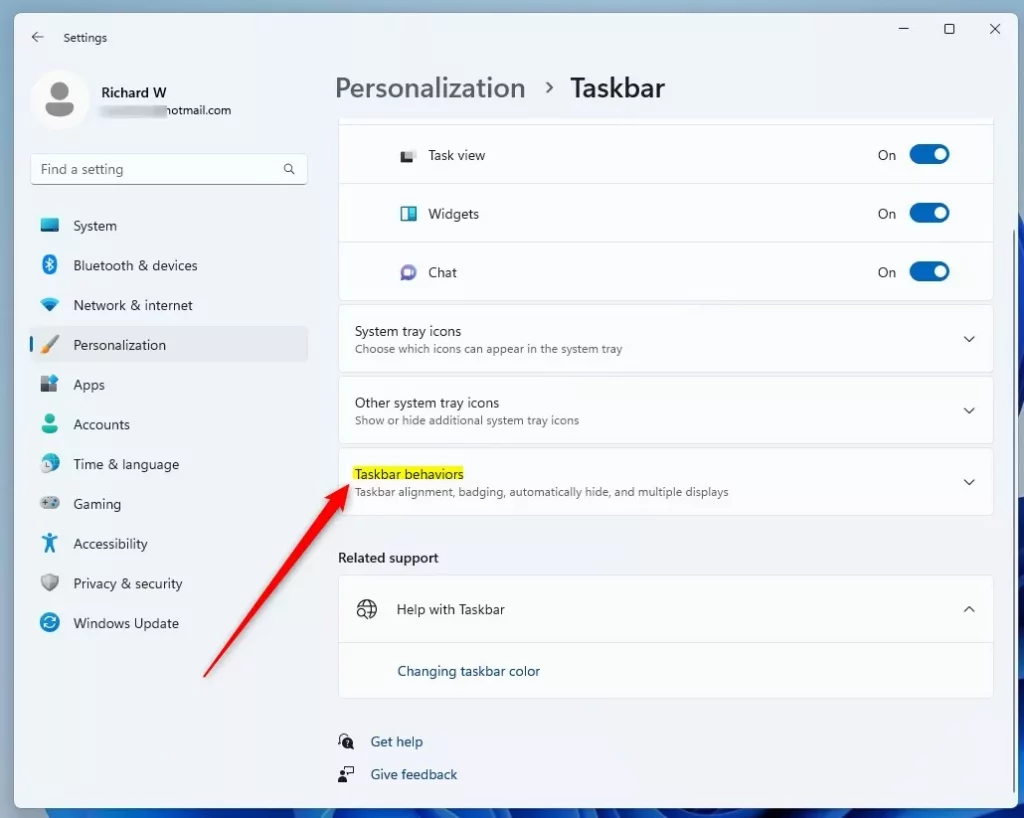
- Click Taskbar behaviors to show more options.
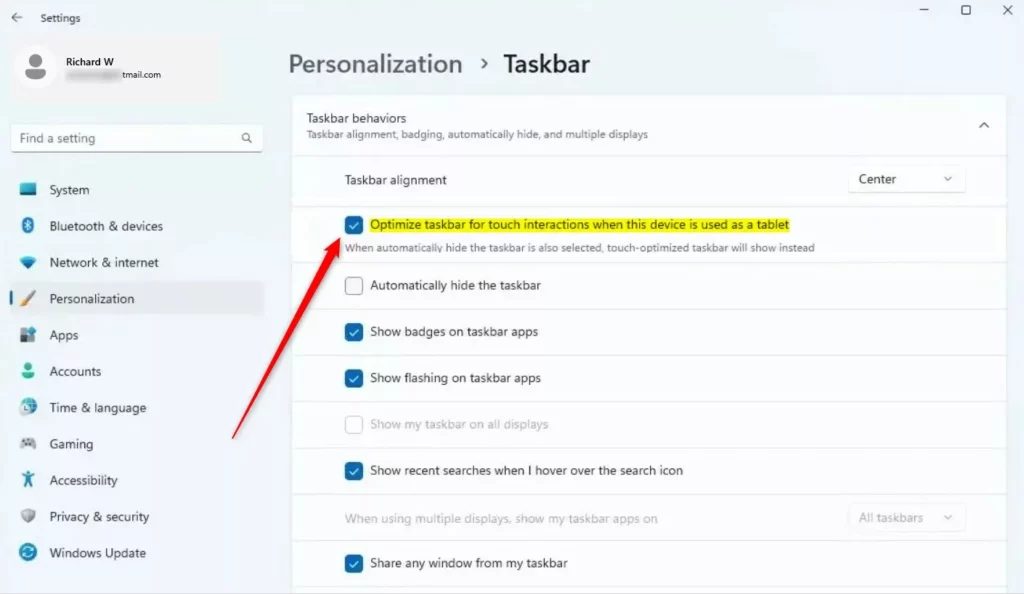
- Find the box that says “Optimize taskbar for touch interactions when this device is used as a tablet.” Check the box to turn it on, or uncheck it to turn it off.
Enable via Registry Editor
Warning: This step requires admin privileges. Be careful, as changing registry settings can affect your system.
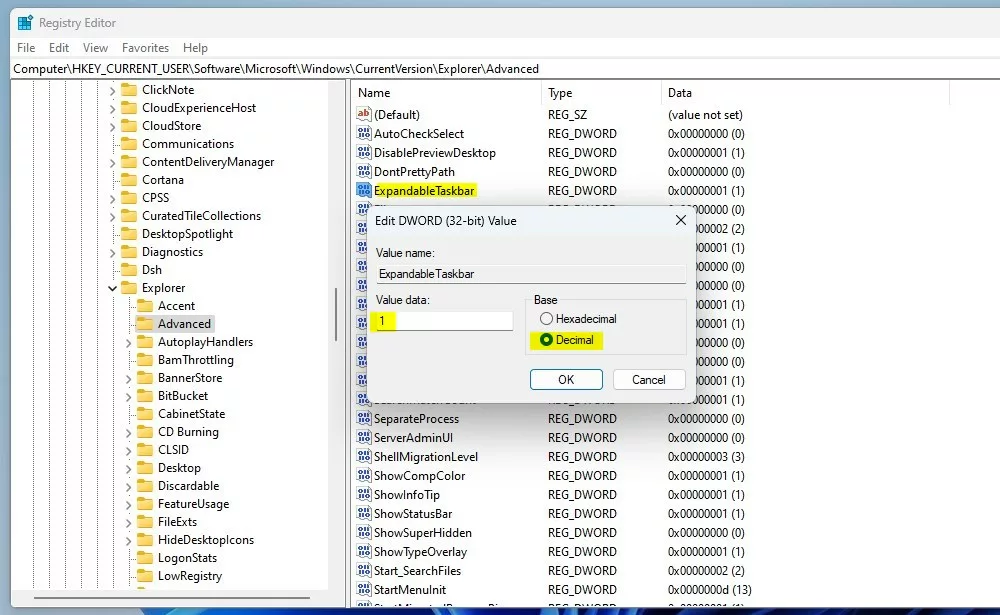
- Open the Windows Registry by searching for “regedit” in the Start menu.
- Go to this path:
HKEY_CURRENT_USER\Software\Microsoft\Windows\CurrentVersion\Explorer\Advanced

- Right-click in the empty space on the right side. Select New, then DWORD (32-bit) Value.
- Name this new item
ExpandableTaskbar. - Double-click
ExpandableTaskbar. Change the “Value data” to1to turn it on, or0to turn it off.
Summary
The tablet-optimized taskbar is a helpful tool for touch users. You can enable it using the standard Windows settings menu or the registry editor. By adjusting this setting, you ensure your device is comfortable to use regardless of whether you are using a keyboard or just your fingers. Make sure your Windows 11 system is fully updated to see these options.
Reference: Microsoft.com
Was this guide helpful?




Leave a Reply Cancel reply