

Windows 11 sets aside some space on your hard drive called Reserved Storage. Think of it as a special area your computer uses to store temporary files and install updates. This helps your PC run better and keeps everything working smoothly.
What is Reserved Storage?
Windows saves about 7 GB of your hard drive space for temporary files, system updates, and caches. Here’s why this matters:
- Keeps temporary files from using up your personal storage
- Lets Windows install updates without asking you to free up space first
- Makes your storage usage more predictable and stable
If you run low on space, Windows will try to clear some of this reserved storage automatically.
Should You Disable Reserved Storage?
You can turn off Reserved Storage if you want to free up disk space. But here’s what happens:
- Windows might need you to manually free up space before updates install
- Updates might not install as smoothly
How Much Space Does Reserved Storage Use?
Reserved Storage usually starts at about 7 GB, but it can grow depending on:
- Optional Features: Extra Windows features might make Reserved Storage larger
- Installed Languages: Using multiple languages might increase the reserved space
You can reduce space by removing optional features or languages you don’t use:
- Remove optional features: Settings > Apps > Optional Features
- Remove languages: How Reserved Storage Works in Windows – Microsoft Support How to remove languages in Windows 11
Before You Start
⚠️ Admin Privileges Required: You need to be signed in as an Administrator to change Reserved Storage settings.
How to Check if Reserved Storage is On or Off
- Right-click the Start button and choose Windows Terminal (Admin)
- If you see a dropdown at the top, pick Windows PowerShell or Command Prompt
- Type one of the following commands and press Enter:
Using PowerShell:
Get-WindowsReservedStorageStateUsing Command Prompt:
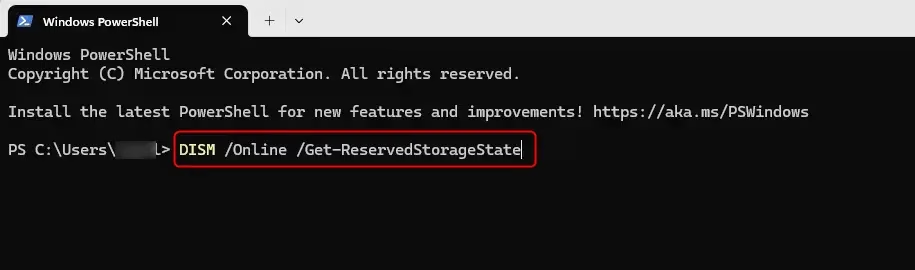
DISM /Online /Get-ReservedStorageStateYou will see if Reserved Storage is Enabled or Disabled.
How to Enable or Disable Reserved Storage
Option 1: Using Command Prompt
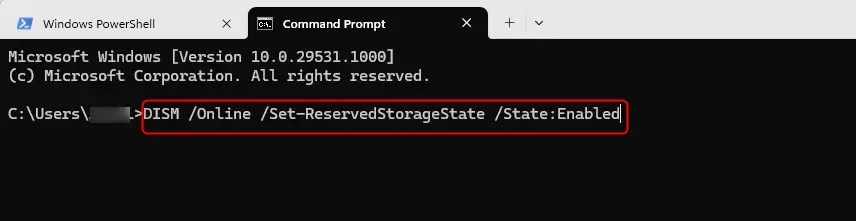
- Open Windows Terminal (Admin) and select Command Prompt
- To enable Reserved Storage, type and press Enter:
DISM /Online /Set-ReservedStorageState /State:Enabled- To disable Reserved Storage, type and press Enter:
DISM /Online /Set-ReservedStorageState /State:Disabled- Close the terminal when done
Option 2: Using PowerShell
- Open Windows Terminal (Admin) and select Windows PowerShell
- To enable Reserved Storage, type and press Enter:
Set-WindowsReservedStorageState -State Enabled- To disable Reserved Storage, type and press Enter:
Set-WindowsReservedStorageState -State Disabled- Close the terminal when done
Option 3: Using Registry Files
⚠️ Warning: Editing the registry can cause system issues if done incorrectly. Back up your registry before making changes.
To Enable Reserved Storage (default):
reg add "HKEY_LOCAL_MACHINE\SOFTWARE\Microsoft\Windows\CurrentVersion\ReserveManager" /v ActiveScenario /t REG_DWORD /d 0 /f
reg add "HKEY_LOCAL_MACHINE\SOFTWARE\Microsoft\Windows\CurrentVersion\ReserveManager" /v MiscPolicyInfo /t REG_DWORD /d 1 /f
reg add "HKEY_LOCAL_MACHINE\SOFTWARE\Microsoft\Windows\CurrentVersion\ReserveManager" /v PassedPolicy /t REG_DWORD /d 1 /f
reg add "HKEY_LOCAL_MACHINE\SOFTWARE\Microsoft\Windows\CurrentVersion\ReserveManager" /v ShippedWithReserves /t REG_DWORD /d 1 /f
To Disable Reserved Storage:
reg add "HKEY_LOCAL_MACHINE\SOFTWARE\Microsoft\Windows\CurrentVersion\ReserveManager" /v ActiveScenario /t REG_DWORD /d 0 /f
reg add "HKEY_LOCAL_MACHINE\SOFTWARE\Microsoft\Windows\CurrentVersion\ReserveManager" /v MiscPolicyInfo /t REG_DWORD /d 2 /f
reg add "HKEY_LOCAL_MACHINE\SOFTWARE\Microsoft\Windows\CurrentVersion\ReserveManager" /v PassedPolicy /t REG_DWORD /d 0 /f
reg add "HKEY_LOCAL_MACHINE\SOFTWARE\Microsoft\Windows\CurrentVersion\ReserveManager" /v ShippedWithReserves /t REG_DWORD /d 0 /f
Summary
- Keeps your PC stable: Temporary files don’t fill up your personal storage
- Makes updates easier: Windows uses reserved space first for updates
- You control it: You can turn Reserved Storage on or off if you want
- Requires admin rights: Only administrators can change these settings
Managing Reserved Storage well can help your Windows run smoothly and keep your updates hassle-free.
Learn More from Microsoft
Windows 10 and Reserved Storage | Microsoft Community
Managing Reserved Storage in Windows 10 | Microsoft Community



Leave a Reply