How to Disable or Enable Repeat Keys in Ubuntu


Repeat keys in Ubuntu turn a single keystroke into a continuous stream of characters when you hold down a button. This system feature helps you type quickly, but it also causes accidental double letters if your delay settings are too sensitive.
Releases like Ubuntu 22.04 LTS let you turn off key repeating entirely or adjust the speed to match your typing style. You can open your system settings to control how long you must hold a key down before it starts repeating. The setting applies only to your user account, and it takes effect straight away, so you don’t need to restart or log out.
To disable repeat keys in Ubuntu, open Settings , go to Accessibility Typing Repeat Keys, and switch the Repeat Keys toggle to Off. Held keys then type a single character. The change applies straight away, with no restart or log out needed, and it affects only your user account.
How to turn on or off the repeat key in Ubuntu Linux
You can disable repeat keys in Ubuntu from the main Settings app . Turning the feature off stops characters from repeating when you hold down a key. The setting sits under Settings Accessibility Typing Repeat Keys, and the steps below show how to reach it. If you only want to fine-tune the behavior instead of switching it off, the same window has sliders for delay and speed.
The steps are based on the default GNOME desktop in Ubuntu 22.04 LTS. Later releases use the same path, though the look of the window may differ slightly.
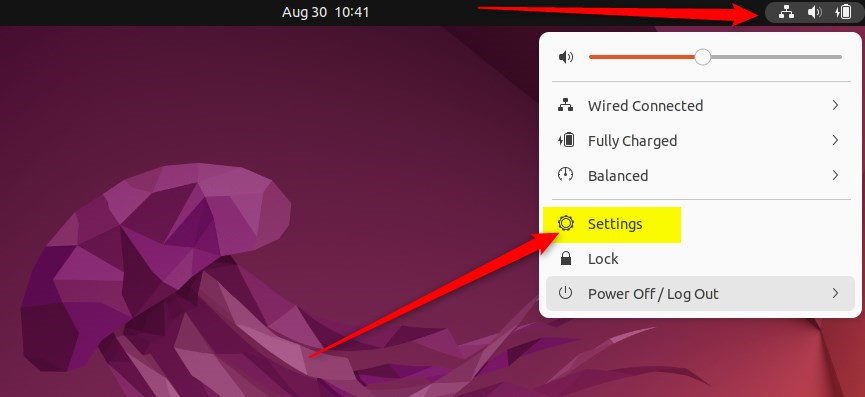
- Click the system menu in the top-right corner of the desktop. This is the group of small icons for network, volume and power.
- Select Settings from the menu that drops down. The Settings window should open.
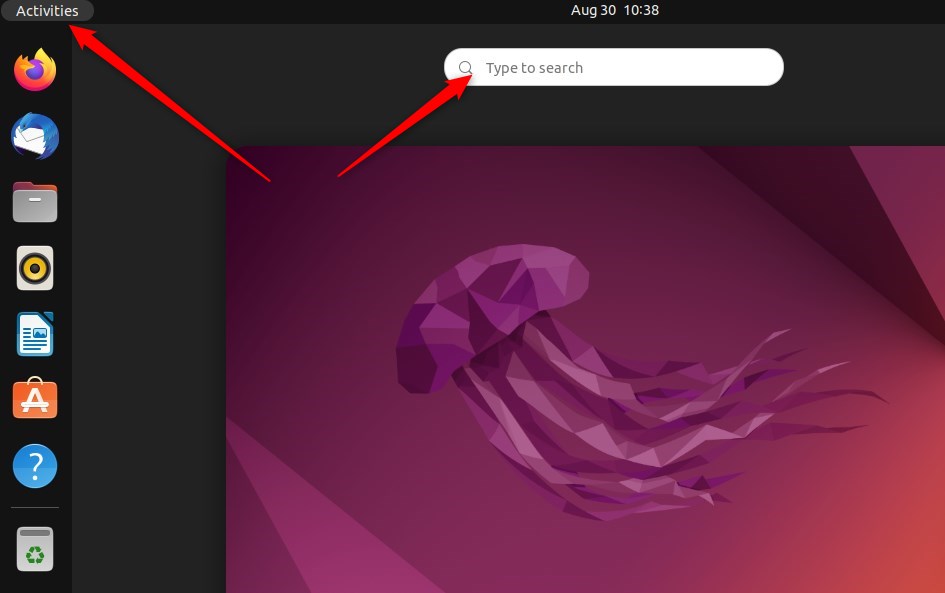
If you prefer the keyboard, you can also press the Super key (the Win on most keyboards), type Settings, and press Enter.
From there, select Settings.
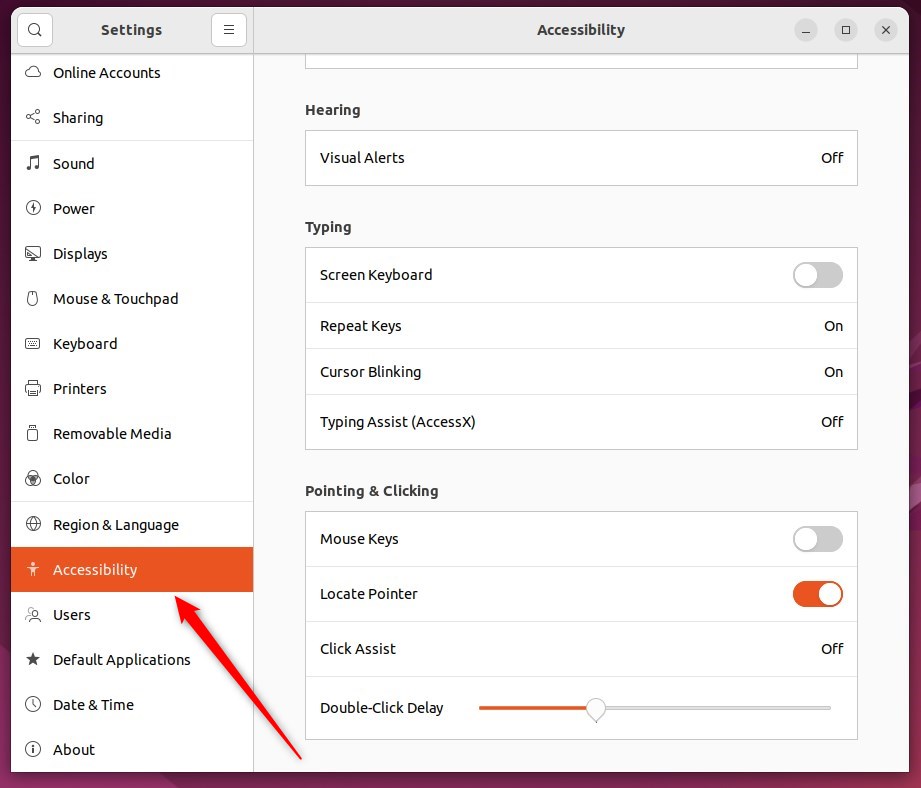
- In the Settings app, click the Accessibility tile to open that panel. If you can’t see it, scroll down the left-hand list of categories or use the search icon at the top of the window.
- In the System Settings Accessibility panel, find the Typing section.
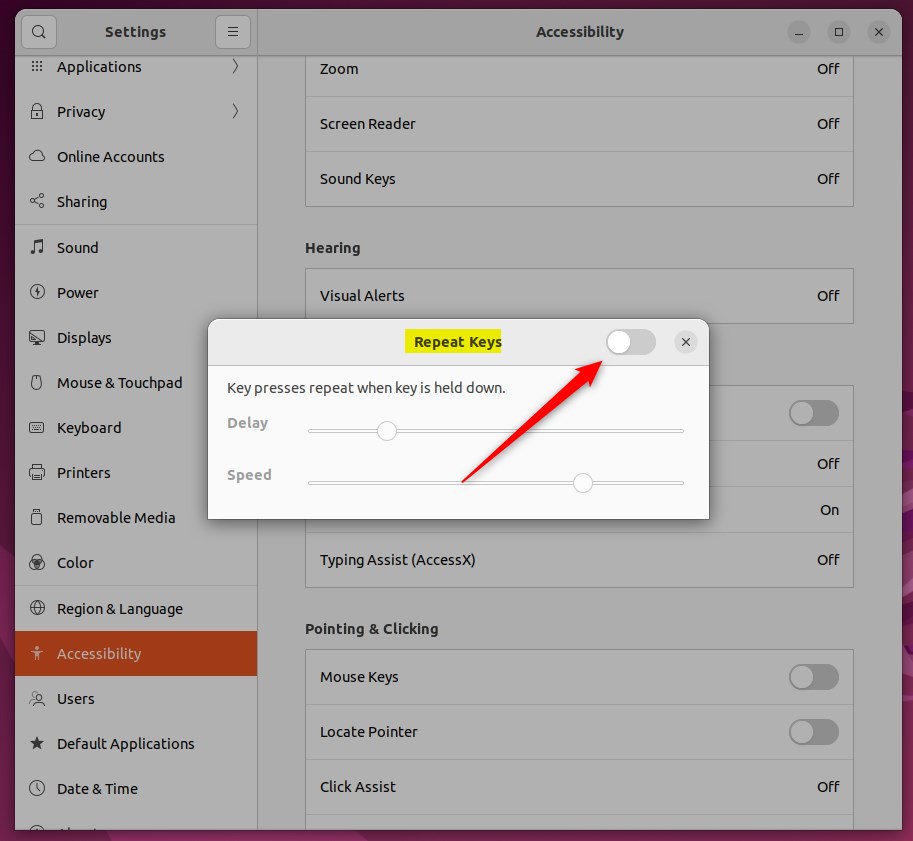
- Select Repeat Keys. A Repeat Keys window should open.
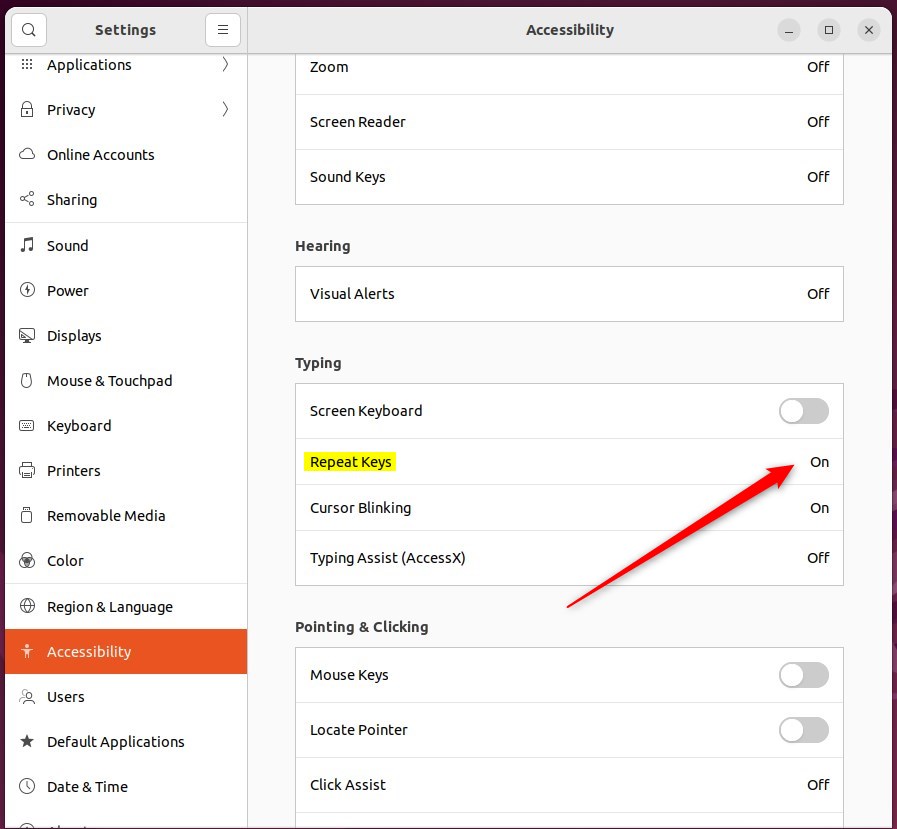
The Repeat Keys window controls how keys behave when you hold them down. Toggling the Repeat Keys button to the On position activates the repeat function, so held keys keep producing characters. This is the default state on a fresh Ubuntu install.
- To disable repeat keys, toggle the button to the Off position. From now on, holding a key types a single character only.
To undo the change, open the same window and switch the toggle back to On.
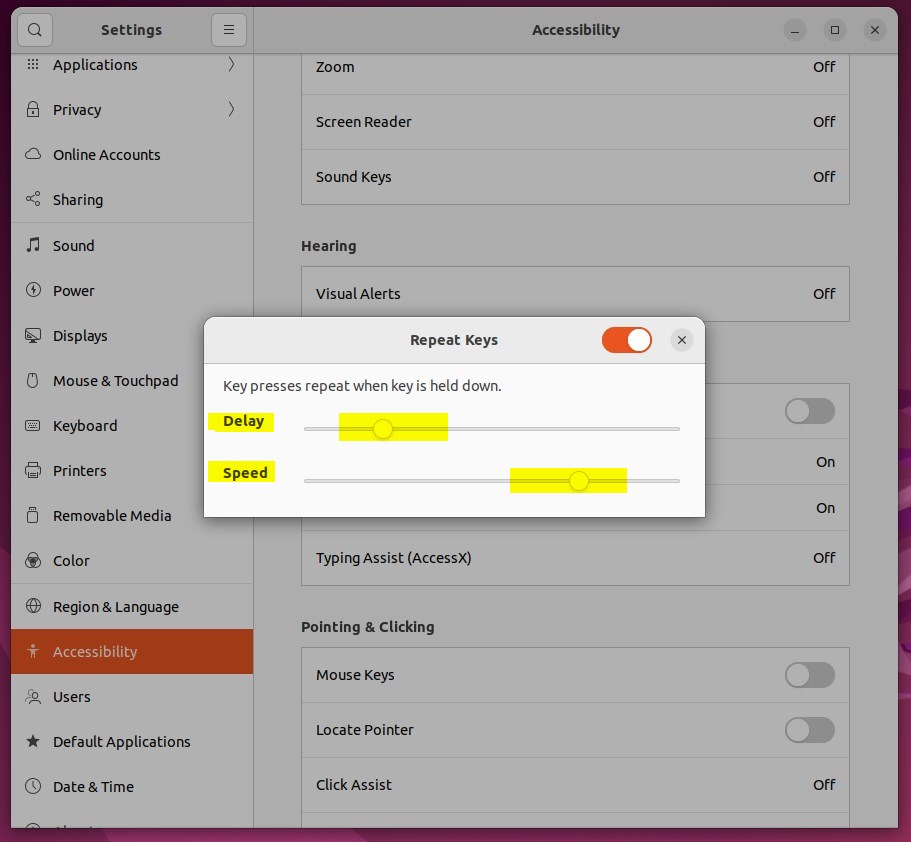
If you would rather keep repeating but make it less sensitive, leave the toggle on and use the two sliders:
- The Delay slider sets how long you must hold a key before repetition kicks in. Move it toward the longer end if you often get stray double letters.
- The Speed slider controls how quickly characters repeat once they start. Lower it if held keys run away from you.
If the sliders look greyed out, check that the Repeat Keys toggle is on. After each change, click into a text field, such as a terminal or a text editor, and hold a key to test the result.
Close the Settings app. Your changes are saved automatically, and there is no Apply button to click.
Conclusion:
- Adjusting the repeat rate or disabling repeat keys can prevent unintentionally repeated characters when holding down a key.
- In Ubuntu Linux, you can manage repeat keys through the System Settings panel under Accessibility Typing Repeat Keys
- Alternatively, users can adjust the delay and speed sliders to control key press repetition.
- These steps provide greater control over keyboard input behavior, enhancing the user experience for Ubuntu Linux users.
Have a question about this guide?
Answered by AI from this guide. Good questions may be added to this page — please don't include personal details.
Did this guide fix your problem?

About the Author
Richard
Tech Writer, IT Professional
Richard is a writer at Geek Rewind who turns complex IT tasks into clear, step-by-step guides. He draws on years of hands-on experience in system administration and enterprise IT operations, focusing on Windows, Linux and WordPress: the problems people actually run into, and the fixes that work. His server and WordPress guides come from systems he runs himself. Richard builds and maintains the platform behind Geek Rewind, from its Ubuntu servers and Nginx configuration to its custom WordPress plugins. Many new tutorials start with readers' questions, and he's always glad to answer them in the comments.
No comments yet — be the first to share your thoughts!