How to Enable or Disable Pop-up Tips Description in File Explorer on Windows 11

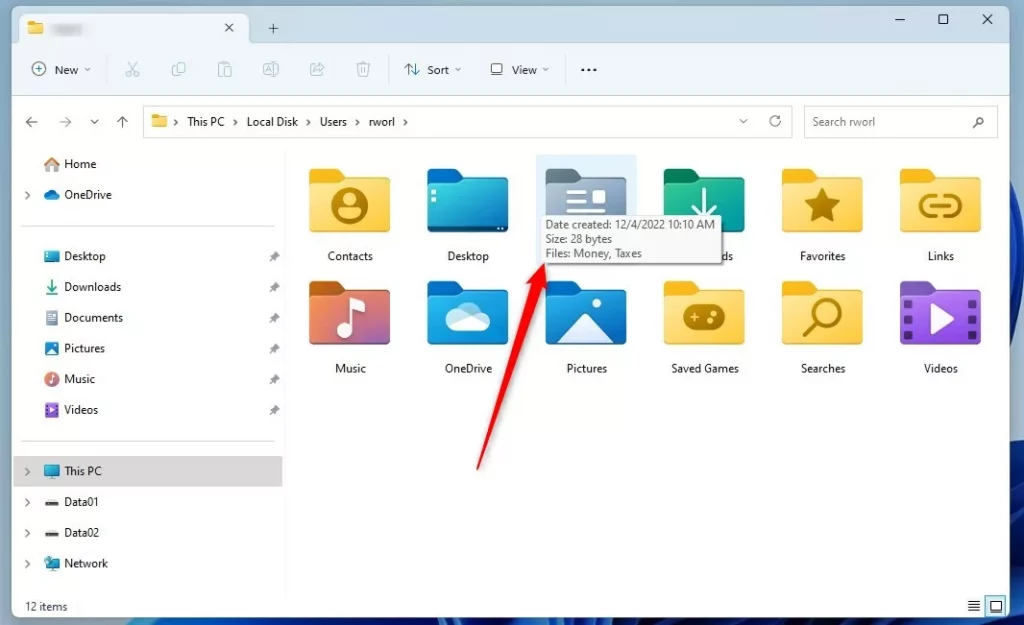
You can enable or disable pop-up tips descriptions in File Explorer on Windows 11 to control information displayed when hovering over files and folders.
These descriptions are small, contextual boxes that appear automatically, offering details like file size, creation date, or modification dates. They are a built-in Windows 11 feature to provide quick insights.
For example, hovering over a .docx file might show its author and last modified date without needing to open it.
Follow these simple steps to tailor this feature to your preference, either for a cleaner desktop or for faster access to file details.
Method 1Using Folder Options
You can change this setting easily through your file settings. This is the safest method for most users.
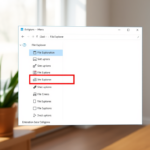
- Open File Explorer or press the Windows key + E on your keyboard.
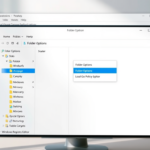
- Click the three dots icon in the top menu bar and select Options.
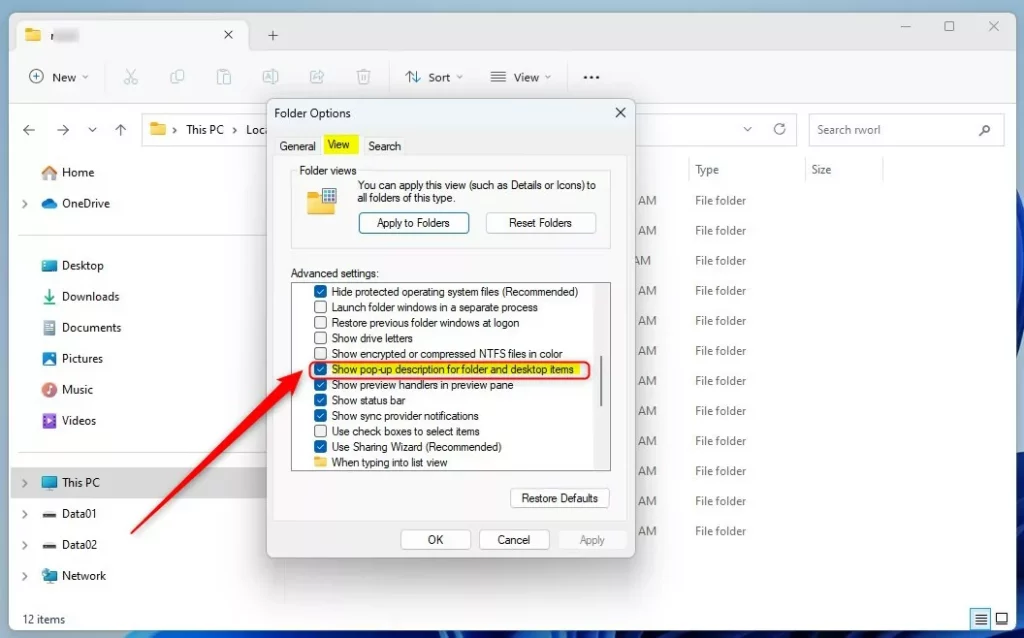
- In the window that appears, click the View tab.
- Find the box labeled Show pop-up description for folder and desktop items.
- Check the box to turn the feature on, or uncheck it to turn it off.
- Click OK to save your changes.
Method 2Using the Registry Editor
Warning: Editing the registry incorrectly can cause system instability. Always back up your registry before making changes. This method requires admin privileges.
- Press Windows key + R, type
regedit, and press Enter. - Navigate to this path:
HKEY_CURRENT_USER\Software\Microsoft\Windows\CurrentVersion\Explorer\Advanced
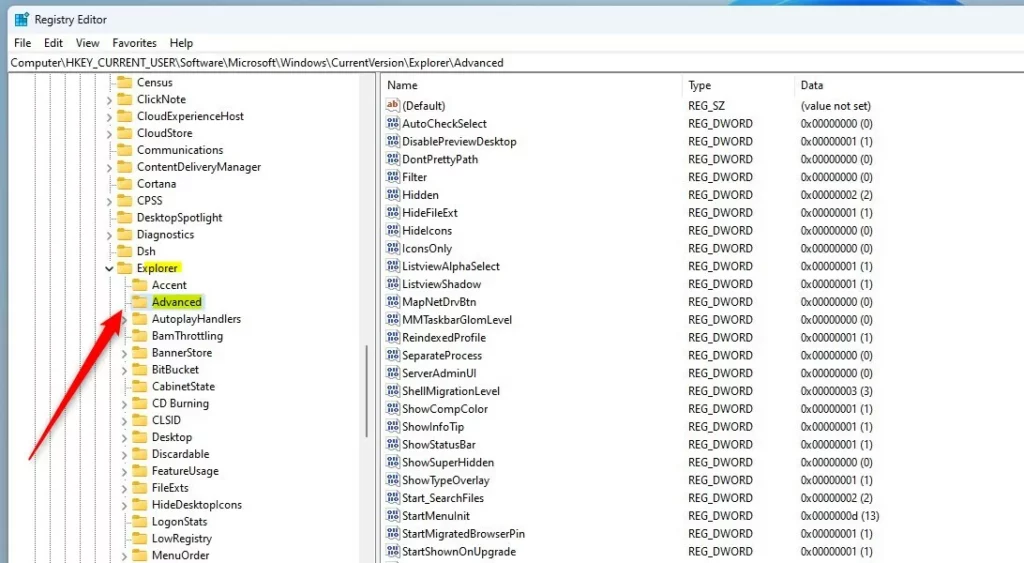
- In the right pane, right-click and select New -> DWORD (32-bit) Value.
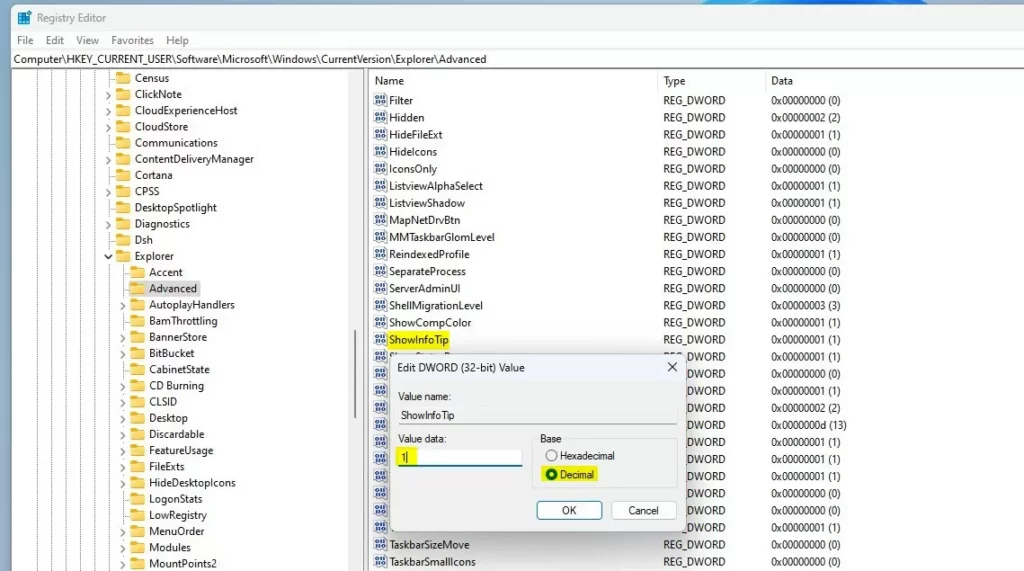
- Name this value
ShowInfoTip. - Double-click
ShowInfoTipand set the Value data to1to turn it on, or0to turn it off.
Applying Changes: Restarting Windows Explorer
If changes do not appear immediately, you must restart the File Explorer process. This does not require a full system reboot.
- Press Ctrl+Shift+Esc to open Task Manager.
- Find Windows Explorer in the list.
- Right-click it and select Restart.
- Alternatively, run this command in Command Prompt:
taskkill /f /im explorer.exe & start explorer.exe
Advanced Configuration: System Hover Delay
You can control how long you must hover before the tip appears by editing the MouseHoverTime value in the registry under HKEY_CURRENT_USER\Control Panel\Desktop. Increasing this value reduces visual distractions by making the tips appear slower.
Summary
You can control whether Windows 11 shows extra information when you hover over files. You can use the File Explorer settings menu for a simple approach or the Registry Editor for more advanced control. Remember to restart Windows Explorer to apply your changes. For more tips, check out our Windows 11 optimization guides.
Does disabling pop-ups improve system performance?
Disabling Windows 11 pop-up descriptions provides a negligible impact on system performance. While it reduces the number of background queries File Explorer makes when you hover over items, the primary benefit is a cleaner user interface and reduced visual clutter rather than a noticeable increase in processing speed.
Can I disable tooltips for specific applications only?
No, the Windows 11 pop-up description setting is a global configuration for the shell. It affects File Explorer and desktop items universally. There is no native setting to disable these tooltips for specific individual applications while keeping them enabled for the rest of the operating system.
Are these settings synced across Windows devices?
Registry-based settings like the ShowInfoTip value are stored locally on your machine. They are not synced across multiple Windows devices via your Microsoft account. You will need to manually apply these changes on every computer where you wish to customize the File Explorer hover behavior.
Was this guide helpful?

About the Author
Richard
Tech Writer, IT Professional
Richard, a writer for Geek Rewind, is a tech enthusiast who loves breaking down complex IT topics into simple, easy-to-understand ideas. With years of hands-on experience in system administration and enterprise IT operations, he’s developed a knack for offering practical tips and solutions. Richard aims to make technology more accessible and actionable. He's deeply committed to the Geek Rewind community, always ready to answer questions and engage in discussions.
No comments yet — be the first to share your thoughts!