Enable or Disable Microsoft Edge on Startup in Windows

You can enable or disable Microsoft Edge from automatically opening when you sign into Windows.
This setting controls whether the Chromium-based Edge browser launches immediately after you log into your Windows 11 or Windows 10 PC.
Microsoft first introduced this startup behavior in recent canary builds of Edge, offering users greater control over their browsing experience.
Enabling this feature means Edge opens instantly, saving you a click if you use it regularly. Disabling it helps conserve system resources and ensures you manually choose when to open your browser.
Automatically open Microsoft Edge when you sign into Windows
As mentioned above, users can now turn on a feature to automatically open Microsoft Edge when they sign into Windows. This can save time but also be annoying.
Here’s how to do it.
Here’s how to do it.
First, open the Microsoft Edge browser.
Then click on Setting and more (Alt+F) three dots (…) in the upper right-hand corner to access the Settings menu.
On the Settings page on the left panel, click the Start, home, and new tabs button.
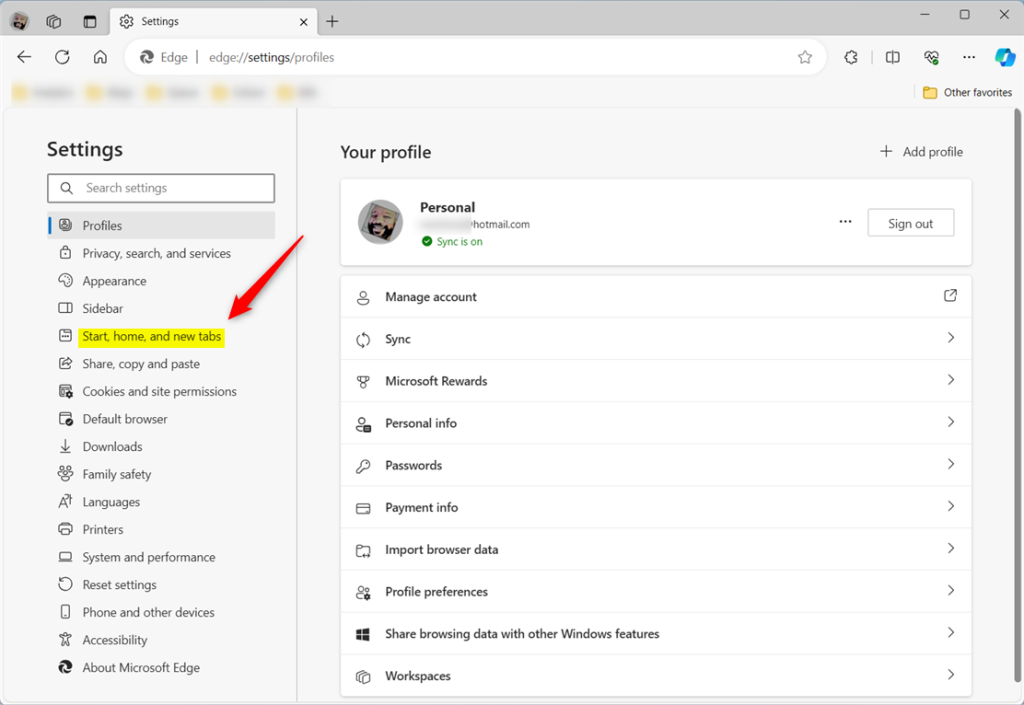
On the right, under When your Windows device starts, select the “Automatically opens Microsoft Edge when you sign into Windows” tile.
Then, toggle the switch button to the On position to enable it. To disable it, toggle the switch button to the Off position.
That should do it!
Conclusion:
- Enabling the “Automatically opens Microsoft Edge when you sign in to Windows” feature can save time and effort for frequent Edge users.
- On the other hand, disabling this feature gives users more control over browser preferences and may help conserve system resources.
- Users can easily manage this feature through the Settings menu in the Microsoft Edge browser, providing flexibility based on individual needs and preferences.
Frequently Asked Questions
How do I stop Microsoft Edge from opening when I start Windows?
Why would I want to disable Edge from starting automatically?
What are the benefits of enabling Edge to open automatically on Windows startup?
Is the auto-launch Edge feature available in all Windows versions?
Where exactly is the setting to control Edge auto-start in Windows?
Was this guide helpful?

About the Author
Richard
Tech Writer, IT Professional
Richard, a writer for Geek Rewind, is a tech enthusiast who loves breaking down complex IT topics into simple, easy-to-understand ideas. With years of hands-on experience in system administration and enterprise IT operations, he’s developed a knack for offering practical tips and solutions. Richard aims to make technology more accessible and actionable. He's deeply committed to the Geek Rewind community, always ready to answer questions and engage in discussions.



No comments yet — be the first to share your thoughts!