
You disable Autoplay in Edge on Windows 11 to stop videos and music from playing automatically when you visit websites.
This setting controls whether videos and music start playing right away or if you need to click them first. This helps you manage your internet data (bandwidth) and keeps your browsing quieter.
By default, Microsoft Edge might allow media to play automatically. You can change this setting to take full control of what plays on your PC.
For instance, you can set Edge to block Autoplay for all sites or allow it on specific trusted websites in Windows 11.
Open Edge Settings, navigate to Cookies and site permissions, then Media autoplay, and select Block. If the option is missing, enable the edge://flags/#edge-autoplay-user-setting-block-option flag.
Why the ‘Block’ Option Might Be Missing
The ‘Block’ option to disable autoplay in Edge might be missing because it’s hidden by a browser flag, which is an experimental setting.
Option 1Standard Settings
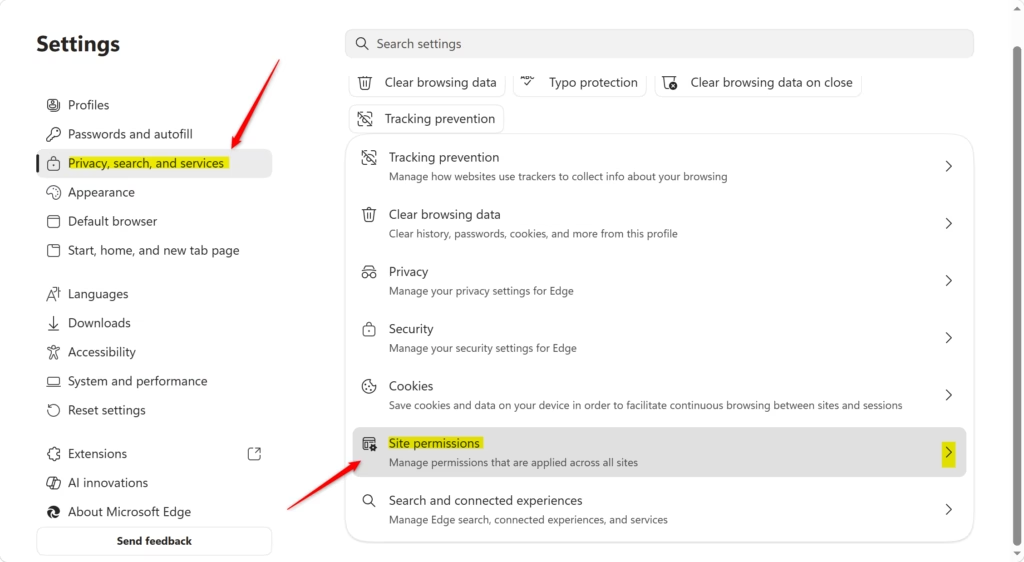
You can disable autoplay in Microsoft Edge through its regular settings menu, which is the easiest way for most people to stop videos from playing automatically.
- Open Microsoft Edge.
- Click the 3-dot menu and select Settings.
- Click Cookies and site permissions on the left.
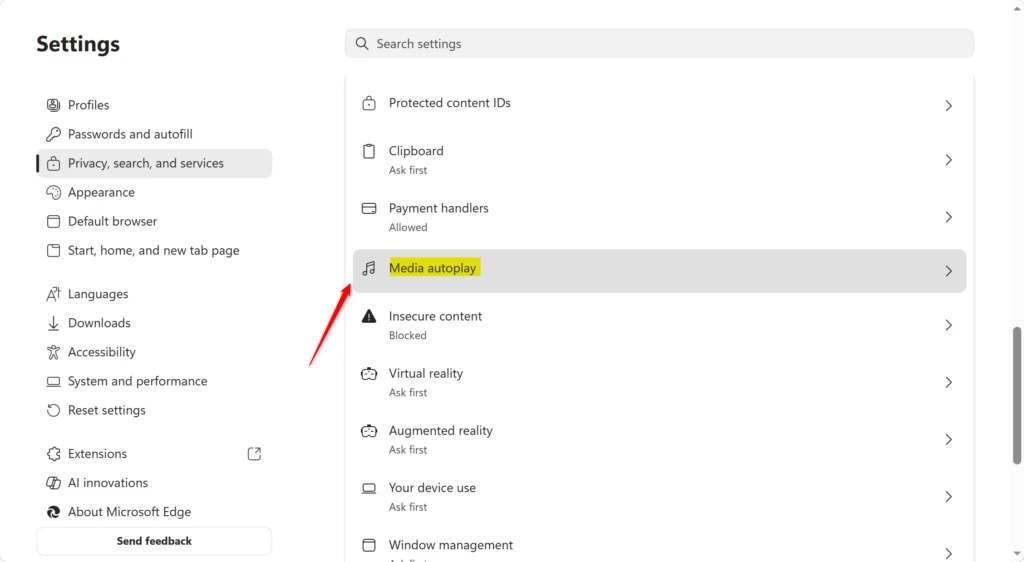
- Scroll down and click Media autoplay.
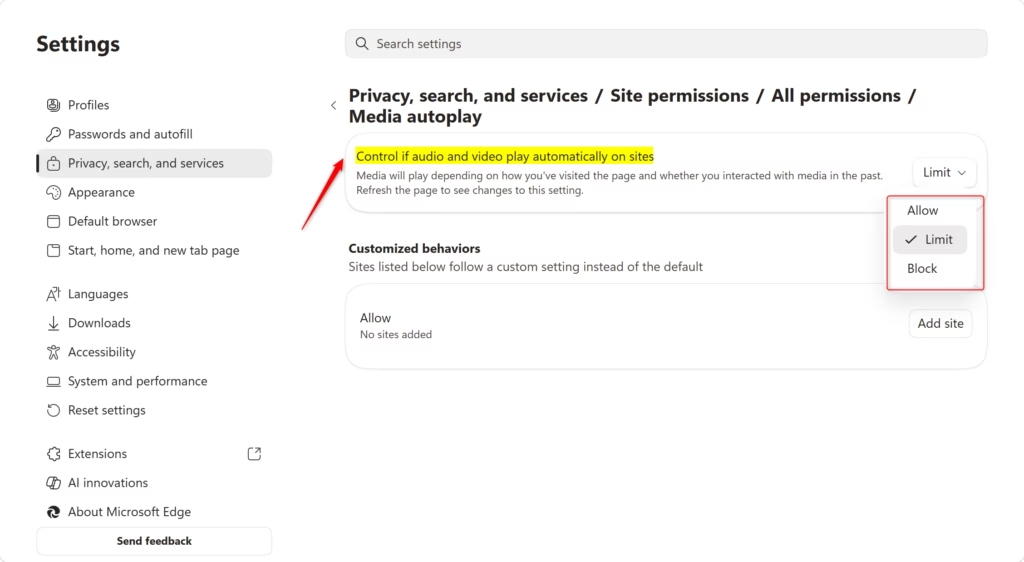
- Select Block to stop all media from playing automatically.
Option 2Using the Registry Editor
If you’re comfortable with advanced settings, you can disable autoplay in Edge using the Registry Editor, but this method needs administrator access and a backup of your system first.
1. Press ⊞ Win+R, type regedit, and press Enter.
2. Navigate to: HKEY_LOCAL_MACHINE\SOFTWARE\Policies\Microsoft\Edge
3. If the key does not exist, right-click on ‘Microsoft,’ select ‘New’ > ‘Key,’ and name it ‘Edge.’
4. Right-click the ‘Edge’ key, select ‘New’ > ‘DWORD (32-bit) Value,’ and name it ‘MediaAutoplayLimit.’
5. Set the value to 1 to limit or 2 to block.
Option 3Group Policy (GPO)
For enterprise and IT management, use the Group Policy Editor.
- Press ⊞ Win+R, type gpedit.msc, and press Enter.
- Go to Computer Configuration > Administrative Templates > Microsoft Edge.
- Find Configure autoplay settings.
- Set it to Enabled and choose your preferred restriction level from the dropdown menu.
Summary
You’ve learned how to disable autoplay in Edge using standard settings, registry tweaks, and group policies. By blocking autoplay, you save data and improve your browsing experience. Use the registry or GPO methods if you need to enforce these rules across multiple user accounts on a single machine.
Does disabling autoplay save mobile data?
Yes, disabling autoplay in your browser significantly saves mobile data because videos and audio won’t download until you choose to play them.
Is there a difference between ‘Limit’ and ‘Block’ in Edge settings?
Yes, there’s a clear difference between the ‘Limit’ and ‘Block’ settings for autoplay in Edge; ‘Limit’ allows some media based on your history, while ‘Block’ stops all autoplay.
How do I stop MSN news feed videos from playing?
To stop MSN news feed videos from playing automatically, you need to change your Edge browser settings to ‘Block’ media autoplay.
Was this guide helpful?

About the Author
Richard
Tech Writer, IT Professional
Richard, a writer for Geek Rewind, is a tech enthusiast who loves breaking down complex IT topics into simple, easy-to-understand ideas. With years of hands-on experience in system administration and enterprise IT operations, he’s developed a knack for offering practical tips and solutions. Richard aims to make technology more accessible and actionable. He's deeply committed to the Geek Rewind community, always ready to answer questions and engage in discussions.




No comments yet — be the first to share your thoughts!