How to Enable or Disable Memory Compression in Windows 11

Memory compression in Windows 11 is a system performance feature that reduces the memory footprint of inactive applications. It intelligently compresses data in RAM rather than moving it to slower storage devices like your SSD, which is known as paging.
This technique significantly boosts responsiveness by keeping more frequently accessed data readily available for your CPU. For example, Windows 11 uses memory compression to manage memory efficiently, especially when running many applications simultaneously or under heavy load.
You can enable or disable memory compression to fine-tune your PC’s performance. Knowing how to toggle this setting helps you optimize your system’s speed and resource usage.
Why use memory compression?
The main reason is RAM efficiency. When you have many apps open, your computer runs out of room. Without compression, Windows would have to use your storage drive as temporary RAM, which is much slower. Compression keeps your system running smoothly without needing to rely on the slower pagefile on your disk.
What happens when done?
When you enable this, your computer uses less physical RAM. If you disable it, your computer stops compressing data. This saves a tiny bit of CPU power, but it forces your computer to use your hard drive more often, which can make your system feel sluggish if you have many apps open.
How to check your current status
You can check if memory compression is working by opening the Task Manager. Look under the Performance tab and click on the Memory section to see how much is compressed.
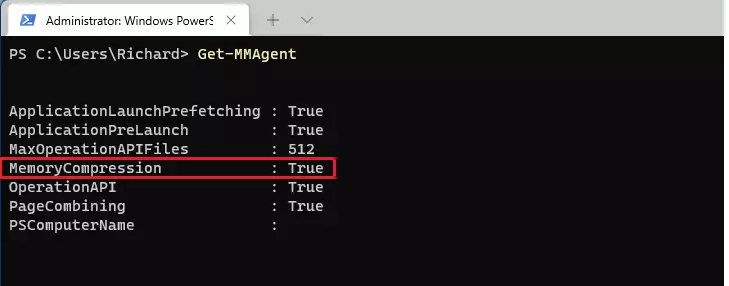
You can also check the status using PowerShell. Open the Windows Terminal as administrator and type this command:
Get-MMAgent
How to enable memory compression
Note: This step requires admin privileges.
If the status shows as False, you can turn it on. Open Windows Terminal as administrator and make sure you are in the PowerShell tab. Run the following command:
Set-MMAgent -MemoryCompression $true
After running this, close the terminal and restart your computer to save the changes.
How to disable memory compression
Note: This step requires admin privileges.
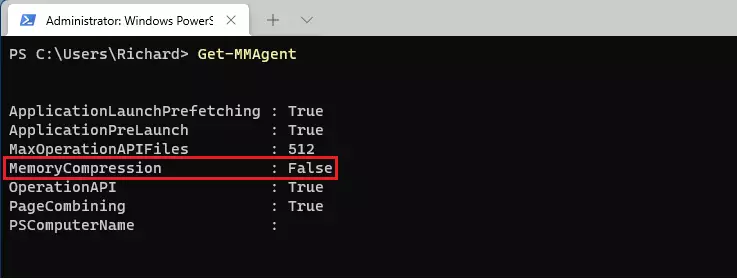
If you prefer to turn this feature off, open Windows Terminal as administrator and select the PowerShell tab. Run this command:
Set-MMAgent -MemoryCompression $false
Performance, SysMain, and RAM Latency
Memory compression uses a small amount of CPU overhead to compress and decompress data. For most users, this is invisible. However, if you have a very old processor, you might notice a slight impact. The SysMain service works alongside this to pre-load apps you use often into your RAM. Disabling compression can sometimes cause SysMain to work harder, leading to higher disk usage.
Troubleshooting Performance Degradation
If you notice your computer is slower after changing these settings, you should revert them immediately. Open PowerShell as administrator and run Set-MMAgent -MemoryCompression $true and restart your PC. If you still have issues, check your Task Manager to see if a specific app is consuming too much memory.
Summary
Memory compression is a vital part of Windows memory management. It helps your computer handle more tasks by shrinking inactive data in your RAM. While you can disable it using PowerShell, doing so often leads to slower performance and increased disk activity. For most users, leaving this feature enabled is the best way to ensure a fast and stable Windows 11 experience.
Does disabling memory compression improve gaming performance?
Generally, no. While it frees up a tiny amount of CPU cycles, it increases the chance of your system using the pagefile on your disk. This causes stuttering during games. Unless you have a specific reason to disable it, keep it enabled for the best gaming experience.
Is memory compression safe to turn off on low-RAM systems?
It is safe to turn off, but it is not recommended. On systems with low RAM, memory compression is essential to keep your computer usable. Turning it off will likely cause your system to become very slow or unresponsive as it struggles to manage memory without compression.
Was this guide helpful?

About the Author
Richard
Tech Writer, IT Professional
Richard, a writer for Geek Rewind, is a tech enthusiast who loves breaking down complex IT topics into simple, easy-to-understand ideas. With years of hands-on experience in system administration and enterprise IT operations, he’s developed a knack for offering practical tips and solutions. Richard aims to make technology more accessible and actionable. He's deeply committed to the Geek Rewind community, always ready to answer questions and engage in discussions.




No comments yet — be the first to share your thoughts!