How to Manage Logout Prompt on Ubuntu Linux

You can manage the logout confirmation prompt on Ubuntu Linux by enabling or disabling the “Log out confirmation” setting in your user settings.
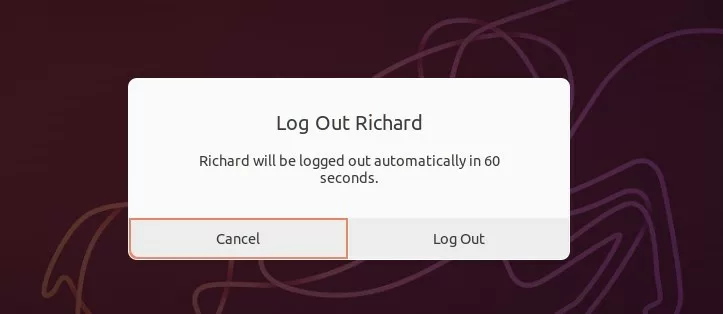
This prompt acts as a safeguard, asking “Are you sure you want to log out?” before closing your active applications and ending your session. It’s a helpful feature that prevents accidental logouts.
This setting has been confirmed to work on Ubuntu 22.04 LTS and 24.04 LTS. Disabling it speeds up the logout process but removes the safety net.
With the prompt enabled, you’ll see a confirmation dialog every time you initiate a logout. If you disable it, clicking logout will immediately end your session without further questions.
You can manage the Ubuntu logout prompt using the Terminal or Dconf Editor. In the Terminal, use `gsettings set org.gnome.SessionManager logout-prompt false` to disable it or `gsettings reset org.gnome.SessionManager logout-prompt` to enable it. Dconf Editor allows toggling the `logout-prompt` setting under `org -> gnome -> gnome-session`.
Turn on or off log out prompt on Ubuntu Linux
You can quickly turn the Ubuntu logout prompt on or off using a simple command in the Terminal, making it easy to control how your system warns you before logging out.
You can change this setting using the Terminal. First, open the Terminal by pressing Ctrl+Alt+T on your keyboard.
To turn off the logout prompt, type this command and press Enter:
gsettings set org.gnome.SessionManager logout-prompt false
To turn the prompt back on, type this command and press Enter:
gsettings reset org.gnome.SessionManager logout-prompt
Disable or enable the logout prompt using the Dconf Editor
If you like using a graphical tool instead of commands, you can change the Ubuntu logout prompt setting with Dconf Editor, which is like a system settings manager for Ubuntu.
Ubuntu has a similar tool called Dconf Editor for changing advanced system settings. You must install it first. Open your Terminal and run this command:
sudo apt install dconf-editor
You can also install it via the App Center by searching for “Dconf Editor.”
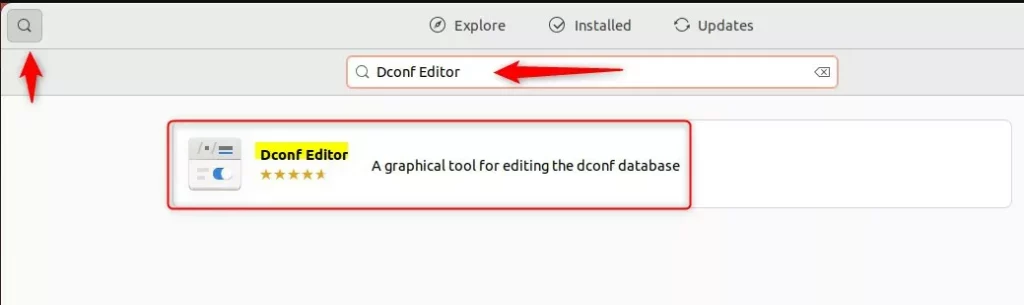
After opening the Dconf Editor, follow these steps:
- Navigate to:
org->gnome->gnome-session - Find the
logout-promptsetting in the list. - Toggle the switch to On to enable the prompt.
- Toggle the switch to Off to disable the prompt.
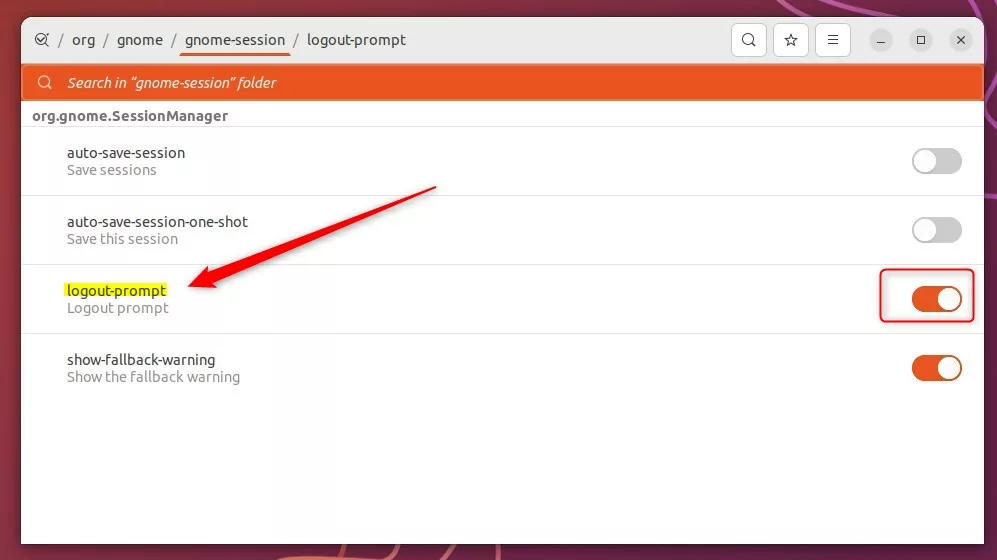
Once finished, your computer will follow your new rule the next time you try to sign out.
Conclusion
Changing the Ubuntu logout prompt helps you avoid accidentally closing your work without saving, giving you more control over your computer’s actions and preventing lost data.
Just a reminder: this setting helps prevent accidental data loss, like closing your work without saving. It’s not a security feature, though, so it won’t protect your system from unauthorized access. For more information on managing your system, see How to add or remove software on Ubuntu Linux.
What is the logout command in Linux?
The logout command terminates all processes either with the same controlling terminal as the present process or with all processes which have this terminal open. Processes that are not children of the present process are terminated upon access to the terminal. The present process is also terminated.
How do I turn off login prompt in Ubuntu?
You can disable automatic login the same way. You go to the Settings → System → Users and then unlock it with your password and toggle the Automatic Login button off. That's it.
Was this guide helpful?

About the Author
Richard
Tech Writer, IT Professional
Richard, a writer for Geek Rewind, is a tech enthusiast who loves breaking down complex IT topics into simple, easy-to-understand ideas. With years of hands-on experience in system administration and enterprise IT operations, he’s developed a knack for offering practical tips and solutions. Richard aims to make technology more accessible and actionable. He's deeply committed to the Geek Rewind community, always ready to answer questions and engage in discussions.




No comments yet — be the first to share your thoughts!