How to Enable or Disable Fullscreen Optimizations for Games in Windows 11

You enable or disable fullscreen optimizations for games in Windows 11 by adjusting a specific compatibility setting for each executable file.
Fullscreen optimizations are a Windows feature designed to improve game performance by reducing system latency. Disabling them can sometimes resolve issues where games run poorly or stutter.
You can find this setting within the Properties window of a game’s executable (.exe) file, typically located in the Compatibility tab. This allows you to tailor performance for individual applications. For instance, on a system running Windows 11 version 22H2, you might find this option helps resolve certain graphical glitches.
Why Fullscreen Optimizations Matter
Microsoft created fullscreen optimizations to give gamers the best of both worlds. Here’s what that means:
Fullscreen Exclusive (FSE) mode lets games take full control of your screen. Games run fast but can’t use overlays or alt-tab smoothly. Borderless windowed mode lets you use overlays and switch windows easily but can slow down performance.
Fullscreen optimizations blend these two modes together. Your game thinks it’s running in fullscreen exclusive mode, but Windows actually runs it in borderless windowed mode behind the scenes. This lets you get:
- Full screen display
- Fast performance
- Quick alt-tab switching
- Support for overlays like the Game Bar
How It Works
When fullscreen optimizations are on, Windows watches your game carefully. If your game is taking up the full screen with no other apps running, Windows hands almost all power to your game. This gives you the same speed as fullscreen exclusive mode. When you open an overlay (like the Game Bar), Windows takes back some control so the overlay displays smoothly on top of your game.
Fullscreen optimizations are turned on by default. They usually help games run better. However, some people find that turning them off helps their specific games perform better.
Reference: Demystifying Fullscreen Optimizations – DirectX Developer Blog
We wrote this article to explain the difference between Fullscreen Exclusive and Fullscreen Optimizations.
Option 1
Enable or Disable Fullscreen Optimizations for One App or Game (Your Account Only)
Follow these steps to change fullscreen optimizations for just your user account:
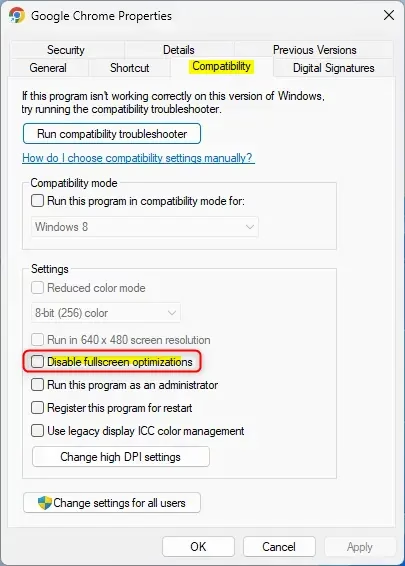
- Right click or press and hold on the EXE file of the app or game. Click on Properties.
- Click on the Compatibility tab. (see screenshot below)
- Check the box (to disable) or uncheck the box (to enable – default) next to Disable fullscreen optimizations.
- Click on OK.
Option 2
Enable or Disable Fullscreen Optimizations for One App or Game (All Users)
⚠️ Admin Required: You must be signed in as an administrator to use this option.
Follow these steps to change fullscreen optimizations for everyone on your computer:
- Right click or press and hold on the EXE file of the app or game. Click on Properties.
- Click on the Compatibility tab. Then click on Change settings for all users.
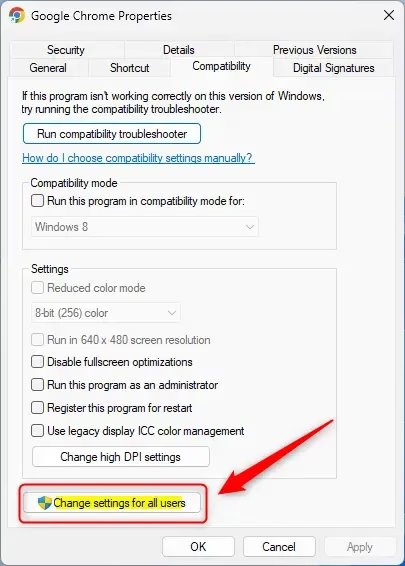
- Check the box (to disable) or uncheck the box (to enable – default) next to Disable fullscreen optimizations. Then click on OK.
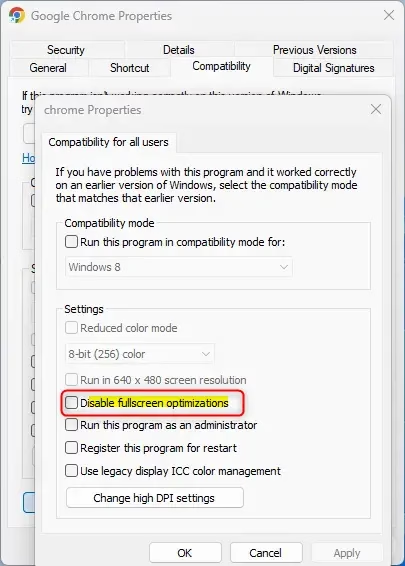
- Click on OK.
Summary
Fullscreen optimizations help games run faster while keeping useful features like overlays and quick alt-tab switching. If you want to turn fullscreen optimizations off for a specific game, use Option One (for your account only) or Option Two (for all users on the computer). Just right-click the game’s EXE file, go to Compatibility, and check or uncheck the “Disable fullscreen optimizations” box. Remember that Option Two requires admin privileges.
What does disable fullscreen optimizations do in 🪟 Windows 11?
Disabling fullscreen optimizations forces your game to run in traditional Fullscreen Exclusive (FSE) mode. This bypasses Windows' hybrid display management, which can resolve compatibility issues, stuttering, or input lag in certain titles. However, you will lose the ability to use overlays or alt-tab between windows as quickly.
What do fullscreen optimizations do?
Fullscreen optimizations combine the benefits of Fullscreen Exclusive mode and borderless windowed mode. They allow games to run with the performance and low latency of exclusive fullscreen while maintaining the convenience of borderless windows, such as faster alt-tab switching and seamless support for overlays like the Windows Game Bar.
Should I tick disable fullscreen optimizations?
You should only tick 'disable fullscreen optimizations' if you are experiencing specific performance issues, such as screen tearing, stuttering, or input lag in a particular game. If your games are running smoothly with the default settings, it is generally recommended to leave fullscreen optimizations enabled for a better overall experience.
Does disabling full screen optimization increase FPS?
Disabling fullscreen optimization does not inherently increase FPS for most users. In some cases, it may actually decrease performance or cause instability. You should only disable it if you encounter specific technical glitches or input latency, as the feature is designed to optimize performance while maintaining system responsiveness.
Was this guide helpful?

About the Author
Richard
Tech Writer, IT Professional
Richard, a writer for Geek Rewind, is a tech enthusiast who loves breaking down complex IT topics into simple, easy-to-understand ideas. With years of hands-on experience in system administration and enterprise IT operations, he’s developed a knack for offering practical tips and solutions. Richard aims to make technology more accessible and actionable. He's deeply committed to the Geek Rewind community, always ready to answer questions and engage in discussions.

No comments yet — be the first to share your thoughts!