How to Enable or Disable Ask Where to Save Downloads in Microsoft Edge


Prompting Microsoft Edge to ask where to save each file stops your Downloads folder from getting cluttered with random files. Turning this feature on makes the browser show a save window every time you download something.
Leaving it off sends every downloaded file straight to your default 📁C:\
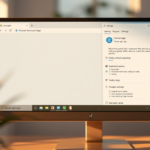
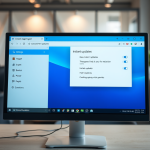
To enable or disable asking where to save downloads in Microsoft Edge, go to Settings Downloads and toggle “Ask me what to do with each download” on or off. This setting controls whether Edge prompts you for a save location or downloads automatically.
Why Enable Download Prompts?
Enabling this prompt stops files from saving automatically. This allows opening the file directly in the browser instead of writing it to disk.
How to Turn On Download Prompts in Microsoft Edge
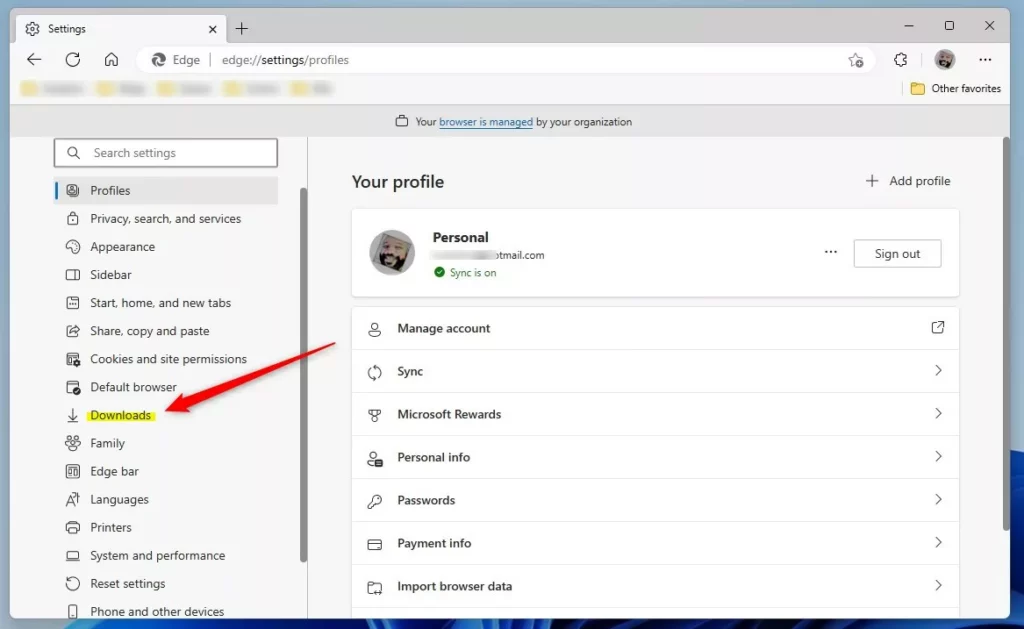
To turn on Microsoft Edge download prompts so you can choose a destination for every file, open the browser and go to Settings and more (the three horizontal dots), select Settings, and click Downloads on the left menu. From there, turn on the switch for Ask what to do with each download.
- Open the Microsoft Edge browser.
- Click the Settings and more button. This is the 3 horizontal dots on the top right corner. Then select Settings.
- Click Downloads on the left menu.
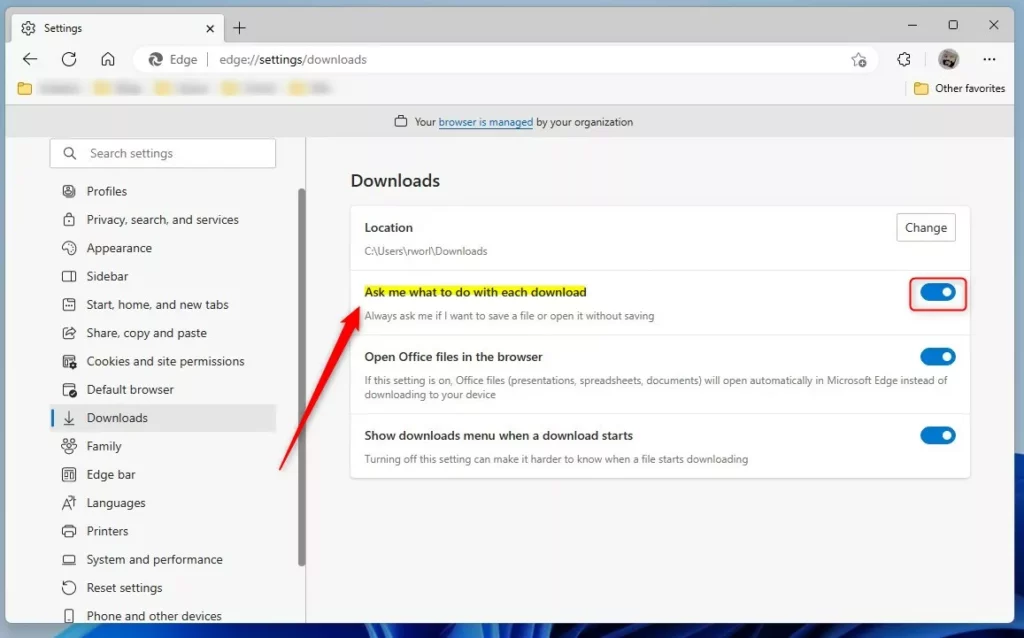
- Look for the option that says “Ask me what to do with each download”. Toggle the button On or Off.

What Happens?
Disabling the toggle stops Microsoft Edge from asking what to do with incoming files, sending everything straight to disk.
Activating the toggle forces Microsoft Edge to trigger a prompt prior to downloading . Files can then be saved locally or opened directly in the browser window.
Alternative Method: Using Windows Registry
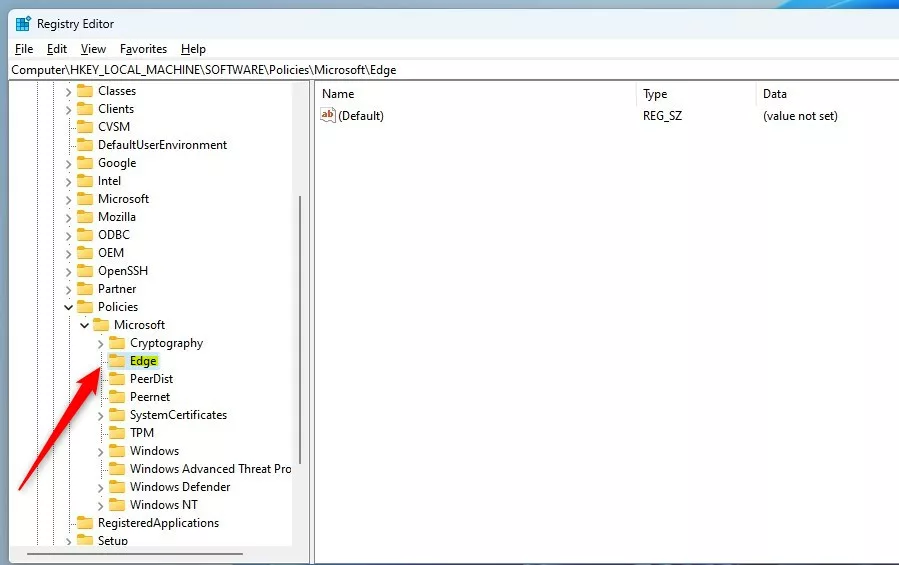
You can also manage Microsoft Edge download prompts by changing the Windows Registry if you prefer a system-level setup. Open Registry Editor and go to HKEY_LOCAL_MACHINE\SOFTWARE\Policies\Microsoft\Edge, then create a new DWORD value named PromptForDownload to control the prompt behavior.
- ⚠️ Admin Privileges Required — Open the Windows Registry and navigate to the folder path below:
HKEY_LOCAL_MACHINE\SOFTWARE\Policies\Microsoft\Edge - If you don't see the Edge folder, right-click on the Microsoft parent key. Then create a new subkey folder called Edge.
- Right-click in the empty space on the right side of the Edge folder. Select New → DWORD (32-bit) Value. Type the name
PromptForDownloadLocation. - Double-click the new value named
PromptForDownloadLocation. Enter the Value data:- Enter 1 to have Edge ask before downloading files
- Enter 0 to disable the prompt and download automatically
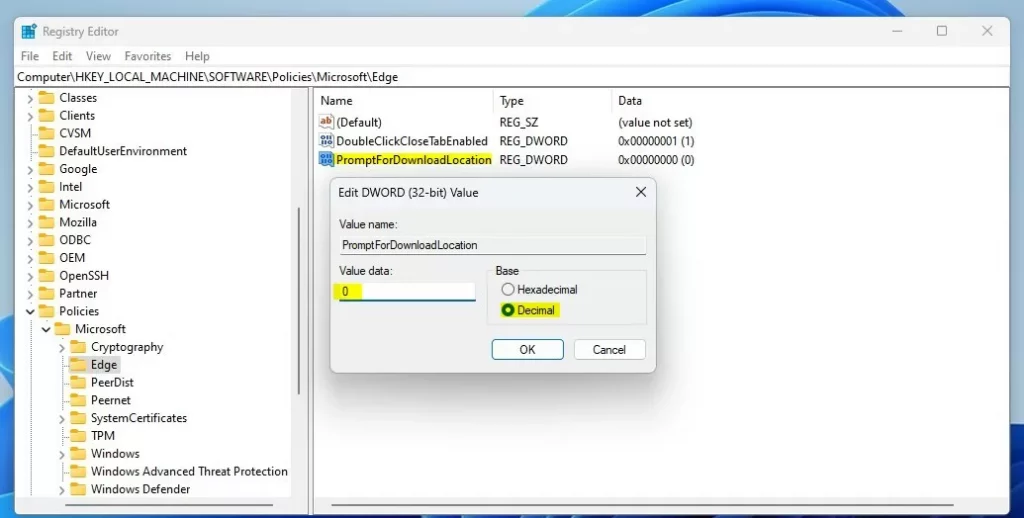
⚠️ Restart the computer to apply the registry modifications.
Summary
Managing Microsoft Edge download prompts is straightforward whether you use the built-in browser settings for a quick fix or the Windows Registry for advanced control. Both methods let you pick where your files go every time you download something.
- Use the Settings menu for a quick toggle
- Use the Windows Registry for more advanced control
Rebooting the computer ensures the registry modifications take effect.
How to make Edge ask where to download?
To configure Microsoft Edge to ask where to download files, open the browser Settings menu, navigate to Downloads, and enable the prompt option.
How do I stop Edge from asking me to keep downloads?
Disabling the toggle turns off automatic downloads and restores the prompt behavior.
Was this guide helpful?

About the Author
Richard
Tech Writer, IT Professional
Richard, a writer for Geek Rewind, is a tech enthusiast who loves breaking down complex IT topics into simple, easy-to-understand ideas. With years of hands-on experience in system administration and enterprise IT operations, he’s developed a knack for offering practical tips and solutions. Richard aims to make technology more accessible and actionable. He's deeply committed to the Geek Rewind community, always ready to answer questions and engage in discussions.


Goal = disable the prompts to save and download.
When using the browser settings and the regEdit instructions here neither leave me withe expected outcome/goal. What could be blocking this?? It still prompts both save and download.