How to Enable Location Sharing Permission with Phone Link on Android

You enable location sharing permission with Phone Link on Android to allow your PC to see your phone’s whereabouts for features like finding your phone.
Phone Link, formerly Your Phone, is a Microsoft application that bridges your Android smartphone and your Windows PC, letting you access calls, messages, photos, and apps directly from your computer.
Specifically for location sharing, granting this permission enables functionality such as your PC displaying your phone’s current location on a map within the Phone Link app.
This is crucial for features like “Find my phone” or when you need to share your live location with others through the app.
Giving Your Phone Permission to Share Location with Phone Link
To get the most out of Phone Link, especially features like sharing your location or keeping the connection strong, your phone needs to allow your PC to access some information. This might sound complicated, but it becomes clear once you know where to look. Think of it like giving a friend directions to your house so they can help you.
Why Does Your Phone Need to Share Its Location?
Wondering why your phone needs to share its location, even for simple tasks like sending texts? For Phone Link, location services play a couple of key roles. First, they ensure your phone and PC are on the same network, which is crucial for a smooth, stable connection. Without this, some features might become sluggish or stop working altogether. Second, location data can help newer features improve the connection between your devices. Microsoft prioritizes your privacy; these permissions are designed to enhance your experience and maintain security.
How to Allow Location Sharing on Your Android Device
While the exact steps can vary slightly by Android version and phone brand, the general process is the same: you’ll navigate through your phone’s settings menu.
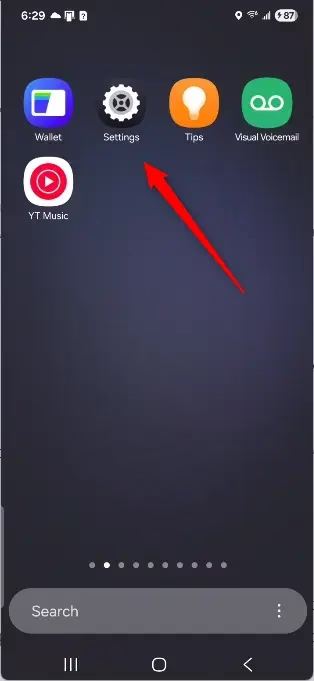
- Open your phone’s Settings app. You can usually find this by swiping down from the top of your screen to see notifications, then tapping the gear icon. Or, look for the “Settings” app icon in your list of apps.
Tip: If you can’t find the Settings app, try using your phone’s search bar and type “Settings.”
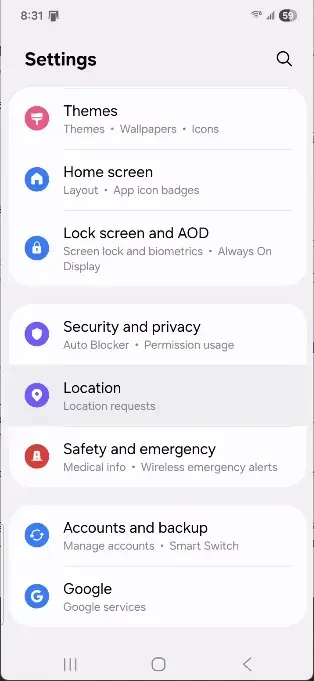
- Find the “Location” settings. This is often under a section like “Location,” “Privacy,” or sometimes “Security & location.” Tap on it.
Warning: Be aware that some phone makers might put location settings in different places. If you don’t see it right away, look for words like “Location,” “Services,” or “Permissions.”
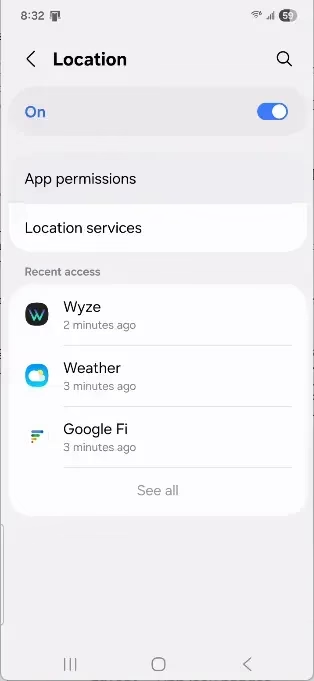
- Look for “App permissions” or “App location access.” In the Location settings, find the list of apps that have asked for or been given permission to access your location. Tap this option.
- Find the “Link to Windows” app. Scroll through the list of apps until you see “Link to Windows.” This is the app that connects your phone to your PC.
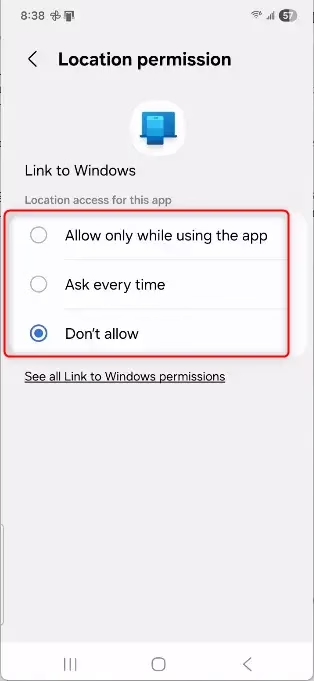
- Set the permission level. Tap on “Link to Windows.” You will usually see a few options:
For the best and most stable experience with Phone Link, choose either “Allow all the time” or “Allow only while using the app.” “Allow all the time” is usually best for features to work without interruption.
- Allow all the time: This gives constant access to your location.
- Allow only while using the app: Your location is only used when the Link to Windows app is open and active.
- Ask every time: Your phone will ask you each time the app needs your location.
- Don’t allow: This stops the app from accessing your location completely.
- Confirm any pop-up messages. Your phone might show a message asking if you want to allow location access. Tap “Allow” or “OK” to give permission.
Practical Tip: Even if you choose “Allow only while using the app,” make sure the Link to Windows app can run in the background. This helps Phone Link work smoothly. You can usually control background app activity in your phone’s battery or app settings.
Reference:
Summary
This guide showed you how to give the “Link to Windows” app permission to access your Android phone’s location. This is important for Phone Link to work correctly and provide a stable connection between your phone and PC. By going into your phone’s Settings, finding the Location options, and selecting “Allow all the time” or “Allow only while using the app” for “Link to Windows,” you ensure that features like location sharing and seamless connectivity will function as intended. This helps you manage your phone from your computer more effectively.
Was this guide helpful?

About the Author
Richard
Tech Writer, IT Professional
Richard, a writer for Geek Rewind, is a tech enthusiast who loves breaking down complex IT topics into simple, easy-to-understand ideas. With years of hands-on experience in system administration and enterprise IT operations, he’s developed a knack for offering practical tips and solutions. Richard aims to make technology more accessible and actionable. He's deeply committed to the Geek Rewind community, always ready to answer questions and engage in discussions.



No comments yet — be the first to share your thoughts!