How to Enable Background Mode in Google Chrome

Google Chrome’s background mode allows specific apps and extensions to continue running tasks even when the browser window is closed.
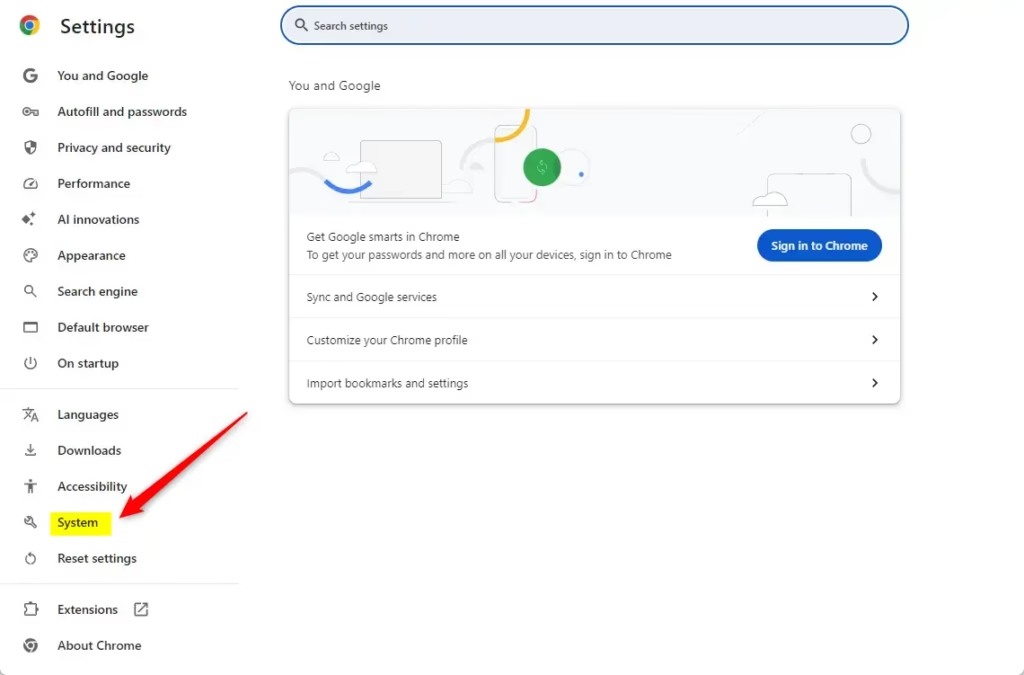
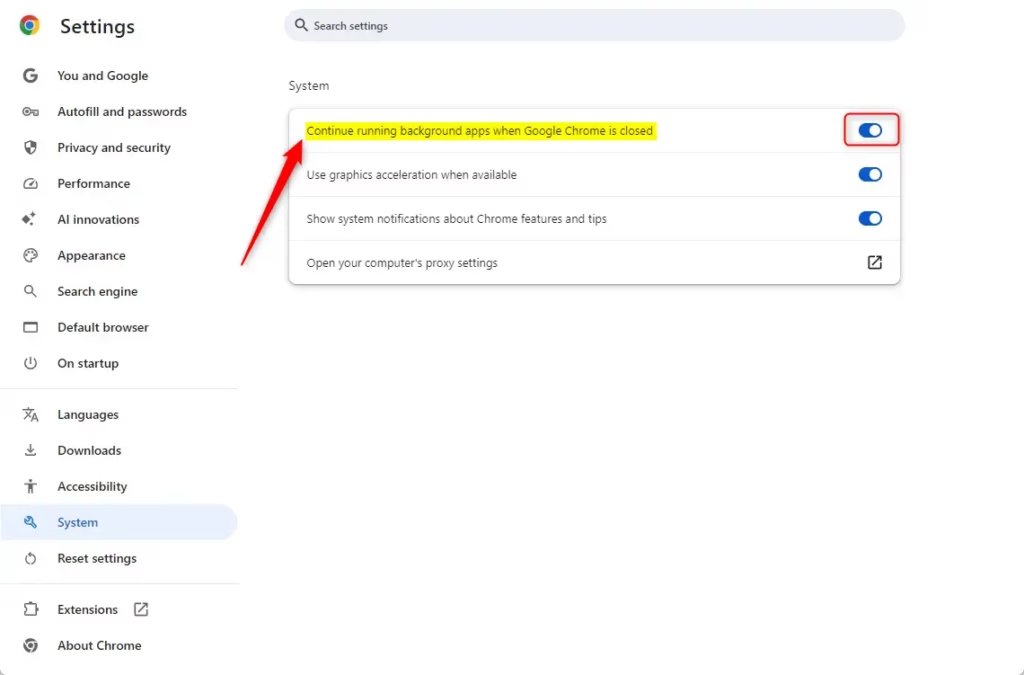
This feature, previously managed by the “Continue running background apps when Google Chrome is closed” setting, ensures essential processes like downloads and notifications can complete without active user intervention.
Enabling this mode prevents Chrome from fully shutting down, letting background processes utilize system resources efficiently.
You might want to keep background mode active for uninterrupted downloads or to receive timely alerts from your favorite extensions.
Google Chrome no longer has a global setting for background mode. Instead, individual websites installed as Progressive Web Apps manage their own background activity. You can manage these permissions within each specific web app’s settings.
Why use background mode?
Background mode lets certain web applications keep running after you’ve closed the main browser window. This is really useful for apps that need to send you notifications or sync data in real time.
What happens when done?
When it’s set up right, your favorite web apps will keep running in the background, maybe showing an icon in your system tray. If you turn it off, those apps will shut down as soon as you close Chrome, which can help save battery and memory.
Enable/Disable Background Mode in Chrome
You can no longer turn on or off background mode in Chrome using a simple browser setting, as Google has changed how this feature works.
Modern background activity is now handled by the individual web apps themselves. When a website is installed as a Progressive Web App (PWA), it might ask for permission to run in the background. You’ll need to check the settings within each specific PWA rather than using a browser-wide switch.
For those in work or school environments, this might be controlled by company policies. If you’re using a regular version of Chrome, there isn’t a single switch to keep all background apps running.
Enable / Disable Background Mode in Chrome using the Registry
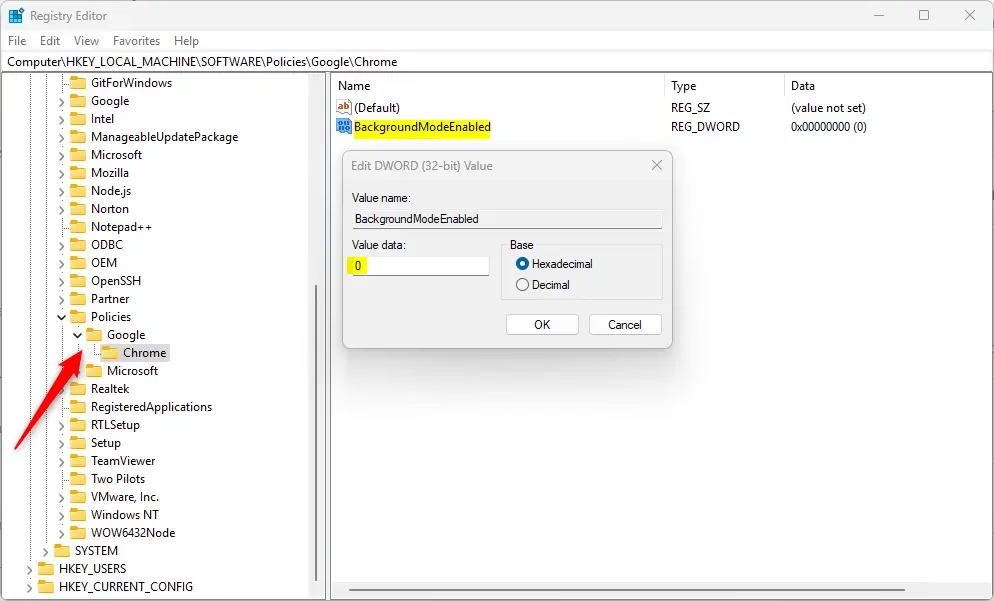
While you might find a setting called ‘BackgroundModeEnabled’ in the Windows Registry, it’s unlikely to work for enabling background mode in Chrome on your personal computer.
If you still want to try this, open the Windows Registry Editor. Navigate to:
Computer\🗝️HKEY_LOCAL_MACHINE\SOFTWARE\Policies\Google\Chrome
Before you make any changes, it’s a good idea to back up your registry or create a System Restore point.
If you don’t see the Chrome folder, you can create it by right-clicking the ‘Policies’ folder. Inside the Chrome folder, right-click, then choose New > DWORD (32-bit) Value and name it BackgroundModeEnabled.
Set its value to 0 to turn off background mode, or 1 to turn it on. You might need to restart your computer afterward.
Reference:
Conclusion
So, Chrome no longer has one main switch for background activity. These days, each individual web app handles its own background tasks. If you want a specific app to keep running when Chrome is closed, you’ll need to look for its own settings.
How to enable background playing in Chrome?
Let’s get right to it. To enable background playing in Chrome, click the three dots in the top right corner of the browser. Then, you’ll want to navigate…
Was this guide helpful?

About the Author
Richard
Tech Writer, IT Professional
Richard, a writer for Geek Rewind, is a tech enthusiast who loves breaking down complex IT topics into simple, easy-to-understand ideas. With years of hands-on experience in system administration and enterprise IT operations, he’s developed a knack for offering practical tips and solutions. Richard aims to make technology more accessible and actionable. He's deeply committed to the Geek Rewind community, always ready to answer questions and engage in discussions.




No comments yet — be the first to share your thoughts!