
This guide will help you turn on or off a special Bluetooth feature in Windows 11 that lets your computer find and connect to more types of Bluetooth devices.
By default, Windows 11 lets you connect to common Bluetooth devices like headphones, mice, or keyboards without extra steps. But if you want your PC to find all kinds of Bluetooth devices nearby, you can turn on “advanced Bluetooth discovery.”
Turn On Advanced Bluetooth Discovery Using the Settings App
Follow these simple steps to enable advanced Bluetooth discovery:
- Open the Settings app. You can do this by:
- Clicking the Start menu and choosing Settings.
- Or pressing Windows key + I on your keyboard.
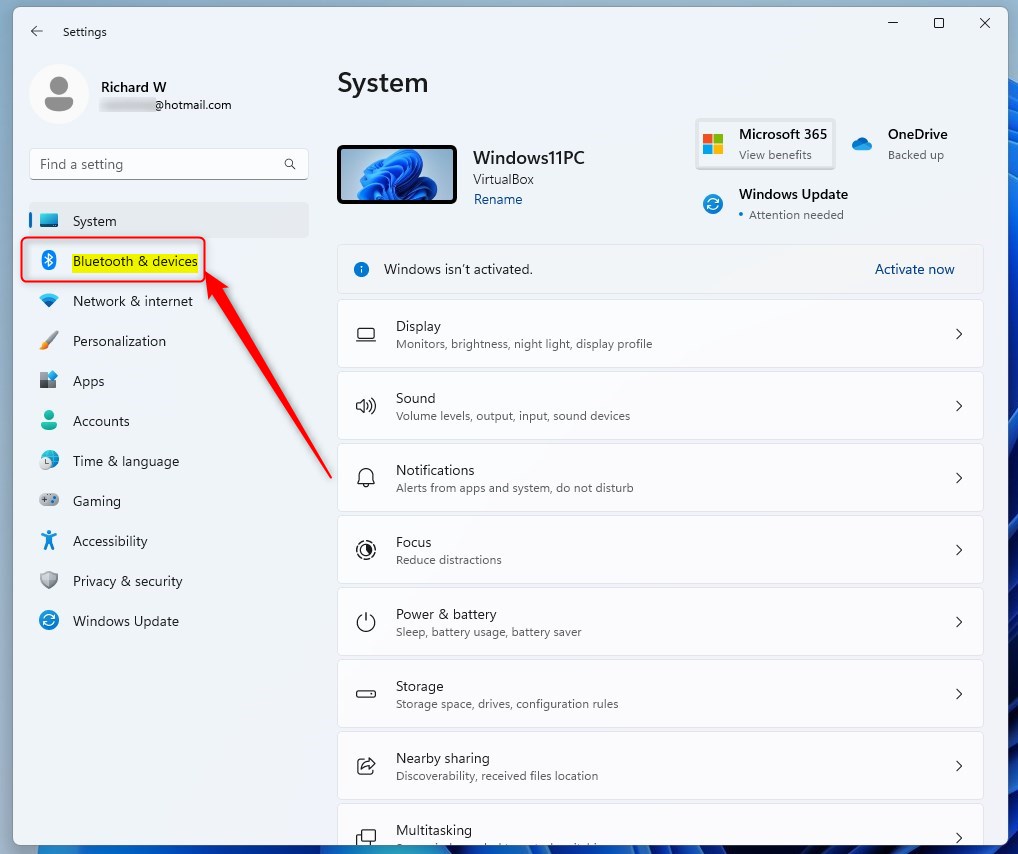
- In Settings, click on Bluetooth & devices on the left side.
- Look for the Devices section and click to open it.
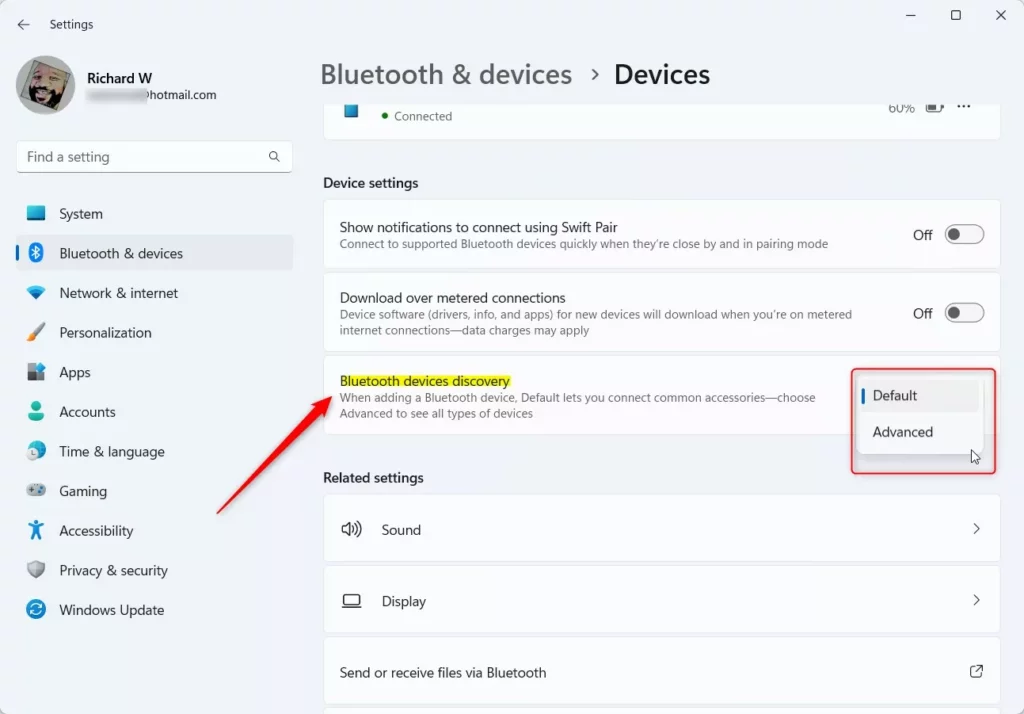
- Find and click on the Bluetooth devices discovery option.
- From the drop-down menu, select Advanced to allow your PC to find all types of Bluetooth devices.
- If you want to switch back to normal discovery later, just pick Default from the menu.
When you’re done, simply close the Settings app.
Turn On Advanced Bluetooth Discovery Using the Registry Editor (For Advanced Users)
If you are comfortable with making changes inside Windows, you can also turn on advanced Bluetooth discovery by editing the Registry. Be careful! Changing the Registry incorrectly can cause problems.
Here’s how:
- Open the Registry Editor. You can search for regedit in the Start menu and open it.
- Go to this folder path:
HKEY_CURRENT_USER\Software\Microsof\tWindows\CurrentVersion\Bluetooth
- If you don’t see the Bluetooth folder there, right-click on CurrentVersion, choose New > Key, and name it Bluetooth.
- Click on the Bluetooth folder. In the right side panel, right-click and select New > DWORD (32-bit) Value.
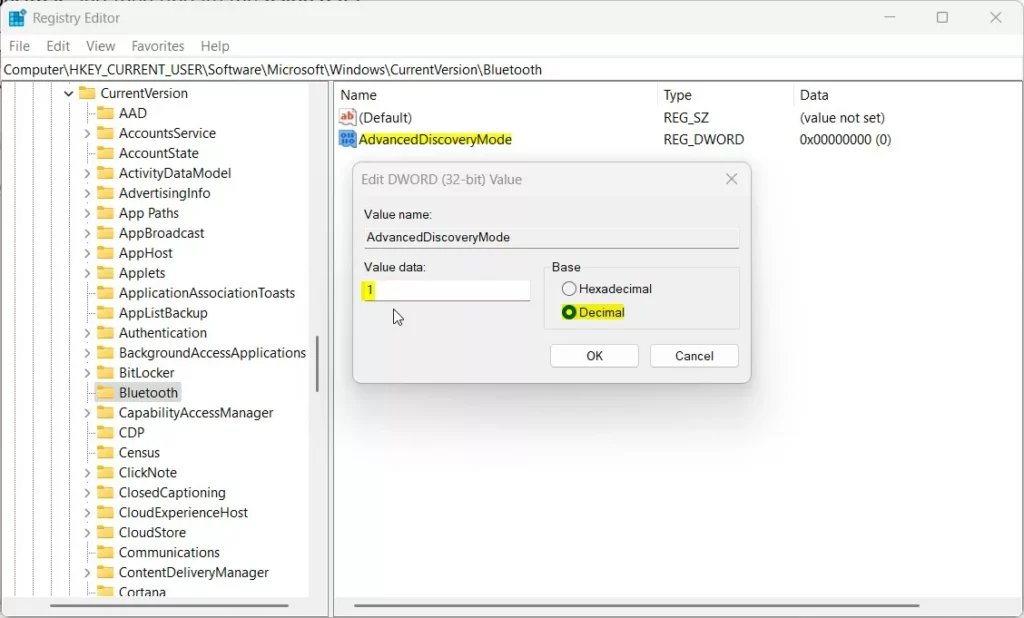
- Name the new value AdvancedDiscoveryMode.
- Double-click on AdvancedDiscoveryMode. In the box that pops up:
- Set the Base to Decimal.
- Enter 1 to turn on advanced discovery.
- Enter 0 to turn it off.
- Click OK, close the Registry Editor, and restart your computer.
Summary
- Advanced Bluetooth discovery lets your Windows 11 PC find and connect to more Bluetooth devices than usual.
- You can turn it on or off easily using the Settings app, which is quick and safe.
- For users who know their way around Windows, the Registry Editor method also works but be careful!
- After enabling advanced discovery, you’ll have a better chance of connecting to all kinds of Bluetooth accessories.
If you want to learn more about pairing Bluetooth devices in Windows 11, check out this helpful guide: How to Pair a Bluetooth Device to Windows 11.

Leave a Reply