How to Download Bing Wallpaper for Windows 11

You download the Bing Wallpaper app to set stunning Bing homepage images as your daily Windows 11 desktop background.
Bing Wallpaper is a free application from Microsoft that automatically updates your PC’s background with beautiful, high-resolution photographs featured on the Bing search engine.
This app ensures your desktop always looks fresh and engaging without you needing to manually search for new images.
You can install this app on any PC running Windows 10 or Windows 11.
Download the Bing Wallpaper app from the official website and run the BingWallpaper.exe file. Click “Install Now” in the installer, then “Finish” to set up the application. Your desktop background will update daily with new images.
Why use the Bing Wallpaper app?
Static backgrounds can quickly become monotonous. This app automatically updates your Windows 11 desktop with high-quality photos from around the world, helping you discover new places without leaving your desk.
What happens when you are done?
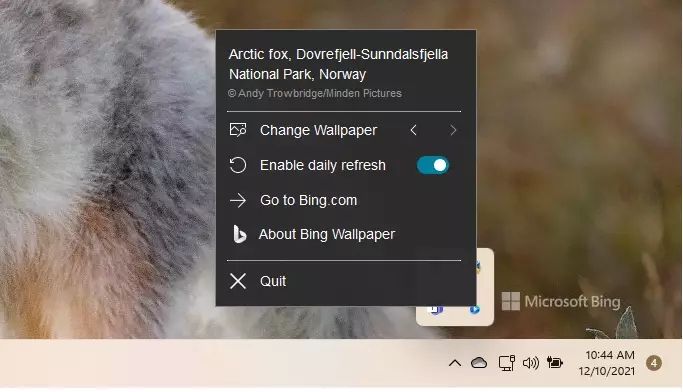
Once installed, your background will change to a new professional-grade photograph every day. You will also get a small icon in your system tray to manage your settings or switch to previous images.
How to download and install
Downloading and installing Bing Wallpaper on Windows 11 is a straightforward process that takes just a few minutes. You’ll start by visiting the official Bing Wallpaper download page in your web browser and then clicking the ‘Install Now’ button to get the app onto your computer.
- Open your web browser and go to the official download page: Download the Bing Wallpaper app.
- Click the Install Now button on the website.
Your computer will download the file. By default, it will be saved in your Downloads folder.
Note: Installing software often requires administrator privileges. Ensure you’re logged in as an administrator to proceed with the installation.
- Open your file explorer and navigate to your Downloads folder.
- Double-click the file named
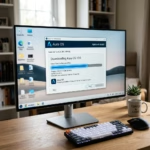
BingWallpaper.exeto start the setup. - Click Install Now on the installer screen.
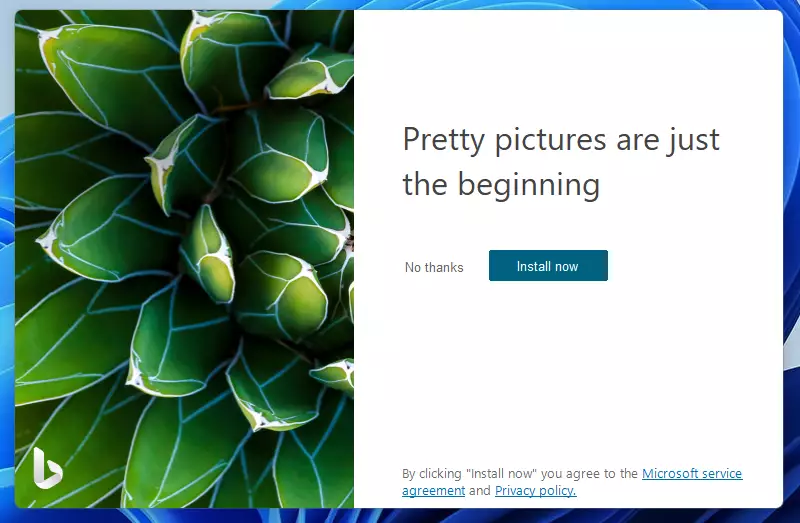
- Wait for the installation to finish, then click Finish.
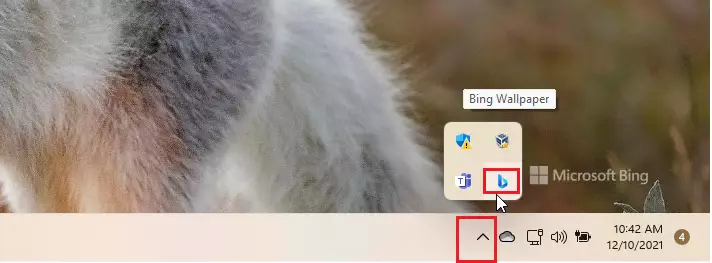
The app will now start automatically whenever you turn on your computer. You can manage your wallpaper settings from the system tray icon.
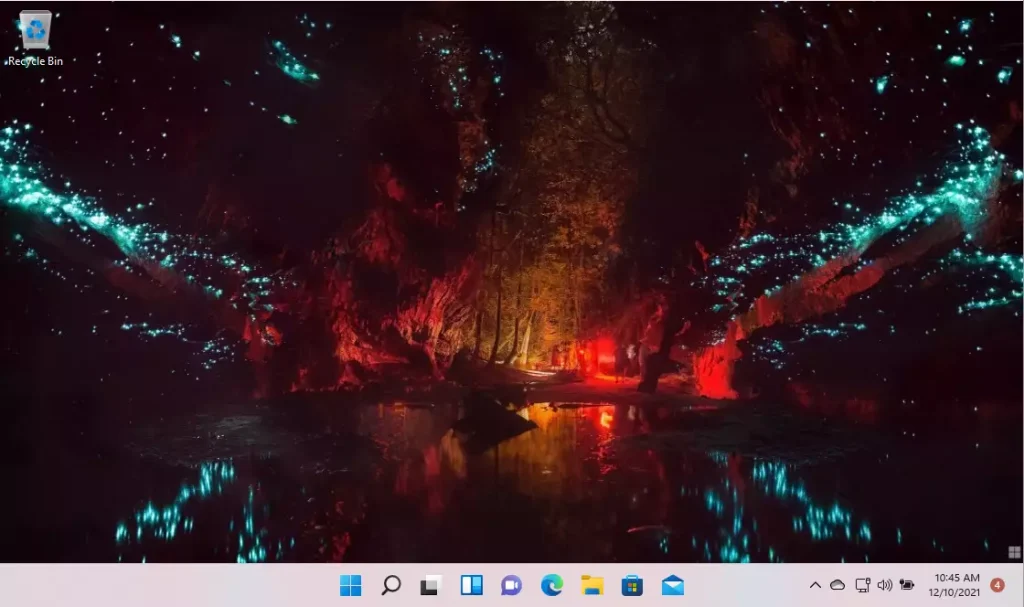
Your desktop background should update right away after installation.
Troubleshooting and Uninstallation
If you ever need to stop Bing Wallpaper from running or remove it completely from your Windows 11 PC, troubleshooting is simple. You can disable the app from starting automatically using the Task Manager, or uninstall it entirely through the Windows Settings menu under Apps.
Customization and Privacy
Customizing your Bing Wallpaper experience and understanding its privacy features on Windows 11 is easy. You can adjust settings using the icon in your system tray, and rest assured that the app is safe and doesn’t track your personal data, though it might suggest setting Bing as your default search engine during setup.
Summary
The Bing Wallpaper app is a simple way to get a beautiful, new high-quality background for your Windows 11 desktop each day. It’s quick to install from the official website, starts automatically when you log in, and lets you browse past photos using its system tray icon for easy customization.- The Bing Wallpaper app provides a new, high-quality background for your Windows 11 desktop every day.
- Installation is fast and simple via the official Microsoft website.
- The app automatically starts when you log in, ensuring a fresh look without extra work.
- You can customize your experience by using the system tray icon to browse through past photos.
Related Articles
Does Bing Wallpaper slow down 🪟 Windows 11?
Bing Wallpaper is designed to be lightweight and doesn’t use much of your Windows 11 computer’s resources, so it generally won’t slow it down. It runs quietly in the background to fetch the daily image, but if you do notice any performance issues, you can easily stop it from starting automatically via the Task Manager.
Can I save the Bing daily image to my local drive?
Yes, you can save the Bing daily images directly to your Windows 11 computer’s local drive. The images are stored in a specific folder within your user account, usually found under AppData, allowing you to copy them for personal use or to set as a static background anytime.
Was this guide helpful?

About the Author
Richard
Tech Writer, IT Professional
Richard, a writer for Geek Rewind, is a tech enthusiast who loves breaking down complex IT topics into simple, easy-to-understand ideas. With years of hands-on experience in system administration and enterprise IT operations, he’s developed a knack for offering practical tips and solutions. Richard aims to make technology more accessible and actionable. He's deeply committed to the Geek Rewind community, always ready to answer questions and engage in discussions.


I installed it, but there is no change in my wallpaper—in fact, the Desktop is solid black.
I’m having the same issue. Just black desktop and I’ve downloaded and installed several times. It does not show in my tray. It does not show up in Task Manager.
why won’t the bing wall paper change???