

This post shows students and new users steps to turn tailored experiences on or off in Windows 11.
Microsoft collects information about your Windows devices through Diagnostic data and feedback.
When you enable sending diagnostic data and feedback in Windows, Microsoft uses that diagnostic information to keep Windows secure and up to date, troubleshoot problems, and make product improvements.
A related feature called Tailored experiences lets you use your Windows diagnostic data to offer personalized tips, ads, and recommendations to enhance Microsoft experiences.
In diagnostic data collection settings, if Required is chosen, personalization is based on information about your device, its settings, capabilities, and whether it performs appropriately.
Enabling or disabling tailored experiences in Windows can help personalize the user experience. Windows uses data and information about the user’s behavior and preferences to provide personalized content and suggestions when enabled.
This can include recommendations for apps, news, and other content the user may be interested in. However, some users may prefer not to have their data used this way, and disabling tailored experiences can help protect their privacy.
Ultimately, enabling or disabling tailored experiences in Windows depends on the user’s preferences and priorities.
How to turn Off or On tailored experiences in Windows 11
As mentioned above, users can enable or disable Tailored experiences in Windows 11.
Here’s how to do it.
First, open the Windows Settings app.
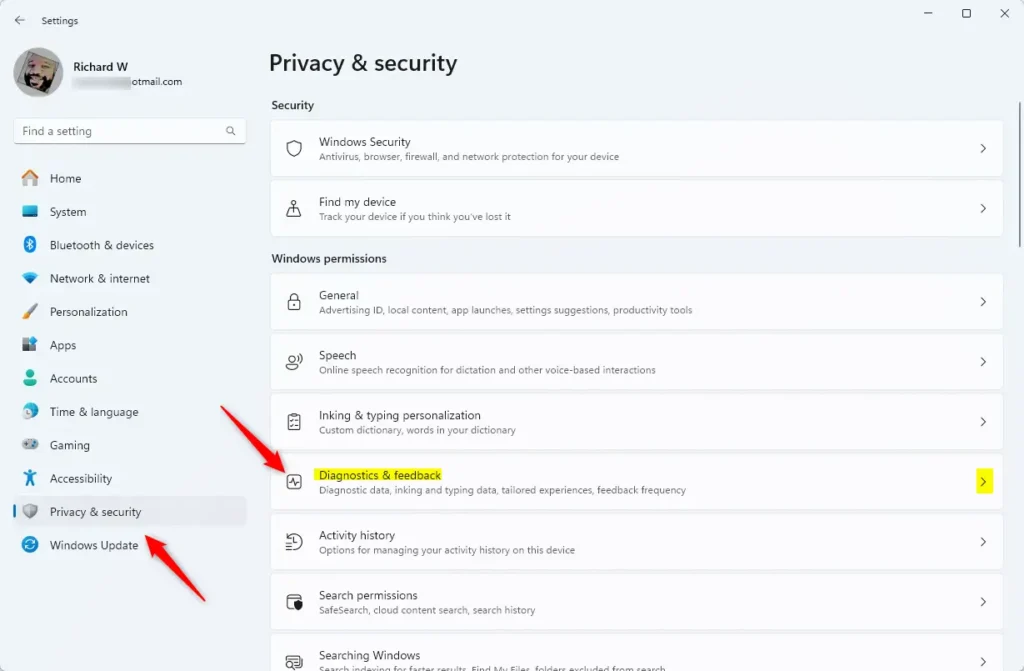
Then, select Privacy & security on the left and the Diagnostics & feedback tile on the right to expand it.
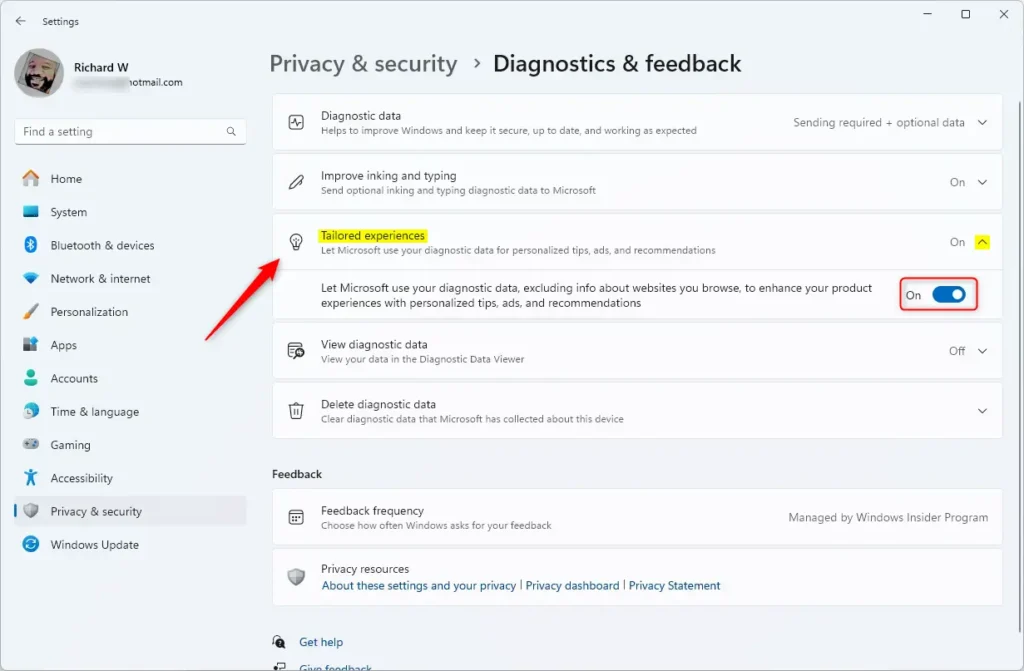
Next, select the “Tailored experiences” tile to expand it. Then, toggle the switch button to the On position to enable it.
To disable it, toggle the button to the Off position.
Exit the Settings app when you’re done.
Enable or disable Tailored experiences using group policy
Another way to disable or enable “Tailored experiences” is to use the Local Group Policy Editor.
First, open the Local Group Policy Editor (gpedit.msc). (Search for “Edit group policy”) on the Start menu.
Then, navigate the folders below:
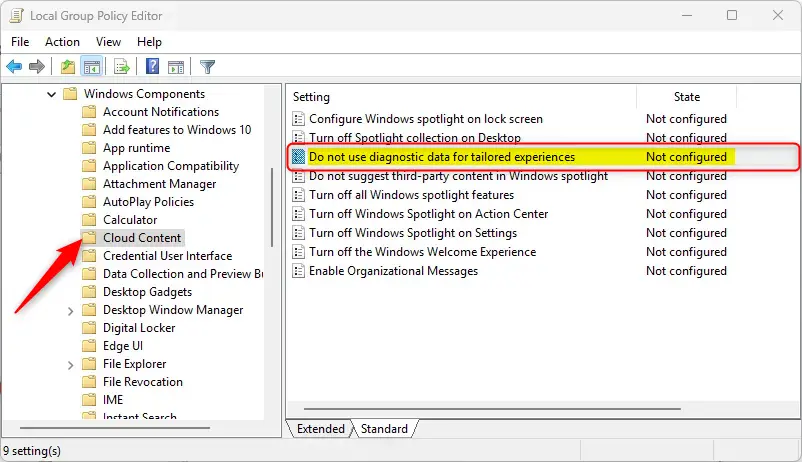
User Configuration > Administrative Templates > Windows Components > Cloud Content
In the Group Policy details pane on the right, locate and double-click the “Do not use diagnostic data for tailored experiences” settings.
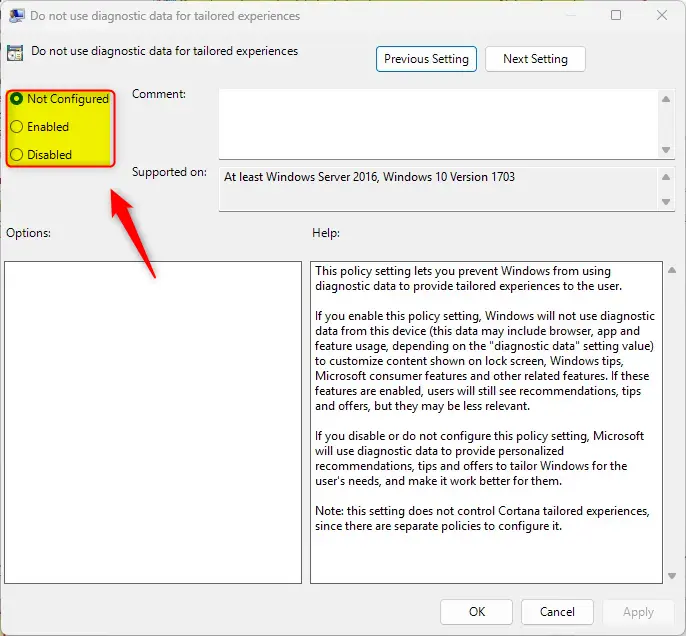
On the “Do not use diagnostic data for tailored experiences” window, set the option to Not Configure, Enabled, or Disabled.
- Not Configured (default) – Same as Disabled.
- Enabled – Windows will not use diagnostic data from this device (this data may include browser, app and feature usage, depending on the “diagnostic data” setting value) to customize content shown on lock screen, Windows tips, Microsoft consumer features and other related features.
- Disabled – Microsoft will use diagnostic data to provide personalized recommendations, tips and offers to tailor Windows for the user’s needs, and make it work better for them.
Click OK to save your changes. You may have to reboot your device for the settings to apply.
Turn on or off Tailored experiences using the Windows Registry Editor
Yet another way to enable or disable “Tailored experiences” is to use the Windows Registry editor.
First, open the Windows Registry and navigate to the folder key path below.
ComputerHKEY_CURRENT_USERSoftwarePoliciesMicrosoftWindowsCloudContent
Next, double-click the DisableTailoredExperiencesWithDiagnosticData (REG_DWORD) name on the CloudContent key’s right pane to open it.
Then, enter a value 1 to disable Tailored experiences.
If you do not see the “DisableTailoredExperiencesWithDiagnosticData” item, right-click a blank area and create a new DWORD (32-bit) registry item.
Then, enter the name “DisableTailoredExperiencesWithDiagnosticData” and enter a value 1
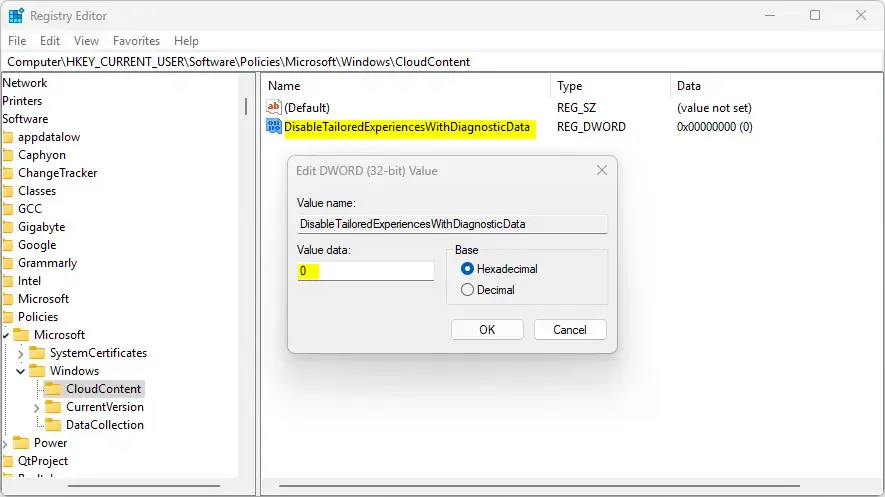
To restore the default behavior and enable Tailored experiences, delete the “DisableTailoredExperiencesWithDiagnosticData” name created above.
Save your changes and restart your computer.
That should do it!
Conclusion:
– Tailored experiences in Windows 11 can be turned on or off to personalize the user experience based on individual preferences.
– Users can enable or disable tailored experiences using the Windows Settings app, Local Group Policy Editor, or Windows Registry Editor.
– Enabling tailored experiences allows Microsoft to use diagnostic data to provide personalized recommendations, tips, and offers while disabling it helps protect user privacy.
– Ultimately, the decision to enable or disable tailored experiences depends on the user’s preferences and priorities for privacy and personalization.
Frequently Asked Questions
How do I enable tailored experiences in Windows 11?
What are tailored experiences in Windows 11?
Can I disable tailored experiences in Windows 11?
How does Microsoft use my diagnostic data for tailored experiences?
Is it safe to enable tailored experiences in Windows 11?



Leave a Reply Cancel reply