

This post describes steps to verify if their PC supports WiFi 6 in Windows 11.
Windows 11 supports WiFi 6 and WPA3. WiFi 6 gives you better wireless coverage and performance with added security. WPA3 provides improved WiFi security by using the latest standard.
IEEE 802.11ax is the official WiFi 6 (2.4 GHz and 5 GHz) and WiFi 6E (6 GHz) standard for wireless local-area networks (WLANs) and the successor of 802.11ac.
Most newer devices will support WiFi 6 today. However, not all PCs can have WiFi 6, and the steps below can be used to determine if your Windows 11 supports it.
How to find out if Windows 11 supports WiFi 6
As mentioned above, not all devices support WiFi 6. If your Windows devices don’t have WLAN adapters capable of connecting to WiFi 6-only routers, you may not be able to connect.
Below is how to check if Windows supports WiFi 6.
First, make sure you have the latest version of Windows 11 installed. To do that, select the Start button, then select Settings >Windows Update > Check for updates.
Read the post below also to learn how to update Windows 11
Also, check to see if your wireless network adapter supports WiFi 6. You can find that on the manufacturer’s website using their support page.
To check that your Windows 11 PC supports WiFi 6, open the Command Prompt.
Run the commands below to view your WLAN adapter capabilities.
netsh wlan show drivers
Look next to the Radio types supported and see if it includes 802.11ax.
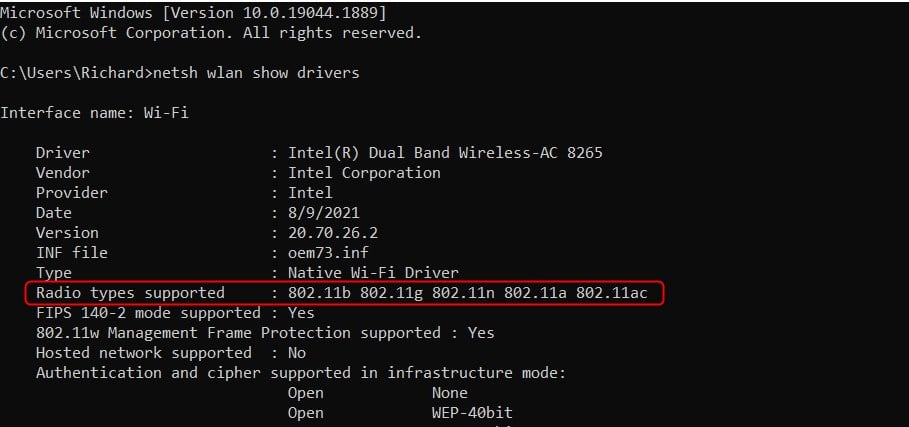
If you don’t see 802.11ax in the list, your PC doesn’t support WiFi 6.
Alternatively, by looking at the network properties, you can find out if you’re connected to a WiFi 6 network.
Connect to a WiFi network. Learn how to connect to a WiFi network.
Select the WiFi network icon on the right side of the taskbar or go to Start > Settings > Network & internet > WiFi, then select Manage WiFi connections (>) on the quick WiFi setting.
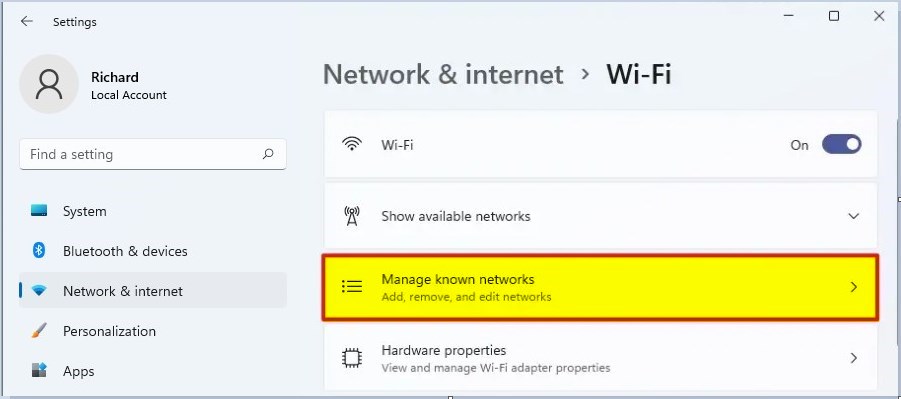
For the WiFi network you’re connected to, select Properties next to the WiFi network name. On the WiFi network screen, look at the value next to Protocol. It will say WiFi 6 (802.11ax) if connected to a WiFi 6 network.
That should do it!
Conclusion:
- WiFi 6 and WPA3 support in Windows 11 provide enhanced wireless coverage, performance, and security.
- Verifying Windows 11 support for WiFi 6 involves installing the latest Windows update and checking the WLAN adapter capabilities through the Command Prompt.
- Users can also verify a WiFi 6 network connection by inspecting the network properties confirming enhanced network capabilities.



Leave a Reply to How to Join a Wi-Fi using WPA3 Security in Windows 11 - Geek Rewind Cancel reply