
Want to know how your computer’s hard drive is organized? In Windows 11, hard drives use one of two main styles to split up space. These styles are called partition styles. The two types are MBR (Master Boot Record) or GPT (GUID Partition Table).
Why does it matter? Knowing your disk’s partition style helps when you want to:
- Install a new operating system.
- Create or change partitions (sections) on your hard drive.
- Use backup or recovery software that needs a specific style.
Let’s learn 3 simple ways to check your disk’s partition style on Windows 11.
1. Check Partition Style Using Windows Settings
Follow these easy steps:
- Open Settings. Click the Start menu and select Settings. Or press Windows key + I on your keyboard.
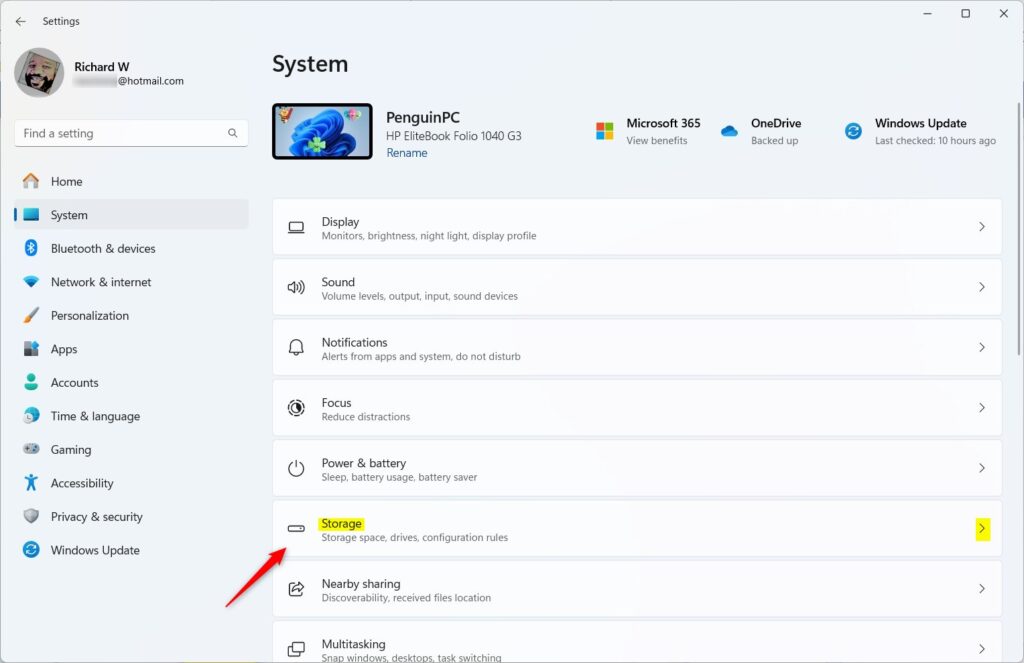
- In Settings, click System on the left side.
- Click Storage on the right side.
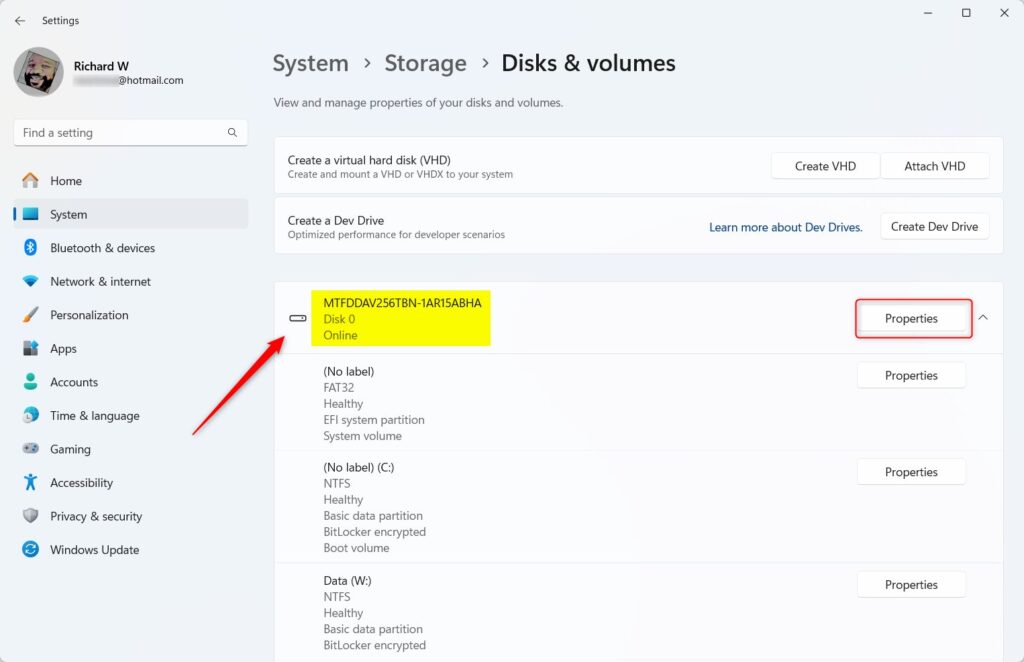
- Scroll down and click Advanced storage settings. Then select Disks & volumes.
- Find the disk you want to check. Click the arrow to expand it.
- Click the Properties button.
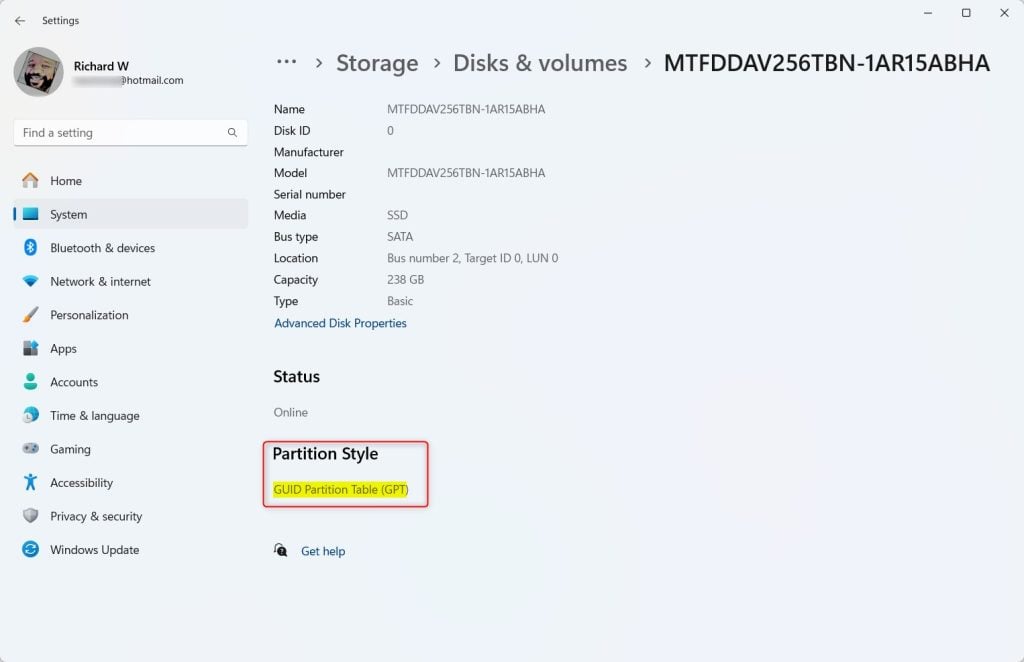
- Look near the bottom of the properties window. You will see Partition style. It will say either GPT or MBR.

2. Check Partition Style Using Disk Management
Here’s another easy way:
- Press Windows key + R. Type
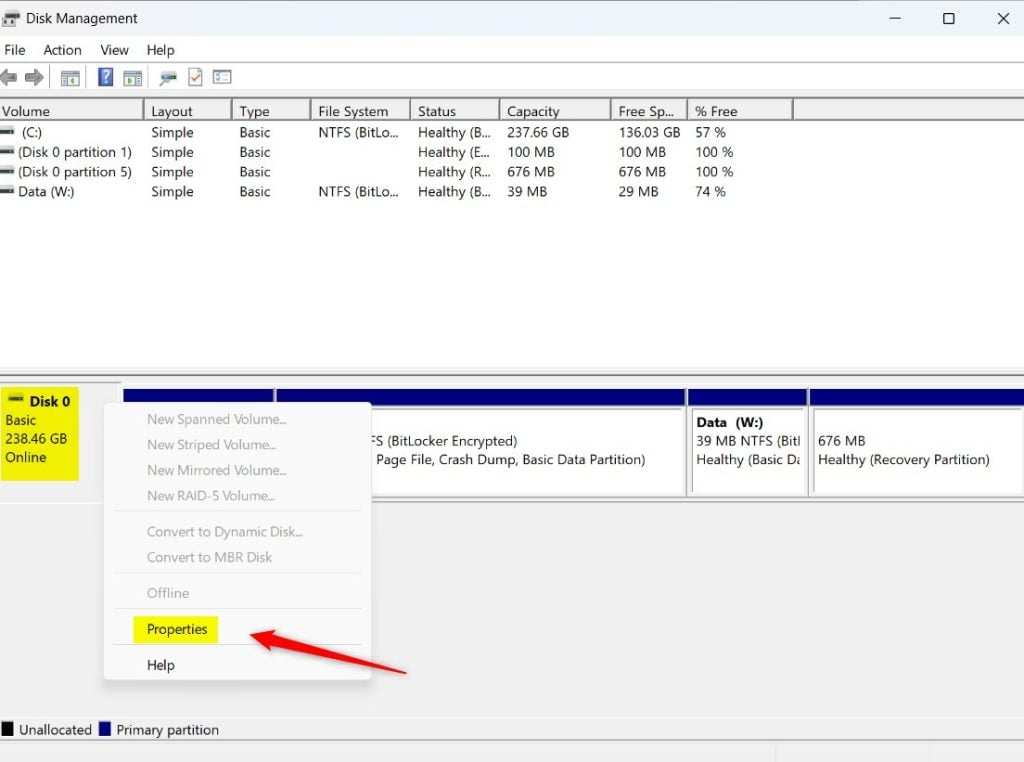
diskmgmt.mscand press Enter. This opens Disk Management. - Right-click on the disk you want to check. It might say Disk 0 or Disk 1. Choose Properties.
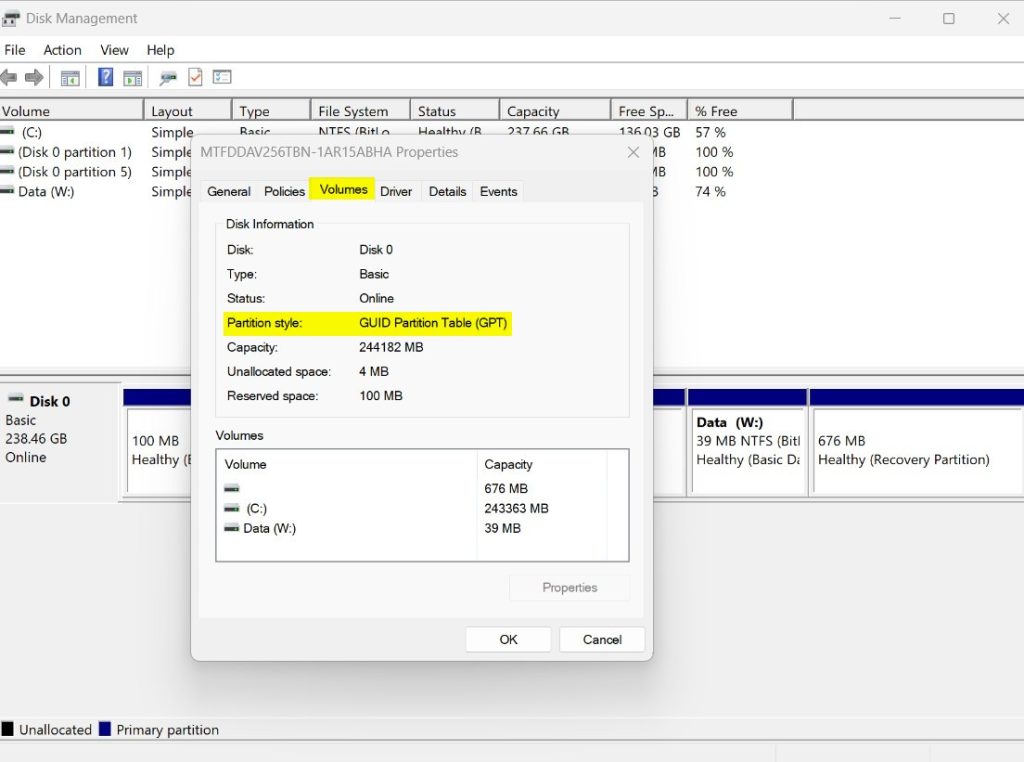
- Click the Volumes tab.
- Look for the Partition style information. It will say GUID Partition Table (GPT) or Master Boot Record (MBR).
3. Check Partition Style Using Command Line (PowerShell or Command Prompt)
If you like using commands, follow these steps:
Using PowerShell (in Windows Terminal)
- Open Windows Terminal.
- Click the PowerShell tab.
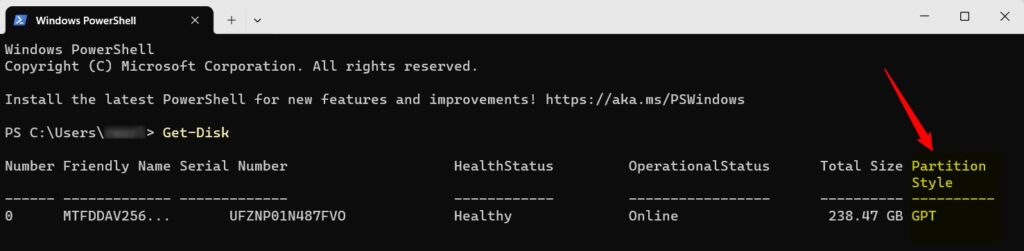
- Type the command below and press Enter:
Get-DiskLook at the list under the column Partition Style. It will show GPT or MBR for each disk.
Using Command Prompt
- ⚠️ Admin Required: Run Windows Terminal as an administrator. Open the Command Prompt tab.
- Type
diskpartand press Enter. - Then type
list diskand press Enter. - Look at the right side of the list. If a disk has an asterisk (*) under the GPT column, it means the disk uses GPT. If it’s empty, the disk uses MBR.
diskpart
list disk
Tip: You can exit diskpart by typing exit and pressing Enter.
Summary
- Your hard drive uses either the MBR or GPT style to organize data.
- You can check which one your disk uses from Windows Settings, Disk Management, or the command line.
- Knowing this helps you make sure your computer is ready for software installations and changes.
- These simple steps let you find your disk’s partition style quickly and safely.
If you want to learn more about managing disks on Windows, check out this helpful guide on Disk Management.



Leave a Reply