How to Change Windows 11 Taskbar Search Button Layout

You can change your Windows 11 taskbar search button layout to show just an icon, a button, or the default search box.
Windows Search is the built-in tool for finding files, apps, and settings across your PC. In Windows 11, this feature appears on the taskbar, and Microsoft offers several visual customizations.
You have four distinct options for how the search feature displays on your taskbar. You can opt for only a discreet search icon, the familiar full search box that’s set by default, a dedicated search button, or even hide the search feature entirely if you prefer a cleaner look.
This flexibility allows you to tailor your taskbar to your specific workflow and aesthetic preferences.
Open Settings, go to Personalization, then Taskbar, and click on Search to choose between hiding it, showing an icon, a button, or the default search box. Your taskbar will update instantly.
Change the Search Button Style Using Settings
Here’s how to change or hide the Search box on your Taskbar in Windows 11. This method is simple and safe.
- Open the Settings app. Click the Start menu (Windows icon) at the bottom-left of your screen. Then click Settings. Or press Windows key + I on your keyboard to open Settings directly.
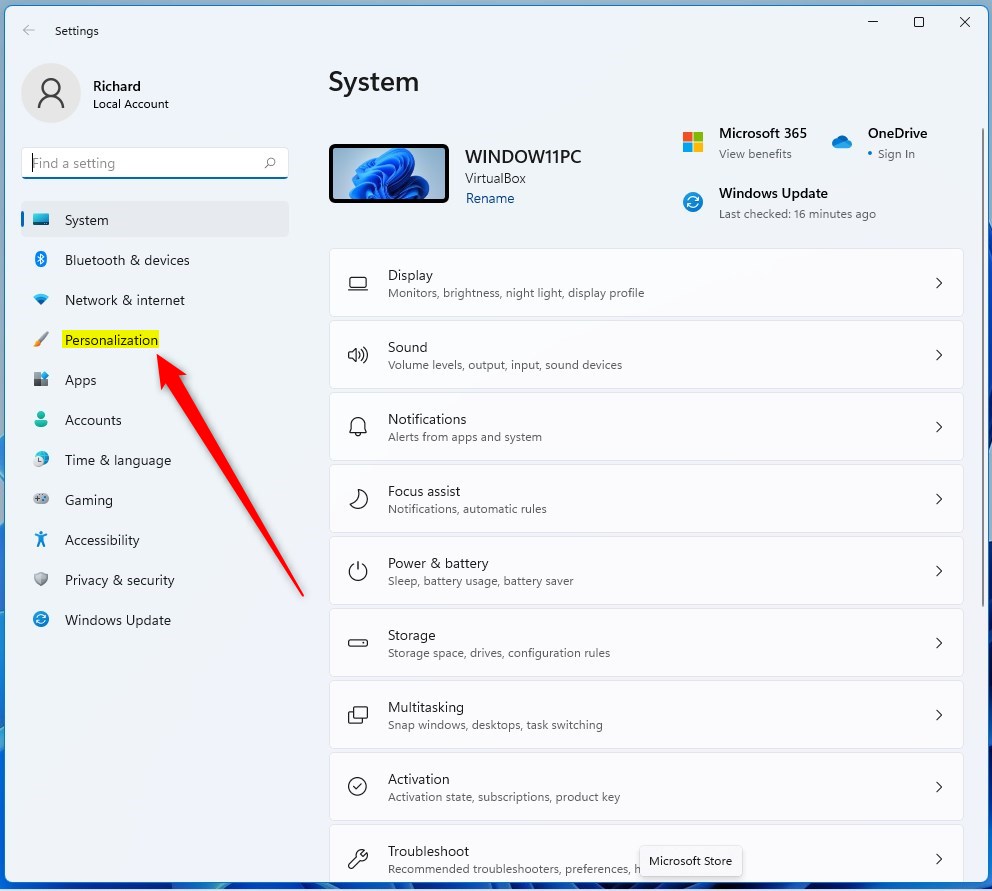
- In Settings, click Personalization on the left side menu.
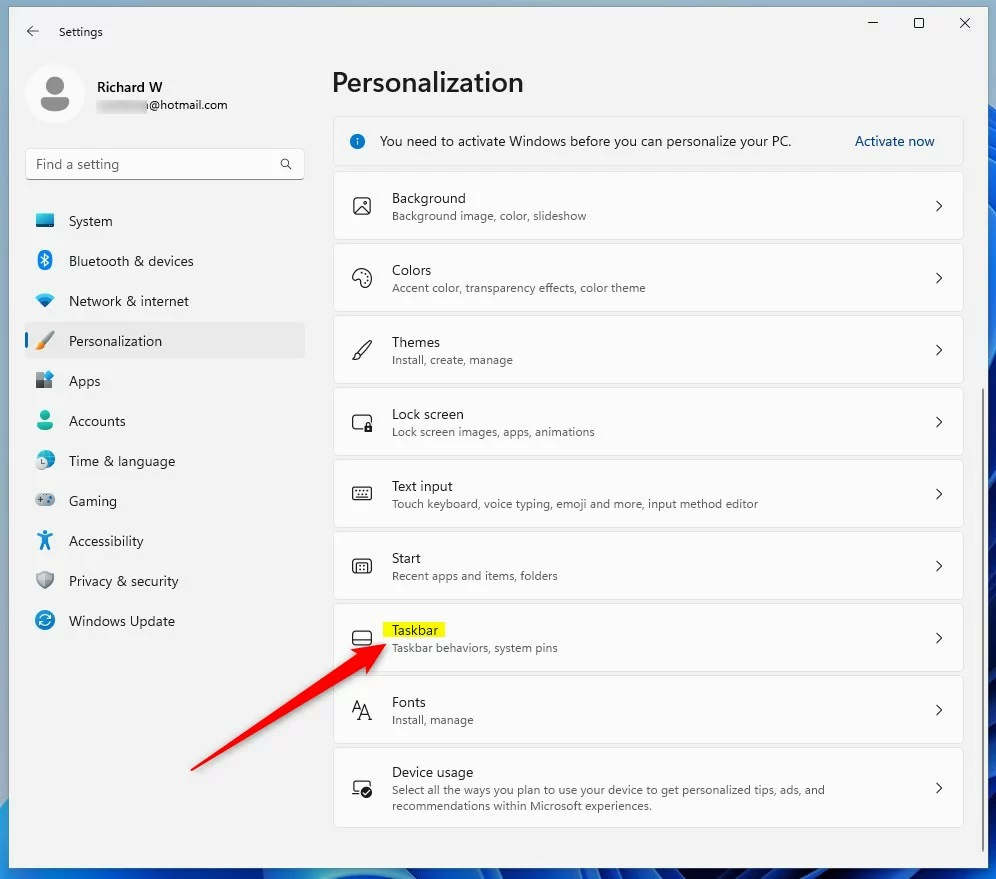
- On the right, click Taskbar.
- Scroll to the Taskbar items section. Find Search and click it.
- Pick how you want the Search to look on your Taskbar:
- Hide – No Search button shown
- Search icon only – Just a small magnifying glass icon
- Search box – A box where you can type your search (default)
- Search button – A button style different from the box
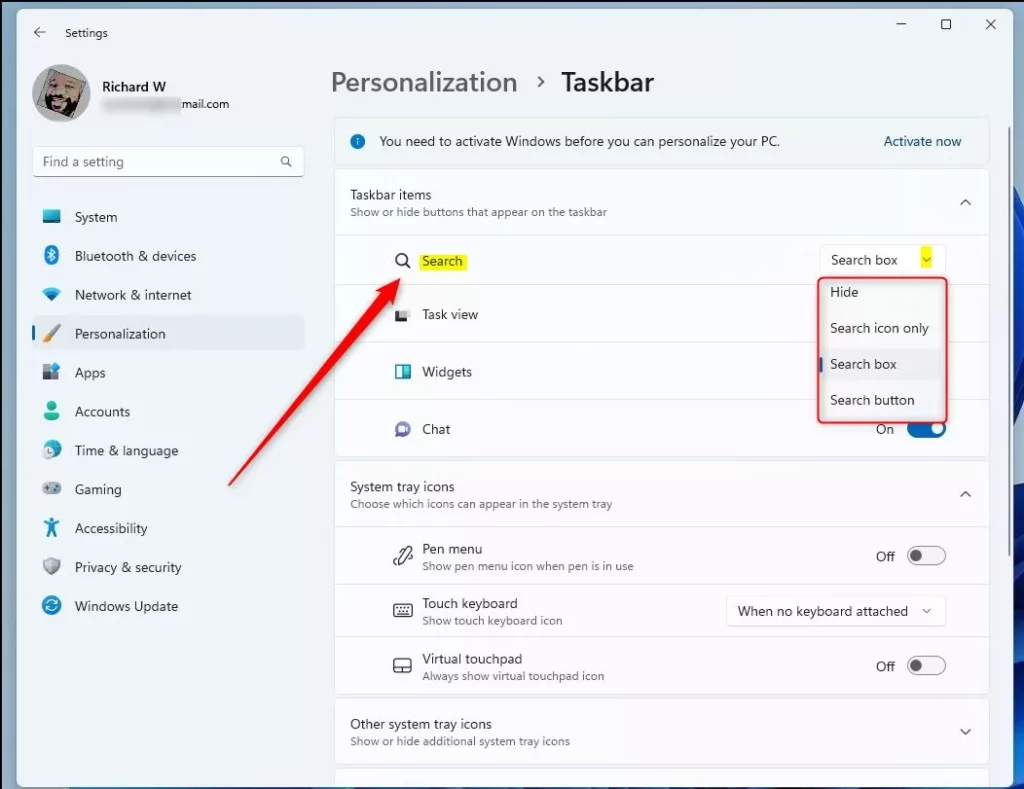
What happens when you change the setting? Your Taskbar updates instantly. You’ll see your new Search style right away.
Change the Search Box Layout Using Registry Editor (Advanced)
⚠️ Admin privileges required for this method.
If you want to change the Search button style for all users on your computer, you can use the Windows Registry Editor. Be careful — editing the Registry can cause problems if done incorrectly. Only try this if you’re comfortable with advanced settings.
- Open the Windows Registry Editor. Press Windows key + R. Type
regeditand press Enter. You can also read how to open the Registry in Windows 11. - In the Registry Editor, go to this path:
HKEY_CURRENT_USER\Software\Microsoft\Windows\CurrentVersion\Search - If you do not see the Search folder under CurrentVersion, right-click CurrentVersion. Select New > Key and name it Search.
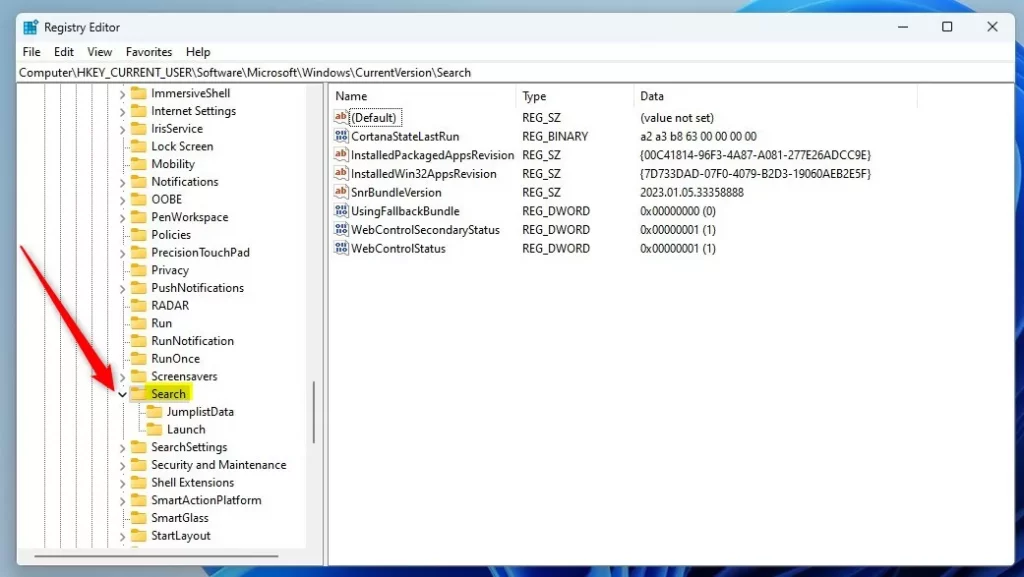
- Click on the Search folder on the left.
- On the right side, right-click in the empty space. Choose New > DWORD (32-bit) Value.
- Name this new value
SearchboxTaskbarMode. - Double-click
SearchboxTaskbarModeand set its value to one of these numbers:- 0 – Hide the search box
- 1 – Show search icon only
- 2 – Show search box (default)
- 3 – Show search button
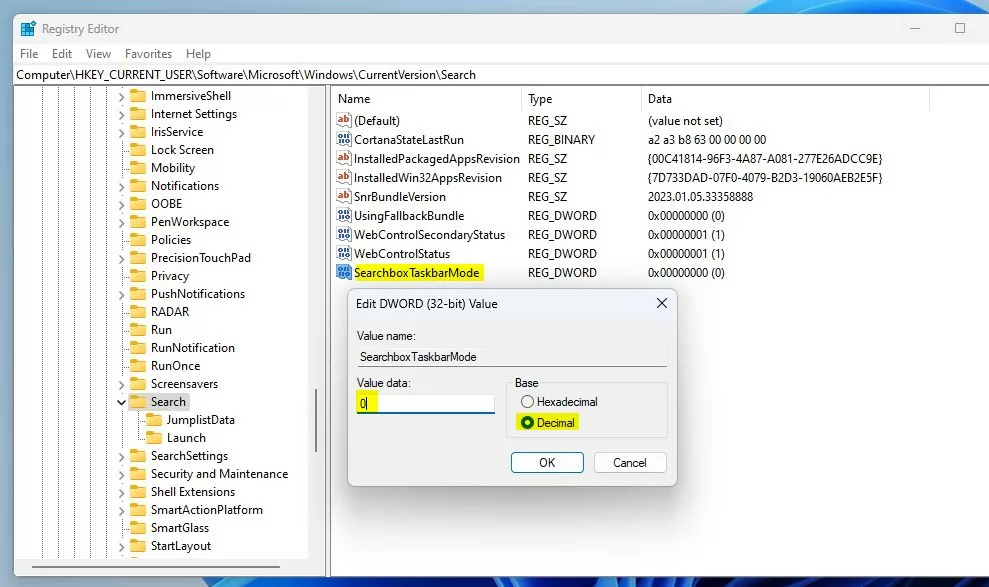
- After you set the value, the Taskbar will update right away. Close the Registry Editor when done.

What happens when you change the Registry value? Your Taskbar updates instantly with your new Search style choice.
Summary
You can change how the Search button looks on your Windows 11 Taskbar using the easy Settings app. For advanced users, the Registry Editor offers another way to make changes.
Your options include hiding the Search button, showing a small icon, displaying a search box, or showing a search button.
If you’re part of Microsoft’s Insider Preview program, you might see new styles coming soon.
If you want to learn more about the Search feature in Windows 11, check out this helpful guide: How to Search and Find Documents in Windows 11.
How to enable taskbar search in 🪟 Windows 11?
It. So in this way you can easily. Show search box on taskbar in Windows 11.
How do I adjust the search bar in taskbar?
So there are fixes. There are different options for the search. Box. So you simply rightclick anywhere on the taskbar. On Windows 11. And then go into taskbar settings.
Was this guide helpful?

About the Author
Richard
Tech Writer, IT Professional
Richard, a writer for Geek Rewind, is a tech enthusiast who loves breaking down complex IT topics into simple, easy-to-understand ideas. With years of hands-on experience in system administration and enterprise IT operations, he’s developed a knack for offering practical tips and solutions. Richard aims to make technology more accessible and actionable. He's deeply committed to the Geek Rewind community, always ready to answer questions and engage in discussions.



No comments yet — be the first to share your thoughts!