
If your computer shows the wrong time, you can fix this by changing the Internet Time Server it uses. This server helps your computer keep the correct time by syncing with a trusted clock on the internet.
Windows 11 usually uses a system called Network Time Protocol (NTP) to match your clock with online time servers. Some popular time servers are:
- time.windows.com (default)
- time.nist.gov
- pool.ntp.org
You can easily switch your PC to use any of these servers or add a different one.
Change Time Server Using the Settings App
Windows 11 now lets you change the time server right from the Settings app. Here’s how:
- Open the Settings app.
- Click the Start menu and select Settings, or
- Press Windows key + I on your keyboard.
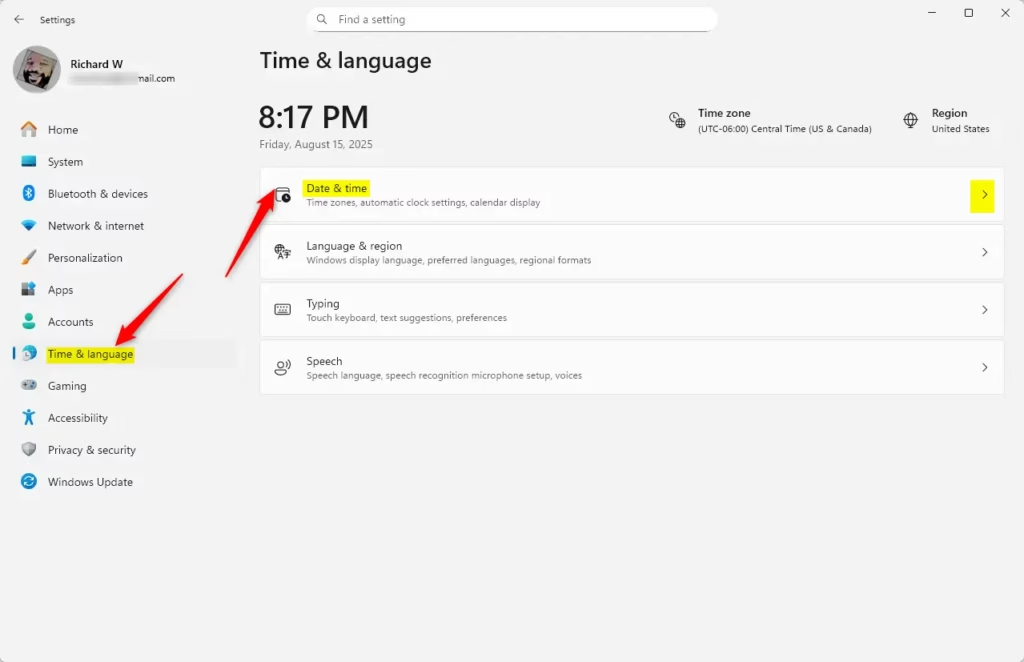
- In Settings, click Time & language on the left side.
- Click Date & time on the right side to open more options.
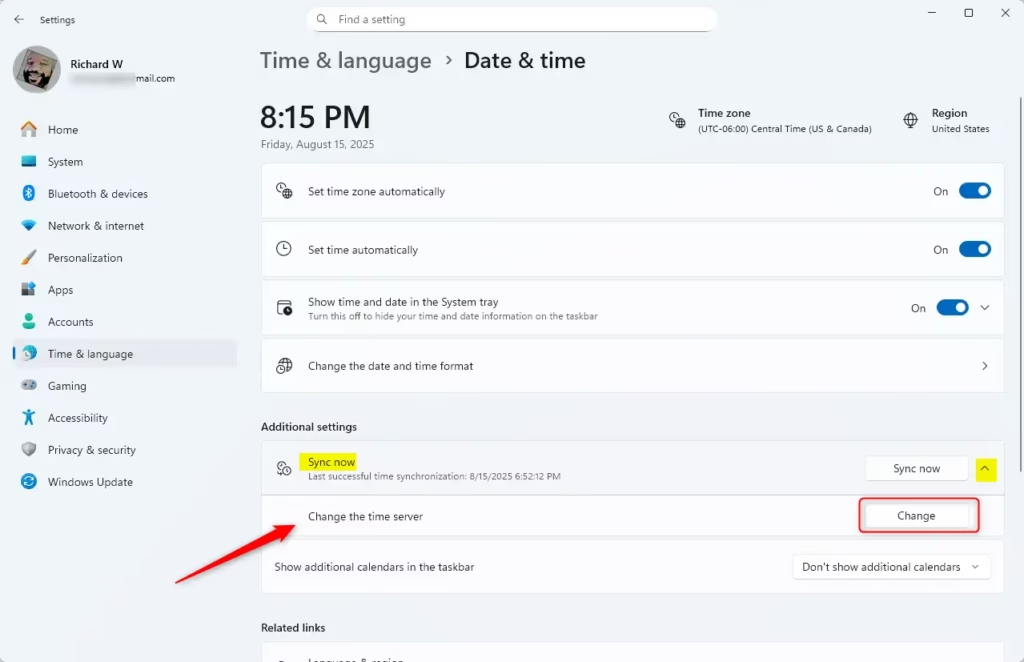
- Scroll down and click the Sync now tile to expand it.
- Click the Change button next to where it shows your current time server.
- Type the address of the new time server you want to use (for example,
time.nist.gov) and click OK.
Change Time Server Using Control Panel
You can also change the time server through the Control Panel. Follow these steps:
- Open the Control Panel.
- Go to Clock and Region.
- Click Set the time and date.
- In the pop-up window, select the Internet Time tab.
- Click Change settings.
- Choose a time server from the list or type your own, then click Update now and OK.


Add or Change Time Servers Using the Registry Editor (Advanced)
If you want to add new time servers or change the list Windows uses, you can do it by editing the Windows Registry. Be careful: changing the registry incorrectly can cause problems. Only try this if you feel comfortable.
Here’s a simple guide:
- Open the Registry Editor by typing
regeditin the Start menu search and pressing Enter. - Navigate to this folder:
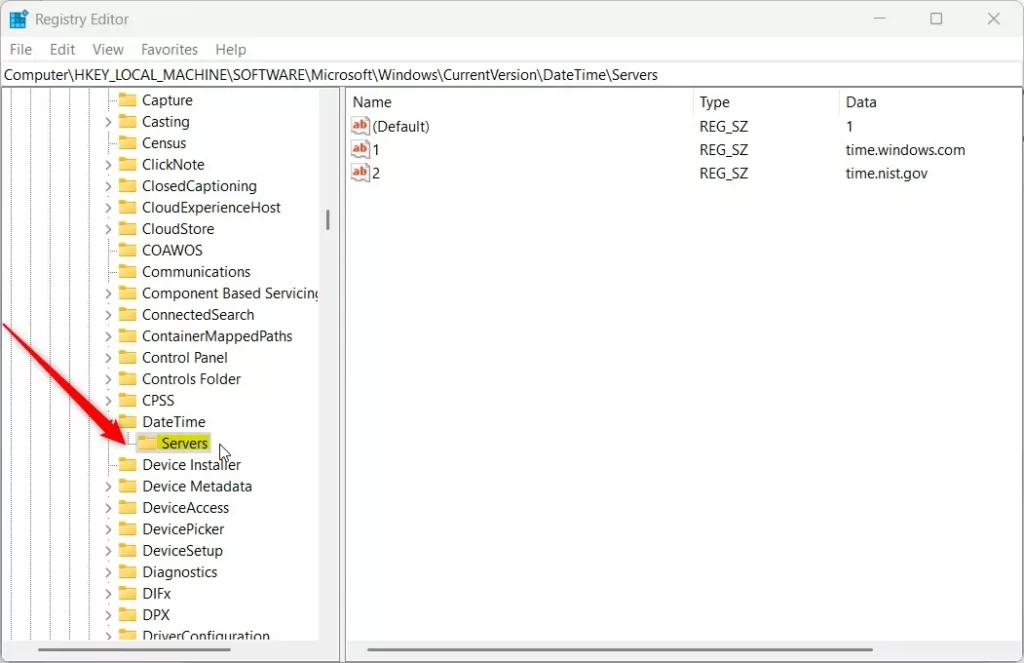
HKEY_LOCAL_MACHINESOFTWAREMicrosoftWindowsCurrentVersionDateTimeServers - If the
Serversfolder doesn’t exist, right-click onDateTime, select New > Key, and name itServers. - In the right pane, you will see servers listed as numbers (0, 1, 2, etc.). Each number represents a time server address.
- To add a new server, right-click in the right pane, choose New > String Value, name it the next number (like 3), then double-click it and enter the server address (like
time.google.com). - Next, go to:
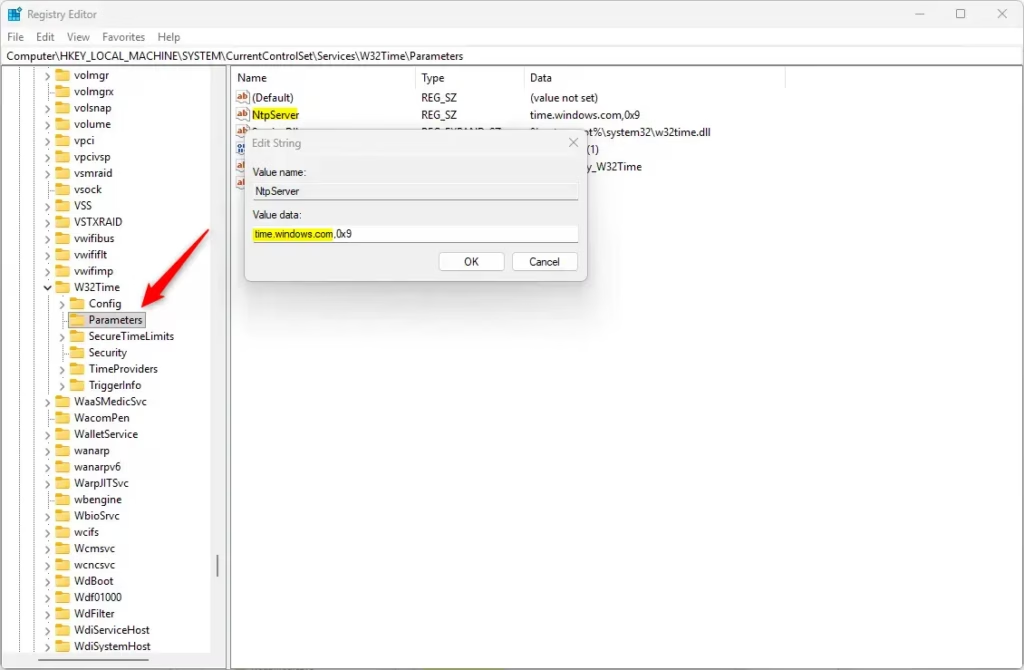
HKEY_LOCAL_MACHINESYSTEMCurrentControlSetServicesw32timeParameters - Double-click the
NtpServerentry and replace the value with the server you want to use, for example:
time.google.com,0x9 - Save and close the Registry Editor.
- Restart your computer to apply the changes.
Summary
- You can change the Internet Time Server in Windows 11 using the Settings app, Control Panel, or Registry Editor.
- The default server is time.windows.com, but others like time.nist.gov or pool.ntp.org work too.
- Make sure to pick a reliable time server to keep your clock accurate.
- After changing the server, restart your PC to make sure the change takes effect.
- Regular syncing helps keep your computer’s time correct for apps and services.
If you want to learn more about keeping your Windows 11 PC running smoothly, check out Geek Rewind for helpful guides and tips!

Leave a Reply