

This article explains how to change the verbosity level in Narrator on Windows 11.
Narrator is a screen-reading app built into Windows that reads the text on your screen aloud and describes events for users with low vision or blindness.
When you use the Narrator app, you can turn on or off its keyboard shortcuts, launch it automatically, adjust the voice, speed, and volume, manage natural voices, lower other apps volume when Narrator is speaking, change Narrator audio output device, and more.
The Narrator also lets you change the verbosity level to adjust the user experience. Users can choose between [Text only], [ Some control details], [All control details], [Some text details], and [All text details].
Changing the verbosity level of the Narrator can be helpful for users who want to adjust the amount of information that the screen reader speaks. A higher verbosity means that more details will be communicated, which can be helpful for users who want to hear detailed descriptions of everything happening on the screen.
However, a lower verbosity level can be more efficient and less overwhelming for users who only want to hear essential information.
Changing the verbosity level in Narrator
As mentioned above, users can change the verbosity level in Narrator on Windows 11.
Here’s how to do it.
First, open the Windows Settings app.
You can do that by clicking on the Start menu and selecting Settings. Or press the keyboard shortcut (Windows key + I) to launch the Settings app.
When the Setting app opens, click the Accessibility button on the left and select the Narrator tile on the right to expand it.

On the Narrator settings pane, under the “Verbosity” section, select the “Verbosity level” tile. Then, click on the dropdown menu beside Verbosity level, and choose your preferred level of detail for narration.
- 1 – Text only
- 2 – Some control details
- 3 – All control details
- 4 – Some text details
- 5 – All text details
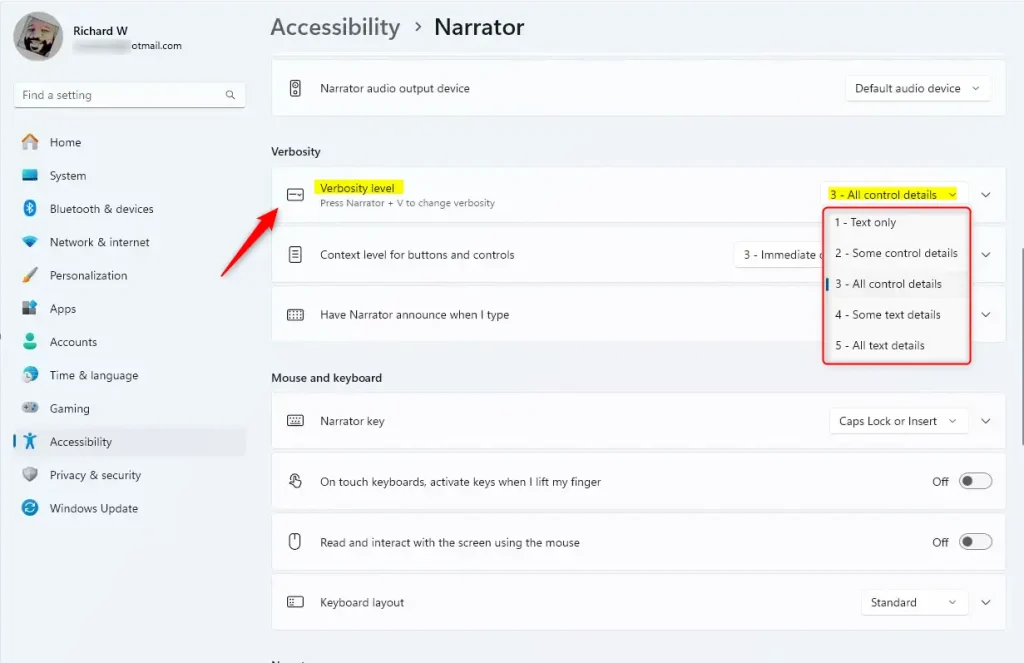
You can also change the verbosity level by pressing the Narration + V.
That should do it!
Conclusion:
- Changing the verbosity level in Narrator on Windows 11 can significantly enhance the user experience for individuals with low vision or blindness.
- Users can control the detail the screen reader provides by opting for a higher or lower verbosity level.
- By understanding how to adjust verbosity levels, users can tailor the Narrator to suit their preferences for information delivery on the Windows 11 platform.



Leave a Reply Cancel reply