How to Enable Kernel-mode Stack Protection in Windows 11

This guide shows you how to turn on or off Kernel-mode Hardware-enforced Stack Protection in Windows 11. This feature helps protect your computer from harmful software.
Core isolation is a Windows security feature. It protects important parts of Windows from malicious software by keeping them separate in your computer’s memory. It does this by running these parts in a special protected environment.
Hardware-enforced Stack Protection provides strong protection against Return Oriented Programming (ROP) exploits. It does this by keeping track of how a program is supposed to run.
The Kernel Mode Hardware Enforced Stack Protection security feature works on Windows 11, version 22H2 and newer versions. It adds extra security for the core code that runs your computer.
Enable Kernel-mode Hardware-enforced Stack Protection by opening Windows Security, navigating to Device security, then Core isolation details, and toggling the setting on. Ensure Memory Integrity is also enabled. A restart is required to apply the changes.
How It Works
When code runs deep in your computer’s system, the CPU checks that return addresses are correct. It compares them to a backup copy stored in the shadow stack. This stops attackers from changing an address to run harmful code instead.
What You Need
- CPU: Intel Tiger Lake (11th Gen) or newer with Control-Flow Enforcement Technology (CET), or AMD Zen 3 Ryzen or newer with AMD shadow stacks
- CPU virtualization turned on
- Memory Integrity turned on
Your computer needs a newer CPU, like Intel’s 11th Gen or AMD’s Zen 3, to use kernel-mode hardware-enforced stack protection, and it must have specific security features turned on.
Microsoft released a security update package for Windows 11, version 22H2. KB5026372 Build 22621.1702 adds more drivers to a list of drivers that don’t work with Kernel-mode Hardware-enforced Stack Protection. Your computer checks this list when you turn on this feature.
Important: You must be signed in as an administrator to enable or disable this feature. Not all drivers work with Kernel Mode Hardware Enforced Stack Protection.
Option 1Use Windows Security App
Turn Kernel-mode Hardware-enforced Stack Protection On or Off
- Open Windows Security.
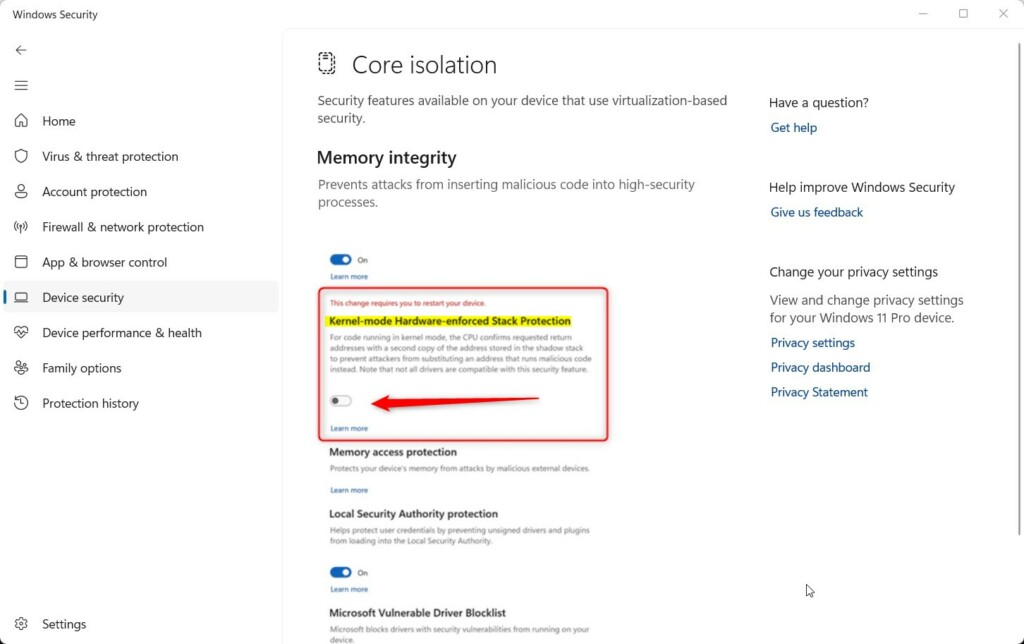
- Click Device security on the left side. Then click Core isolation details on the right side.
- Turn on (this is the default) or off Kernel-mode Hardware-enforced Stack Protection. Choose what you want.
You can easily turn kernel-mode hardware-enforced stack protection on or off right from your Windows Security settings.
- [REQUIRES ADMIN] If prompted by UAC, click Yes to approve.
- Restart your computer to apply the change.
Option 2Use Registry Editor
Turn Kernel-mode Hardware-enforced Stack Protection On or Off Using Commands
Open the Terminal app as administrator and run the command below. [REQUIRES ADMIN]
Turn On Kernel-mode Hardware-enforced Stack Protection
Kernel-mode hardware-enforced stack protection is normally on by default in Windows 11, and turning it on also makes sure the Memory Integrity feature is active.
reg add "HKLM\SYSTEM\CurrentControlSet\Control\DeviceGuard\Scenarios\HypervisorEnforcedCodeIntegrity" /v Enabled /t REG_DWORD /d 1 /f
reg add "HKLM\SYSTEM\CurrentControlSet\Control\DeviceGuard\Scenarios\KernelShadowStacks" /v Enabled /t REG_DWORD /d 1 /f
reg add "HKLM\SYSTEM\CurrentControlSet\Control\DeviceGuard\Scenarios\KernelShadowStacks" /v WasEnabledBy /t REG_DWORD /d 2 /f
Turn Off Kernel-mode Hardware-enforced Stack Protection
reg add "HKLM\SYSTEM\CurrentControlSet\Control\DeviceGuard\Scenarios\KernelShadowStacks" /v Enabled /t REG_DWORD /d 0 /f
reg delete "HKLM\SYSTEM\CurrentControlSet\Control\DeviceGuard\Scenarios\KernelShadowStacks" /v WasEnabledBy /f
Summary
Kernel-mode hardware-enforced stack protection is a key security feature in Windows 11 that helps guard your computer’s main processes against malware. It works by checking that programs run as they should, using a safe copy of addresses to detect any tricks.
How to fix kernel mode hardware enforced stack protection?
Search for “Turn Windows features on or off” in the Start Menu and click on it. Scroll down to find “Kernel Mode Hardware Enforced Stack Protection” and ensure its checkbox is selected. Click “OK.” After making the changes, restart your system to apply them.
Does kernel mode hardware enforced stack protection affect gaming performance?
Some gamers have noticed a significant drop in performance, losing many frames per second, when kernel-mode hardware-enforced stack protection is turned on. For example, one user reported losing over 80 FPS in a popular game, with performance returning to normal after disabling the feature.
Was this guide helpful?

About the Author
Richard
Tech Writer, IT Professional
Richard, a writer for Geek Rewind, is a tech enthusiast who loves breaking down complex IT topics into simple, easy-to-understand ideas. With years of hands-on experience in system administration and enterprise IT operations, he’s developed a knack for offering practical tips and solutions. Richard aims to make technology more accessible and actionable. He's deeply committed to the Geek Rewind community, always ready to answer questions and engage in discussions.



No comments yet — be the first to share your thoughts!