How to Change the Taskbar Clock to 12 or 24 Hour Format in Windows 11

This guide will help you change the clock on your Windows 11 taskbar to show time in either a 12-hour format (like 3:00 PM) or a 24-hour format (like 15:00) — whichever you prefer.
What is the 12-hour and 24-hour Clock?
The 12-hour clock splits the day into two parts: AM (morning) and PM (afternoon/evening).
The 24-hour clock counts hours from 00 to 23 and is often called “military time.”
Option 1Change Clock Format Using Windows Settings
- Open Settings: Press
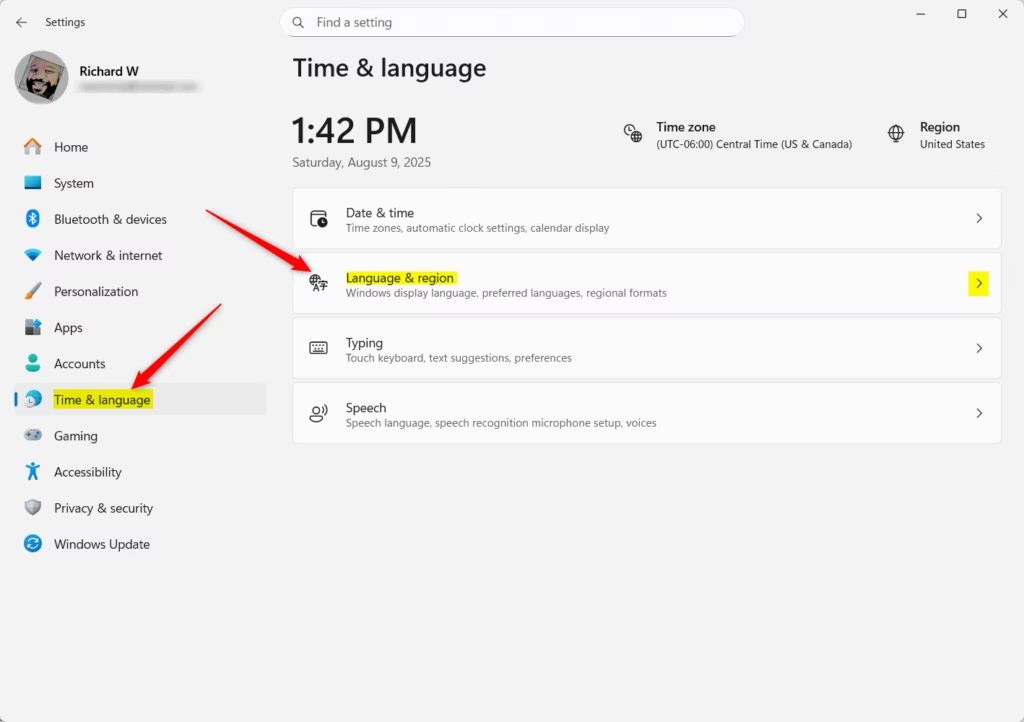
Win + Ion your keyboard. - In Settings, click Time & language in the left menu.
- Click Language & region on the right side.
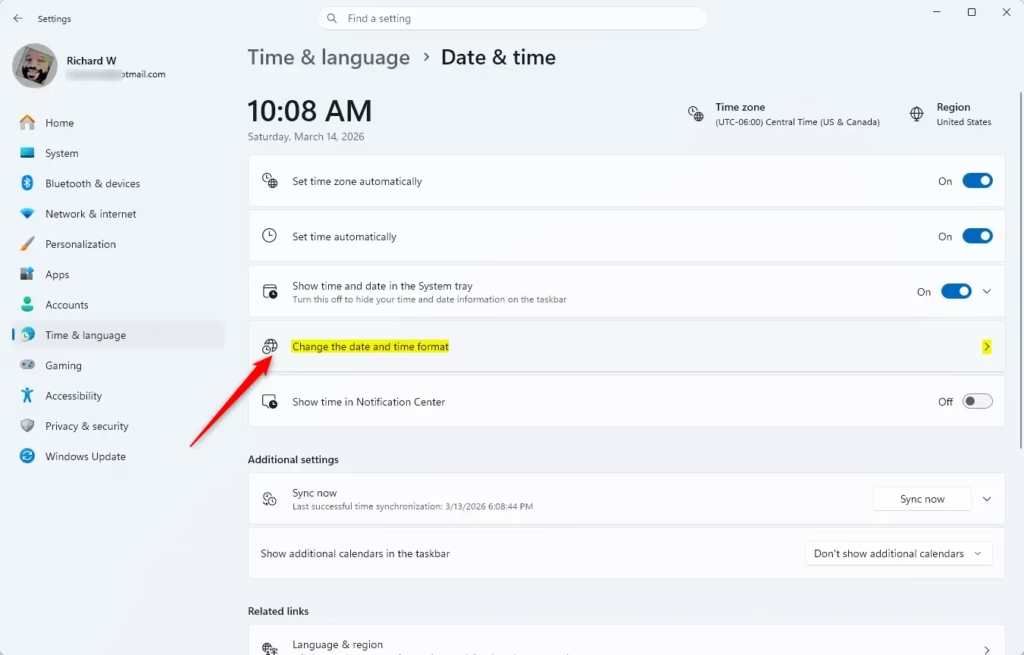
- Scroll down to Regional format and click on Change formats.
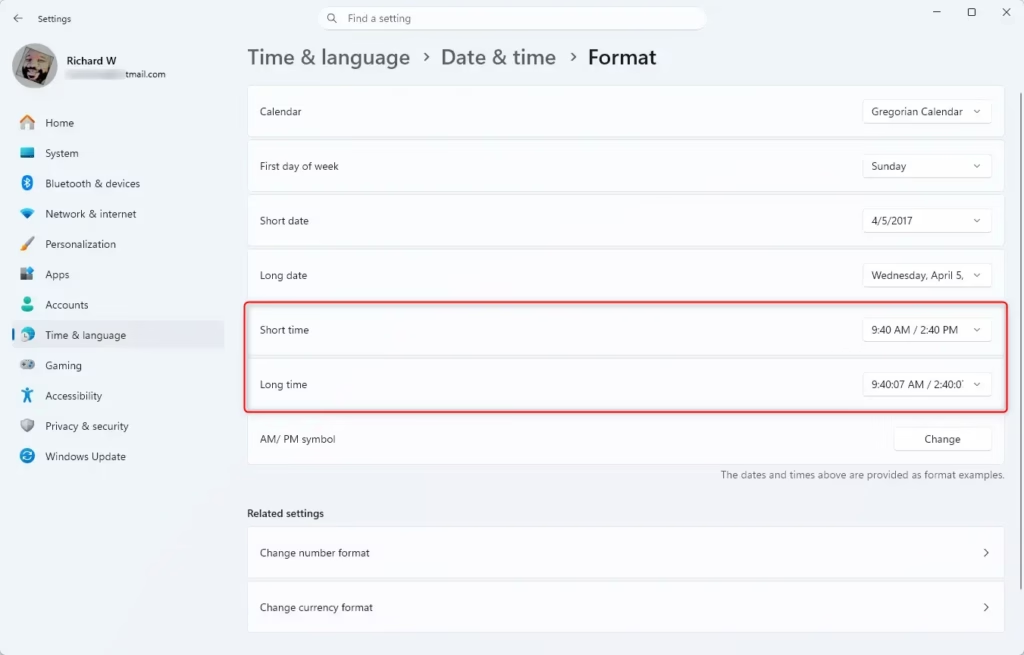
- Find the Short time dropdown menu and pick your preferred clock style:
- For 12-hour clock, choose formats like
9:40 AMor09:40 AM.
- For 12-hour clock, choose formats like
- For 24-hour clock, choose formats like
9:40or09:40. - Close Settings. Your taskbar clock will now show the time in the format you chose.
Here’s a screenshot of the Regional format settings:
Option 2Change Clock Format Using Control Panel
- Open Control Panel. You can do this by searching for it in the Start menu.
- Make sure Control Panel is in Icons view (not Category view).
- Click on Region.
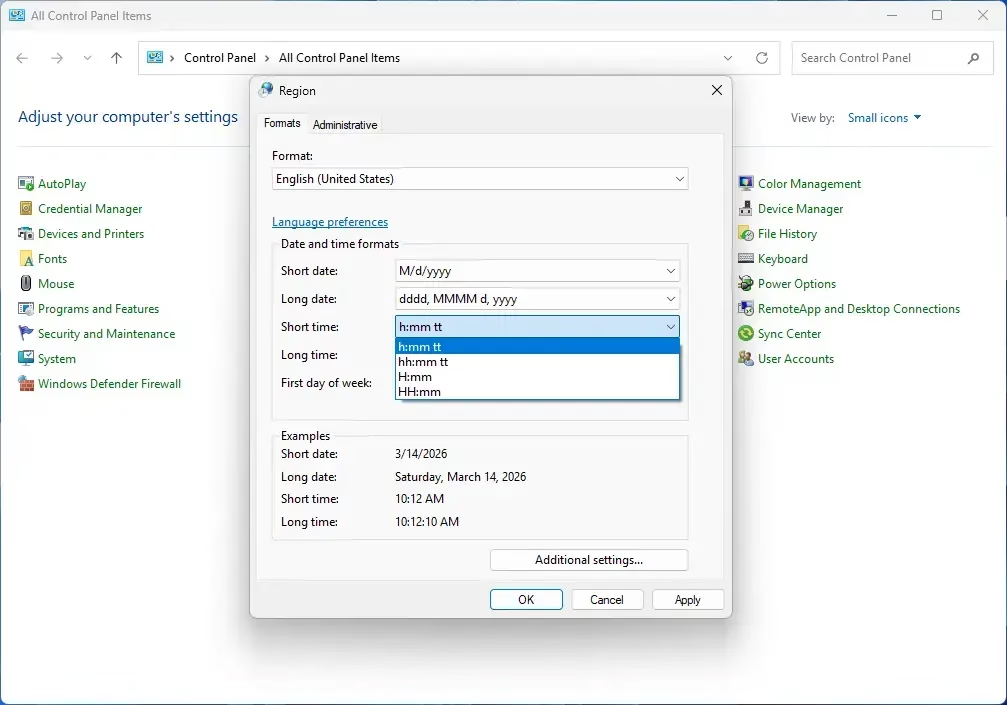
- Under the Formats tab, click the Short time dropdown and choose your time format:
- For 12-hour clock:
h:mm ttorhh:mm tt.
- For 12-hour clock:
- For 24-hour clock:
H:mmorHH:mm. - If you don’t see the format you want, click Additional settings…, then go to the Time tab to type a custom format.
- Click OK to save your changes.
- Close Control Panel.
Control Panel Region window:
Summary
- You can easily switch your taskbar clock between 12-hour and 24-hour formats.
- This can be done either through Windows Settings or the Control Panel.
- Pick whichever format feels easiest for you to read.
- Changing this setting helps Windows match how you like to see time.
If you followed these steps, your taskbar clock should now show the time exactly how you want it!
Was this guide helpful?

About the Author
Richard
Tech Writer, IT Professional
Richard, a writer for Geek Rewind, is a tech enthusiast who loves breaking down complex IT topics into simple, easy-to-understand ideas. With years of hands-on experience in system administration and enterprise IT operations, he’s developed a knack for offering practical tips and solutions. Richard aims to make technology more accessible and actionable. He's deeply committed to the Geek Rewind community, always ready to answer questions and engage in discussions.




No comments yet — be the first to share your thoughts!