

Windows 11 recall and snapshot featured image

Change Maximum Storage for Windows 11 Snapshots

This article explains how to change the maximum storage for snapshots in Windows 11.

Recall & Snapshots is an AI feature in Windows 11 that functions like a photographic memory by saving snapshots of your screen. You can then use the Recall feature to quickly search your snapshots and find things you’ve seen on your PC.

The snapshots, copies of your PC’s current state, are securely stored on your PC. Windows sets a maximum storage size for these snapshots, which you can change anytime. Once that maximum is reached, the oldest snapshots are deleted automatically.

Managing your snapshots is a breeze. You can effortlessly adjust the storage size for snapshots, allowing you to store large amounts of data without worrying about older screenshots being deleted prematurely. And suppose you ever find yourself running low on storage space. In that case, you can confidently delete your snapshots anytime by navigating to Settings Privacy & security > Recall & snapshots on your PC.

The following chart shows the storage space options for Recall:

Device storage capacityStorage allocation options for Recall
256 GB25 GB (default), 10 GB
512 GB75 GB (default), 50 GB, 25 GB
1 TB, or more150 GB (default), 100 GB, 75 GB, 50 GB, 25 GB

Adjust the maximum storage for snapshots in Windows

As mentioned above, users can adjust the maximum storage size for snapshots in Windows 11.

Here’s how to do it.

First, open the Windows Settings app.

You can do that by clicking on the Start menu and selecting Settings. Or press the keyboard shortcut (Windows key + I) to launch the Settings app.

When the Setting app opens, click the Privacy & security button on the left.
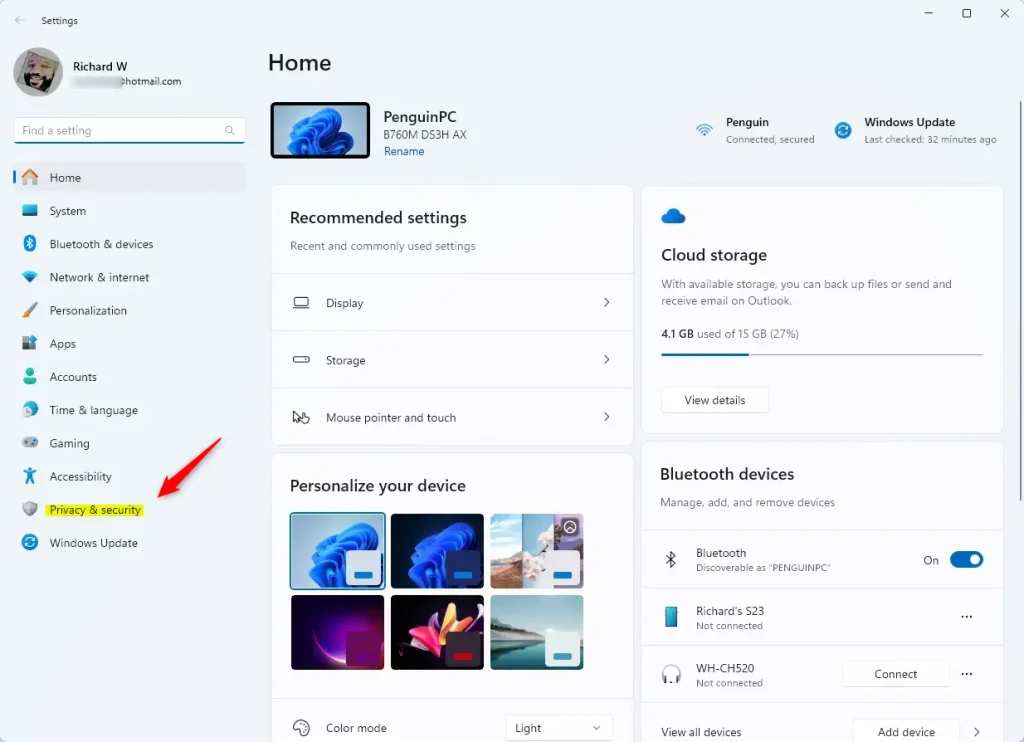
On the right, click the Recall & snapshots page to open its settings and turn on the “Save snapshots” feature.

Then click on Storage to expand the tile, and adjust the storage reservation to the “Maximum storage for snapshots” setting.
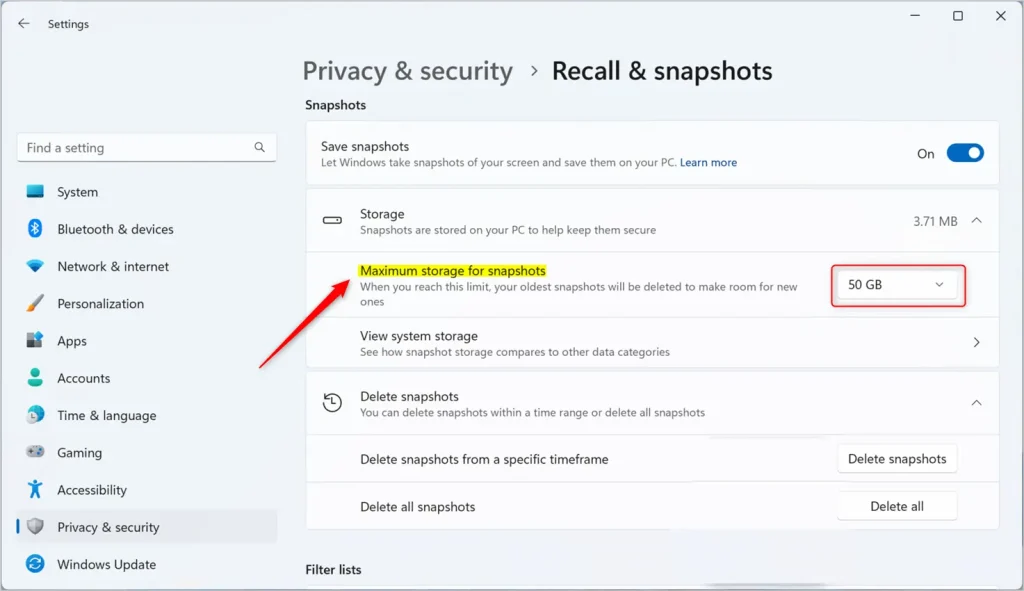
Change maximum storage for recall and snapshots updated

That should do it!

Reference:

Microsoft

Conclusion:

  • Adjusting the maximum storage for snapshots in Windows 11 is a simple process that allows users to manage their storage allocation effectively.
  • By customizing the storage reservation for Recall & Snapshots, users can ensure that essential snapshots are retained without concerns about prematurely deleting older data.
  • Accessing the Windows Settings app and navigating to the Recall & snapshots page empowers users to modify the maximum storage for snapshots according to their specific storage capacity and preferences.
  • Following these steps enables users to maintain an optimal balance between storing significant data and efficiently managing their recall snapshots.

Frequently Asked Questions

How do I change the maximum storage for snapshots in Windows 11?

To change the maximum storage for snapshots in Windows 11, open the Settings app, navigate to Privacy & security, and select Recall & snapshots. From there, you can adjust the storage reservation under the Storage section.

What happens when the maximum storage for snapshots is reached?

When the maximum storage for snapshots is reached, Windows automatically deletes the oldest snapshots to make room for new ones. This ensures that you always have the most recent snapshots available without manual intervention.

Can I delete snapshots manually in Windows 11?

Yes, you can delete snapshots manually in Windows 11. Simply go to Settings, then Privacy & security, and select Recall & snapshots to manage and delete your snapshots as needed.

What are the storage allocation options for Recall in Windows 11?

The storage allocation options for Recall in Windows 11 vary based on your device's storage capacity. For example, a 256 GB device has options of 25 GB (default) or 10 GB, while a 1 TB device can allocate up to 150 GB (default) or as low as 25 GB.

Is it safe to adjust the storage size for snapshots in Windows 11?

Yes, adjusting the storage size for snapshots in Windows 11 is safe and can help you manage your storage effectively. You can increase the storage limit to retain more snapshots or decrease it if you're running low on space.

Categories:

Tags:

5 responses to “Change Maximum Storage for Windows 11 Snapshots”

  1. […] are essentially copies of your PC’s current state, are securely stored on your PC. Windows sets a maximum storage size for these snapshots, which you can change anytime. Once that maximum is reached, the oldest snapshots are deleted […]

  2. […] copies of your PC’s current state, are securely stored on your PC. Windows sets a maximum storage size for these snapshots, which you can change anytime. Once that maximum is reached, the oldest snapshots are deleted […]

  3. […] snapshots, copies of your PC’s current state, are securely stored on your PC. Windows sets a maximum storage size for these snapshots, which you can change anytime. Once that maximum is reached, the oldest snapshots are deleted […]

  4. […] snapshots, copies of your PC’s current state, are securely stored on your PC. Windows sets a maximum storage size for these snapshots, which you can change anytime. Once that maximum is reached, the oldest snapshots are deleted […]

  5. […] snapshots, copies of your PC’s current state, are securely stored on your PC. Windows sets a maximum storage size for these snapshots, which you can change anytime. Once that maximum is reached, the oldest snapshots are deleted […]

Leave a Reply

Your email address will not be published. Required fields are marked *

Exit mobile version
